> ## Documentation Index
> Fetch the complete documentation index at: https://docs.macropay.ai/llms.txt
> Use this file to discover all available pages before exploring further.

# Embedded Checkout

> Sell from inside your own site — no redirect, no PCI scope, tax handled for you
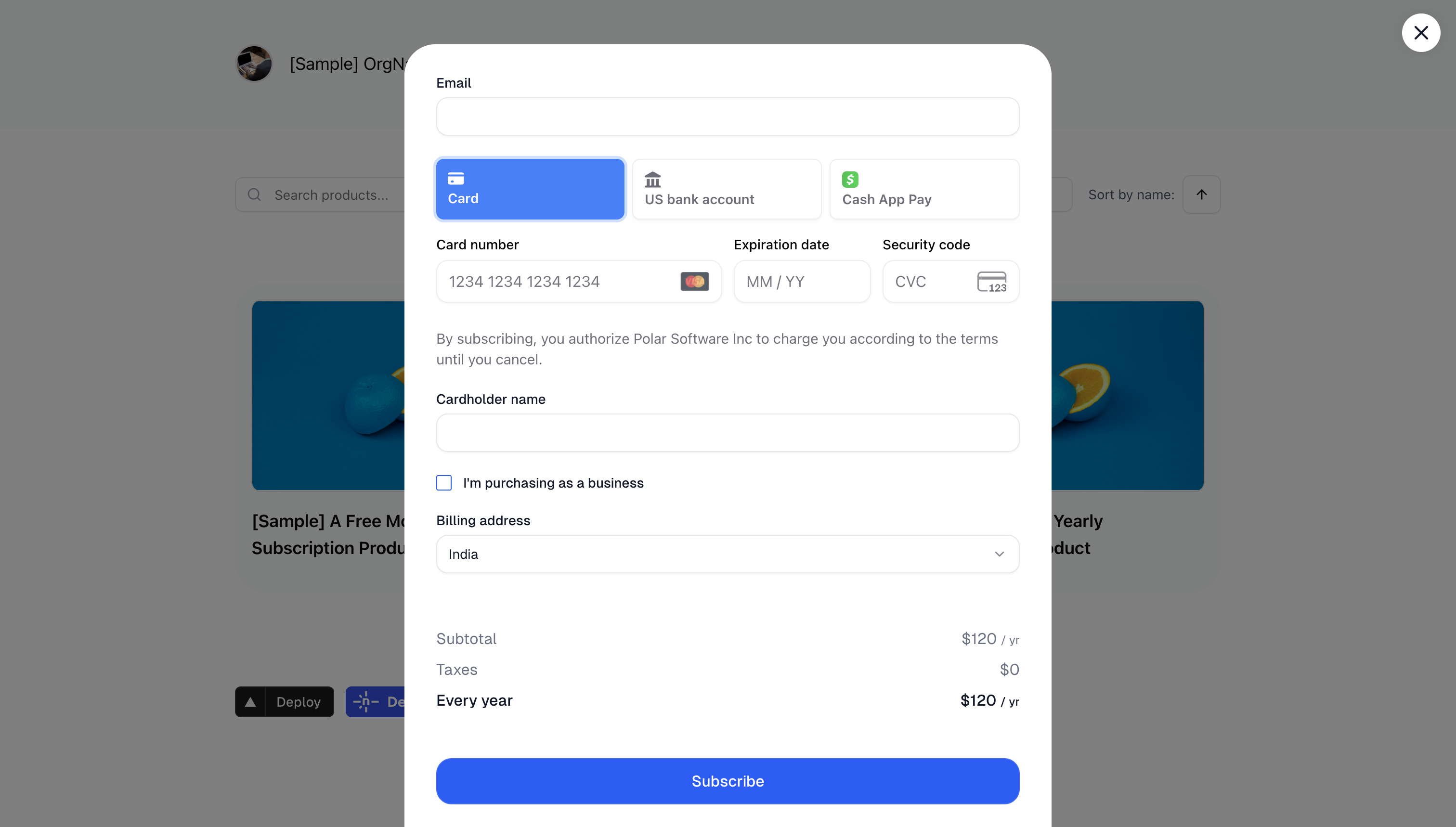
<img src="https://docs.macropay.ai/assets/features/checkout/embed/demo.png" />

Keep buyers on your page through the entire purchase. The embedded checkout opens our payment form in an overlay on top of your site, so customers never bounce to a hosted page mid-funnel. Card data is captured and tokenized in our PCI DSS Level 1 compliant vault, and because Macropay is the Merchant of Record, sales tax and VAT are calculated, collected, and remitted on the order — you ship the integration, we own the tax and compliance.

There are two ways in:

* **Drop-in snippet** — paste two tags into any HTML page or CMS. Zero build step.
* **JavaScript library** — install the package for SPAs, event hooks, and programmatic control.

## Drop-in snippet

Works anywhere you can paste HTML — a landing page, a Framer site, a Webflow block, a docs page.

Start from a [checkout link](/features/checkout/links). Open the link in your dashboard and click **Copy Embed Code** to grab a ready-to-paste snippet, which looks like this:

```typescript theme={null}
<a
  href="__CHECKOUT_LINK__"
  data-macropay-checkout
  data-macropay-checkout-theme="light"
>
  Buy the Pro plan
</a>

<script
  defer
  data-auto-init
  src="https://cdn.jsdelivr.net/npm/@macropayments/checkout@latest/dist/embed.global.js"
></script>
```

The link renders inline and opens the checkout overlay on click. Style the trigger however you like — any element works as long as it carries the `data-macropay-checkout` attribute. Use `data-macropay-checkout-theme="dark"` to match a dark UI.

## JavaScript library

For a React, Vue, or other bundled app, injecting a raw `<script>` tag is awkward. Install the package instead:

<CodeGroup>
  ```bash npm theme={null}
  npm install @macropayments/checkout
  ```

  ```bash pnpm theme={null}
  pnpm add @macropayments/checkout
  ```

  ```bash yarn theme={null}
  yarn add @macropayments/checkout
  ```
</CodeGroup>

Import `MacropayEmbedCheckout` and call `init()` once after mount. It wires up handlers on every element carrying the `data-macropay-checkout` attribute:

```ts theme={null}
import { MacropayEmbedCheckout } from '@macropayments/checkout/embed'
import { useEffect } from 'react'

const UpgradeLink = () => {
  useEffect(() => {
    MacropayEmbedCheckout.init()
  }, [])

  return (
    <a
      href="__CHECKOUT_LINK__"
      data-macropay-checkout
      data-macropay-checkout-theme="light"
    >
      Upgrade to Pro
    </a>
  )
}

export default UpgradeLink
```

<Tip>
  A static checkout link is fine for fixed prices, but anything personalized — a [pay-what-you-want](/features/products) amount, a prefilled customer, or a usage-based plan — should use a dynamically created [checkout session](/features/checkout/session) URL instead.

  When you create the session, set [`embed_origin`](/api-reference/checkouts/create-session#body-embed-origin) to the origin serving your checkout page. If the page lives at `https://acme.dev/upgrade`, set `embed_origin` to `https://acme.dev`.
</Tip>

## Programmatic control

Beyond declarative triggers, `MacropayEmbedCheckout` exposes an imperative API for opening, listening to, and closing the overlay yourself.

### Open on demand

Skip the `data-` attribute and open the checkout from your own code — handy when the buy action depends on app state, like a completed cart or a confirmed seat count:

```ts theme={null}
import { MacropayEmbedCheckout } from "@macropayments/checkout/embed";

const openCheckout = async () => {
  const checkoutLink = "__CHECKOUT_LINK__";

  try {
    // create() builds the overlay iframe and resolves
    // once the checkout is fully loaded
    const checkout = await MacropayEmbedCheckout.create(checkoutLink, {
      theme: "dark",
    });

    return checkout;
  } catch (error) {
    console.error("Failed to open checkout", error);
  }
};

document.getElementById("buy-button").addEventListener("click", () => {
  openCheckout();
});
```

### React to checkout events

Subscribe to lifecycle events to drive analytics, fulfillment hints, or your own success UI. For `loaded`, prefer the `onLoaded` callback on `create()` — it fires reliably even when the overlay loads instantly.

| Event       | Fires when                 | Common use                                   |
| ----------- | -------------------------- | -------------------------------------------- |
| `loaded`    | Overlay finished loading   | Hide your own spinner                        |
| `confirmed` | Payment is being processed | Lock the UI, show progress                   |
| `success`   | Purchase completed         | Track the conversion, show a thank-you state |
| `close`     | Overlay was dismissed      | Reset state, re-enable the trigger           |

```ts theme={null}
import { MacropayEmbedCheckout } from "@macropayments/checkout/embed";

const openCheckoutWithEvents = async () => {
  const checkout = await MacropayEmbedCheckout.create("__CHECKOUT_LINK__", {
    onLoaded: (event) => {
      console.log("Checkout loaded");
    },
  });

  checkout.addEventListener("close", (event) => {
    console.log("Checkout was dismissed");
    // Call event.preventDefault() to keep the standard behavior from running
    // event.preventDefault()
  });

  checkout.addEventListener("confirmed", (event) => {
    console.log("Payment is processing");
    // event.preventDefault() here would skip marking the checkout non-closable
  });

  checkout.addEventListener("success", (event) => {
    console.log("Purchase successful", event.detail);

    // For the success event, preventDefault() blocks the automatic redirect
    // when redirect is true:
    // event.preventDefault()

    // If redirect is false, render your own confirmation
    if (!event.detail.redirect) {
      showSuccessMessage();
    }
  });

  return checkout;
};
```

### A complete React component

This component opens the overlay, reports the conversion, and cleans up its instance on unmount:

```ts theme={null}
import { MacropayEmbedCheckout } from '@macropayments/checkout/embed'
import { useState, useEffect } from 'react'

const CheckoutButton = () => {
  const [checkoutInstance, setCheckoutInstance] = useState(null)

  // Close any open overlay if the component unmounts
  useEffect(() => {
    return () => {
      if (checkoutInstance) {
        checkoutInstance.close()
      }
    }
  }, [checkoutInstance])

  const handleCheckout = async () => {
    try {
      const checkout = await MacropayEmbedCheckout.create(
        '__CHECKOUT_LINK__',
        {
          theme: 'light',
          onLoaded: () => {
            console.log('Checkout loaded — guaranteed even on fast loads')
          },
        }
      )

      setCheckoutInstance(checkout)

      checkout.addEventListener('success', (event) => {
        analytics.track('Purchase Completed', {
          productId: 'prod_pro_annual',
        })

        if (!event.detail.redirect) {
          // Render your own success state
        }
      })

      checkout.addEventListener('close', () => {
        setCheckoutInstance(null)
      })
    } catch (error) {
      console.error('Failed to open checkout', error)
    }
  }

  return (
    <button onClick={handleCheckout}>
      Complete purchase
    </button>
  )
}

export default CheckoutButton
```

### Close it yourself

Dismiss the overlay from code when your app needs the buyer somewhere else first — for example, to finish an onboarding step or resolve a billing conflict:

```ts theme={null}
import { MacropayEmbedCheckout } from "@macropayments/checkout/embed";

let activeCheckout = null;

async function openCheckout() {
  const checkout = await MacropayEmbedCheckout.create("__CHECKOUT_LINK__");
  activeCheckout = checkout;
  return checkout;
}

function closeCheckout() {
  if (activeCheckout) {
    activeCheckout.close();
    // The 'close' event fires automatically — reset the reference there
  }
}

function setupCheckout(checkout) {
  checkout.addEventListener("close", () => {
    activeCheckout = null;
  });
  return checkout;
}

document.getElementById("open-checkout").addEventListener("click", async () => {
  const checkout = await openCheckout();
  setupCheckout(checkout);
});
document
  .getElementById("close-checkout")
  .addEventListener("click", closeCheckout);
```

## Wallet payments (Apple Pay & Google Pay)

One-tap wallets convert better than card entry, and they show up automatically on hosted checkout when the buyer's device supports them:

* **Apple Pay** appears when the buyer is on an Apple device, using Safari, signed into an Apple account with Apple Pay set up.
* **Google Pay** appears when the buyer is on Google Chrome, signed into a Google account with Google Pay set up.

On a standalone hosted checkout, there's nothing to configure — if the conditions above are met, the wallet button is there.

### Allowlisting your domain for embedded wallets

Inside an embedded overlay, wallet methods are **off by default**. Because the form runs on your domain, that domain has to be validated before Apple Pay or Google Pay can appear in embedded mode.

<Note>
  To turn on embedded wallet payments, [email support](mailto:support@macropay.ai) with:

  * Your organization slug
  * The domain you want allowlisted for wallet payments
</Note>
