> ## Documentation Index
> Fetch the complete documentation index at: https://docs.macropay.ai/llms.txt
> Use this file to discover all available pages before exploring further.
# Custom Fields
> Capture extra data at checkout — consent, attribution, anything you need — and read it back from Orders and Subscriptions.
A Macropay checkout already collects everything required to fulfill an order and act as your Merchant of Record: name, email, and billing details for tax and compliance. **Custom Fields** let you ask for the rest — the data your business needs but the default form doesn't capture.
Common reasons to reach for them:
* A required checkbox to accept your terms of service
* Newsletter or marketing opt-in consent
* "How did you hear about us?" attribution for your growth team
* A VAT ID, company name, or purchase-order reference for B2B buyers
* A seat count, license note, or any per-product input you want stored on the order
Every value lands on the resulting Order or Subscription and is queryable through the API, so you can route it into your CRM, analytics, or fulfillment logic.
## Where fields live
Custom Fields are defined once at the **organization** level, then attached to individual products. Define a field a single time and reuse it across as many products as you like.
To manage them, open **Settings → Custom Fields**. This lists every field your organization has defined.
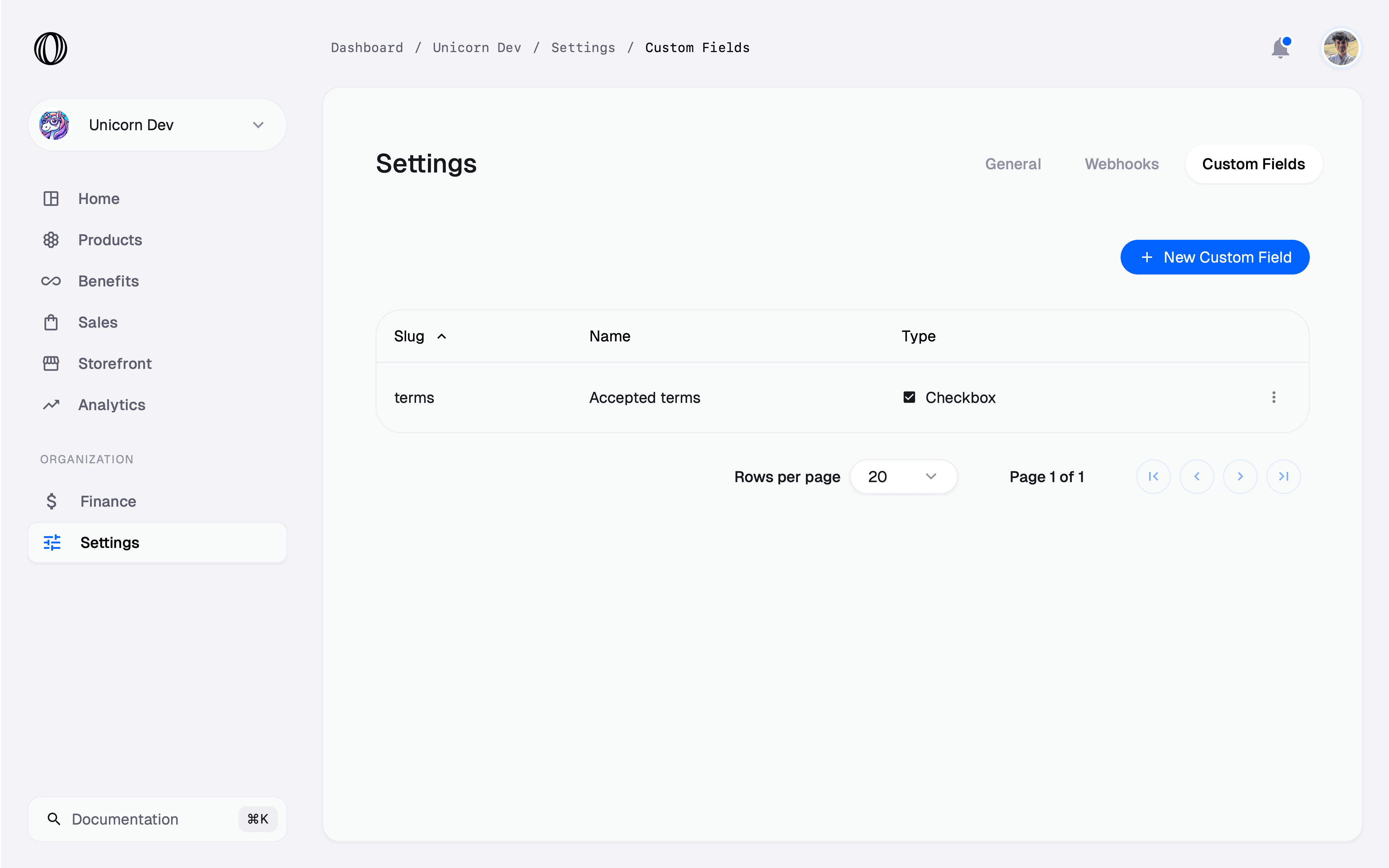
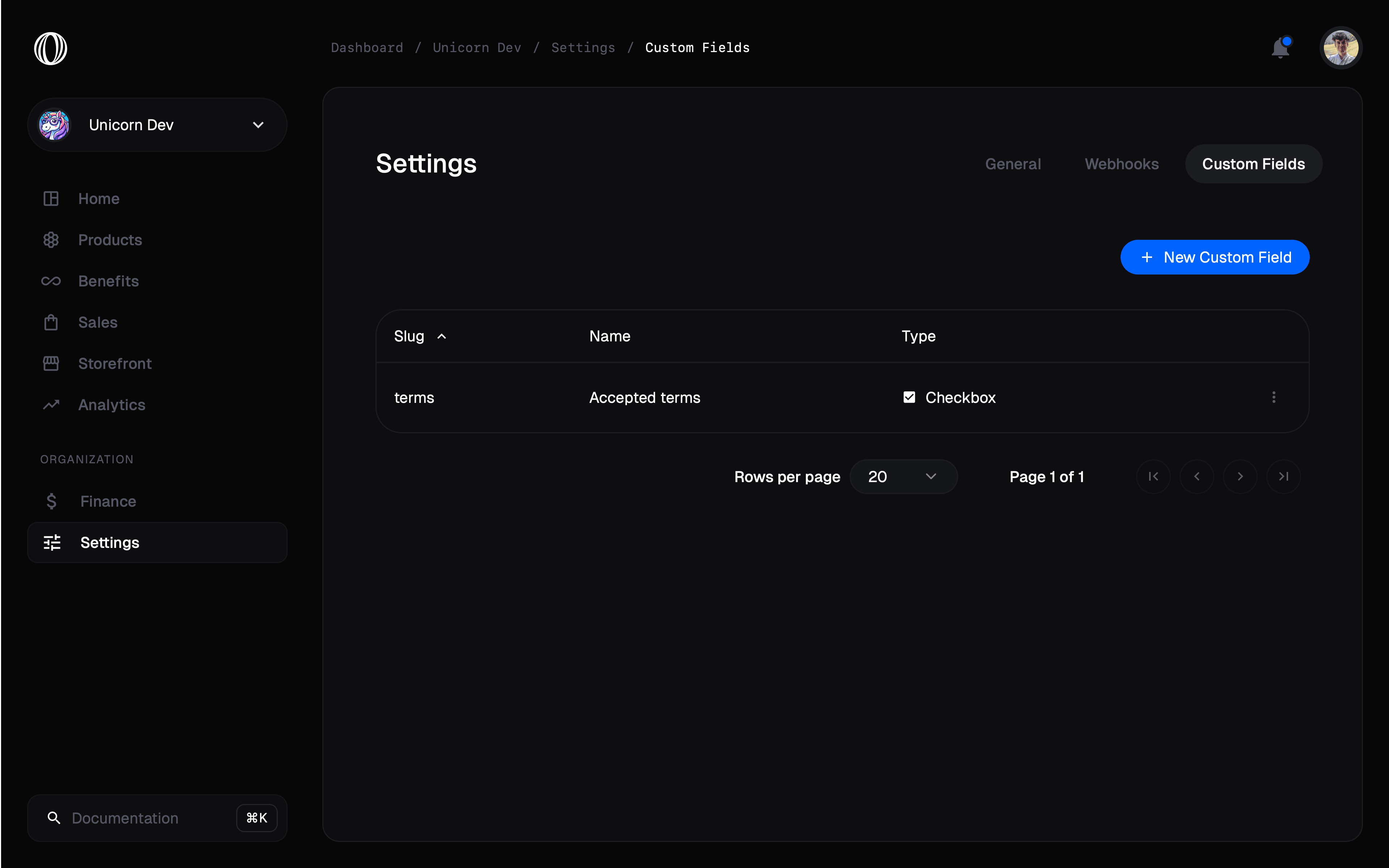 Select **New Custom Field** to add one.
## Field types
The **type** is the first and most consequential choice — it sets the input shown at checkout and the shape of the stored value. Pick carefully: the type is locked once the field is created.
| Type | Renders as | Stored as | Validation you can set |
| ------------ | ------------------------------------------------------------ | -------------------------- | ---------------------- |
| **Text** | Single-line input (or **textarea** via *Form input options*) | String | Min / max length |
| **Number** | Numeric input | Number | Min / max value |
| **Date** | Date picker | ISO 8601 string | Min / max date |
| **Checkbox** | Single checkbox | Boolean (`true` / `false`) | — |
| **Select** | Dropdown of predefined options | The chosen option's value | — |
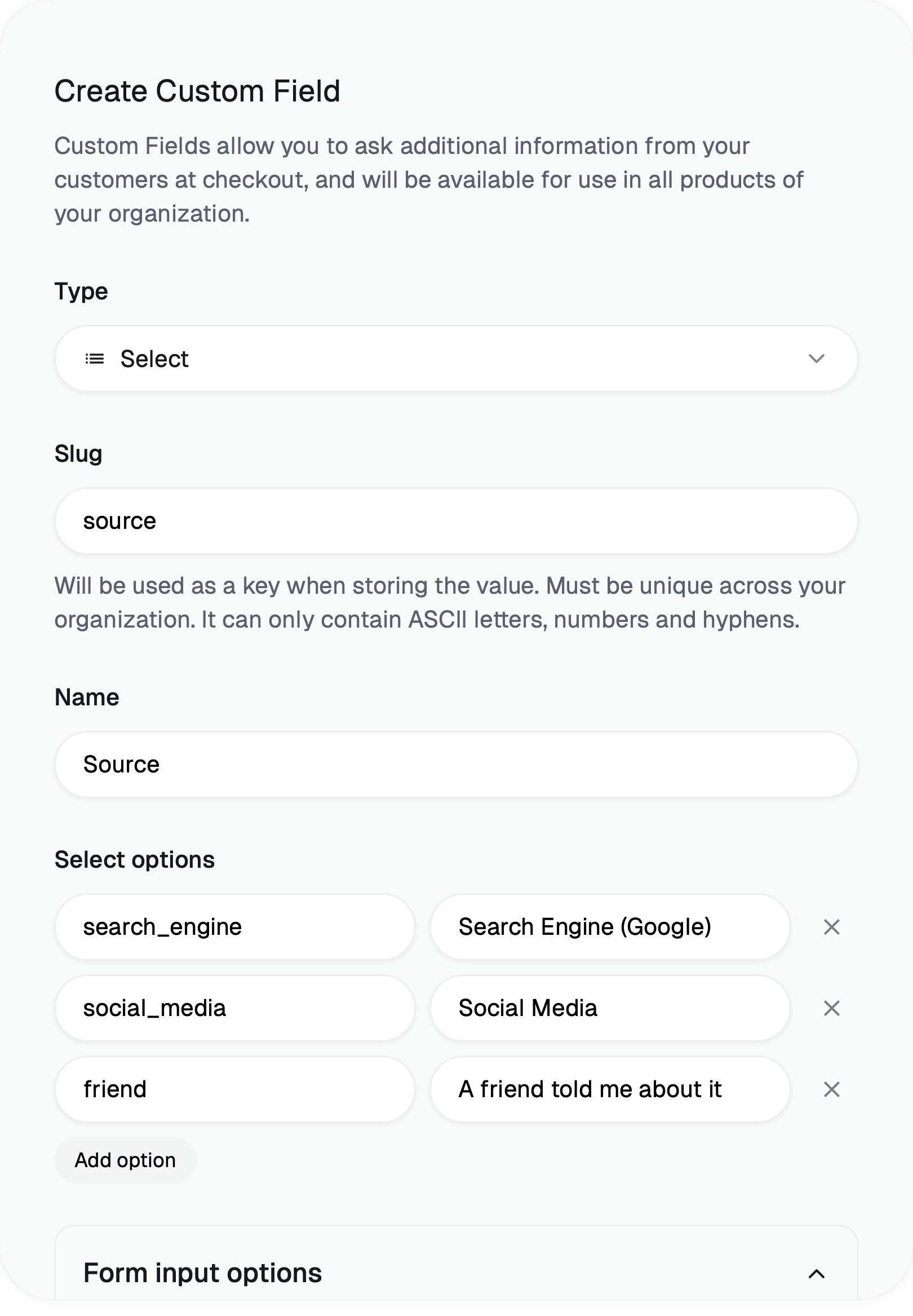
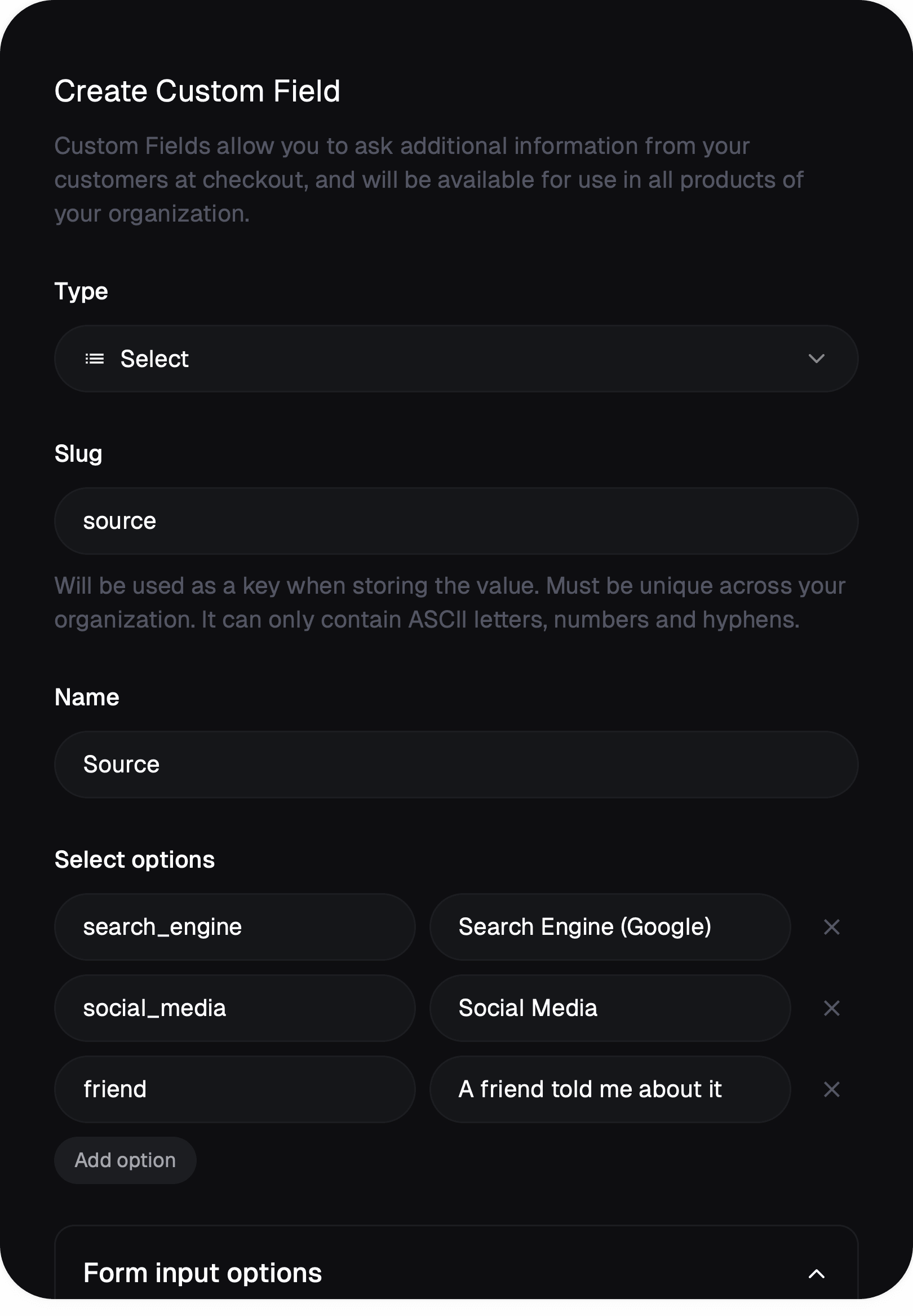
For a **Select** field, each option is a `Value` / `Label` pair: the `Value` is what gets stored, and the `Label` is what the customer sees. For example, an attribution dropdown might store `social_media` while displaying "Social media".
## Slug and name
Two identifiers matter, and they serve different audiences.
* **Slug** — the key your data is stored under on Orders, Subscriptions, and anywhere the field's value appears. It must be unique within your organization. Rename it any time; Macropay migrates existing data to the new slug automatically.
* **Name** — the human label you'll recognize in the dashboard. It defaults to the customer-facing label too, unless you override that under *Form input options*.
Select **New Custom Field** to add one.
## Field types
The **type** is the first and most consequential choice — it sets the input shown at checkout and the shape of the stored value. Pick carefully: the type is locked once the field is created.
| Type | Renders as | Stored as | Validation you can set |
| ------------ | ------------------------------------------------------------ | -------------------------- | ---------------------- |
| **Text** | Single-line input (or **textarea** via *Form input options*) | String | Min / max length |
| **Number** | Numeric input | Number | Min / max value |
| **Date** | Date picker | ISO 8601 string | Min / max date |
| **Checkbox** | Single checkbox | Boolean (`true` / `false`) | — |
| **Select** | Dropdown of predefined options | The chosen option's value | — |
For a **Select** field, each option is a `Value` / `Label` pair: the `Value` is what gets stored, and the `Label` is what the customer sees. For example, an attribution dropdown might store `social_media` while displaying "Social media".
## Slug and name
Two identifiers matter, and they serve different audiences.
* **Slug** — the key your data is stored under on Orders, Subscriptions, and anywhere the field's value appears. It must be unique within your organization. Rename it any time; Macropay migrates existing data to the new slug automatically.
* **Name** — the human label you'll recognize in the dashboard. It defaults to the customer-facing label too, unless you override that under *Form input options*.
 ## Customizing the checkout display
*Form input options* control how the field appears to your customer:
* **Label** — text shown above the field
* **Help text** — guidance shown below the field
* **Placeholder** — greyed-out hint shown inside an empty field
Label and help text accept basic Markdown, so you can add **bold**, *italic*, or links — handy for linking your terms page directly from a consent field.
## Customizing the checkout display
*Form input options* control how the field appears to your customer:
* **Label** — text shown above the field
* **Help text** — guidance shown below the field
* **Placeholder** — greyed-out hint shown inside an empty field
Label and help text accept basic Markdown, so you can add **bold**, *italic*, or links — handy for linking your terms page directly from a consent field.

 ## Attach a field to a product
Fields appear at checkout per product. When [creating or editing a product](/features/products), choose which Custom Fields to include in its checkout.
## Attach a field to a product
Fields appear at checkout per product. When [creating or editing a product](/features/products), choose which Custom Fields to include in its checkout.
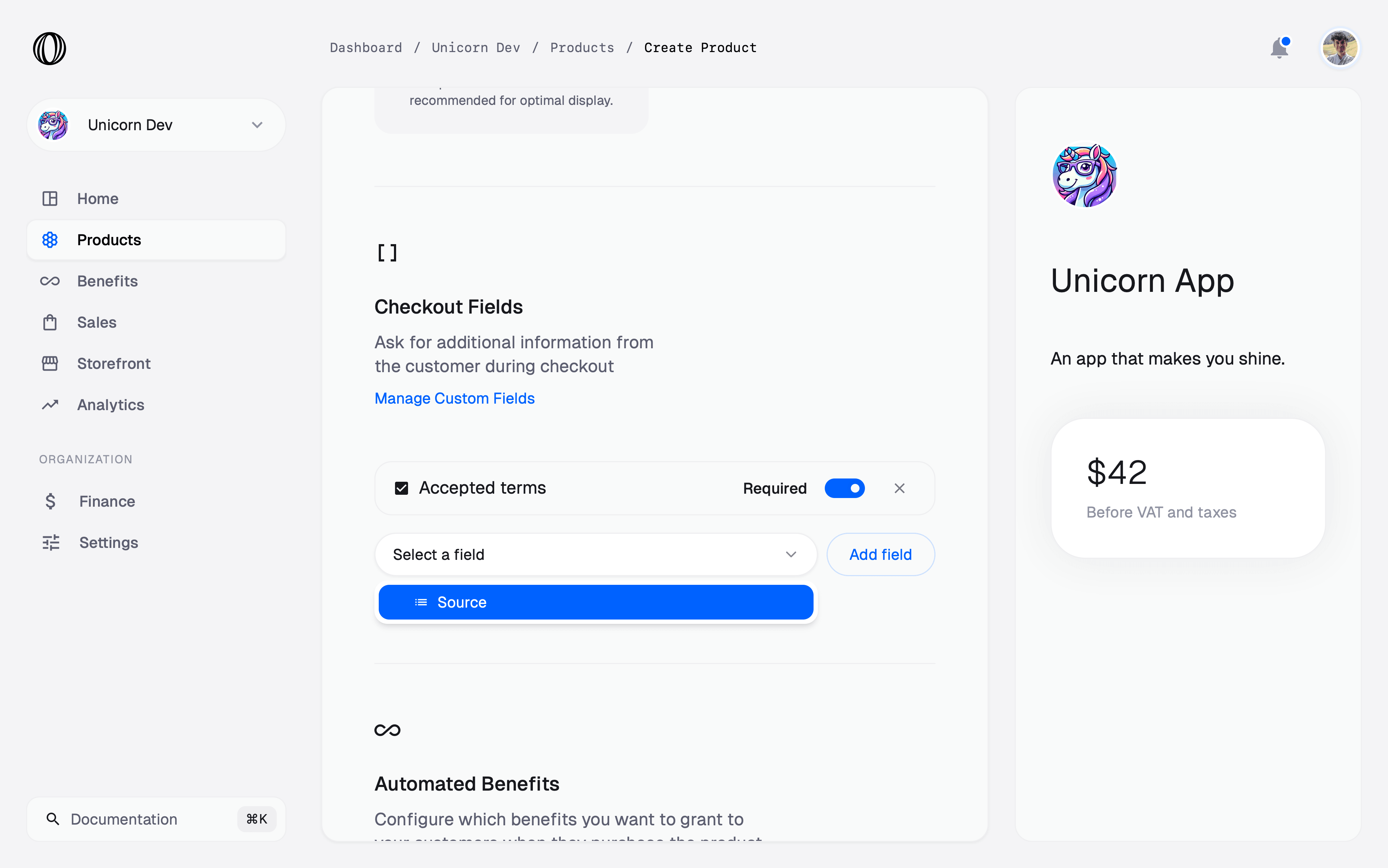
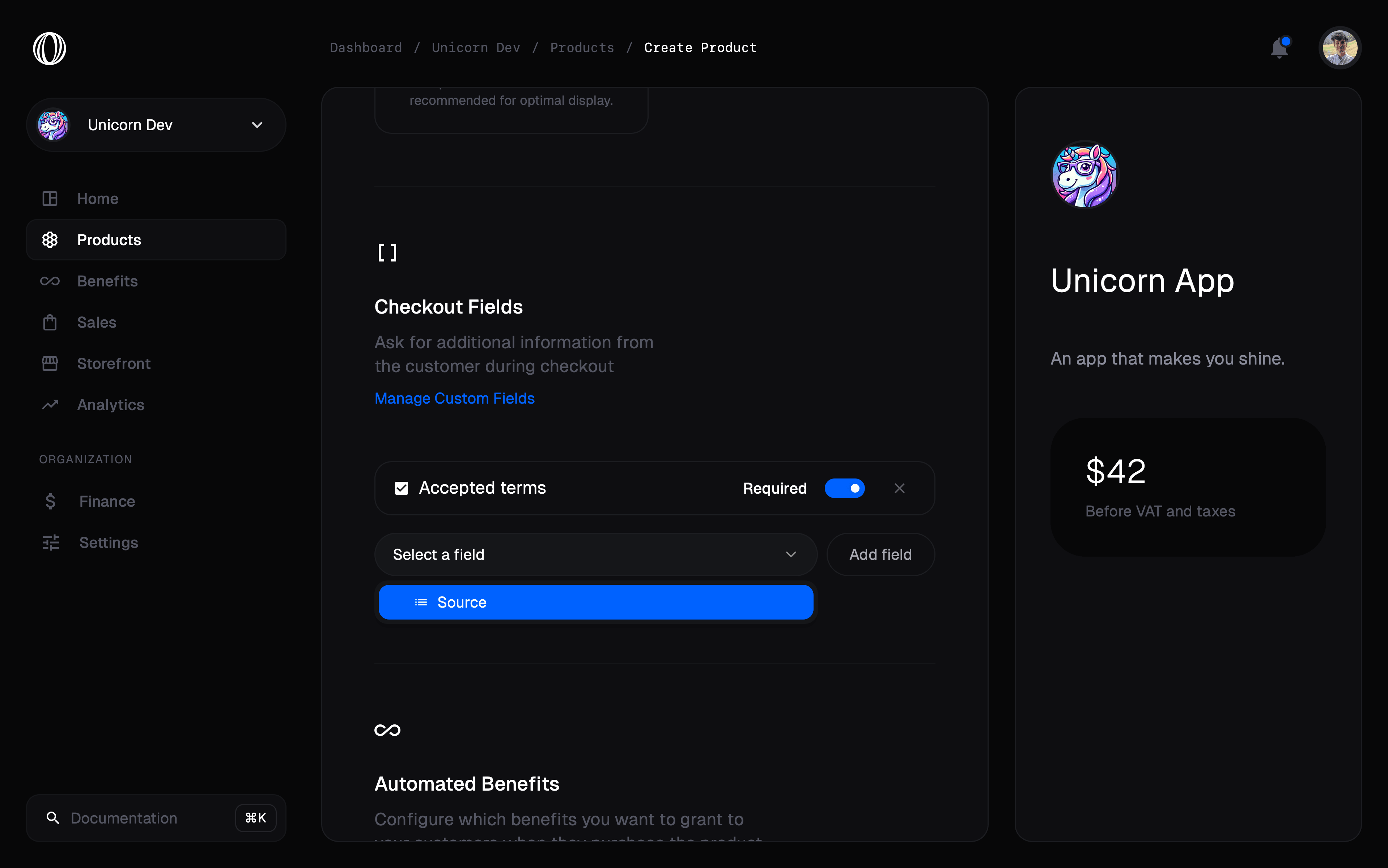 You can also mark a field **Required**.
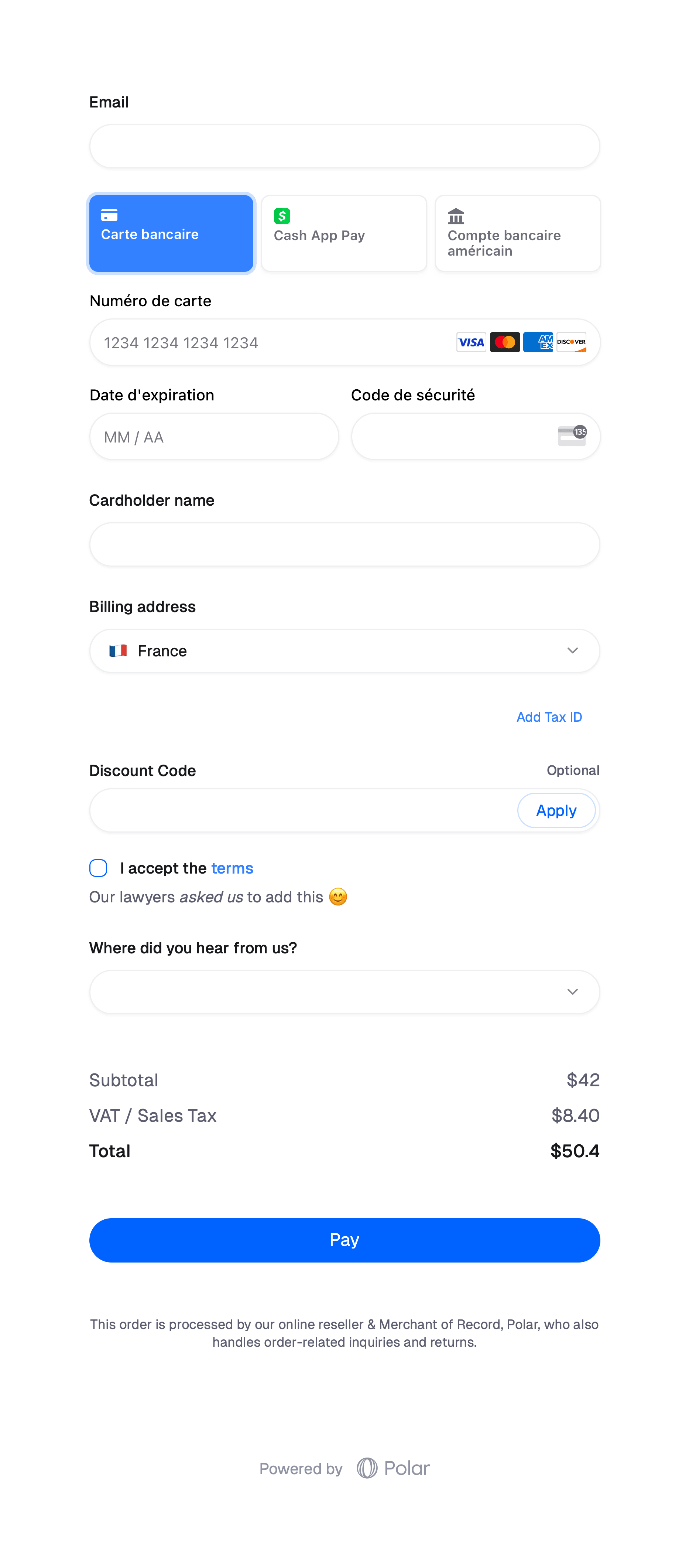
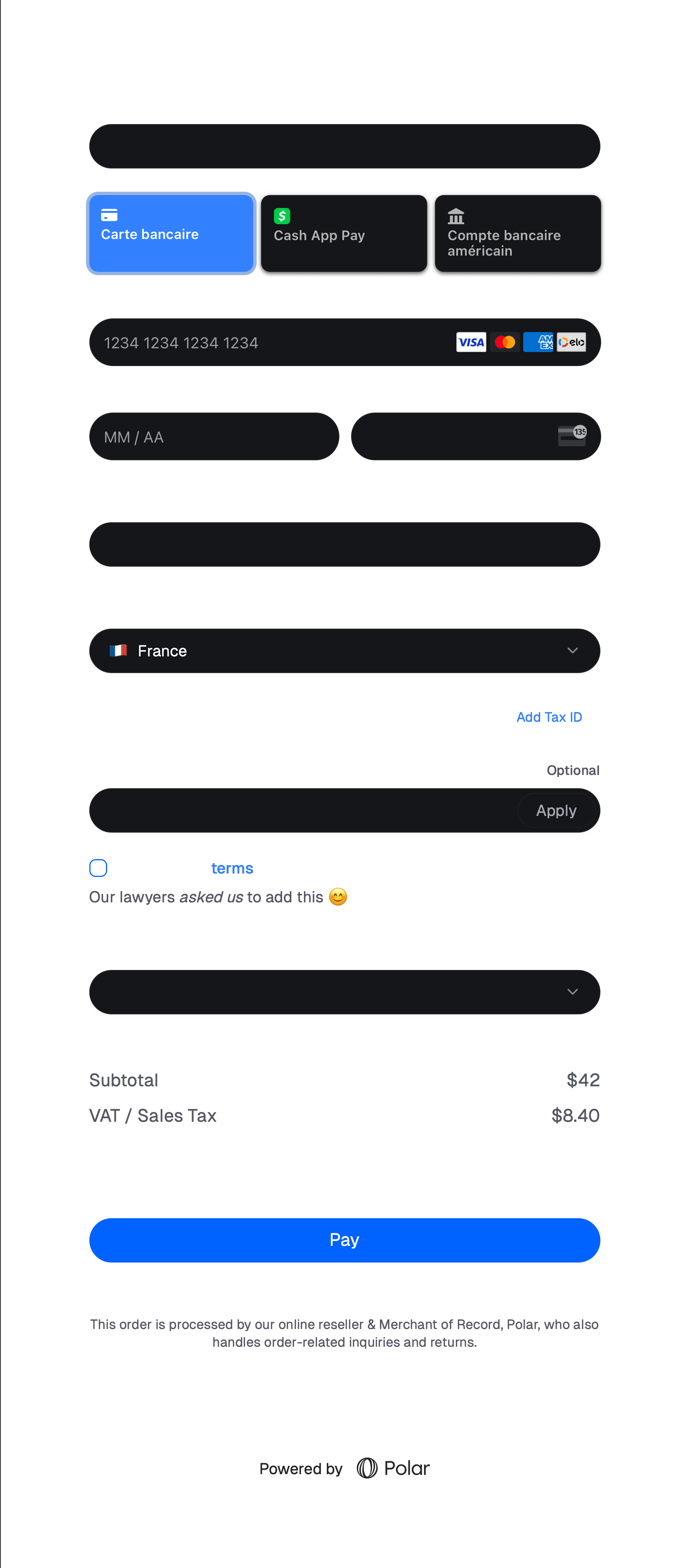
A **required checkbox** forces the customer to tick the box before they can
complete checkout — exactly what you want for terms-of-service acceptance.
The selected fields now render inside the checkout form for that product.
You can also mark a field **Required**.
A **required checkbox** forces the customer to tick the box before they can
complete checkout — exactly what you want for terms-of-service acceptance.
The selected fields now render inside the checkout form for that product.
 ## Reading the data back
In the dashboard, each Custom Field becomes a column on your **Sales** page, across both Orders and Subscriptions, so you can scan customer input at a glance.
## Reading the data back
In the dashboard, each Custom Field becomes a column on your **Sales** page, across both Orders and Subscriptions, so you can scan customer input at a glance.
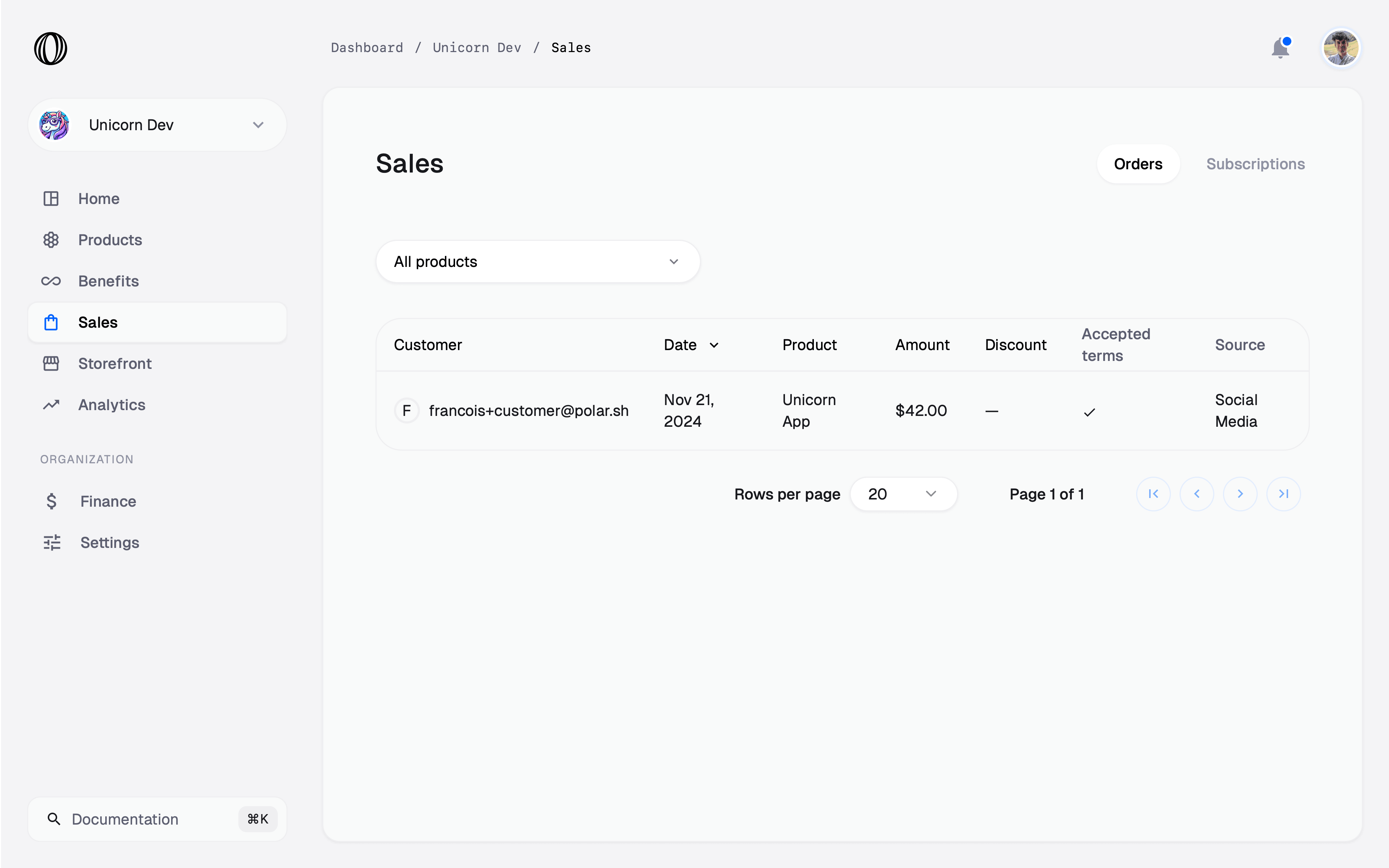
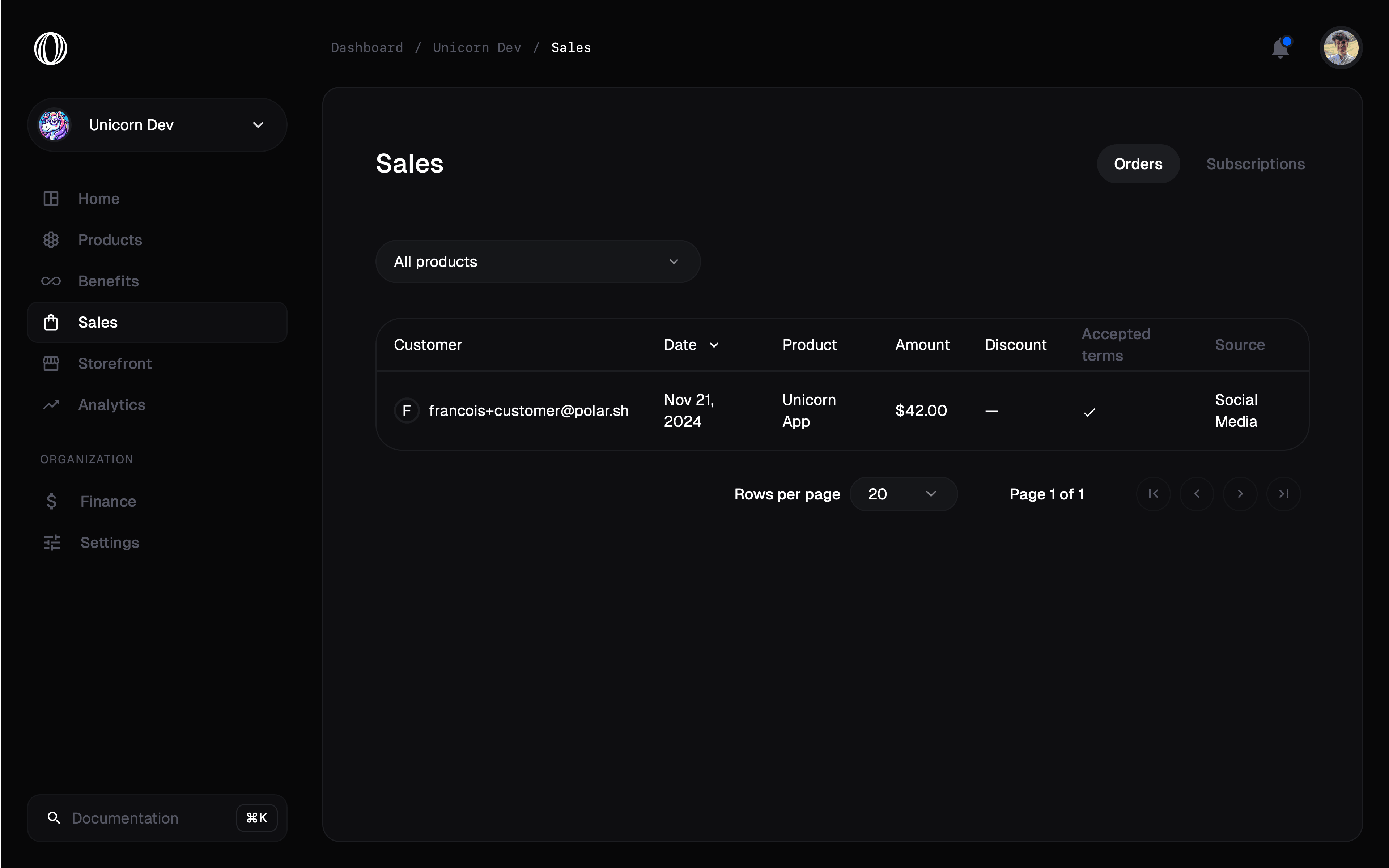 The same values are exposed through the [Orders](/api-reference/orders/get) and [Subscriptions](/api-reference/subscriptions/get) API on the `custom_field_data` property, keyed by each field's **slug**:
```json theme={null}
{
"custom_field_data": {
"terms": true,
"source": "social_media",
"vat_id": "DE123456789"
}
}
```
Use the slug as a stable contract between your checkout and your backend.
Webhook handlers, CRM syncs, and fulfillment jobs can read
`custom_field_data["terms"]` or `custom_field_data["source"]` straight from the
order payload — no extra lookups, and the keys stay consistent even if you
rename the field's display name later.
The same values are exposed through the [Orders](/api-reference/orders/get) and [Subscriptions](/api-reference/subscriptions/get) API on the `custom_field_data` property, keyed by each field's **slug**:
```json theme={null}
{
"custom_field_data": {
"terms": true,
"source": "social_media",
"vat_id": "DE123456789"
}
}
```
Use the slug as a stable contract between your checkout and your backend.
Webhook handlers, CRM syncs, and fulfillment jobs can read
`custom_field_data["terms"]` or `custom_field_data["source"]` straight from the
order payload — no extra lookups, and the keys stay consistent even if you
rename the field's display name later.