> ## Documentation Index
> Fetch the complete documentation index at: https://docs.macropay.ai/llms.txt
> Use this file to discover all available pages before exploring further.
# Discounts
> Run promos and coupons on any product or subscription — tax-correct, MoR-handled, code or auto-applied
A discount lowers the price a customer pays at checkout. Because Macropay is your **merchant of record**, you set the promo and we handle the rest: the sales tax / VAT is recalculated on the discounted total, remitted on your behalf, and your tax liability stays capped. Discounts work the same way on one-time products and on subscriptions, so a single coupon can power a launch sale, a partner offer, or a win-back campaign.
 ## Create a discount
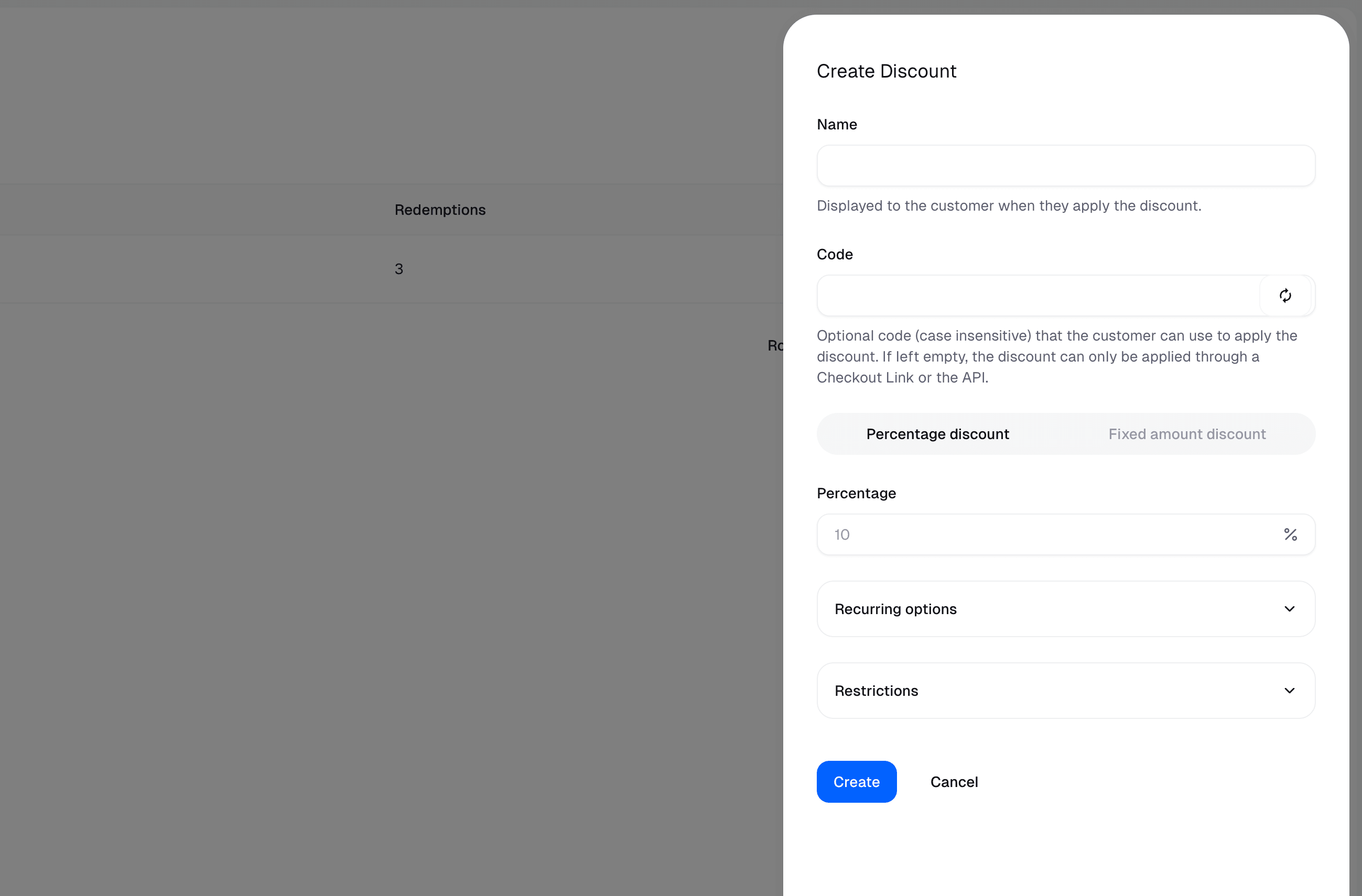
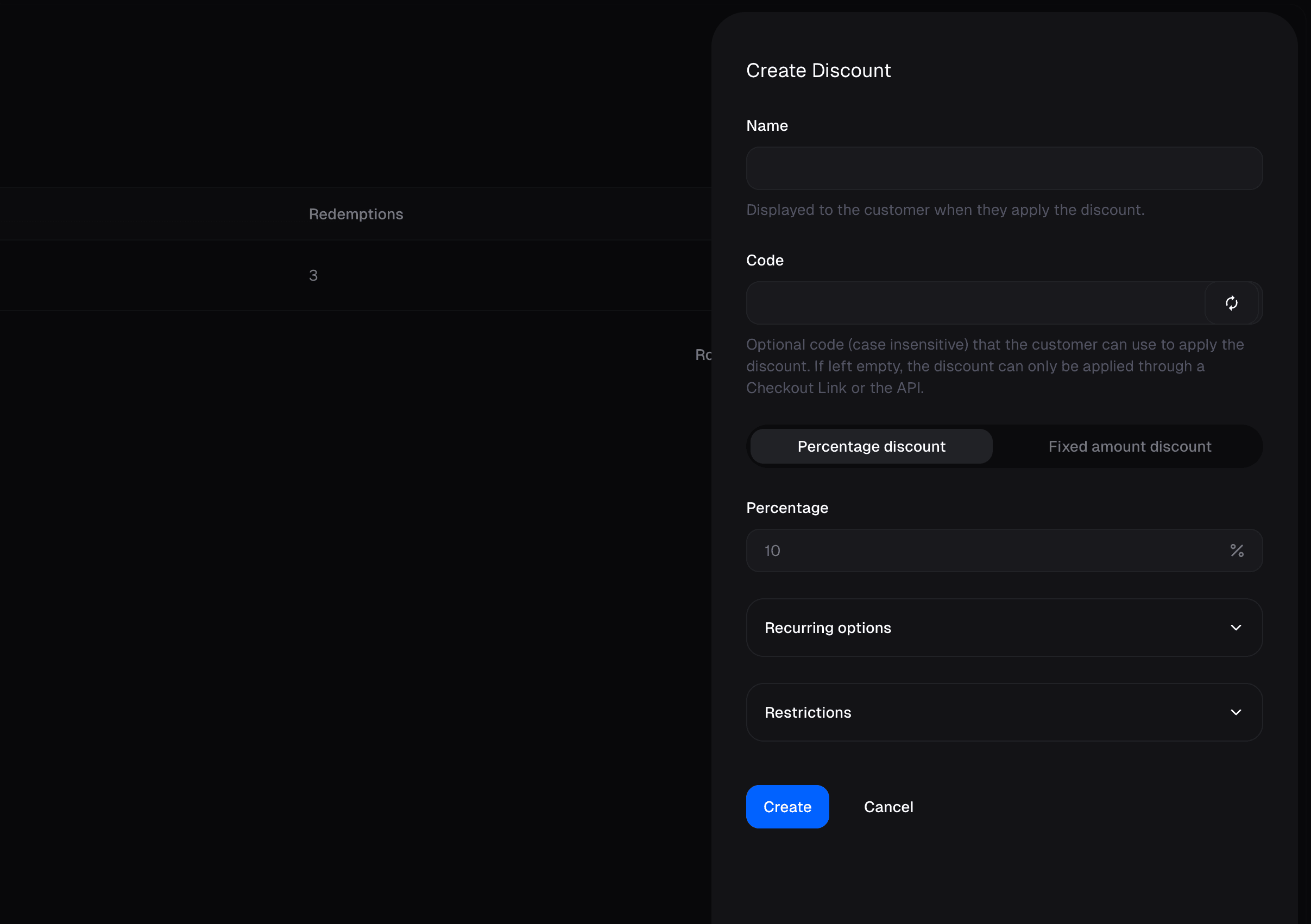
Open the **Products** page in the dashboard and switch to the **Discounts** tab. Each discount is defined by a few fields.
| Field | What it does |
| ------------------------- | -------------------------------------------------------------------------------------------------------------------------------------------------------------------------- |
| **Name** | Shown to the customer once the discount is applied. |
| **Code** | Optional, case-insensitive coupon the customer types in (e.g. `SPRING25`). Leave it blank to make the discount code-less — applicable only via a Checkout Link or the API. |
| **Percentage discount** | Takes a percentage off the product or subscription price. |
| **Fixed amount discount** | Subtracts a flat amount from the price. |
### Recurring behavior
For subscriptions, choose how long a percentage discount keeps applying:
* **Once** — applied to the first invoice only.
* **Several months** — applied for a fixed number of billing cycles, then full price resumes.
* **Forever** — applied indefinitely for the life of the subscription.
### Restrictions
Tighten where and when a discount can be redeemed:
* **Products** — limit the discount to specific products. By default it covers every product, including ones you create *after* the discount.
* **Starts at** — the discount becomes redeemable on this date.
* **Ends at** — the discount stops being redeemable after this date.
* **Maximum redemptions** — cap the total number of times the discount can be used.
Pair **Maximum redemptions** with **Ends at** for a true "first 100 customers before Friday" launch offer — once either limit is hit, the code stops working automatically.
## Apply a discount
There are three ways to get a discount onto a customer's checkout.
### 1. Auto-apply via a Checkout Link
When you build a [Checkout Link](/features/checkout/links), you can attach a discount that applies the moment a customer lands on the page — no code to type, no chance they forget it. This is the cleanest path for a campaign where you want the price guaranteed: a Product Hunt launch link, an affiliate partner's URL, or a newsletter promo.
Code-less discounts can only be applied through a Checkout Link or the API. If you want customers to enter a coupon manually, give the discount a **Code**.
### 2. Prefill a code via query parameter
Append a `discount_code` query parameter to any Checkout Link to prefill the coupon field:
```
https://buy.macropay.ai/c/your-link?discount_code=SPRING25
```
This only fills in the field — the customer still sees the code in the form and can change or remove it. Use it when you want the offer visible (and editable) rather than silently baked in.
### 3. Apply programmatically via the Checkout API
Create a Checkout Session and pass the discount yourself. Handy for AI agents and apps that assemble a personalized cart — for example, an upgrade flow that grants a loyalty coupon based on a customer's usage:
```bash theme={null}
curl -X POST https://api.macropay.ai/v1/checkouts/ \
-H "Authorization: Bearer $MACROPAY_API_KEY" \
-H "Content-Type: application/json" \
-d '{
"products": ["prod_team_seat"],
"discount_id": "disc_spring25",
"customer_email": "ada@example.dev"
}'
```
See the [Checkout Session reference](/features/checkout/session) for the full payload, including how to pin the discount so the customer can't swap it out.
However a discount is applied, Macropay stays the seller of record on the customer's statement and remits the correct tax on the *discounted* amount — you never reconcile VAT against a coupon yourself.
## Create a discount
Open the **Products** page in the dashboard and switch to the **Discounts** tab. Each discount is defined by a few fields.
| Field | What it does |
| ------------------------- | -------------------------------------------------------------------------------------------------------------------------------------------------------------------------- |
| **Name** | Shown to the customer once the discount is applied. |
| **Code** | Optional, case-insensitive coupon the customer types in (e.g. `SPRING25`). Leave it blank to make the discount code-less — applicable only via a Checkout Link or the API. |
| **Percentage discount** | Takes a percentage off the product or subscription price. |
| **Fixed amount discount** | Subtracts a flat amount from the price. |
### Recurring behavior
For subscriptions, choose how long a percentage discount keeps applying:
* **Once** — applied to the first invoice only.
* **Several months** — applied for a fixed number of billing cycles, then full price resumes.
* **Forever** — applied indefinitely for the life of the subscription.
### Restrictions
Tighten where and when a discount can be redeemed:
* **Products** — limit the discount to specific products. By default it covers every product, including ones you create *after* the discount.
* **Starts at** — the discount becomes redeemable on this date.
* **Ends at** — the discount stops being redeemable after this date.
* **Maximum redemptions** — cap the total number of times the discount can be used.
Pair **Maximum redemptions** with **Ends at** for a true "first 100 customers before Friday" launch offer — once either limit is hit, the code stops working automatically.
## Apply a discount
There are three ways to get a discount onto a customer's checkout.
### 1. Auto-apply via a Checkout Link
When you build a [Checkout Link](/features/checkout/links), you can attach a discount that applies the moment a customer lands on the page — no code to type, no chance they forget it. This is the cleanest path for a campaign where you want the price guaranteed: a Product Hunt launch link, an affiliate partner's URL, or a newsletter promo.
Code-less discounts can only be applied through a Checkout Link or the API. If you want customers to enter a coupon manually, give the discount a **Code**.
### 2. Prefill a code via query parameter
Append a `discount_code` query parameter to any Checkout Link to prefill the coupon field:
```
https://buy.macropay.ai/c/your-link?discount_code=SPRING25
```
This only fills in the field — the customer still sees the code in the form and can change or remove it. Use it when you want the offer visible (and editable) rather than silently baked in.
### 3. Apply programmatically via the Checkout API
Create a Checkout Session and pass the discount yourself. Handy for AI agents and apps that assemble a personalized cart — for example, an upgrade flow that grants a loyalty coupon based on a customer's usage:
```bash theme={null}
curl -X POST https://api.macropay.ai/v1/checkouts/ \
-H "Authorization: Bearer $MACROPAY_API_KEY" \
-H "Content-Type: application/json" \
-d '{
"products": ["prod_team_seat"],
"discount_id": "disc_spring25",
"customer_email": "ada@example.dev"
}'
```
See the [Checkout Session reference](/features/checkout/session) for the full payload, including how to pin the discount so the customer can't swap it out.
However a discount is applied, Macropay stays the seller of record on the customer's statement and remits the correct tax on the *discounted* amount — you never reconcile VAT against a coupon yourself.