> ## Documentation Index
> Fetch the complete documentation index at: https://docs.macropay.ai/llms.txt
> Use this file to discover all available pages before exploring further.
# Introduction
> Meter real usage, then bill for it — tax, compliance, and AI/agent costs handled as Merchant of Record.
Usage Based Billing is a new feature. We're shipping fast and actively want
your feedback.
## Charge for what customers actually use
Flat subscriptions are easy to bill but rarely match how modern software gets
consumed. AI products burn tokens, media apps stream minutes, infra tools move
gigabytes — and the bill should follow the usage, not a guess.
Macropay's Usage Based Billing turns a stream of raw activity into invoiced
revenue in three moves:
1. **Ingest events** — your app reports each unit of usage as it happens.
2. **Define meters** — filter and aggregate those events into a number you can price.
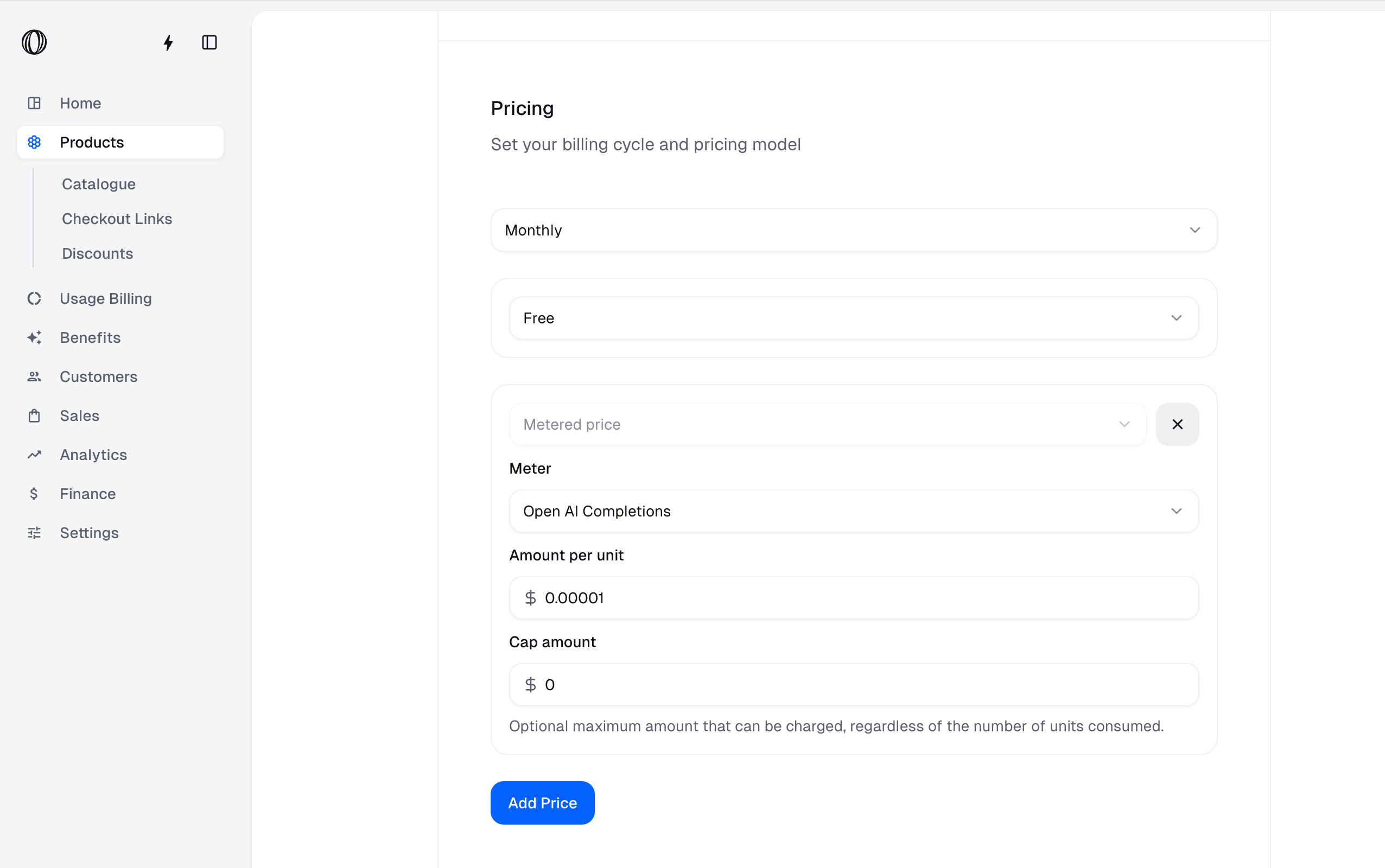
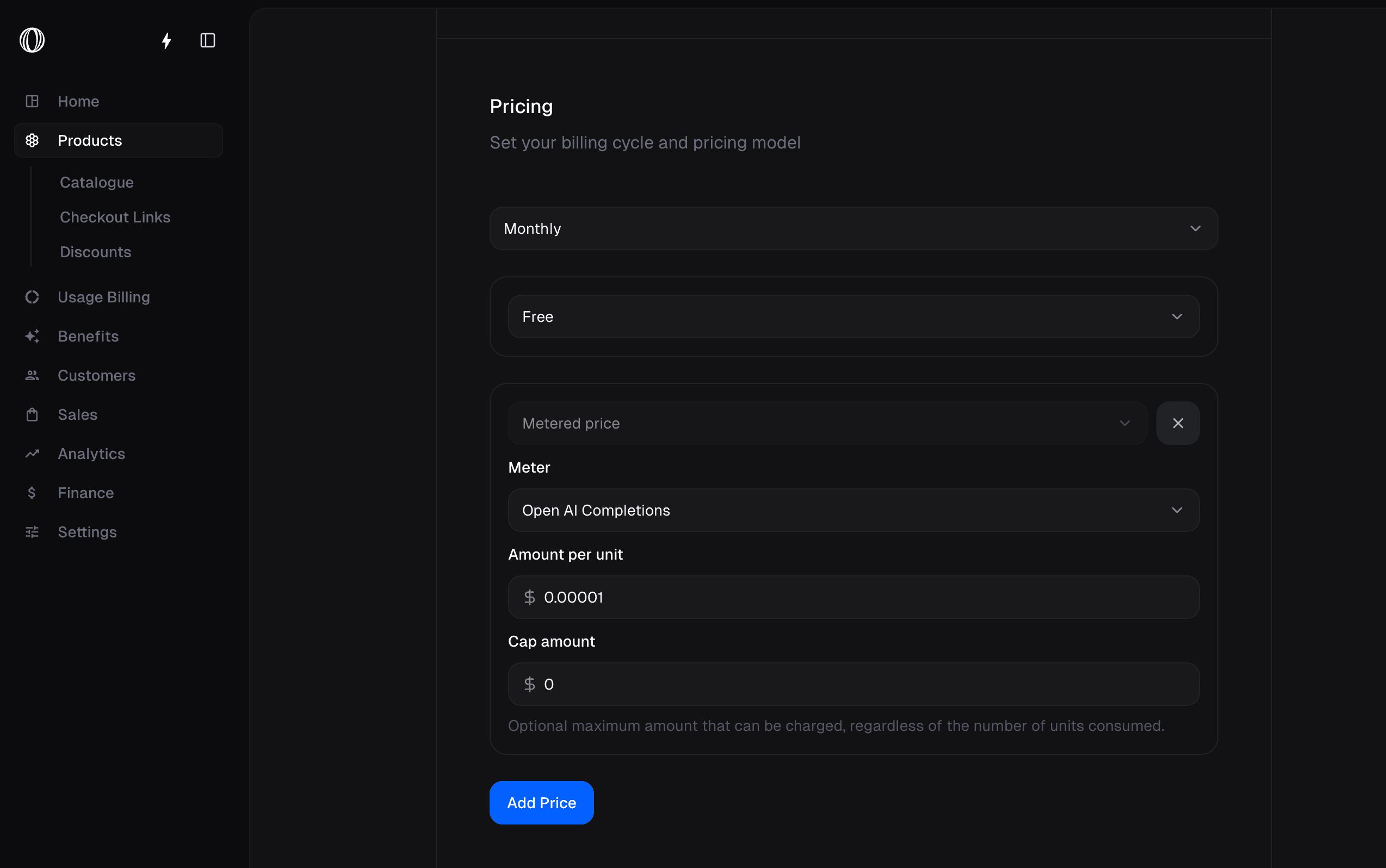
3. **Attach a metered price** — connect the meter to a product and let us bill it.
Because Macropay is the **Merchant of Record**, the metered revenue we collect
already accounts for global sales tax and VAT. We're the seller on the
customer's statement, we remit the tax worldwide, and your tax liability stays
limited — no extra plumbing on metered invoices.
Billing AI or agents? Usage metering is the same pipeline that powers
per-token, per-action, and outcome-based pricing. Send a usage event for every
model call and your spend converts straight into margin you can see per agent.
## How the pieces fit together
### Events
Events are the core of Usage Based Billing. They represent *some* usage done by a customer in your application. Typical examples of events are:
* A customer consumed AI LLM tokens
* A customer streamed minutes of video
* A customer uploaded a file to your application
Events are sent to Macropay using the [Events Ingestion API](/api-reference/events/ingest) and are stored in our database. An event consists of the following fields:
* A `name`, which is a string that can be used to identify the type of event. For example, `ai_usage`, `video_streamed` or `file_uploaded`.
* A `customer_id` or `external_customer_id`, which is Macropay's customer ID or your user's ID. This is used to identify the customer that triggered the event.
* A `metadata` object, which is a JSON object that can contain any additional information about the event. This is useful for storing information that can be used to filter the events or compute the actual usage. For example, you can store the duration of the video streamed or the size of the file uploaded.
Here is an example of an event:
```json theme={null}
{
"name": "ai_usage",
"external_customer_id": "cus_123",
"metadata": {
"model": "gpt-4.1-nano",
"requests": 1,
"total_tokens": 77,
"request_tokens": 58,
"response_tokens": 19
}
}
```
### Meters
Meters are there to filter and aggregate the events that are ingested. Said another way, this is how you define what usage you want to charge for, based on the events you send to Macropay. For example:
* AI usage meter, which filters the events with the name `ai_usage` and sums the `total_tokens` field.
* Video streaming meter, which filters the events with the name `video_streamed` and sums the `duration` field.
* File upload meter, which filters the events with the name `file_uploaded` and sums the `size` field.
You can create and manage your meters from the dashboard. Macropay is then able to compute the usage over time, both globally and per customer.
### Metered price
A metered price is a price that is based on the usage of a meter, which is computed by filtering aggregating the events that are ingested. This is how you charge your customers for the usage of your application.
### Meter credits benefit
You can give credits to your customers on a specific meter. This is done by creating a Meter Credits Benefit, which is a special type of benefit that allows you to give credits to your customers on a specific meter.
On a recurring product, the customer will be credited the amount of units specified in the benefit at the beginning of every subscription cycle period — monthly or yearly.
## Quickstart
Stand up usage billing in about five minutes. Below we'll wire up an AI product
that charges per token consumed.
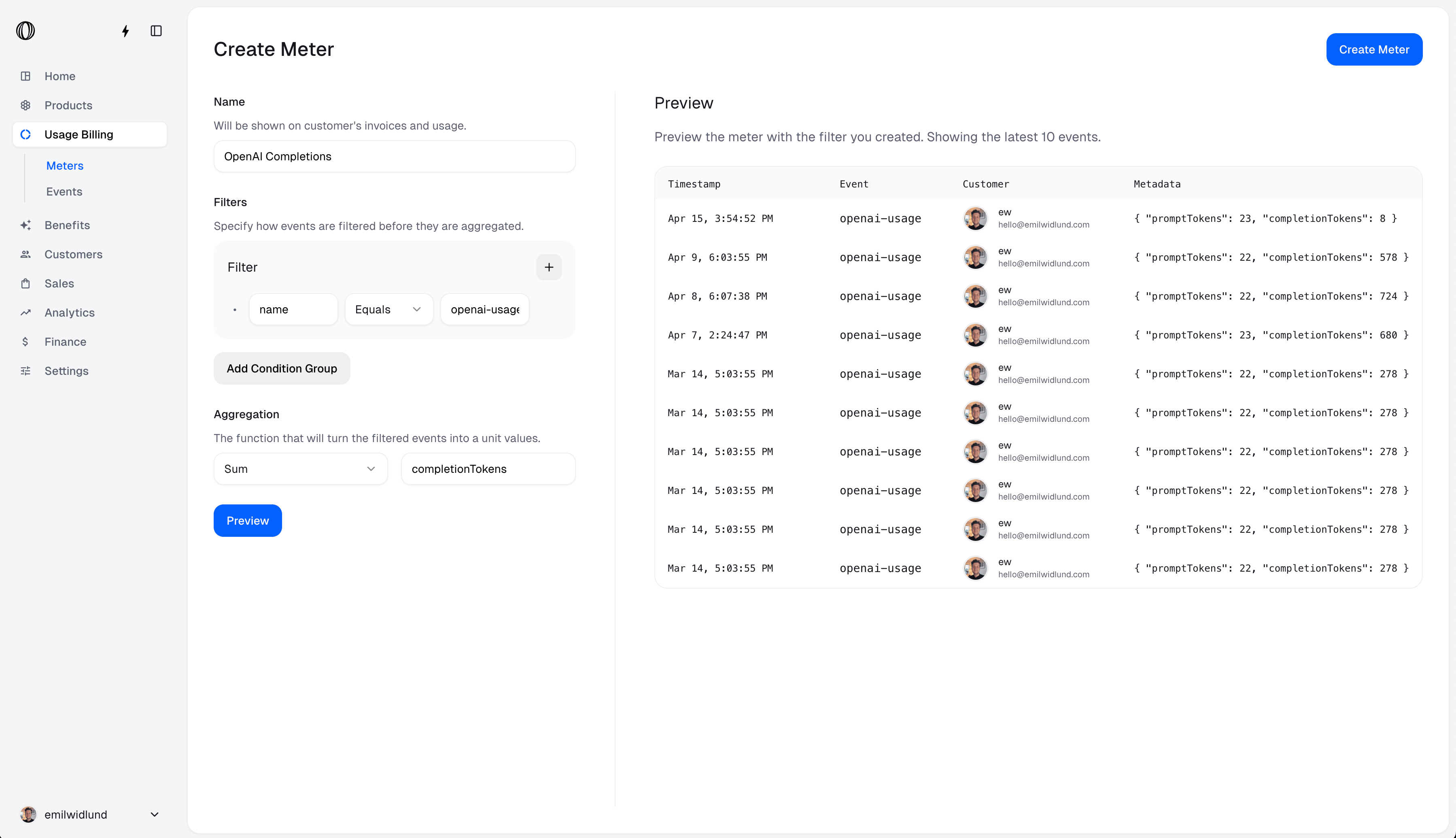
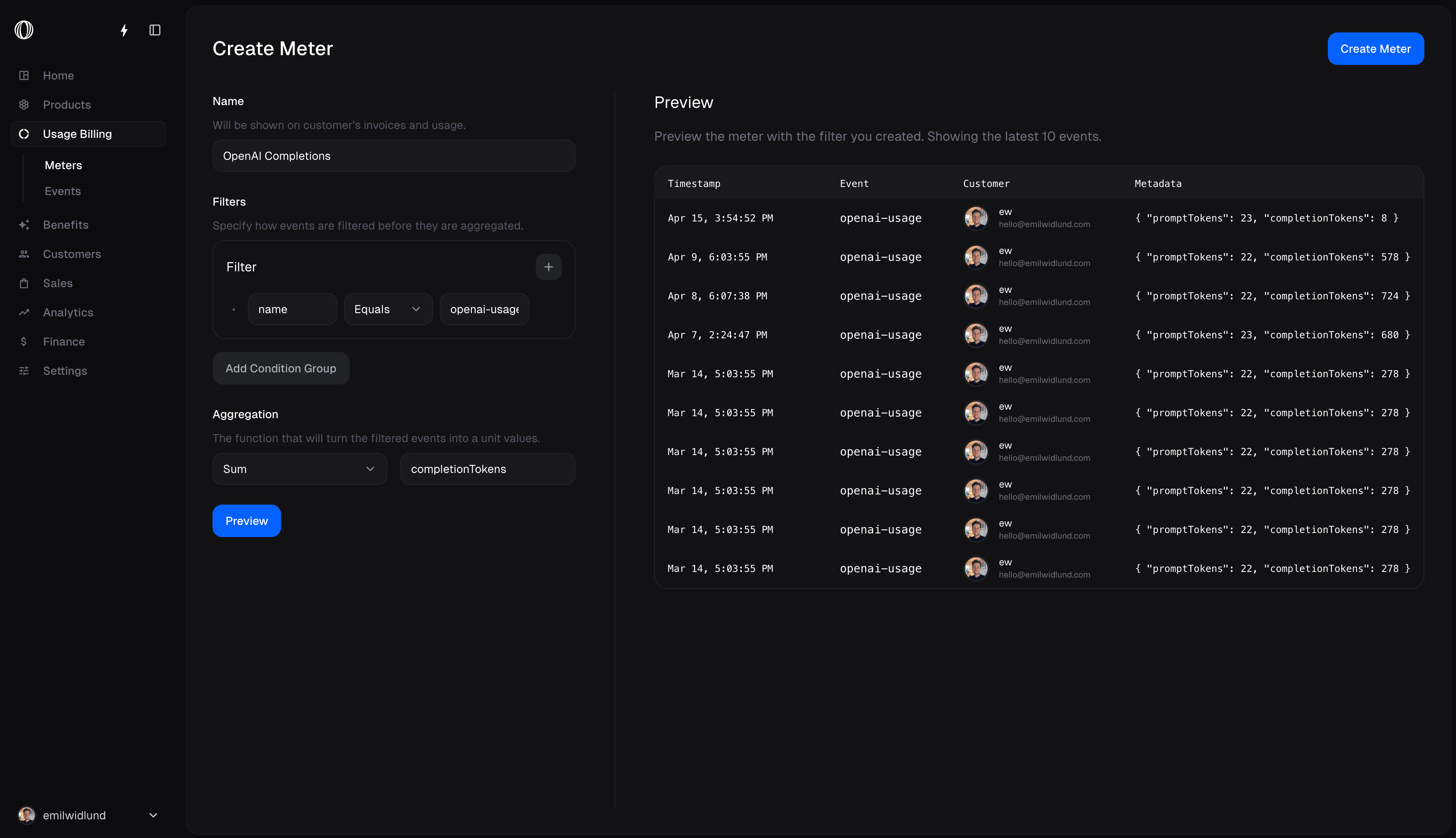
A meter is a **filter** plus an **aggregation function**. The filter picks
which events count; the aggregation function turns them into a billable
quantity.
For a token-based AI product, filter on the event name `ai_usage` and sum
the `total_tokens` field in each event's metadata.
 Add a metered price to the product you want to charge on. The price reads
the meter's aggregated usage and bills it each cycle.
Metered prices apply to **subscription** products — usage accrues over a
billing period and settles when the cycle closes.
Add a metered price to the product you want to charge on. The price reads
the meter's aggregated usage and bills it each cycle.
Metered prices apply to **subscription** products — usage accrues over a
billing period and settles when the cycle closes.
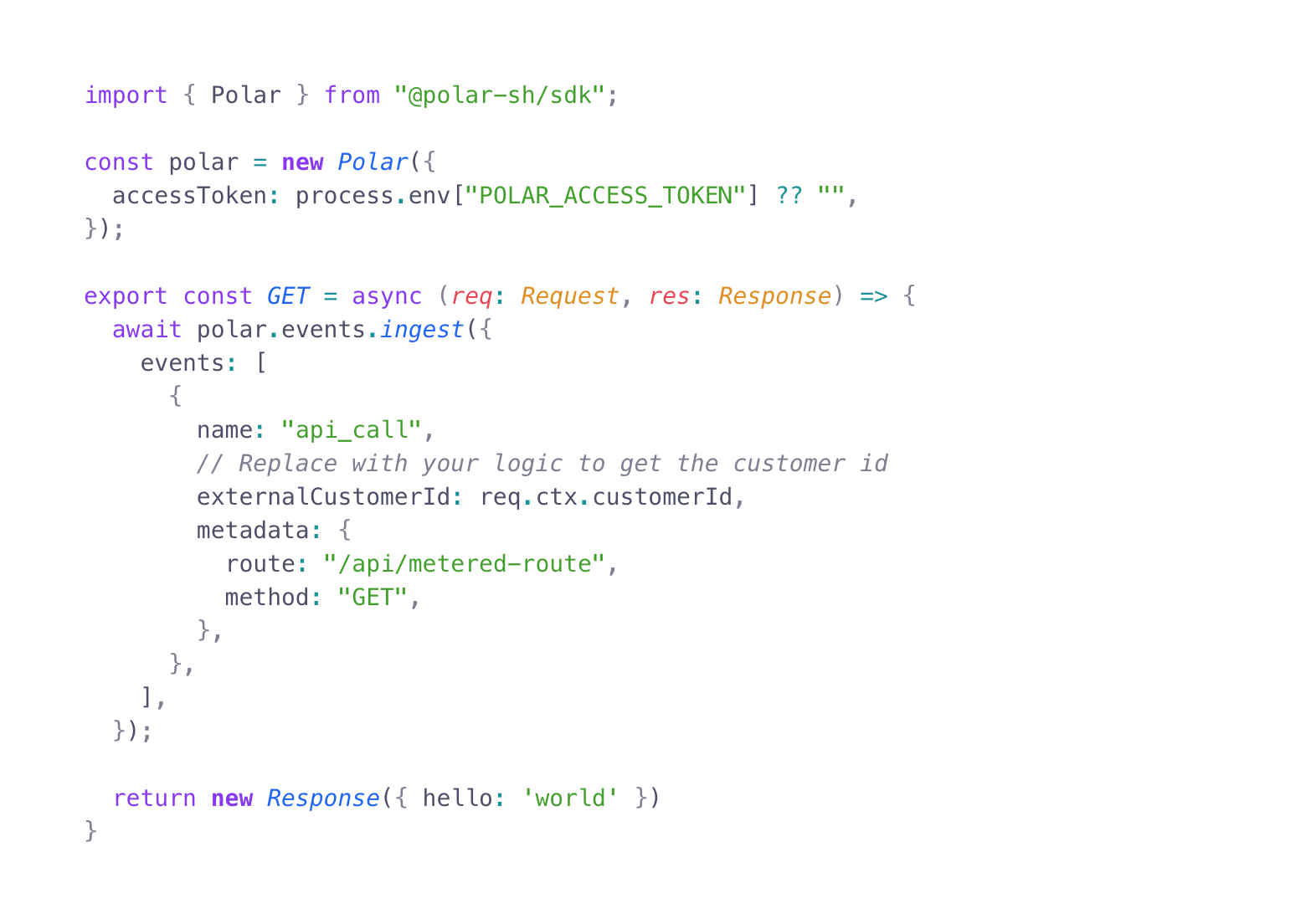
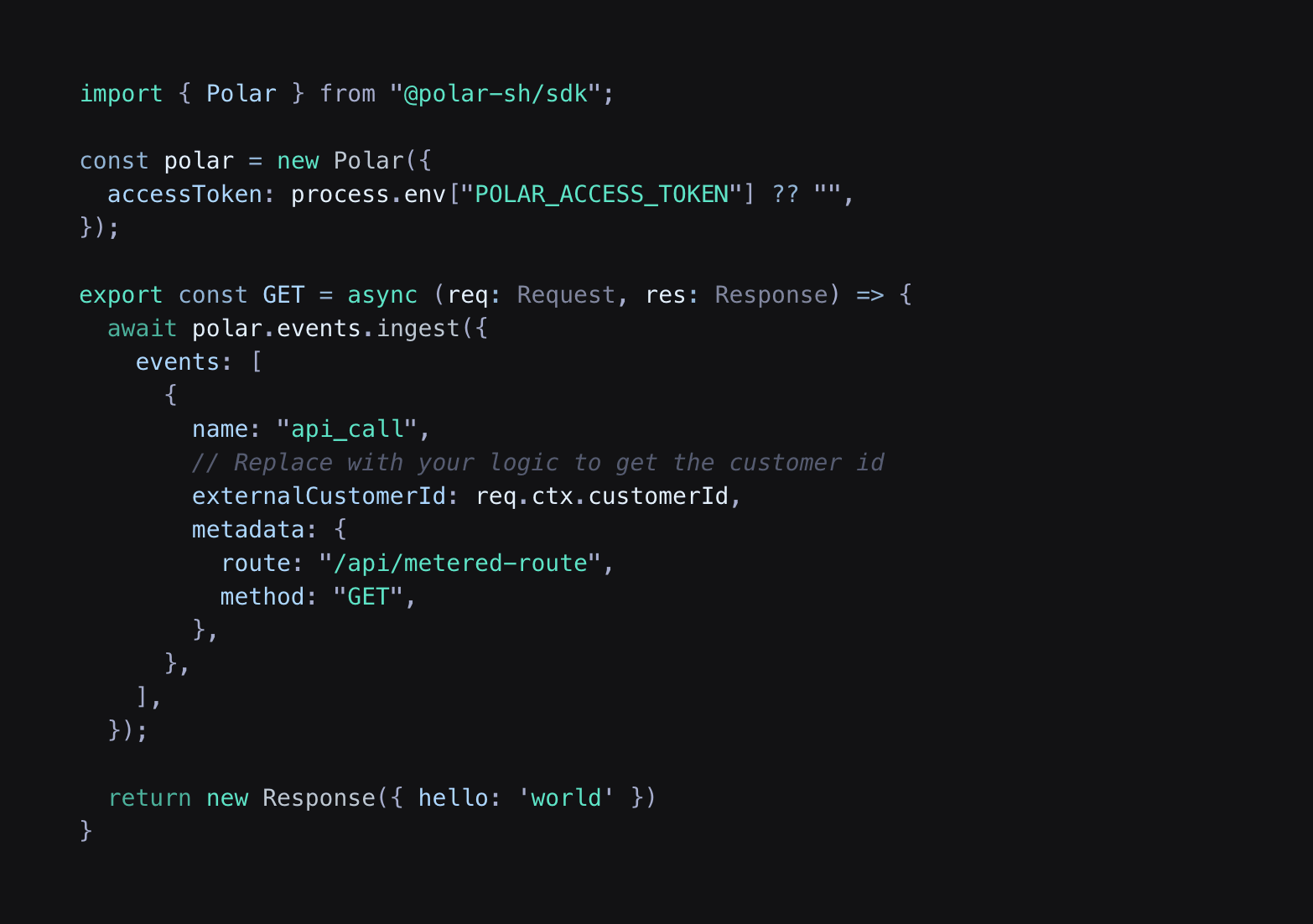
 Send an event from your application each time a customer uses the product.
Any event matching the meter's filter increments that customer's usage.
```json theme={null}
{
"name": "ai_usage",
"external_customer_id": "cus_42",
"metadata": {
"model": "gpt-4.1-nano",
"requests": 1,
"total_tokens": 312,
"request_tokens": 240,
"response_tokens": 72
}
}
```
Routing model traffic through the Macropay AI proxy at `/ai/v1` captures
token usage and cost for you — no manual event emission required.
Send an event from your application each time a customer uses the product.
Any event matching the meter's filter increments that customer's usage.
```json theme={null}
{
"name": "ai_usage",
"external_customer_id": "cus_42",
"metadata": {
"model": "gpt-4.1-nano",
"requests": 1,
"total_tokens": 312,
"request_tokens": 240,
"response_tokens": 72
}
}
```
Routing model traffic through the Macropay AI proxy at `/ai/v1` captures
token usage and cost for you — no manual event emission required.
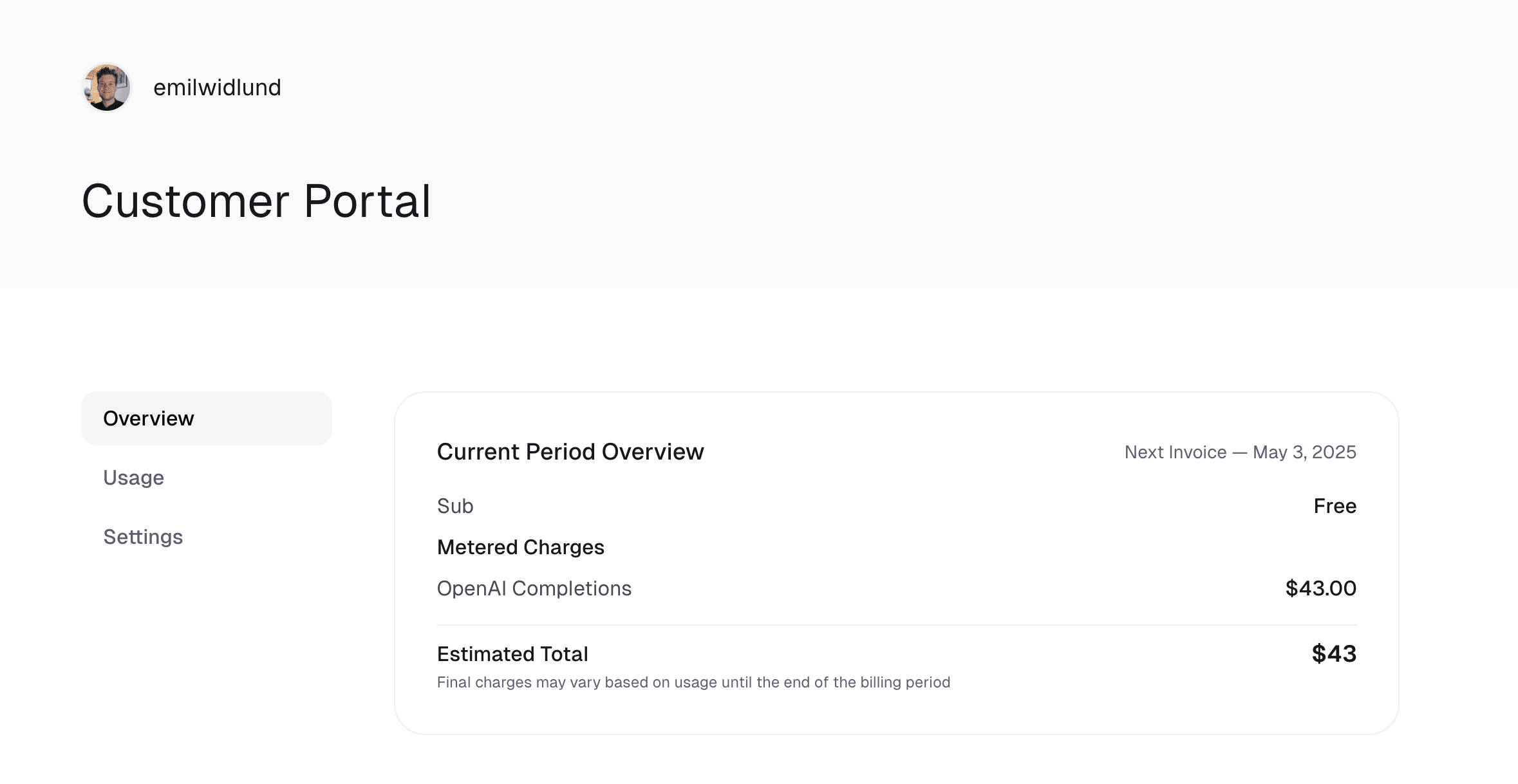
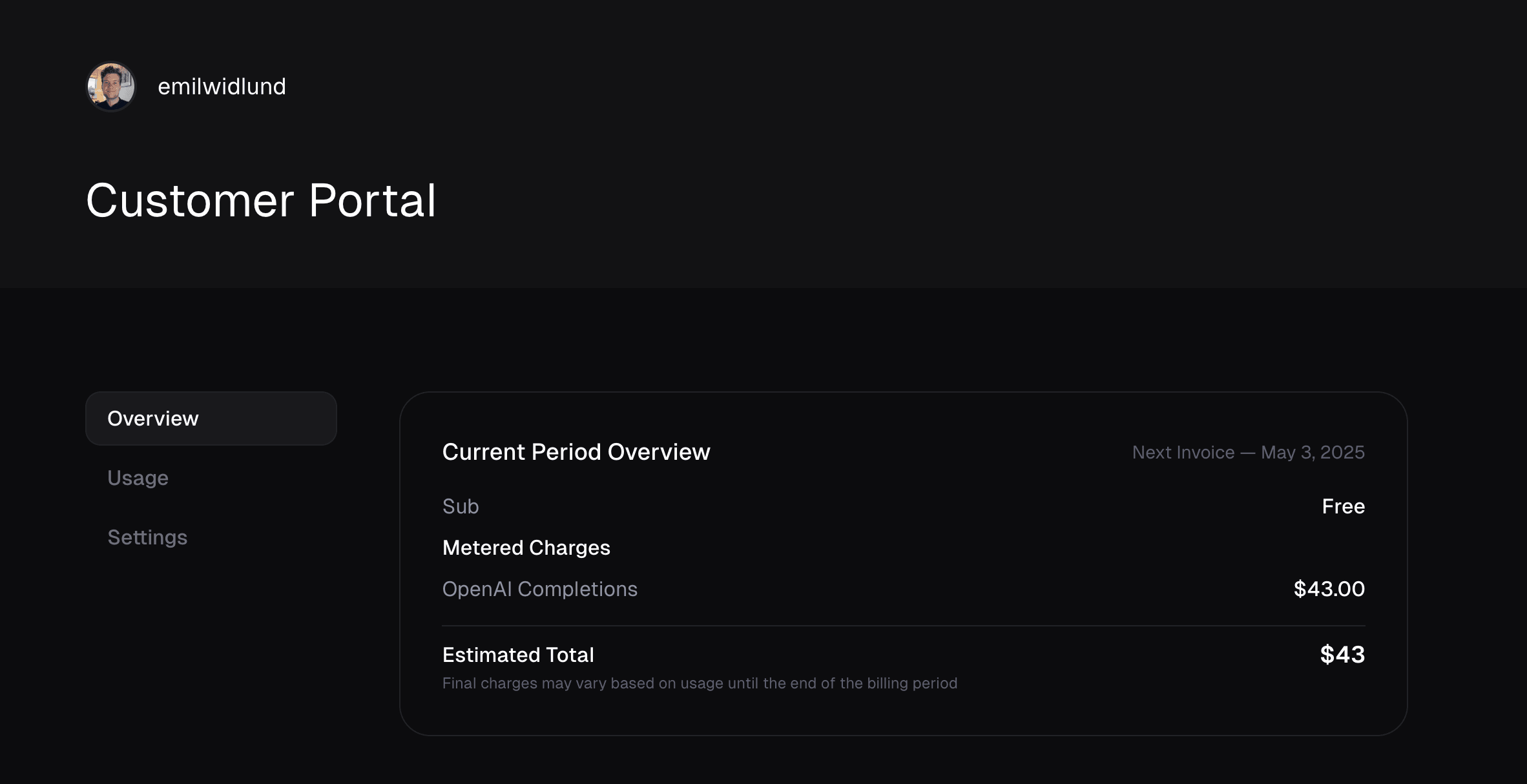
 Each customer sees their running usage and estimated charges per meter in the
self-serve Customer Portal — no support tickets to answer "what will this
cost me?"
Each customer sees their running usage and estimated charges per meter in the
self-serve Customer Portal — no support tickets to answer "what will this
cost me?"