> ## Documentation Index
> Fetch the complete documentation index at: https://docs.macropay.ai/llms.txt
> Use this file to discover all available pages before exploring further.
# Meters
> Turn raw usage events into billable units — define meters that filter, aggregate, and price what your customers and AI agents actually consume.
Meters are there to filter and aggregate the events that are ingested. Said another way, this is how you define what usage you want to charge for, based on the events you send to Macropay. For example:
* AI usage meter, which filters the events with the name `ai_usage` and sums the `total_tokens` field.
* Video streaming meter, which filters the events with the name `video_streamed` and sums the `duration` field.
* File upload meter, which filters the events with the name `file_uploaded` and sums the `size` field.
You can create and manage your meters from the dashboard. Macropay is then able to compute the usage over time, both globally and per customer.
A meter is the bridge between the events you ingest and the money you bill. You send Macropay a stream of raw events — API calls, tokens burned, files processed, agent actions taken — and a meter decides which of those events count and how they roll up into the units that drive a [metered price](/features/usage-based-billing/introduction).
Because Macropay is your Merchant of Record, the units a meter produces flow straight into invoices where we calculate, collect, and remit sales tax and VAT on your behalf. You define what a "unit" means; we handle the seller-of-record obligations around it.
Meters are the natural home for **AI usage billing**. Sum tokens for an LLM
feature, count successful agent actions, or bill per verified outcome — the
same filter-and-aggregate model covers all three. See
[Usage-Based Billing](/features/usage-based-billing/introduction) for how
meters connect to events and credits.
## How a meter works
Every meter is built from two decisions:
1. **A filter** — which ingested events belong to this meter.
2. **An aggregation** — how those matching events collapse into a single number of billable units.
That's it. Filter selects, aggregation counts.
## Create a meter
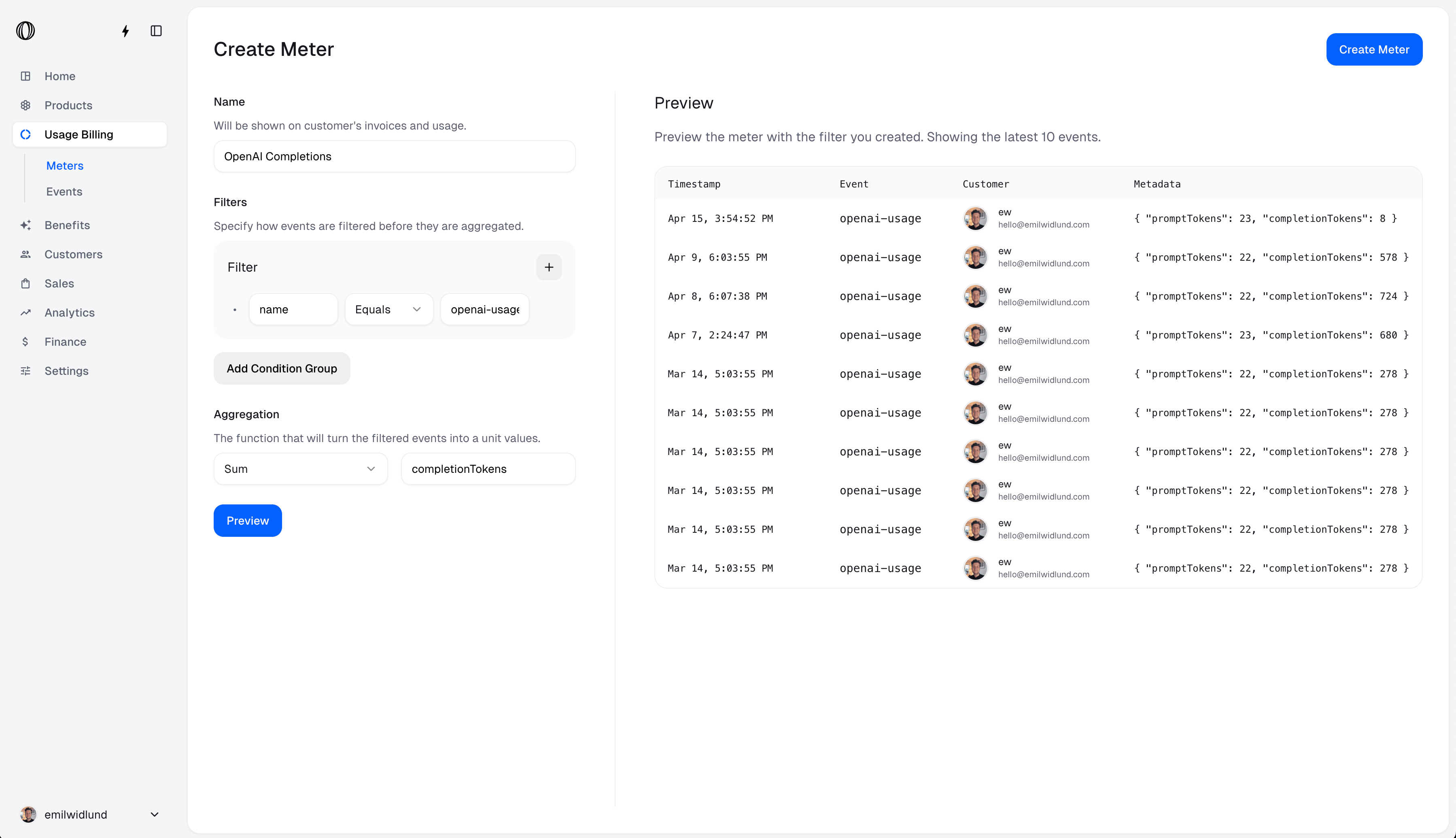
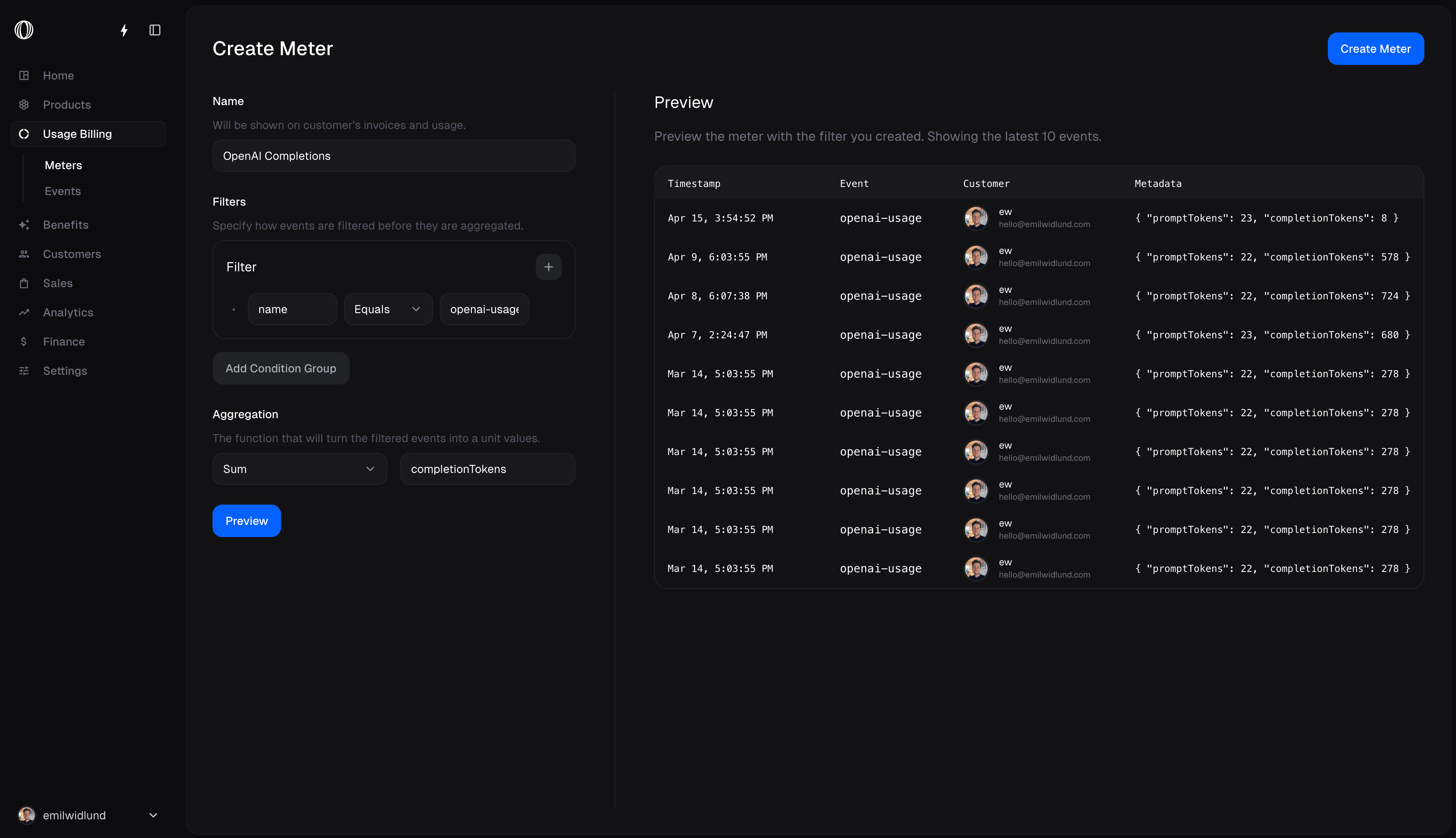
Open **Meters** in the dashboard sidebar and choose **Create Meter**.
 ## Filters: choosing which events count
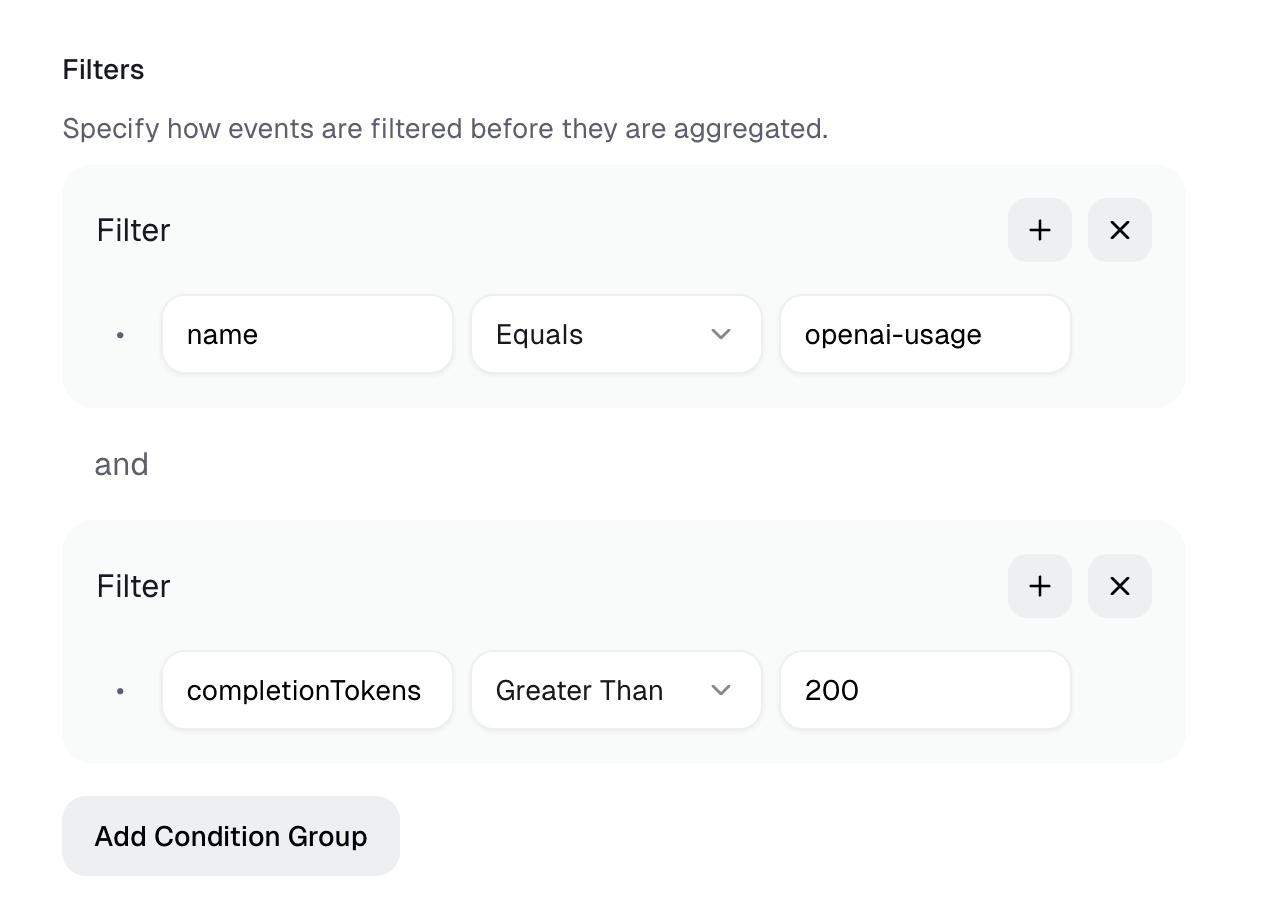
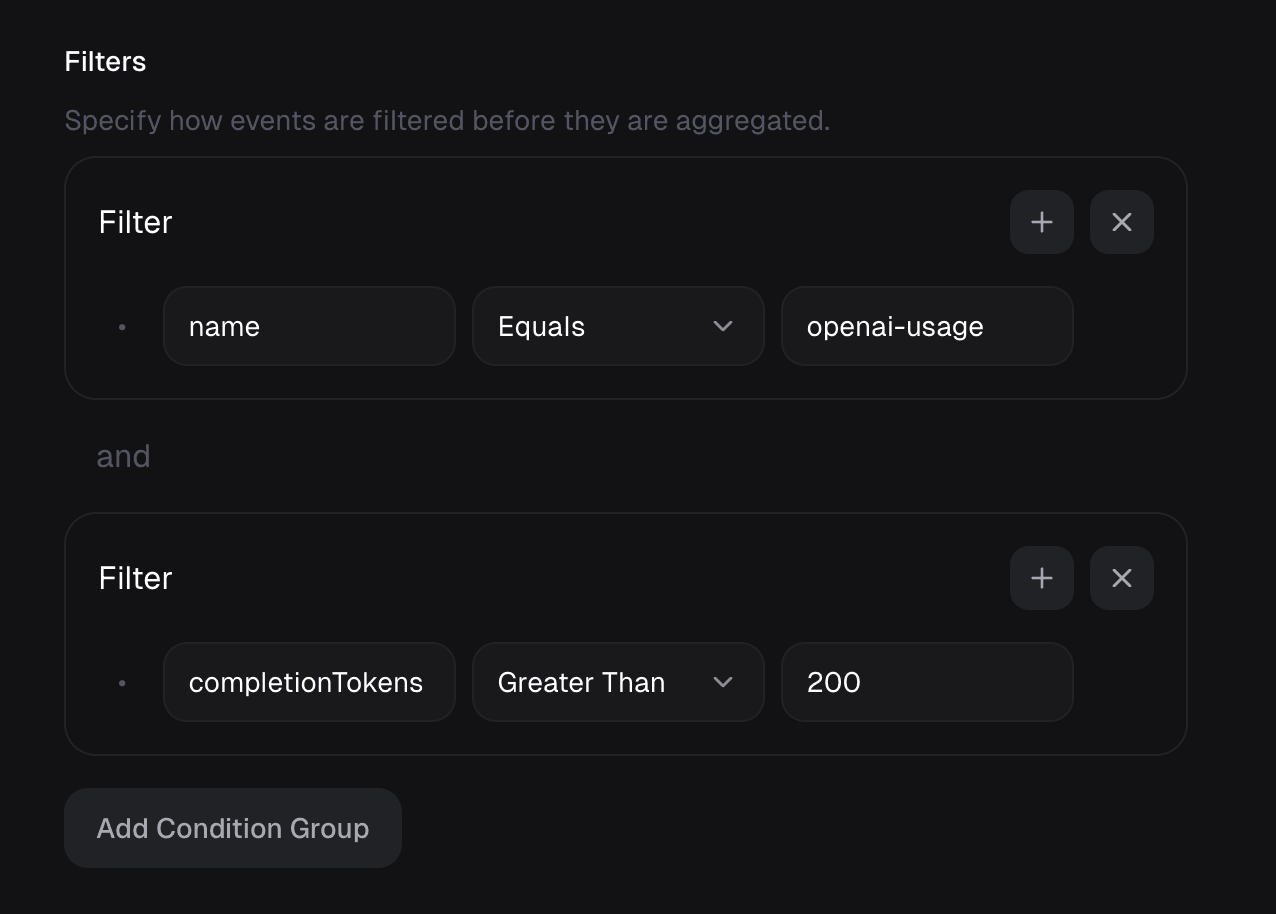
A filter is one or more **clauses** joined by **conjunctions**. Only events that satisfy the filter contribute to the meter — everything else is ignored.
## Filters: choosing which events count
A filter is one or more **clauses** joined by **conjunctions**. Only events that satisfy the filter contribute to the meter — everything else is ignored.
 ### Clauses
A clause is a single condition an event must satisfy. Each clause has a property, an operator, and a value.
#### Property
The field on the event you want to test. To match a metadata field, reference the metadata key directly — there's no need to prefix it with `metadata.`.
#### Operator
Pick how the property is compared against your value:
| Operator | Matches when the property is… |
| -------------------------- | -------------------------------- |
| **Equals** | exactly equal to the value |
| **Not equals** | anything other than the value |
| **Greater Than** | strictly greater |
| **Greater Than or Equals** | greater or equal |
| **Less Than** | strictly less |
| **Less Than or Equals** | less or equal |
| **Contains** | a string that includes the value |
| **Does Not Contain** | a string that excludes the value |
#### Value
The filter builder parses your value automatically, trying each type in order:
1. **Number** — parsed as a number if possible
2. **Boolean** — `true` or `false`
3. **String** — used verbatim as a fallback
### Conjunctions
When a filter has more than one clause, a conjunction decides how they combine:
* **and** — every clause must pass for the event to count.
* **or** — at least one clause must pass.
## Aggregation: turning events into units
The aggregation function reduces all matching events into the billable quantity for the period. Counting raw events? Use **Count**. Adding up a numeric metadata field like tokens or bytes? Use **Sum**.
| Function | What it computes |
| ----------- | --------------------------------- |
| **Count** | Number of matching events |
| **Sum** | Total of a property's values |
| **Average** | Mean of a property's values |
| **Minimum** | Smallest property value |
| **Maximum** | Largest property value |
| **Unique** | Count of distinct property values |
As with filters, reference a metadata property directly in the aggregation — no `metadata.` prefix required.
Suppose your AI feature has ingested these four events for one customer:
```json theme={null}
[
{
"name": "ai_usage",
"external_customer_id": "cus_42",
"metadata": {
"total_tokens": 10
}
},
{
"name": "ai_usage",
"external_customer_id": "cus_42",
"metadata": {
"total_tokens": 20
}
},
{
"name": "ai_usage",
"external_customer_id": "cus_42",
"metadata": {
"total_tokens": 30
}
},
{
"name": "ai_usage",
"external_customer_id": "cus_42",
"metadata": {
"total_tokens": 30
}
}
]
```
Aggregating over the `total_tokens` property yields:
| Aggregation | Result |
| ----------- | ---------- |
| **Count** | 4 units |
| **Sum** | 90 units |
| **Average** | 22.5 units |
| **Minimum** | 10 units |
| **Maximum** | 30 units |
| **Unique** | 3 units |
## A complete example
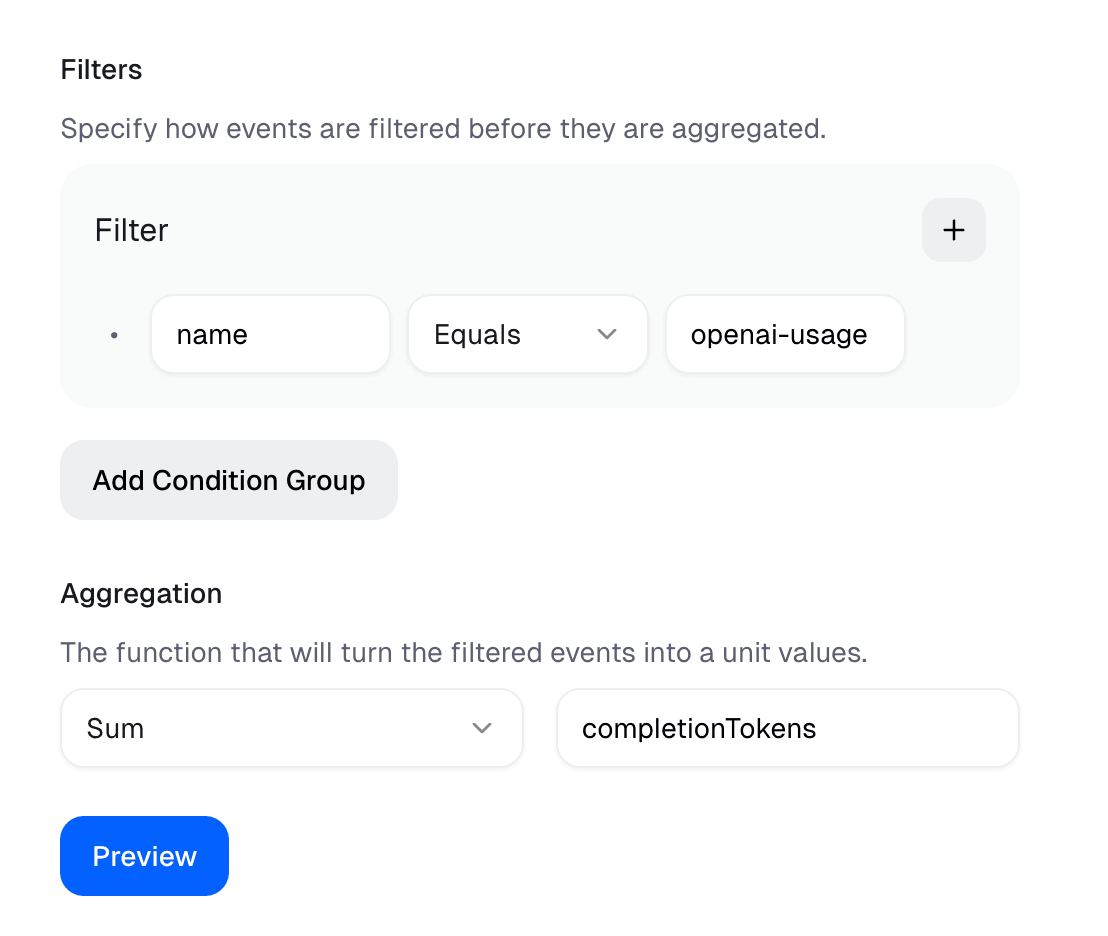
Say you bill an AI writing assistant by output tokens. Configure the meter to:
* **Filter**: events whose `name` equals `openai-usage`
* **Aggregate**: **Sum** over the metadata property `completionTokens`
Every billing period, the meter sums each customer's completion tokens into units, and the attached metered price turns those units into a charge that we invoice and tax for you.
### Clauses
A clause is a single condition an event must satisfy. Each clause has a property, an operator, and a value.
#### Property
The field on the event you want to test. To match a metadata field, reference the metadata key directly — there's no need to prefix it with `metadata.`.
#### Operator
Pick how the property is compared against your value:
| Operator | Matches when the property is… |
| -------------------------- | -------------------------------- |
| **Equals** | exactly equal to the value |
| **Not equals** | anything other than the value |
| **Greater Than** | strictly greater |
| **Greater Than or Equals** | greater or equal |
| **Less Than** | strictly less |
| **Less Than or Equals** | less or equal |
| **Contains** | a string that includes the value |
| **Does Not Contain** | a string that excludes the value |
#### Value
The filter builder parses your value automatically, trying each type in order:
1. **Number** — parsed as a number if possible
2. **Boolean** — `true` or `false`
3. **String** — used verbatim as a fallback
### Conjunctions
When a filter has more than one clause, a conjunction decides how they combine:
* **and** — every clause must pass for the event to count.
* **or** — at least one clause must pass.
## Aggregation: turning events into units
The aggregation function reduces all matching events into the billable quantity for the period. Counting raw events? Use **Count**. Adding up a numeric metadata field like tokens or bytes? Use **Sum**.
| Function | What it computes |
| ----------- | --------------------------------- |
| **Count** | Number of matching events |
| **Sum** | Total of a property's values |
| **Average** | Mean of a property's values |
| **Minimum** | Smallest property value |
| **Maximum** | Largest property value |
| **Unique** | Count of distinct property values |
As with filters, reference a metadata property directly in the aggregation — no `metadata.` prefix required.
Suppose your AI feature has ingested these four events for one customer:
```json theme={null}
[
{
"name": "ai_usage",
"external_customer_id": "cus_42",
"metadata": {
"total_tokens": 10
}
},
{
"name": "ai_usage",
"external_customer_id": "cus_42",
"metadata": {
"total_tokens": 20
}
},
{
"name": "ai_usage",
"external_customer_id": "cus_42",
"metadata": {
"total_tokens": 30
}
},
{
"name": "ai_usage",
"external_customer_id": "cus_42",
"metadata": {
"total_tokens": 30
}
}
]
```
Aggregating over the `total_tokens` property yields:
| Aggregation | Result |
| ----------- | ---------- |
| **Count** | 4 units |
| **Sum** | 90 units |
| **Average** | 22.5 units |
| **Minimum** | 10 units |
| **Maximum** | 30 units |
| **Unique** | 3 units |
## A complete example
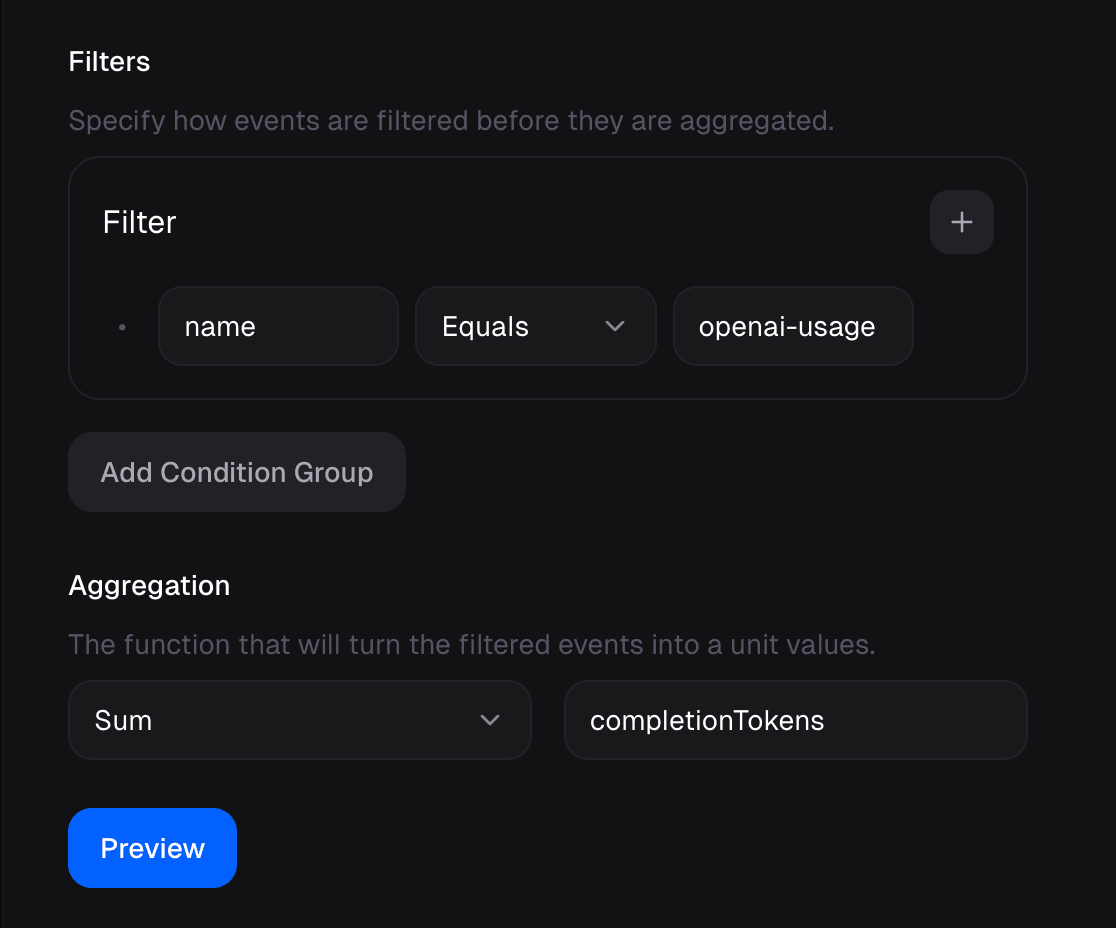
Say you bill an AI writing assistant by output tokens. Configure the meter to:
* **Filter**: events whose `name` equals `openai-usage`
* **Aggregate**: **Sum** over the metadata property `completionTokens`
Every billing period, the meter sums each customer's completion tokens into units, and the attached metered price turns those units into a charge that we invoice and tax for you.
 While building a meter, use **Preview** to see exactly which ingested events
the filter matches — a fast way to confirm your clauses are right before any
money moves.
### Billing AI agents by outcome
The same meter mechanics extend to agent billing. Ingest activity and outcome signals through the [Signals API](/features/usage-based-billing/introduction), then meter them: **Count** completed actions to bill by activity, or **Sum** a `value_generated` field to bill by the outcome an agent delivered. Pair that with value receipts to certify ROI and track agentic margin — billed revenue against the underlying AI cost.
## Good to know
### Updating a meter
You can edit a meter's filters or aggregation function only while it's still untouched — that is, before it has processed any events or been tied to a customer purchase. Once a meter is driving live billing, its definition is locked so historical usage and invoices stay consistent.
While building a meter, use **Preview** to see exactly which ingested events
the filter matches — a fast way to confirm your clauses are right before any
money moves.
### Billing AI agents by outcome
The same meter mechanics extend to agent billing. Ingest activity and outcome signals through the [Signals API](/features/usage-based-billing/introduction), then meter them: **Count** completed actions to bill by activity, or **Sum** a `value_generated` field to bill by the outcome an agent delivered. Pair that with value receipts to certify ROI and track agentic margin — billed revenue against the underlying AI cost.
## Good to know
### Updating a meter
You can edit a meter's filters or aggregation function only while it's still untouched — that is, before it has processed any events or been tied to a customer purchase. Once a meter is driving live billing, its definition is locked so historical usage and invoices stay consistent.