> ## Documentation Index
> Fetch the complete documentation index at: https://docs.macropay.ai/llms.txt
> Use this file to discover all available pages before exploring further.
# How to Change Account Email (as a Merchant)
> Update the email on your Macropay merchant account in six verified steps — with no interruption to payouts, tax remittance, or billing.
Your account email is how Macropay reaches you about payouts, dispute alerts, and account reviews — so changing it goes through a verification round-trip before it takes effect. You confirm the request from inside the dashboard, then click through a confirmation link we send to the **new** address. Nothing switches over until that link is clicked, which keeps a mistyped address from locking you out.
This guide covers the **merchant** (organization owner) email used for dashboard sign-in and account notifications. It does not change the email on any customer's order — for that, see the customer's profile in your dashboard.
## What changing the email does — and doesn't — touch
| Stays exactly as-is | Updated to the new address |
| ------------------------------------------------------------- | ------------------------------------------ |
| Payouts (ACH / SEPA / SWIFT) and bank details | Dashboard sign-in email |
| Tax/VAT remittance — Macropay remains your Merchant of Record | Account & security notifications |
| Webhook endpoints, API keys, and OATs | Dispute and account-review alerts |
| Active subscriptions, meters, and product config | Receipts addressed to you as the org owner |
Because Macropay is the seller of record on your customers' statements, swapping your login email has zero impact on how charges appear to buyers or on the tax we collect and remit on your behalf.
## Update your email
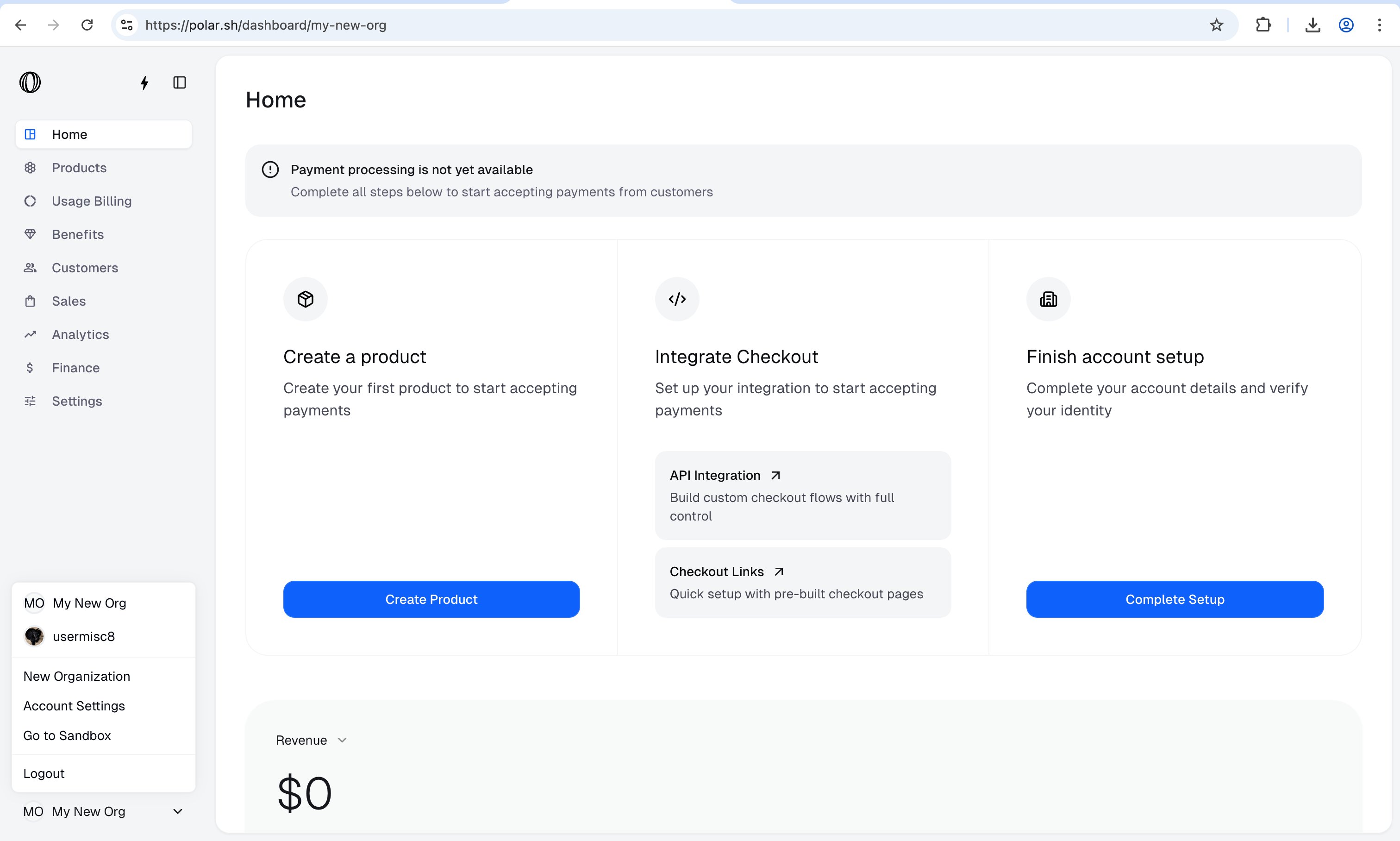
In the dashboard, open the menu in the bottom-left corner and choose `Account Settings`.
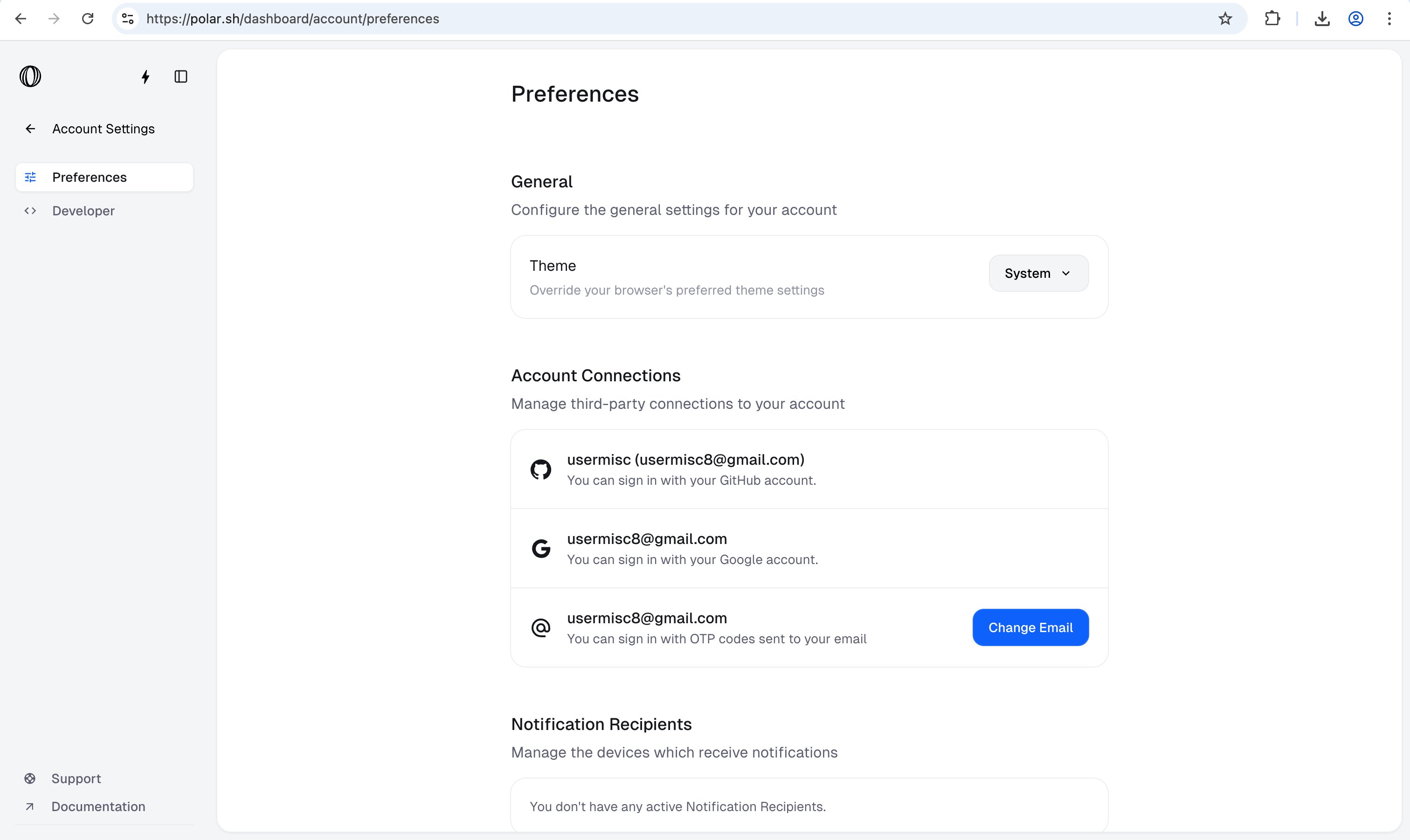
 Find the `Account Connections` section and click `Change Email`.
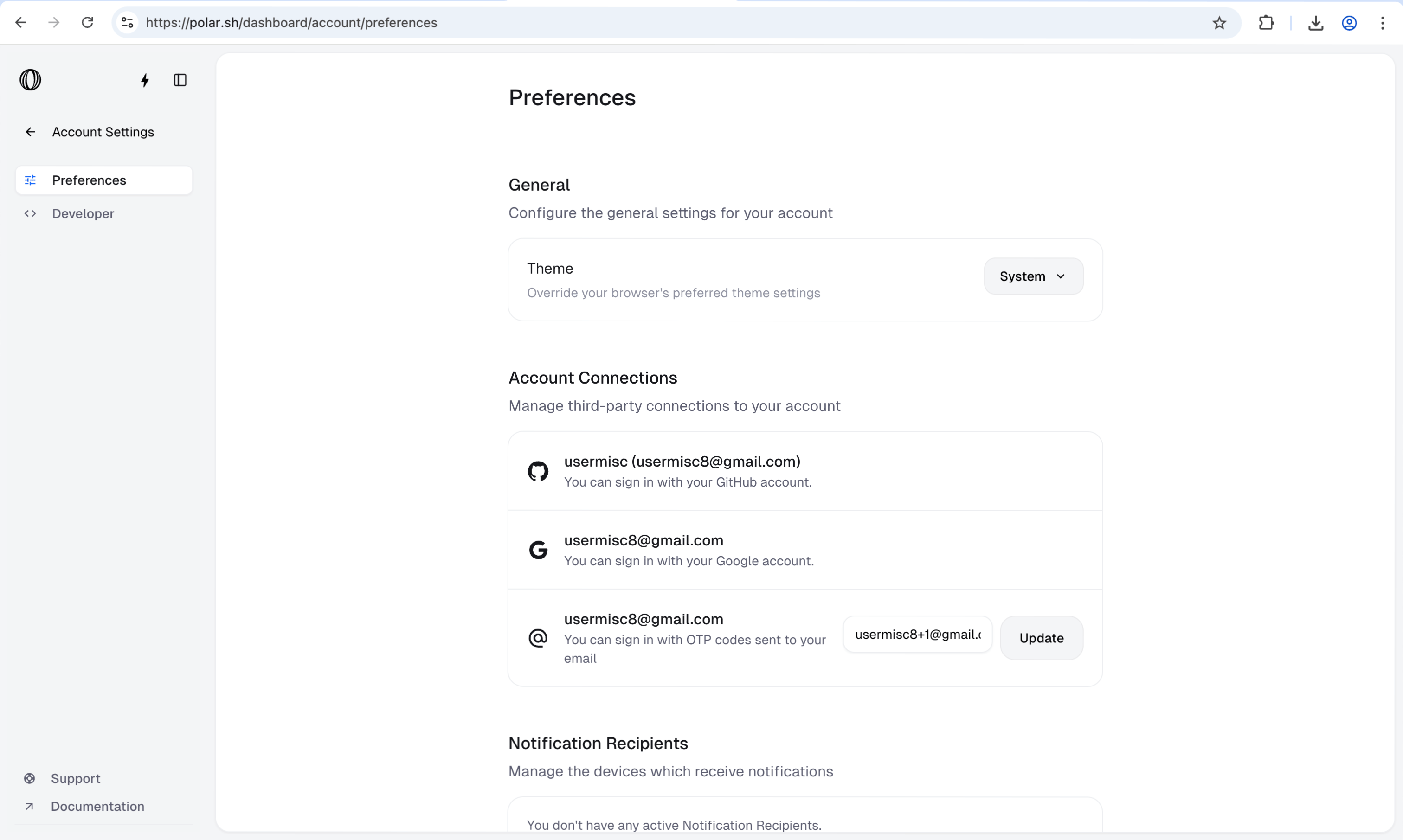
 Type the new email into the field that appears, then submit. Double-check the spelling — verification is sent here, not to your old address.
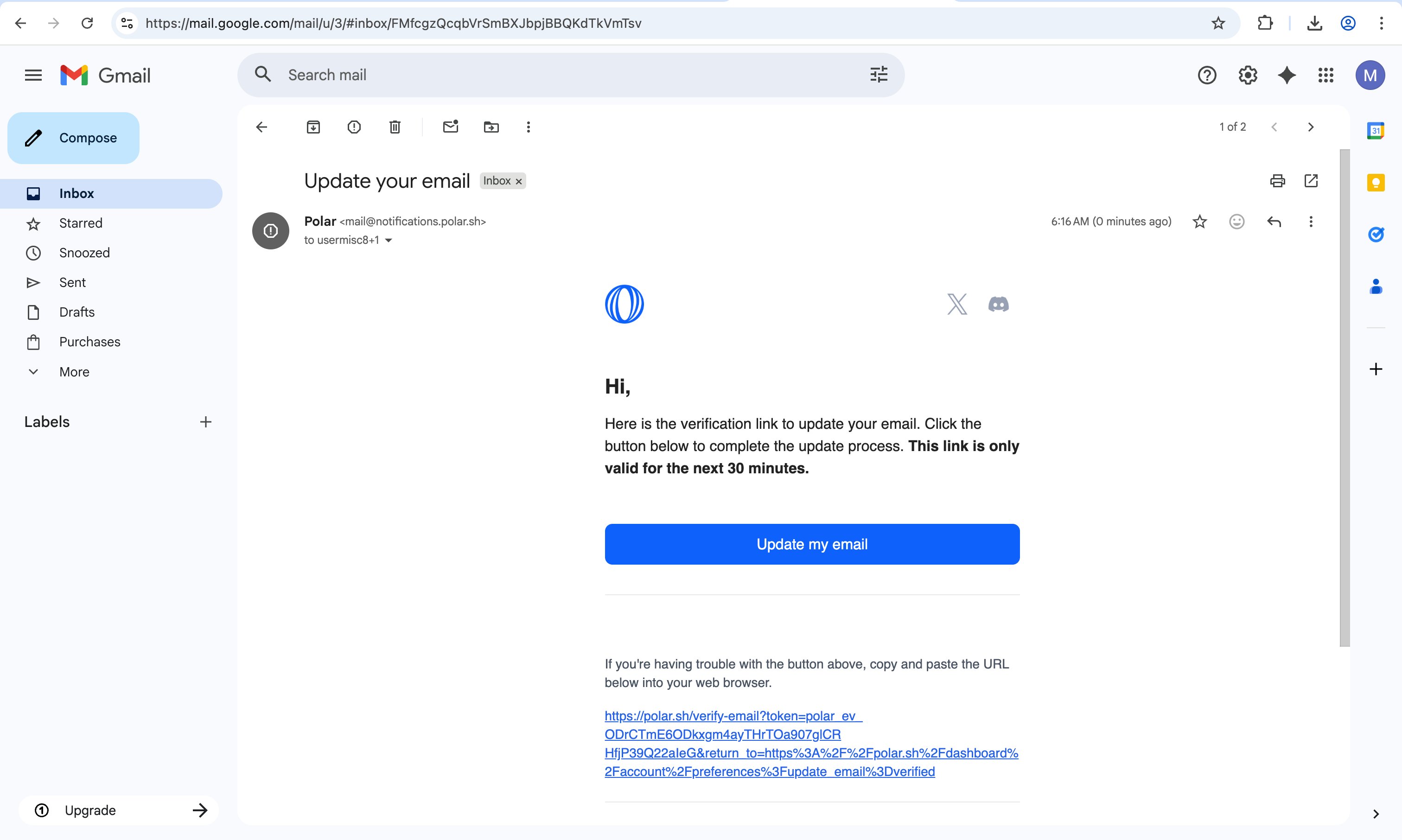
 Macropay sends a message to the new address. Open it and click `Update my email`.
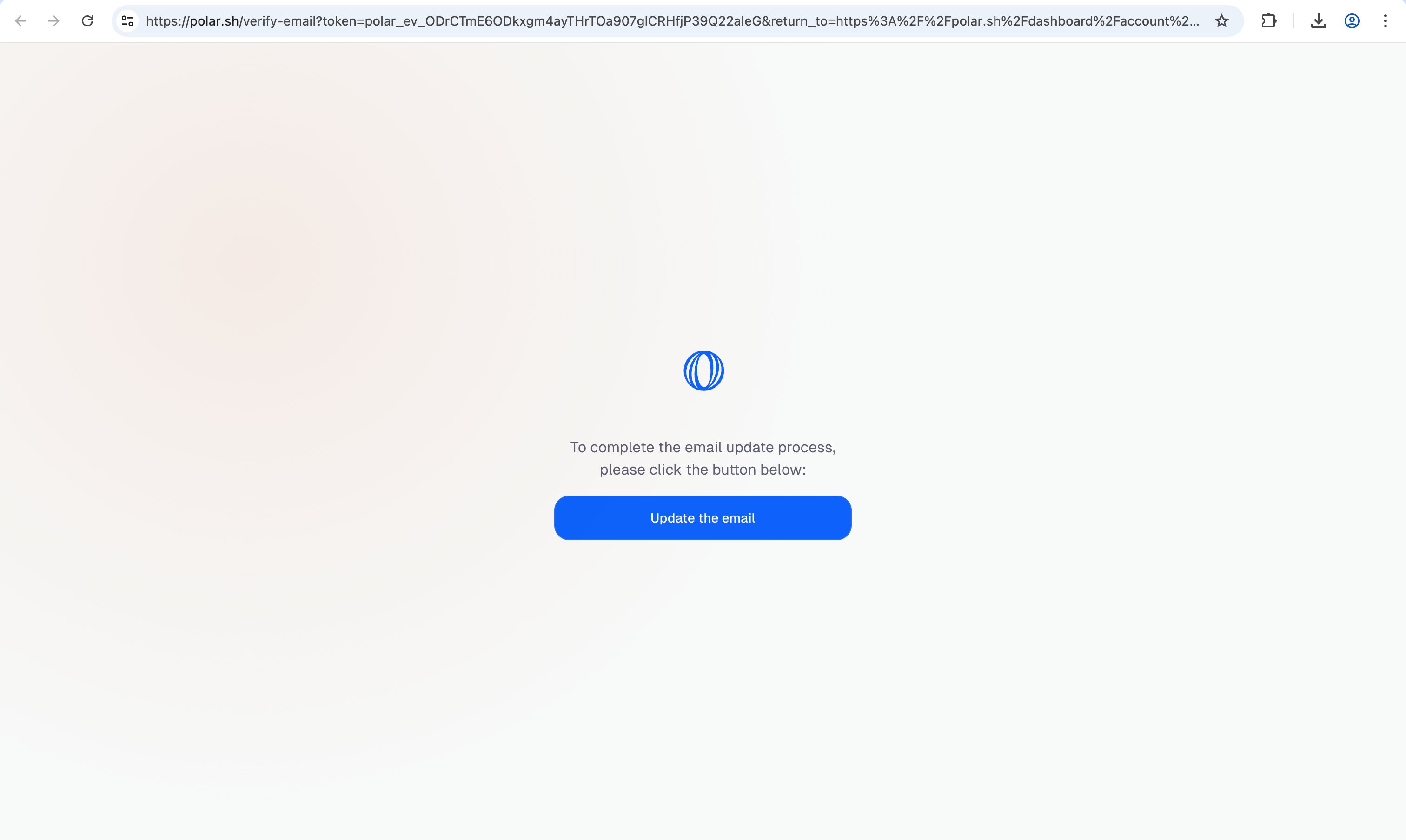
 On the confirmation screen, press `Update the email` to finalize.
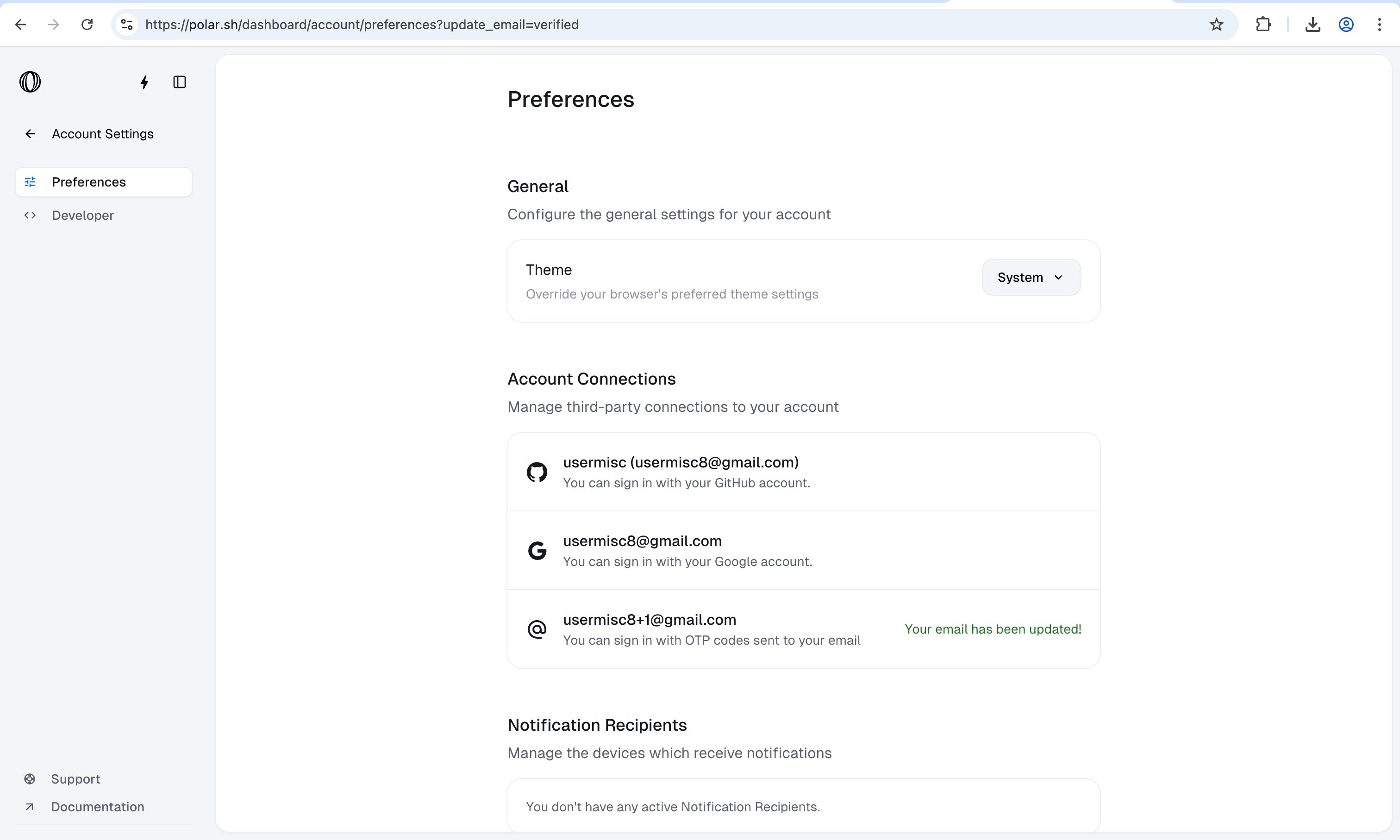
 Your merchant email is updated. Sign in with the new address from now on.
 Verification links expire. If the email hasn't arrived in a couple of minutes, check spam, then re-run the steps to send a fresh link.
## Troubleshooting
Confirm you typed the new address correctly in step 3, then look in spam and any team-shared inbox filters. Re-running the flow issues a new link and voids the previous one.
For security, confirmation links are short-lived. Start over from `Account Settings` to generate a new one, and click it promptly.
No problem — verification goes to the **new** address, so you can complete the change as long as you can still sign in with the old credentials. If you're locked out entirely, contact support to recover the account.
Looking to update notification preferences or add teammates instead of changing the owner email? Manage those from your dashboard at [app.macropay.ai](https://app.macropay.ai).
Verification links expire. If the email hasn't arrived in a couple of minutes, check spam, then re-run the steps to send a fresh link.
## Troubleshooting
Confirm you typed the new address correctly in step 3, then look in spam and any team-shared inbox filters. Re-running the flow issues a new link and voids the previous one.
For security, confirmation links are short-lived. Start over from `Account Settings` to generate a new one, and click it promptly.
No problem — verification goes to the **new** address, so you can complete the change as long as you can still sign in with the old credentials. If you're locked out entirely, contact support to recover the account.
Looking to update notification preferences or add teammates instead of changing the owner email? Manage those from your dashboard at [app.macropay.ai](https://app.macropay.ai).