> ## Documentation Index
> Fetch the complete documentation index at: https://docs.macropay.ai/llms.txt
> Use this file to discover all available pages before exploring further.
# How to Create Checkout Session
> Spin up a hosted, tax-handled checkout for any product with a single API call.
A checkout session is a short-lived, hosted payment page you generate on demand and hand to a customer. Because Macropay is the **merchant of record**, that one call does more than collect a card: we calculate and remit the right sales tax or VAT for the buyer's country, keep card data inside our **PCI DSS Level 1 compliant** vault, and appear as the seller of record on the statement — so the liability never lands on you.
This guide walks through creating a session over the API, from token to live checkout URL.
Pass one or more products into a session and the customer can switch between them on the page. Everything in Macropay is a **product** — one-time or subscription — so the same flow powers a single license sale or a recurring plan.
## What you'll need
* An **organization access token** (created below)
* One or more **product IDs** from your catalogue
* A terminal with `curl`, or any HTTP client / SDK
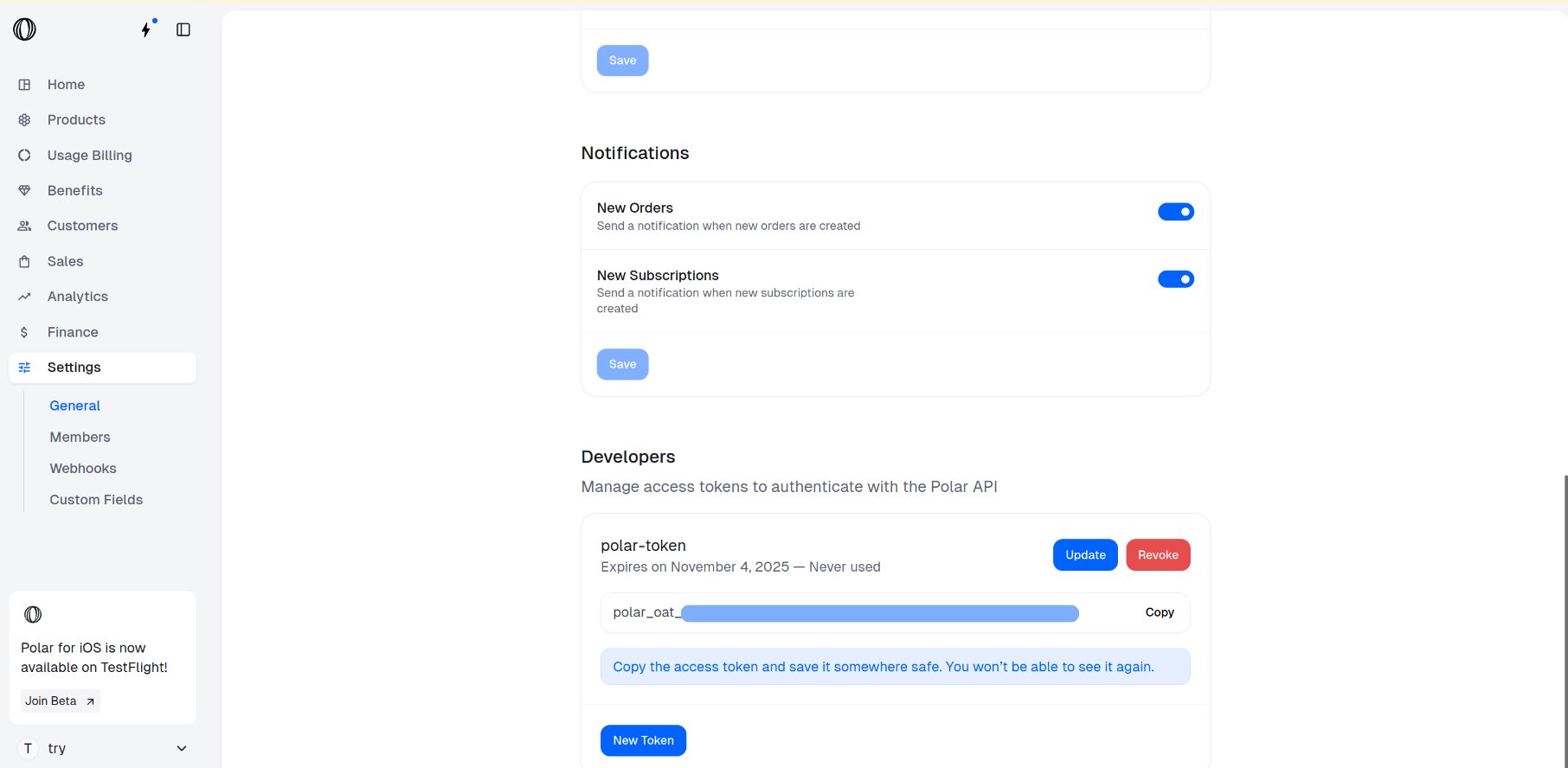
Sessions are created with an organization access token (OAT). Generate one by following the [Organization Access Tokens](https://docs.macropay.ai/integrate/oat) guide.
The token is shown **once** at creation time. Copy it and store it in a secret manager or environment variable — you won't be able to view it again.
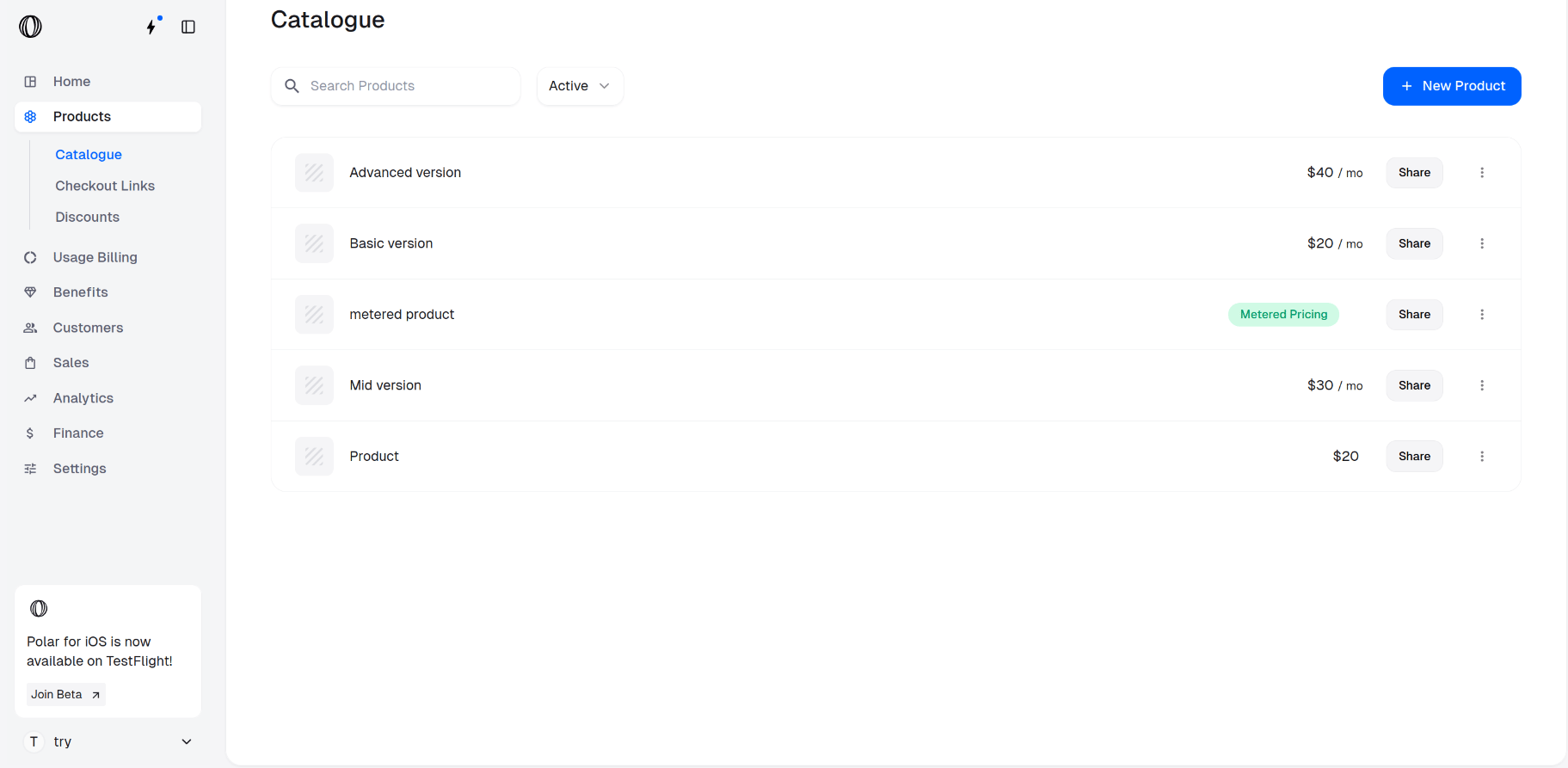
 In the Macropay dashboard sidebar, go to **Products** > **Catalogue**, or jump straight to the catalogue for your organization:
`https://macropay.ai/dashboard/${org_slug}/products`
In the Macropay dashboard sidebar, go to **Products** > **Catalogue**, or jump straight to the catalogue for your organization:
`https://macropay.ai/dashboard/${org_slug}/products`
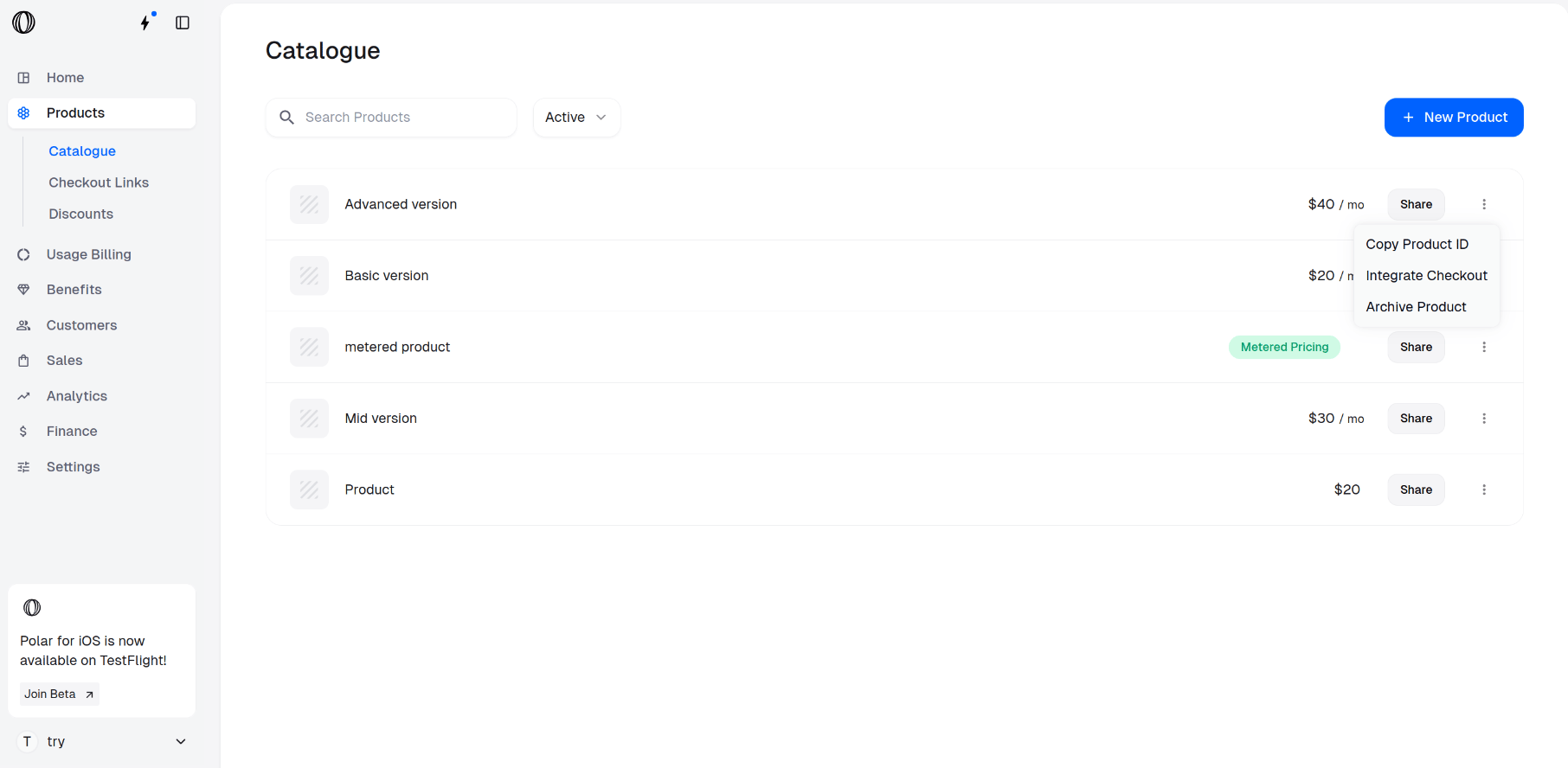
 For each item you want to offer, open the **⋮ (More options)** menu next to the product and choose **Copy Product ID**. Collect the IDs you need for the next step.
 Send a `POST` to the checkouts endpoint with the products you want available on the page. Replace `` with your token and the placeholder UUIDs with your real product IDs.
```bash Terminal theme={null}
curl --request POST \
--url https://api.macropay.ai/v1/checkouts/ \
--header 'Authorization: Bearer ' \
--header 'Content-Type: application/json' \
--data '{
"products": [
"d4e1c6b2-8f3a-4b5e-9c2d-1a2b3c4d5e6f",
"a7f9e2c1-3b4d-4e5f-8a9b-0c1d2e3f4a5b"
],
"success_url": "https://acme.dev/thanks?checkout_id={CHECKOUT_ID}",
"customer_email": "rosa@acme.dev"
}'
```
`success_url`, `customer_email`, `external_customer_id`, and `metadata` are all optional. Use `external_customer_id` to tie the order to a user in your own system, and `metadata` to stamp the session with anything you want echoed back on the resulting order and [webhook events](https://docs.macropay.ai/integrate/webhooks/events).
Every accepted field is documented in the [Create Checkout Session API reference](https://docs.macropay.ai/api-reference/checkouts/create-session).
The response is a checkout object. Read the `url` field and send the customer there — that's the hosted, tax-aware payment page.
```json theme={null}
{
"id": "macropay_c_...",
"url": "https://buy.macropay.ai/macropay_c_...", // [!code ++]
"net_amount": 4900,
"tax_amount": 441,
"total_amount": 5341,
"status": "open"
}
```
The `tax_amount` is computed for the buyer's location and **remitted by us** — you keep your `net_amount` without touching a tax return.
## Selling to AI agents
The same endpoint works when the buyer is an autonomous agent rather than a person. Create a session, hand back the `url`, and let the agent complete payment programmatically. To bill agents by what they actually do, pair checkout with **usage-based pricing** so you can charge on activity or verified outcome and track agentic margin per agent. See the [API reference](https://docs.macropay.ai/api-reference) for the signals and metering endpoints.
## Next steps
Skip the API and share a no-code, reusable payment link.
Drop checkout straight into your own site instead of redirecting.
Send a `POST` to the checkouts endpoint with the products you want available on the page. Replace `` with your token and the placeholder UUIDs with your real product IDs.
```bash Terminal theme={null}
curl --request POST \
--url https://api.macropay.ai/v1/checkouts/ \
--header 'Authorization: Bearer ' \
--header 'Content-Type: application/json' \
--data '{
"products": [
"d4e1c6b2-8f3a-4b5e-9c2d-1a2b3c4d5e6f",
"a7f9e2c1-3b4d-4e5f-8a9b-0c1d2e3f4a5b"
],
"success_url": "https://acme.dev/thanks?checkout_id={CHECKOUT_ID}",
"customer_email": "rosa@acme.dev"
}'
```
`success_url`, `customer_email`, `external_customer_id`, and `metadata` are all optional. Use `external_customer_id` to tie the order to a user in your own system, and `metadata` to stamp the session with anything you want echoed back on the resulting order and [webhook events](https://docs.macropay.ai/integrate/webhooks/events).
Every accepted field is documented in the [Create Checkout Session API reference](https://docs.macropay.ai/api-reference/checkouts/create-session).
The response is a checkout object. Read the `url` field and send the customer there — that's the hosted, tax-aware payment page.
```json theme={null}
{
"id": "macropay_c_...",
"url": "https://buy.macropay.ai/macropay_c_...", // [!code ++]
"net_amount": 4900,
"tax_amount": 441,
"total_amount": 5341,
"status": "open"
}
```
The `tax_amount` is computed for the buyer's location and **remitted by us** — you keep your `net_amount` without touching a tax return.
## Selling to AI agents
The same endpoint works when the buyer is an autonomous agent rather than a person. Create a session, hand back the `url`, and let the agent complete payment programmatically. To bill agents by what they actually do, pair checkout with **usage-based pricing** so you can charge on activity or verified outcome and track agentic margin per agent. See the [API reference](https://docs.macropay.ai/api-reference) for the signals and metering endpoints.
## Next steps
Skip the API and share a no-code, reusable payment link.
Drop checkout straight into your own site instead of redirecting.