> ## Documentation Index
> Fetch the complete documentation index at: https://docs.macropay.ai/llms.txt
> Use this file to discover all available pages before exploring further.
# How to Create Multiple Organizations
> Run separate brands, clients, or agents under one login — each with its own products, payouts, and tax handling.
An **organization** is the top-level boundary for everything you sell on Macropay: products, customers, checkout, payouts, and webhooks all live inside one. Because Macropay is the **Merchant of Record**, each organization is also the unit we use to remit sales tax and VAT on your behalf — so the customer's bank statement shows the right seller, and the right entity's books stay clean.
Most builders eventually need more than one. You can spin up as many as you like from a single login and switch between them in two clicks.
## When to use more than one
Ship a SaaS product and a paid newsletter without mixing their catalogs, customers, or payout schedules.
Run a billing org per client. Each gets isolated revenue, refunds, and a clean MoR tax trail.
Give each AI agent its own org to track agentic margin — billed revenue vs. AI cost — without cross-contamination.
Keep experiments walled off from a production org while you validate pricing or metered events.
## Create and switch between organizations
If you haven't yet, sign up on [Macropay](https://macropay.ai). The org you create during onboarding becomes your default workspace.
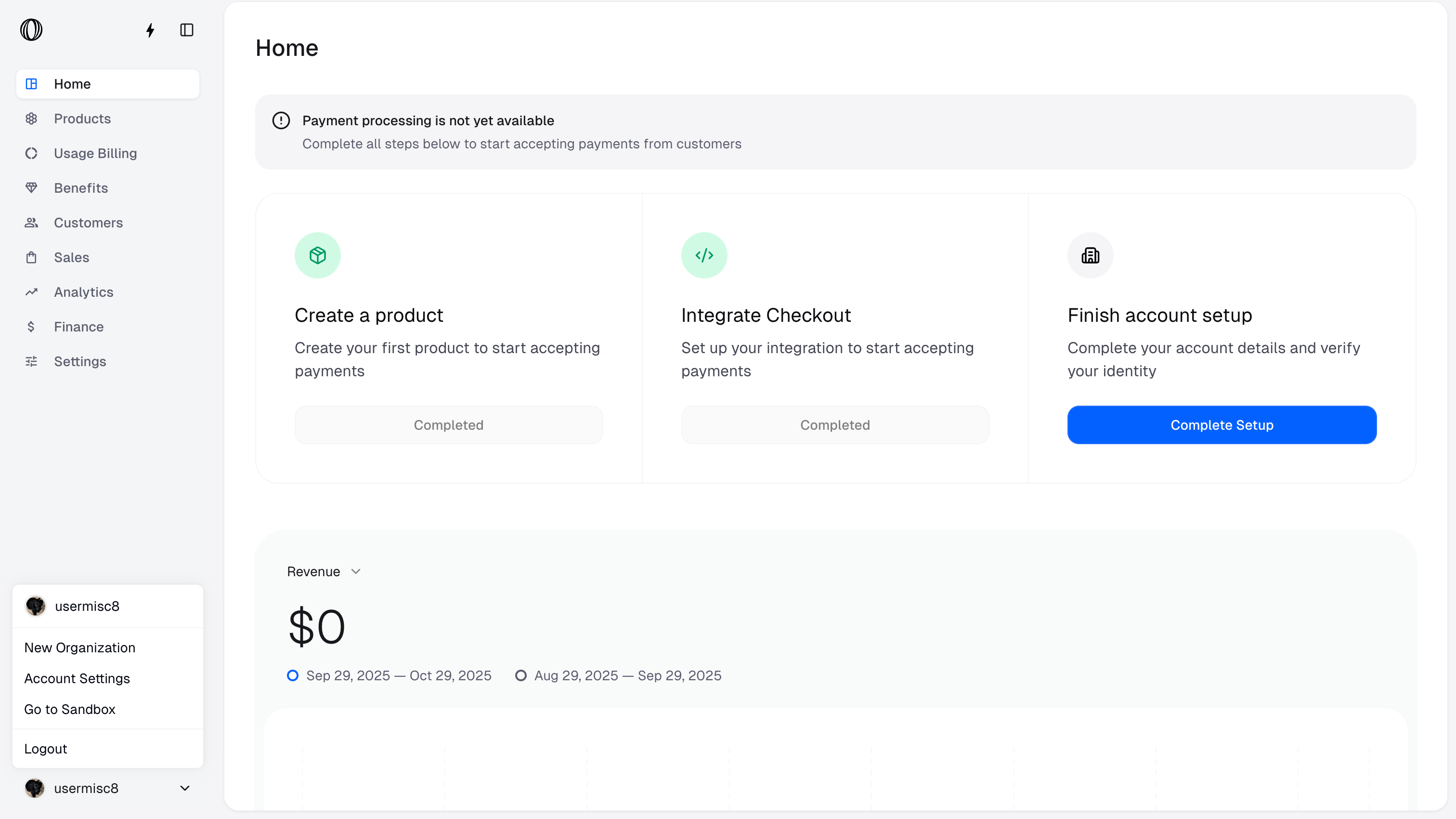
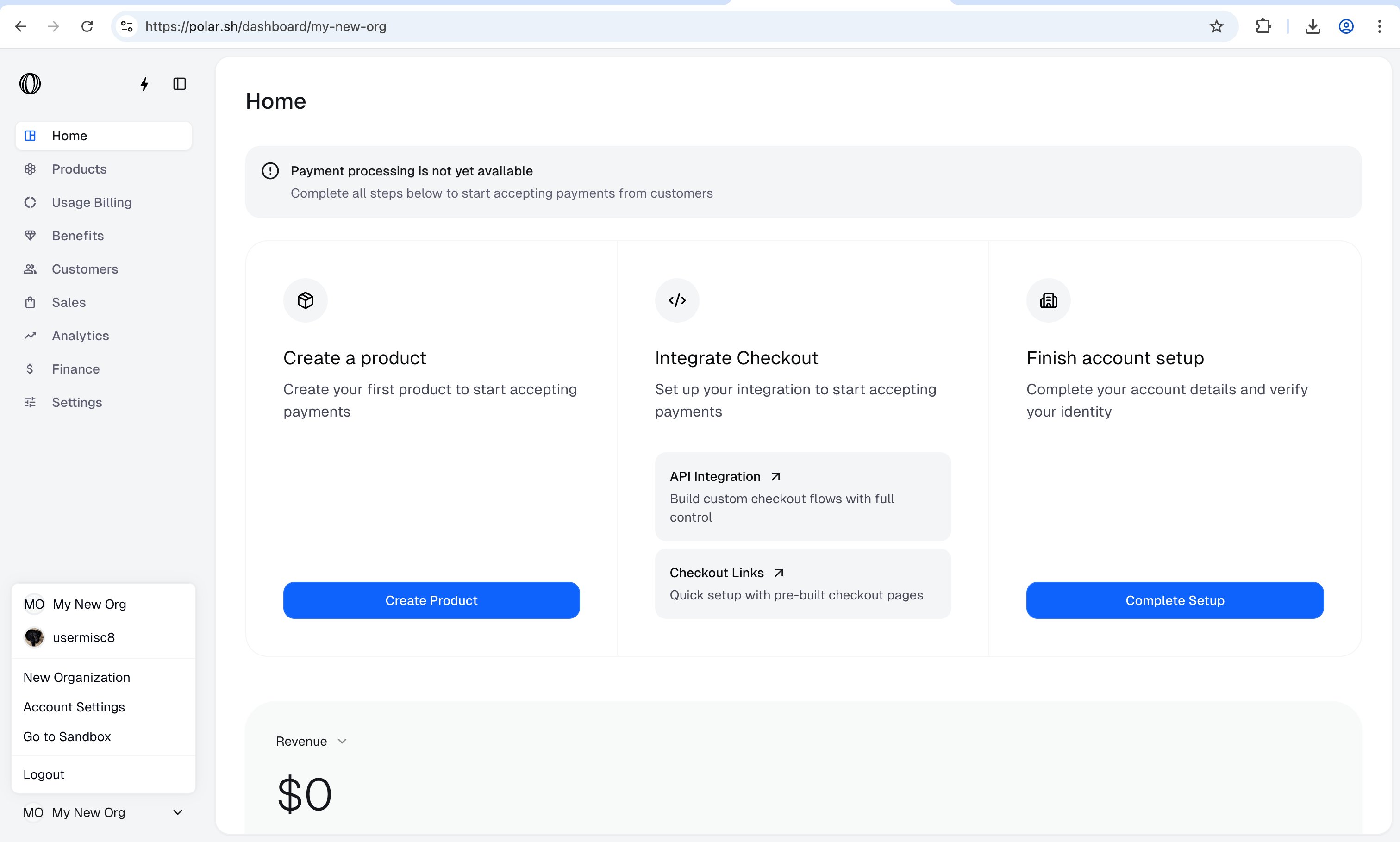
From the dashboard, click the menu in the **bottom-left corner** and choose `New Organization`.
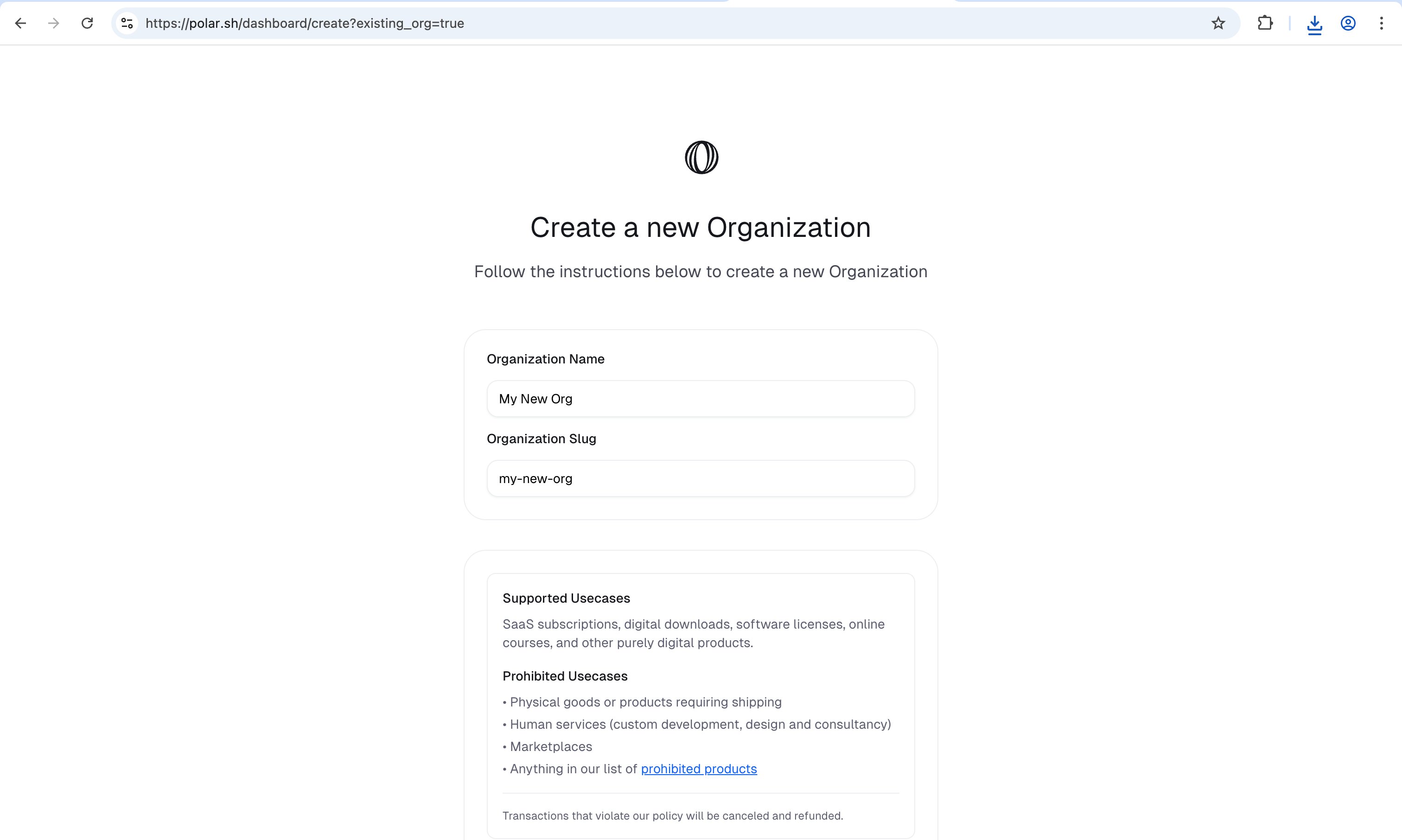
 Fill in the details for the new org — its name and slug determine the public-facing identity your customers will see at checkout.
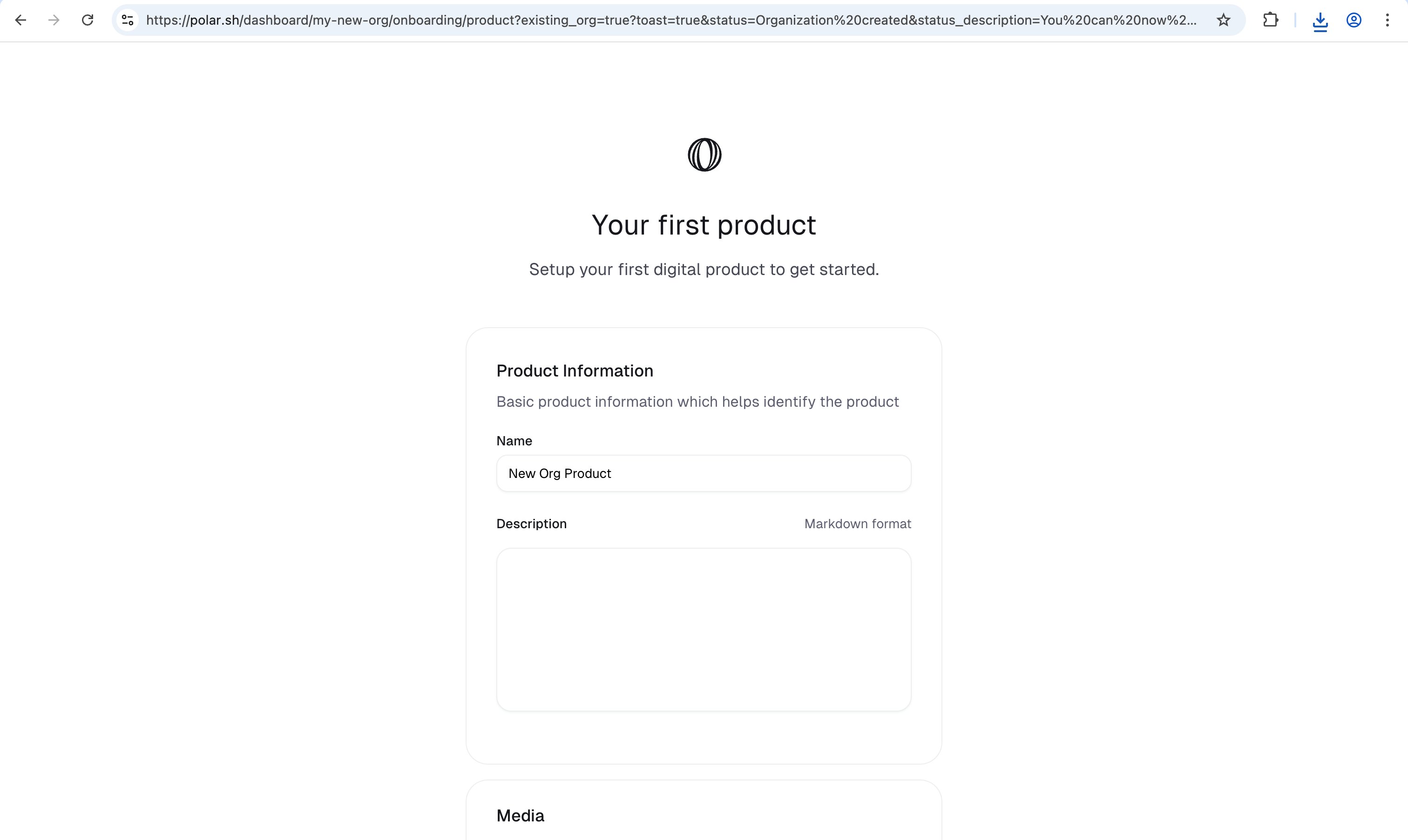
 Every org starts empty. Create a product to make it sellable — one-time or subscription, both use the same API and data model.
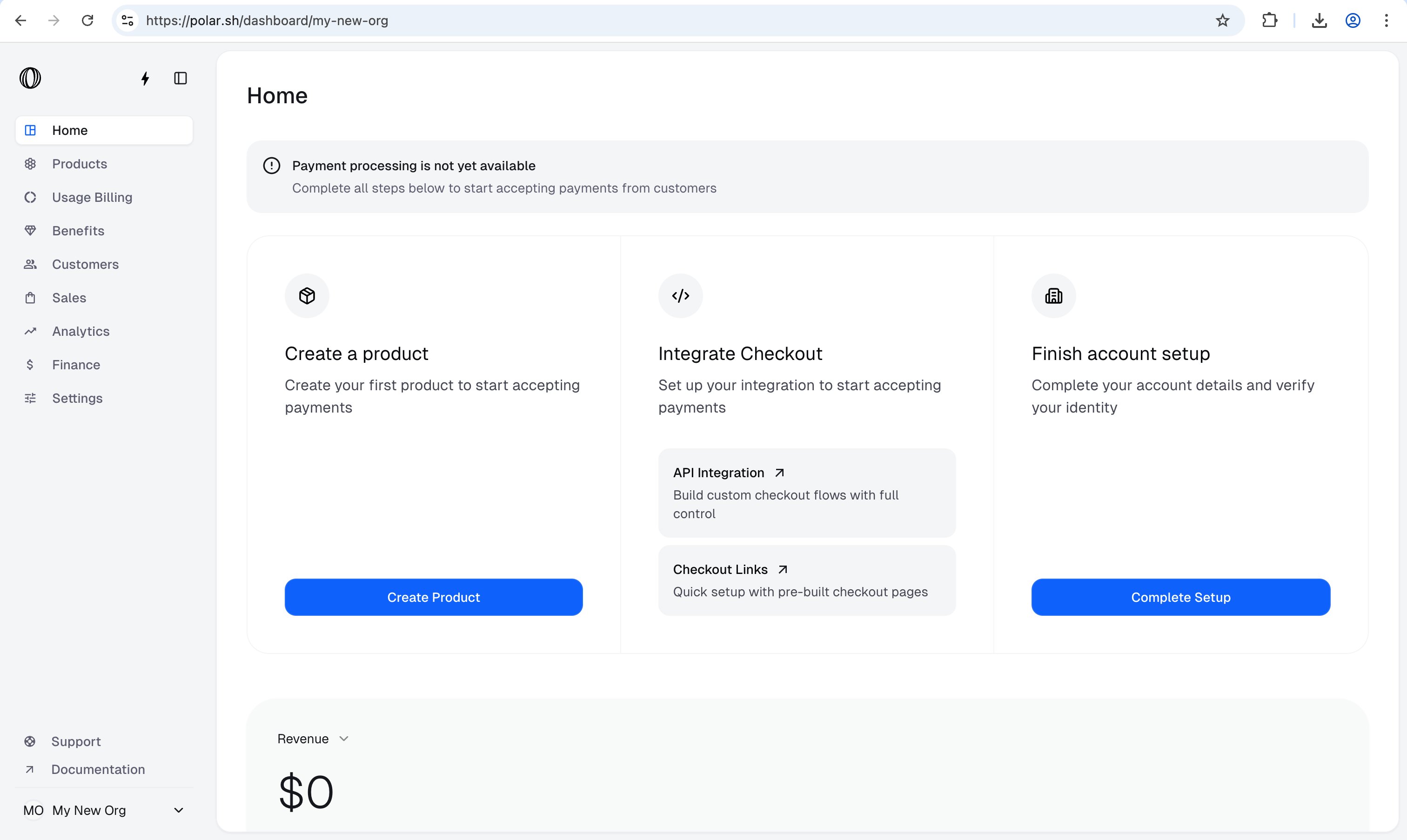
 Your new organization is ready to take payments, with tax and PCI handled for you.
 Reopen the bottom-left menu and select any organization to switch context. Products, customers, and payouts swap instantly.
 Organizations are fully isolated. Products, customers, payouts, webhooks, and access tokens belong to exactly one org and never leak across the boundary.
## Programmatic access per organization
Each organization issues its own **organization access tokens (OAT)**. Scope a token to one org and every API call lands in that workspace — handy when you automate per-brand or per-agent billing.
Pair one OAT per agent with the [Signals API](/features/usage-based-billing/introduction) to attribute activity and outcome events to the right organization, then read agentic margin per agent without any manual reconciliation.
Organizations are fully isolated. Products, customers, payouts, webhooks, and access tokens belong to exactly one org and never leak across the boundary.
## Programmatic access per organization
Each organization issues its own **organization access tokens (OAT)**. Scope a token to one org and every API call lands in that workspace — handy when you automate per-brand or per-agent billing.
Pair one OAT per agent with the [Signals API](/features/usage-based-billing/introduction) to attribute activity and outcome events to the right organization, then read agentic margin per agent without any manual reconciliation.