> ## Documentation Index
> Fetch the complete documentation index at: https://docs.macropay.ai/llms.txt
> Use this file to discover all available pages before exploring further.
# How to create product variants
> Sell Good/Better/Best tiers as separate Macropay products and let customers self-serve upgrades and downgrades from the customer portal.
Most SaaS pricing isn't one plan — it's a ladder. Macropay models each rung as its own **product**, then groups them behind a single checkout link so buyers pick a tier at purchase and switch tiers later without contacting you. Because Macropay is the **merchant of record**, every tier inherits the same tax, VAT, and compliance handling automatically — you define the price, we remit the sales tax and stay the seller of record on the customer's statement.
In this guide we'll stand up a three-tier subscription ladder — **Starter ($15/mo)**, **Growth ($35/mo)**, and **Scale (\$75/mo)** — wire them into one checkout link, and walk through how a customer upgrades and downgrades from the portal on their own.
A "variant" in Macropay is just a separate product offered alongside its siblings. Same data model, same API — the only difference is price and billing logic. This keeps each tier independently configurable (entitlements, metering, trials) instead of locking them into rigid option matrices.
## Step 1 — Build the tier products
From the Macropay dashboard sidebar, go to **Products** > **Catalogue** for your organization, or jump straight there:
`https://macropay.ai/dashboard/${org_slug}/products`
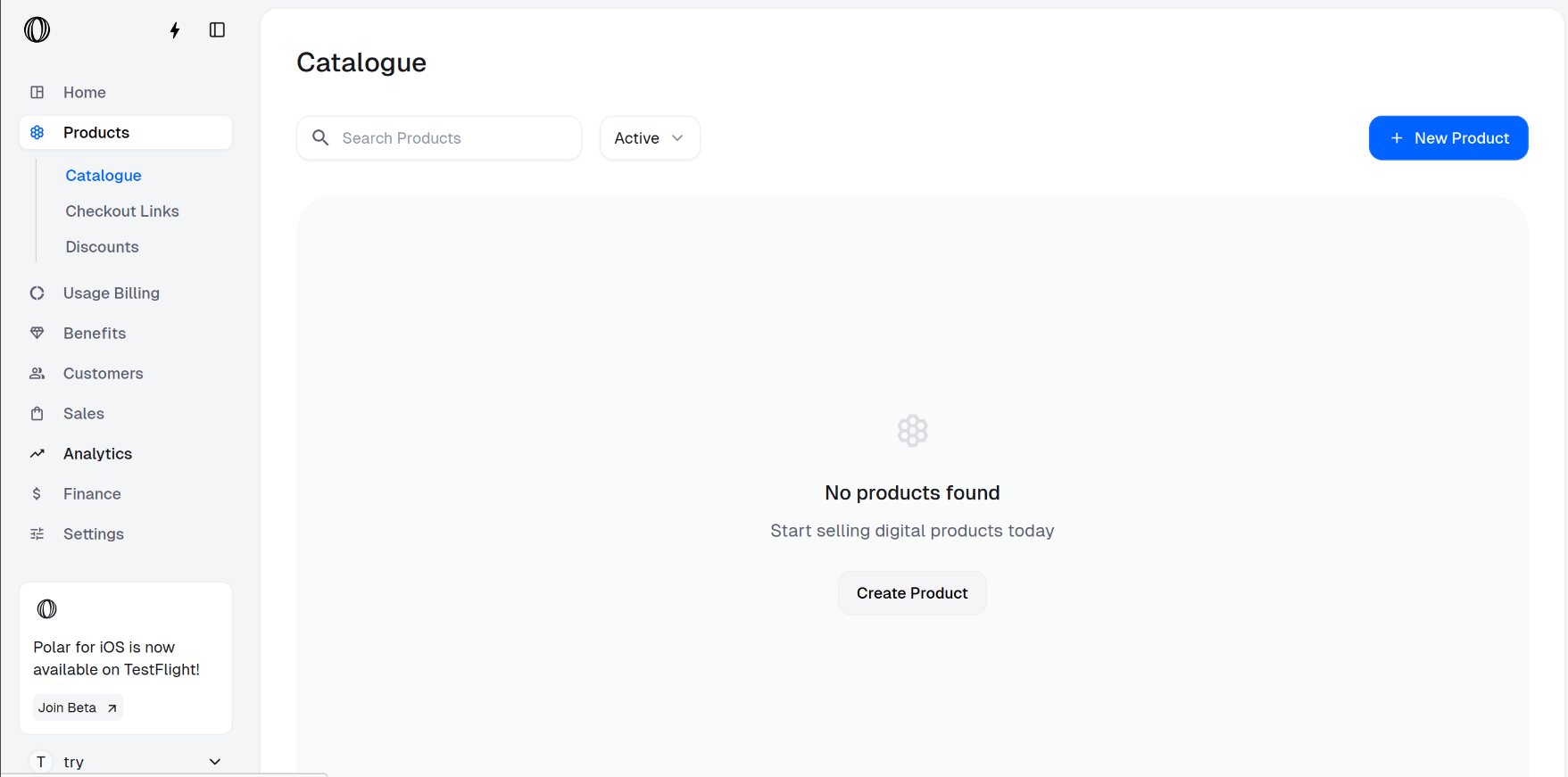 Click **New Product** and fill in the details. We'll start with the entry tier: a monthly subscription named **Starter** priced at \$15.
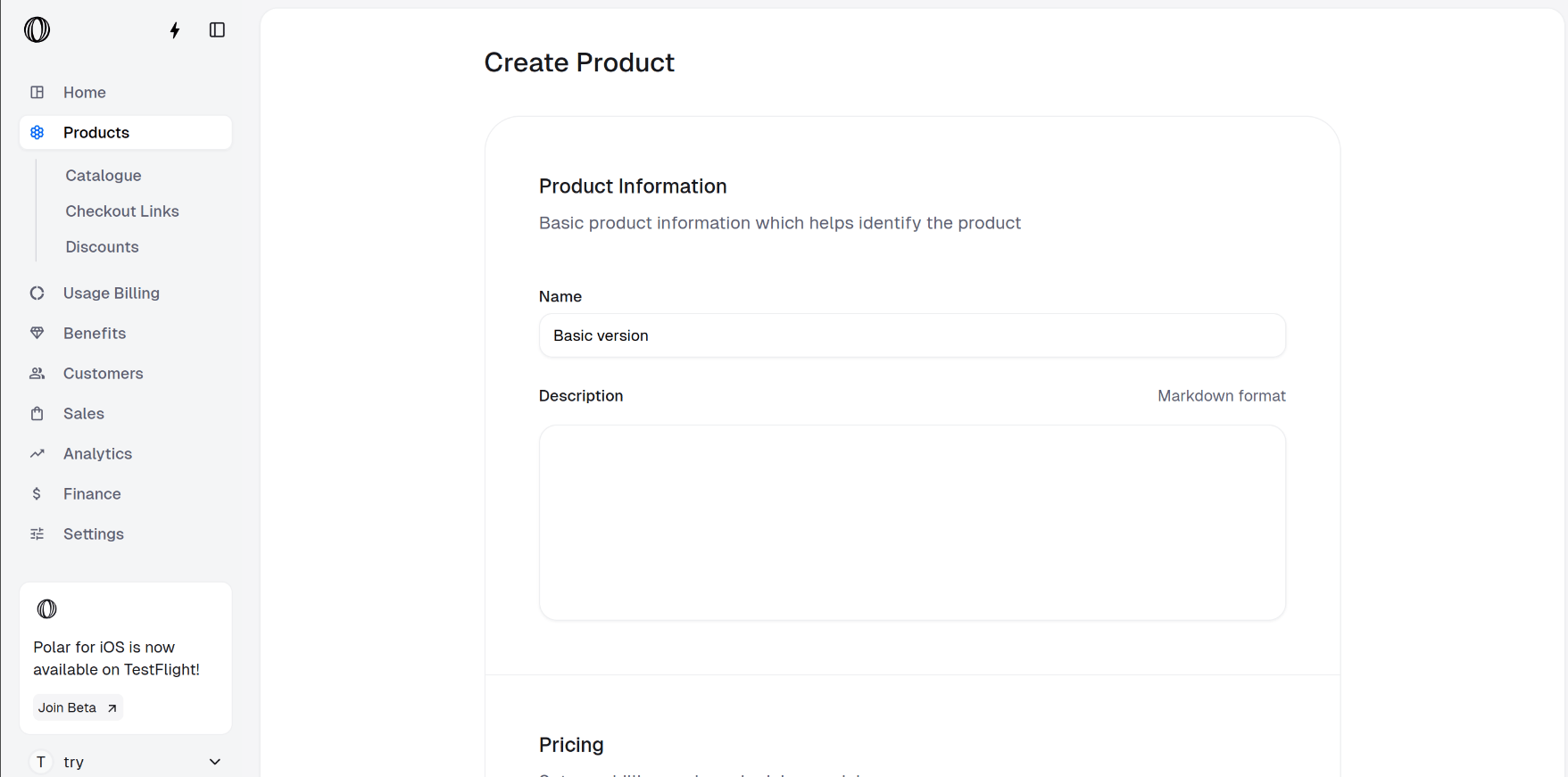
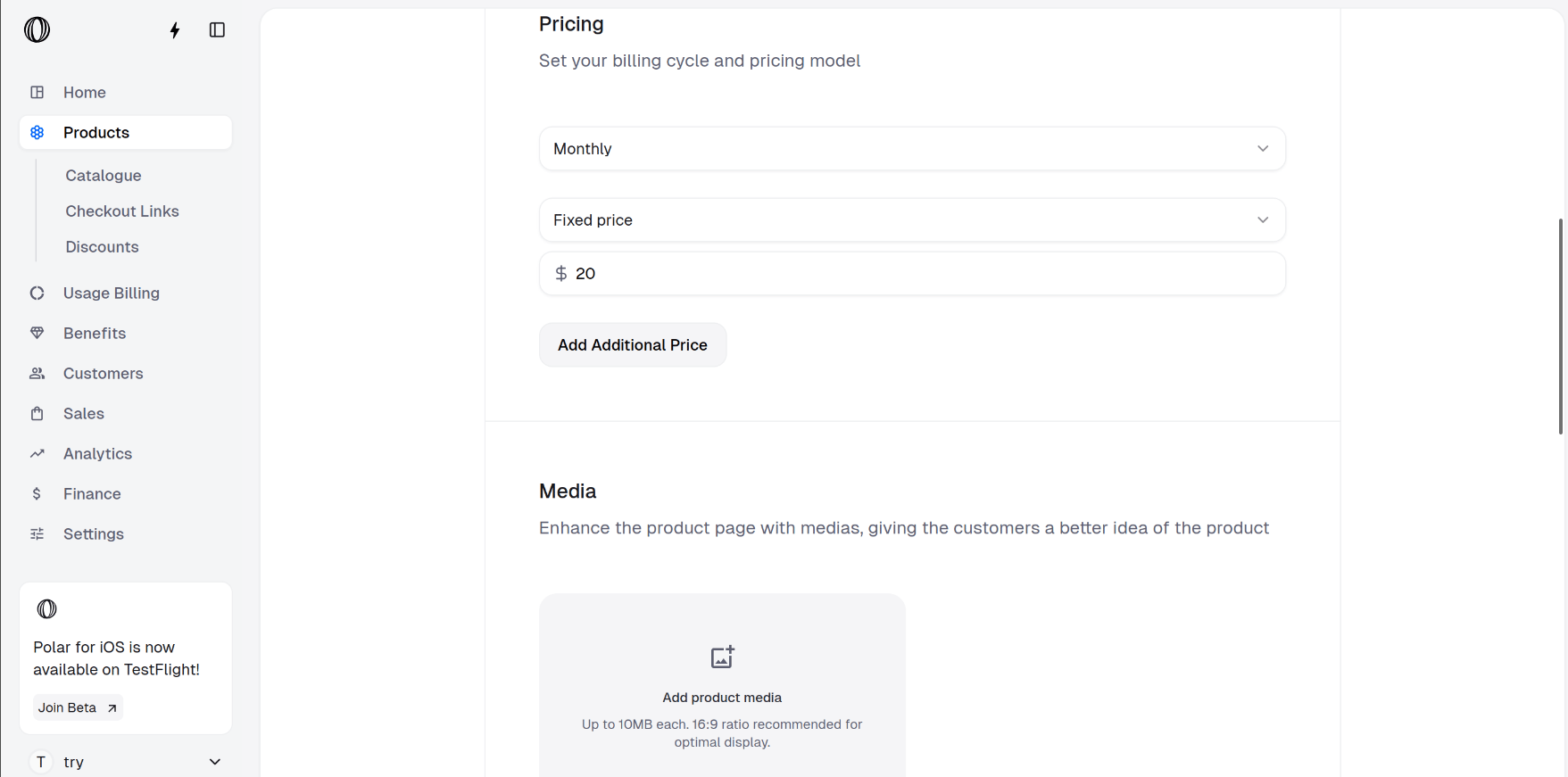 Once saved, the tier appears in your catalogue:
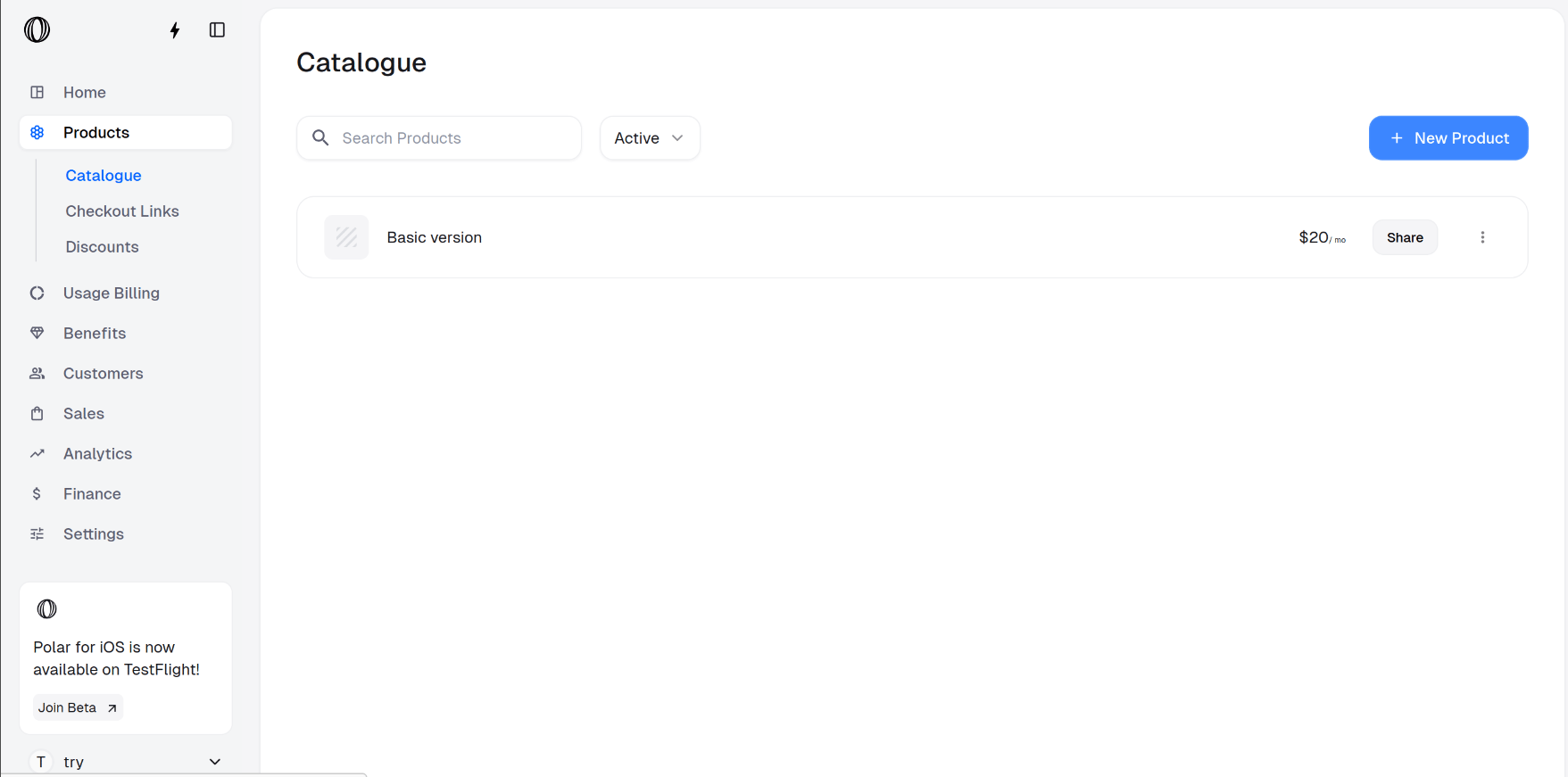 Repeat **New Product** for the next two rungs of the ladder:
* **Growth** — a monthly subscription priced at \$35.
Repeat **New Product** for the next two rungs of the ladder:
* **Growth** — a monthly subscription priced at \$35.
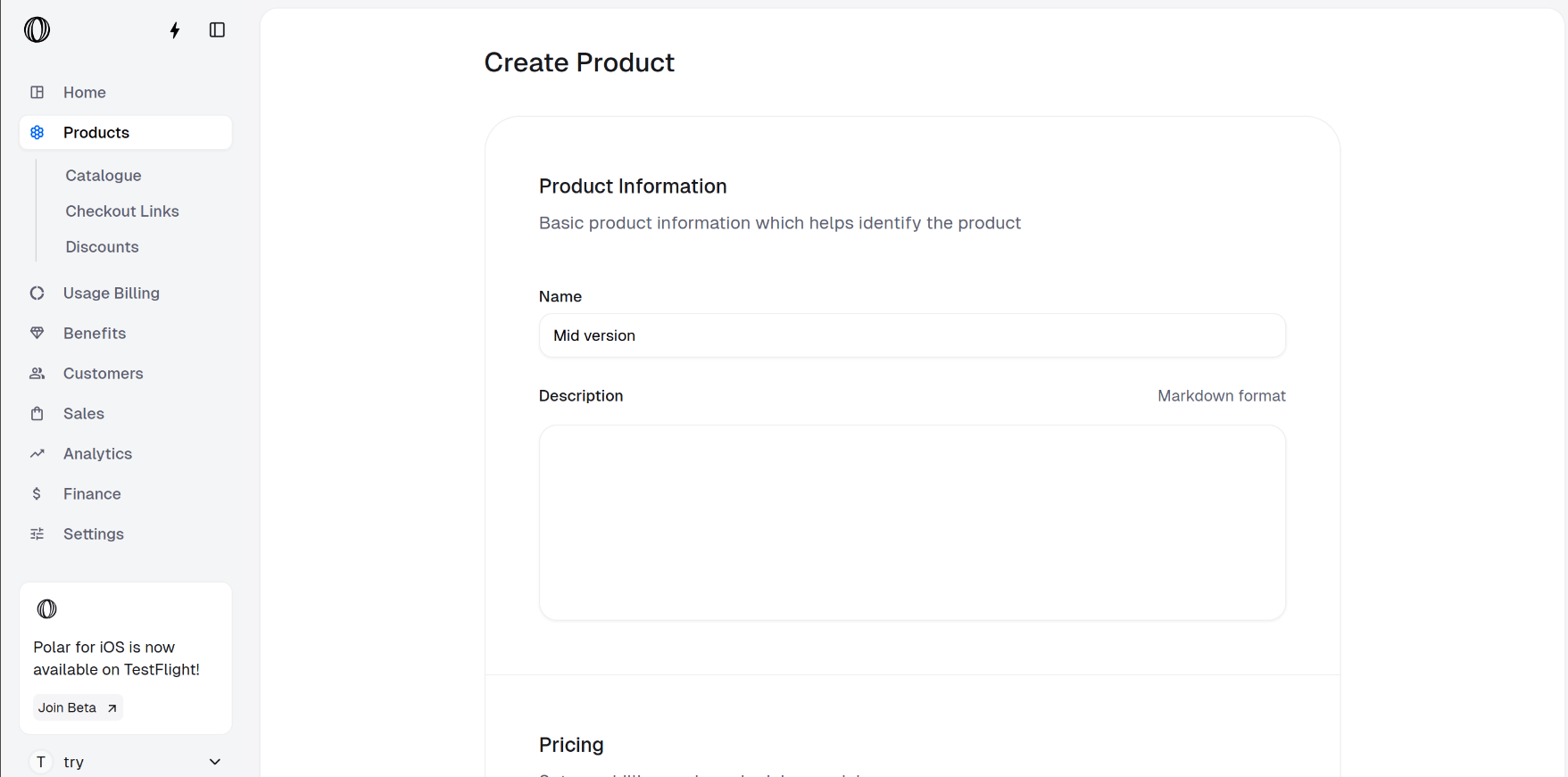
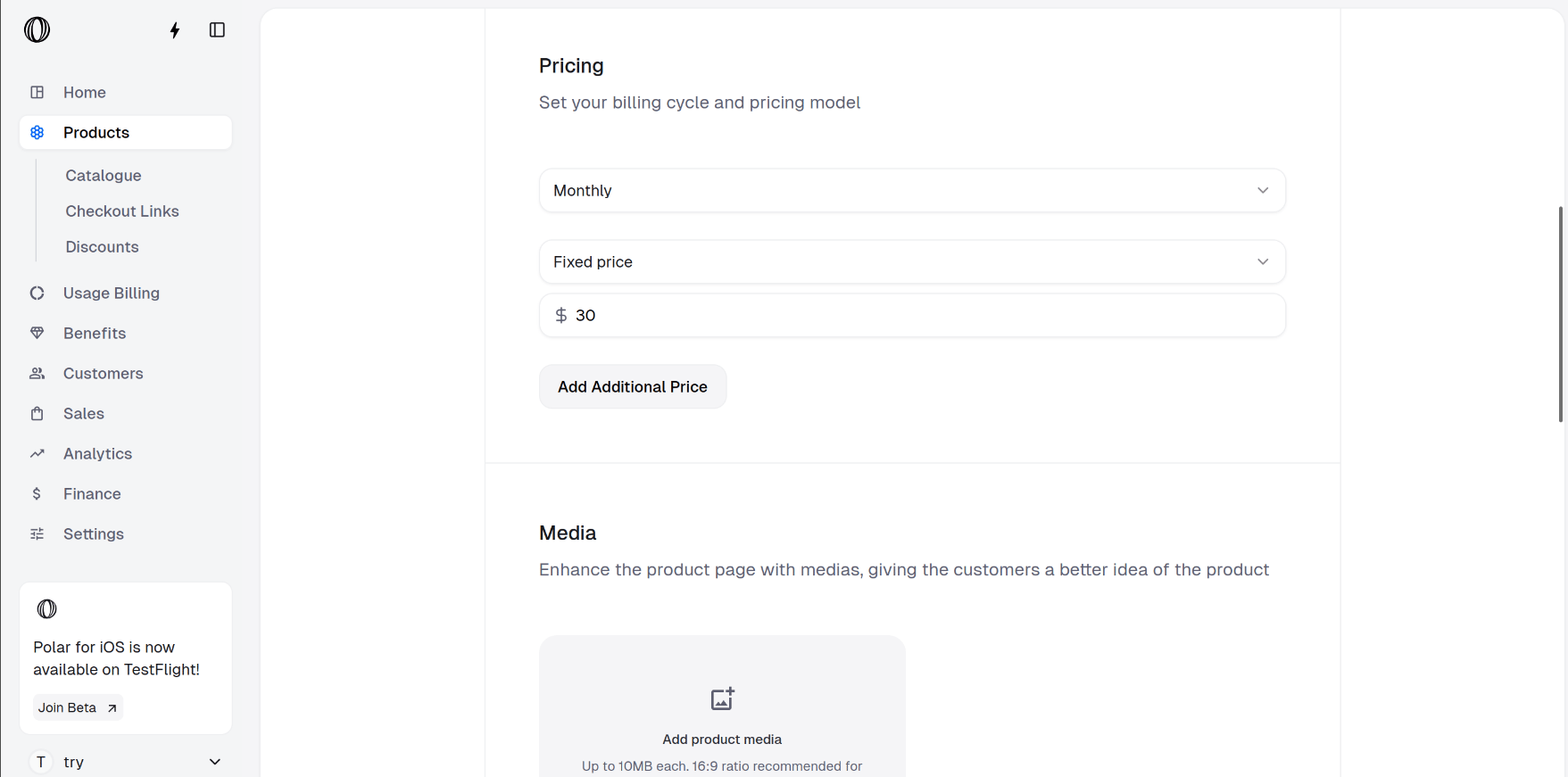 * **Scale** — a monthly subscription priced at \$75.
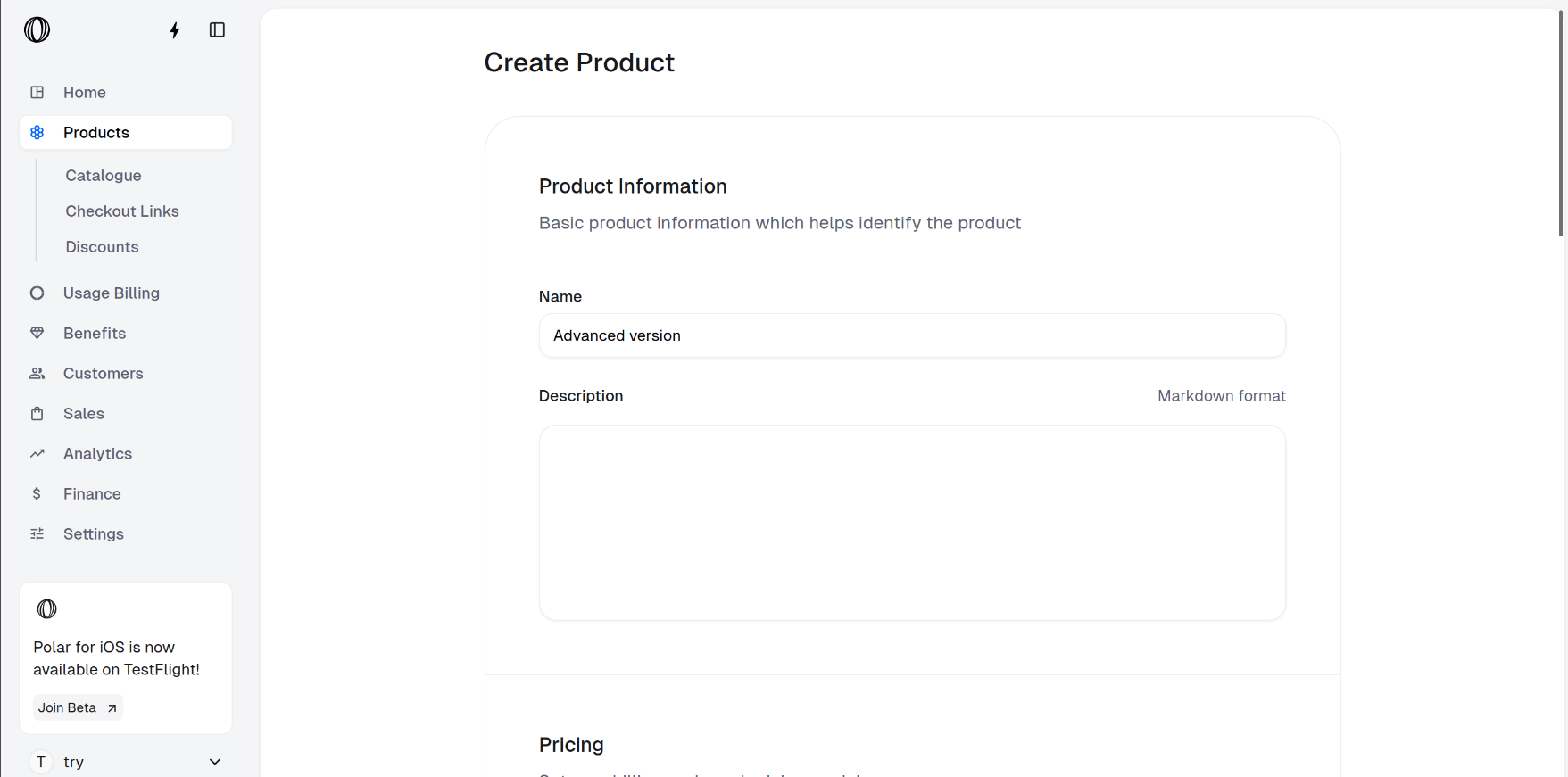
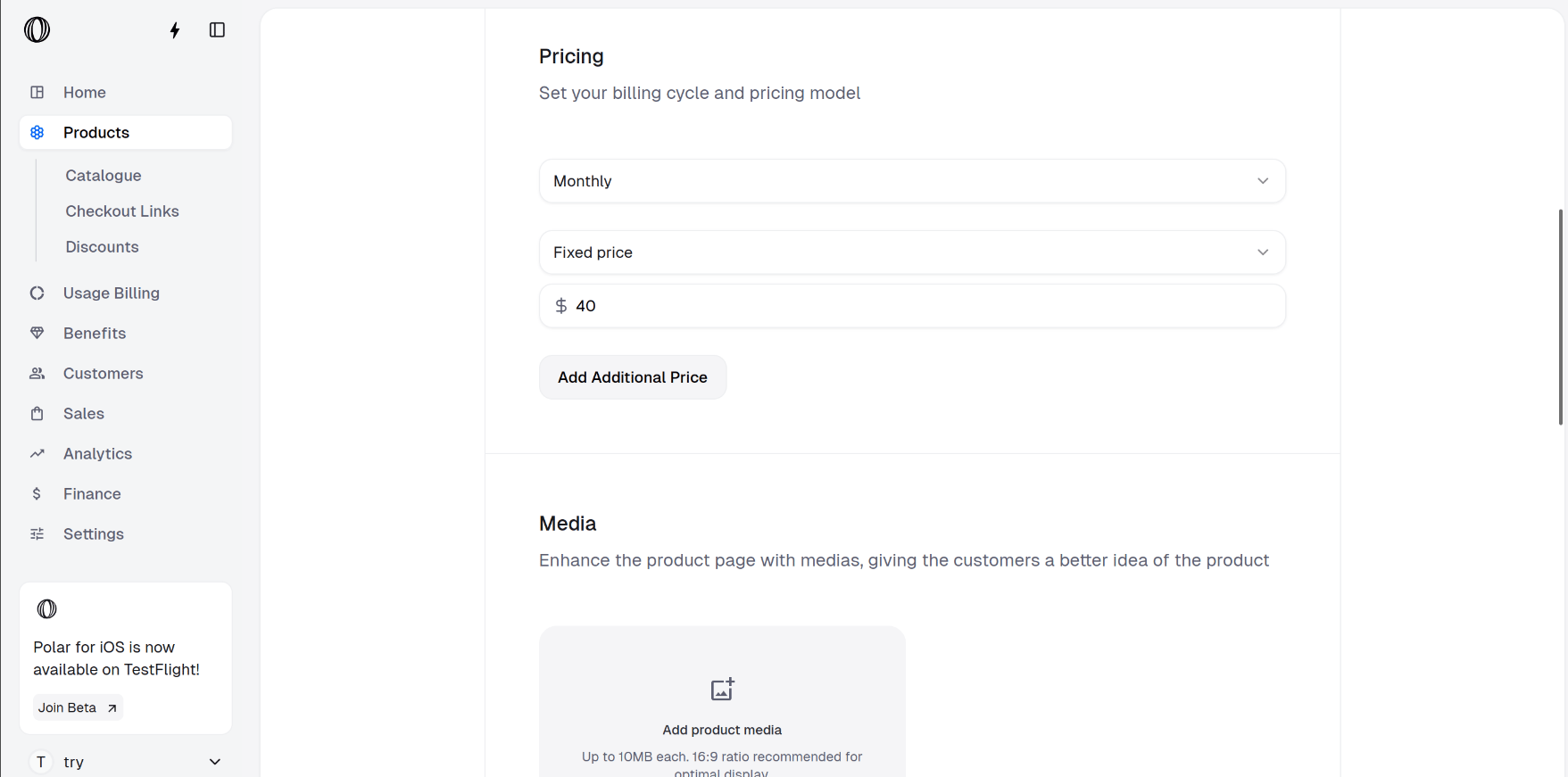 With all three saved, your catalogue lists the full ladder side by side:
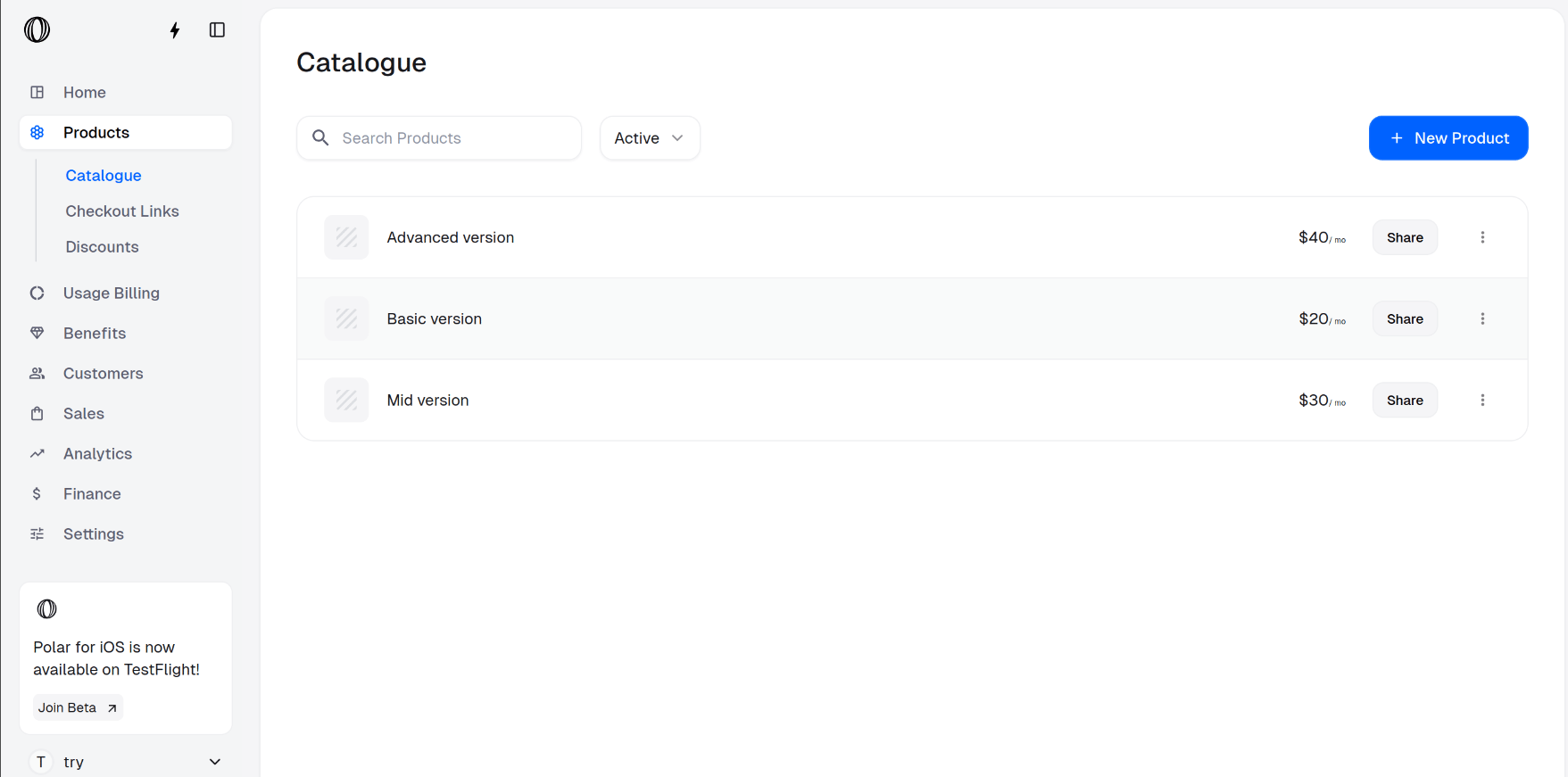 Tiers don't have to be flat monthly prices. Mix pricing models across the ladder — a free or pay-what-you-want entry tier, a fixed mid tier, and a **usage-based** top tier metered on real activity. For AI products you can meter by **usage, activity, or outcome**, so a "Scale" tier can bill on tokens consumed or value delivered rather than a static seat count.
## Step 2 — Group the tiers behind one checkout link
A single checkout link can present every tier at once, letting the customer choose their entry point on the same page.
In the sidebar, go to **Products** > **Checkout Links**, or navigate directly:
`https://macropay.ai/dashboard/${org_slug}/products/checkout-links`
Tiers don't have to be flat monthly prices. Mix pricing models across the ladder — a free or pay-what-you-want entry tier, a fixed mid tier, and a **usage-based** top tier metered on real activity. For AI products you can meter by **usage, activity, or outcome**, so a "Scale" tier can bill on tokens consumed or value delivered rather than a static seat count.
## Step 2 — Group the tiers behind one checkout link
A single checkout link can present every tier at once, letting the customer choose their entry point on the same page.
In the sidebar, go to **Products** > **Checkout Links**, or navigate directly:
`https://macropay.ai/dashboard/${org_slug}/products/checkout-links`
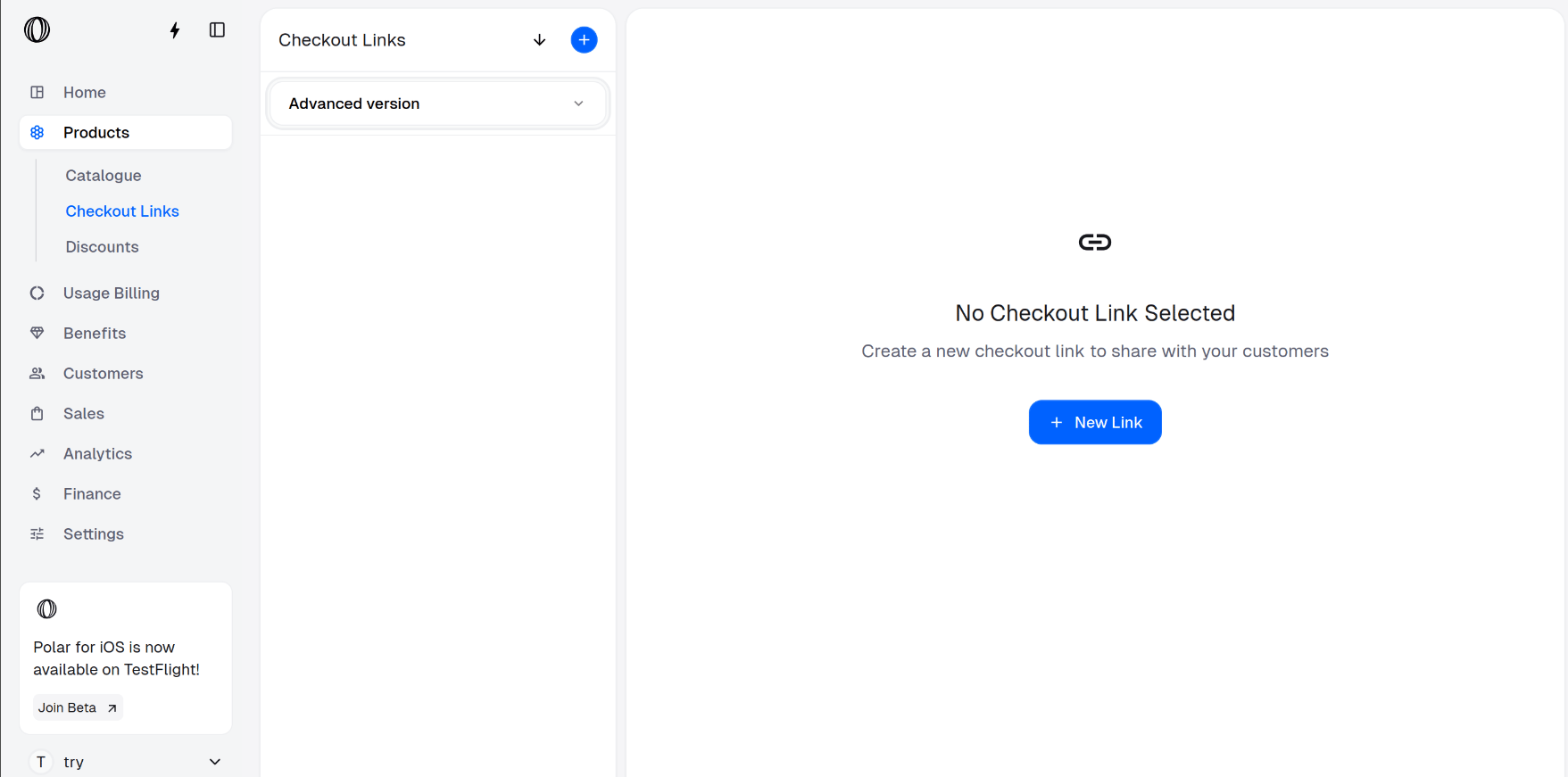 Click **New Link** and select all three products you want offered as variants — Starter, Growth, and Scale.
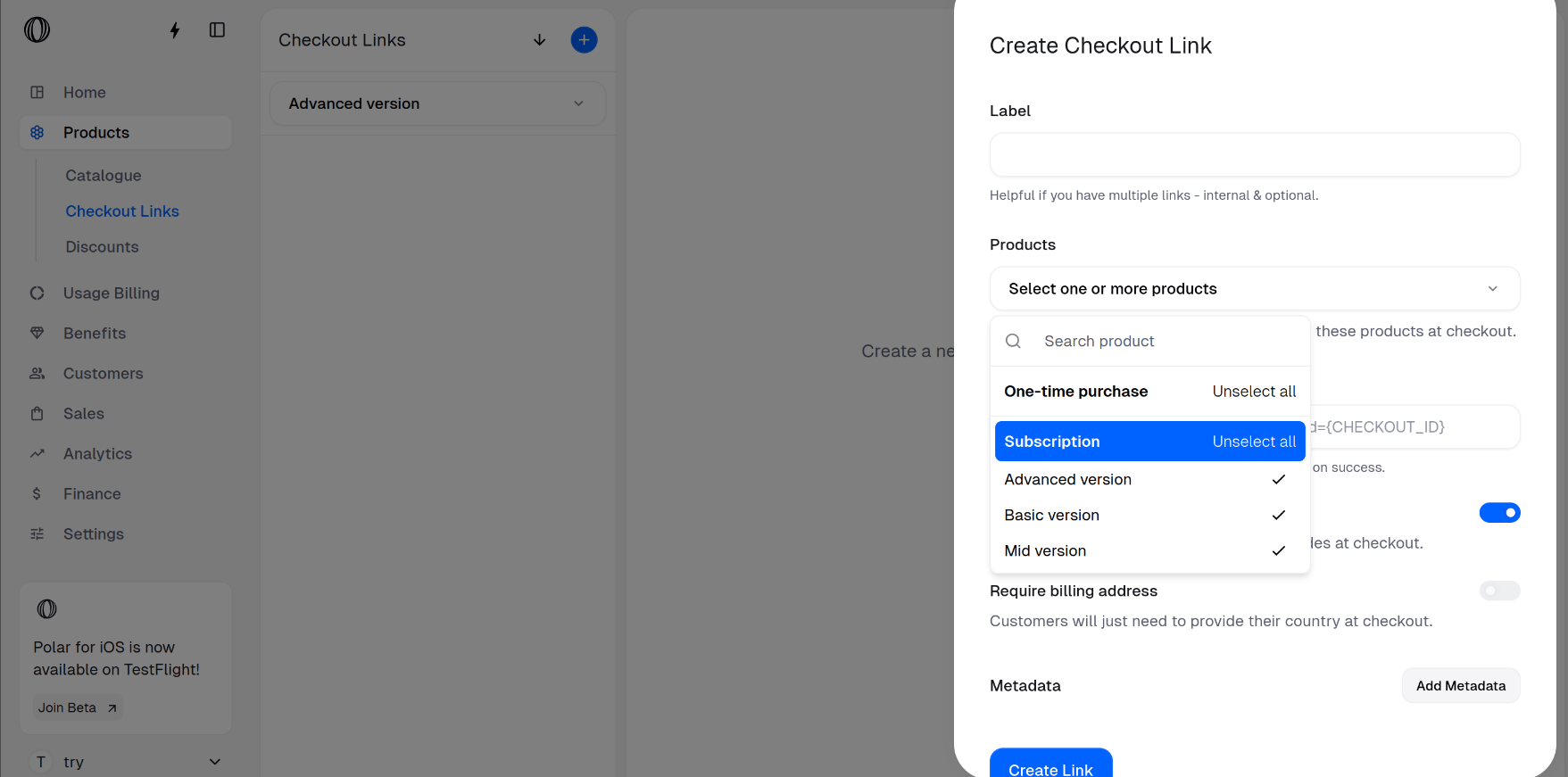 Before saving, you can set:
* a **label** for the link (internal name),
* a **success URL** to redirect to after purchase,
* custom **metadata** to carry through to orders and webhooks,
* whether **discount codes** are accepted,
* whether a **billing address** is required.
Click **Create Link** once configured.
Your new link shows up under **Checkout Links** — here the system applied the default label **3 products**.
Before saving, you can set:
* a **label** for the link (internal name),
* a **success URL** to redirect to after purchase,
* custom **metadata** to carry through to orders and webhooks,
* whether **discount codes** are accepted,
* whether a **billing address** is required.
Click **Create Link** once configured.
Your new link shows up under **Checkout Links** — here the system applied the default label **3 products**.
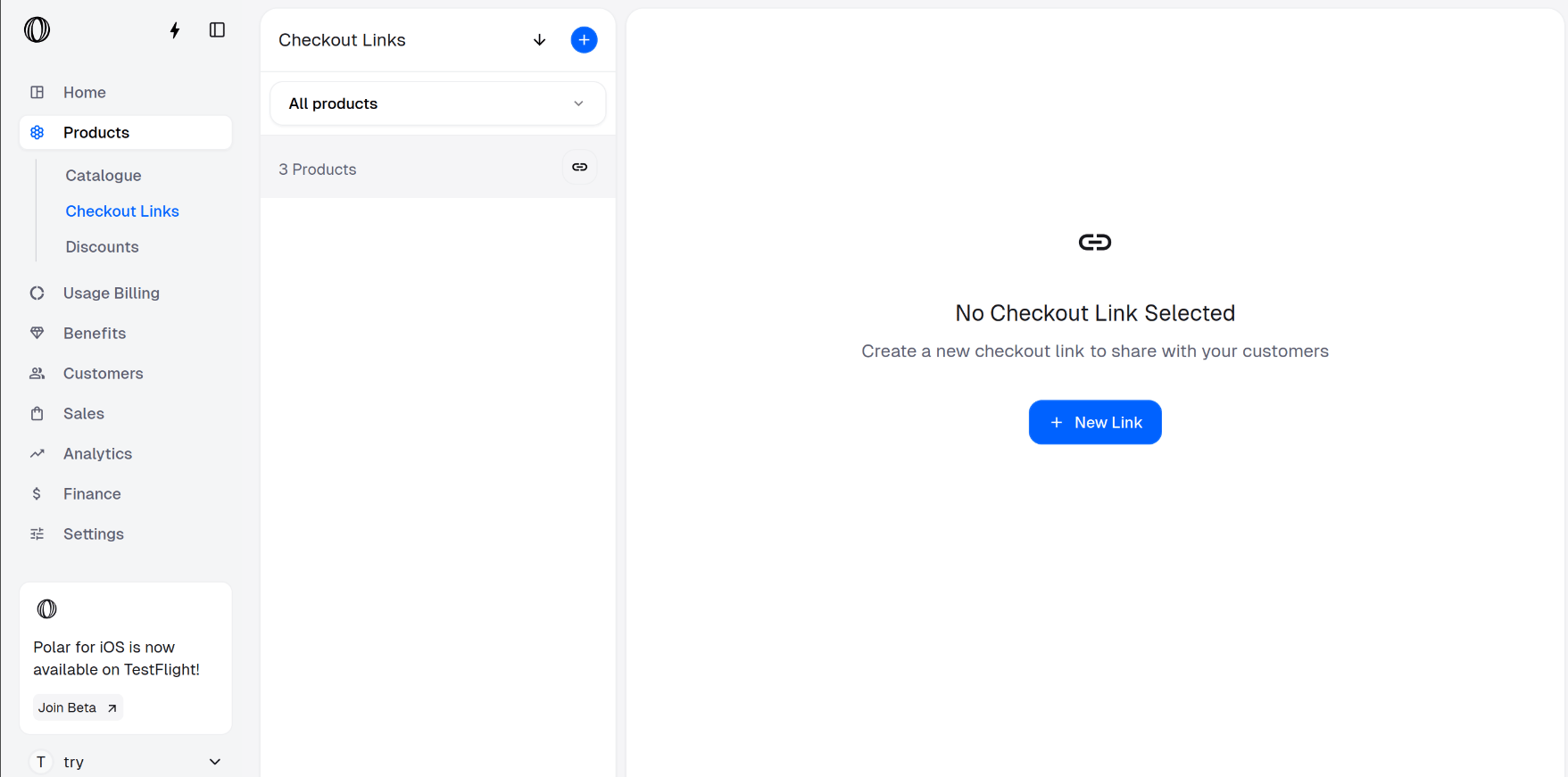 Open the label to reveal the public checkout URL.
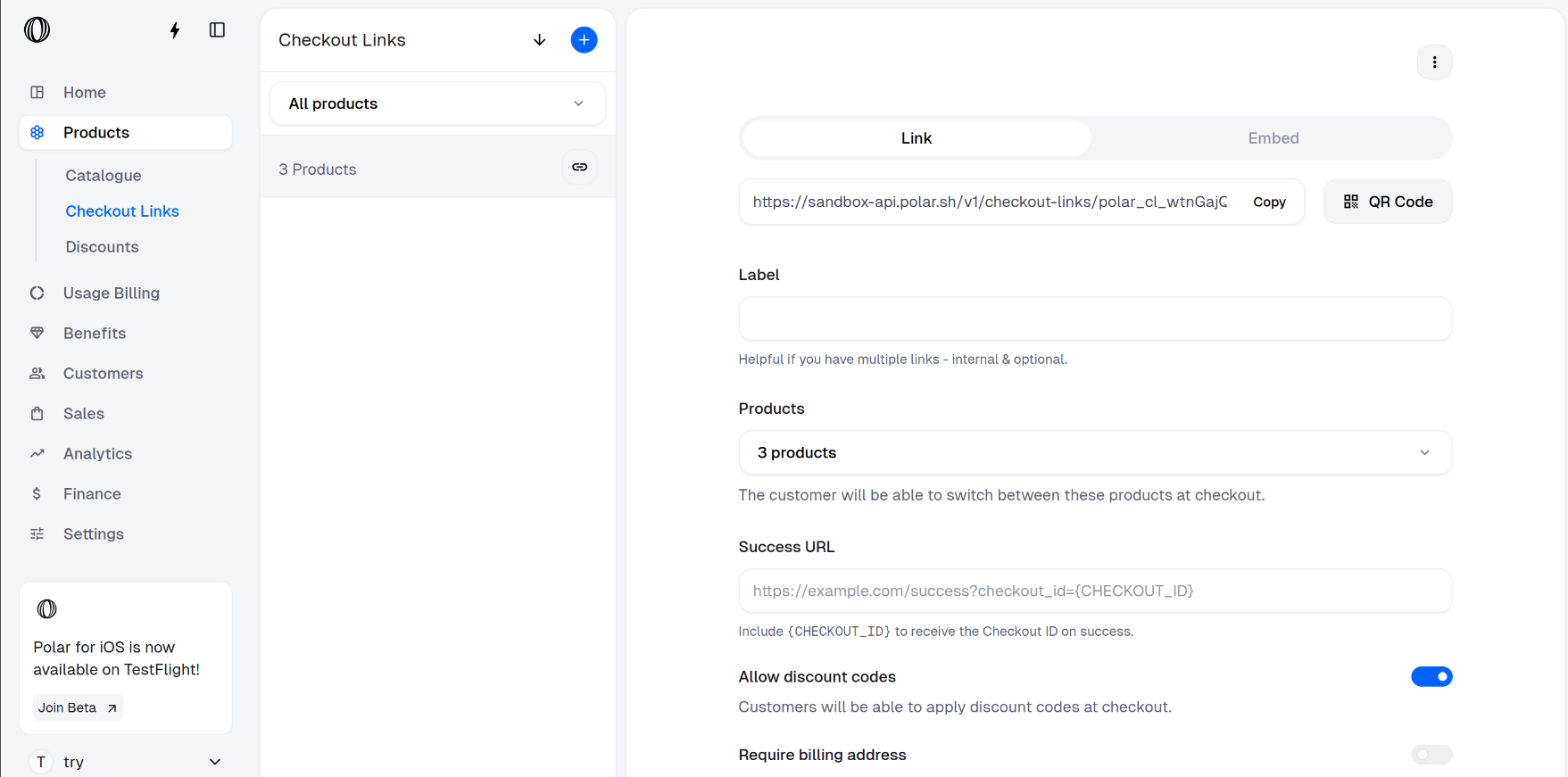 Copy it and drop it anywhere — a pricing page, an email, a docs CTA — and customers can purchase any tier from it.
## Step 3 — Customer picks a tier at checkout
On the hosted checkout, the customer selects their tier, enters their email, and pays. Card details are tokenized in our PCI DSS Level 1 compliant vault — neither you nor the page ever touches raw card data.
Copy it and drop it anywhere — a pricing page, an email, a docs CTA — and customers can purchase any tier from it.
## Step 3 — Customer picks a tier at checkout
On the hosted checkout, the customer selects their tier, enters their email, and pays. Card details are tokenized in our PCI DSS Level 1 compliant vault — neither you nor the page ever touches raw card data.
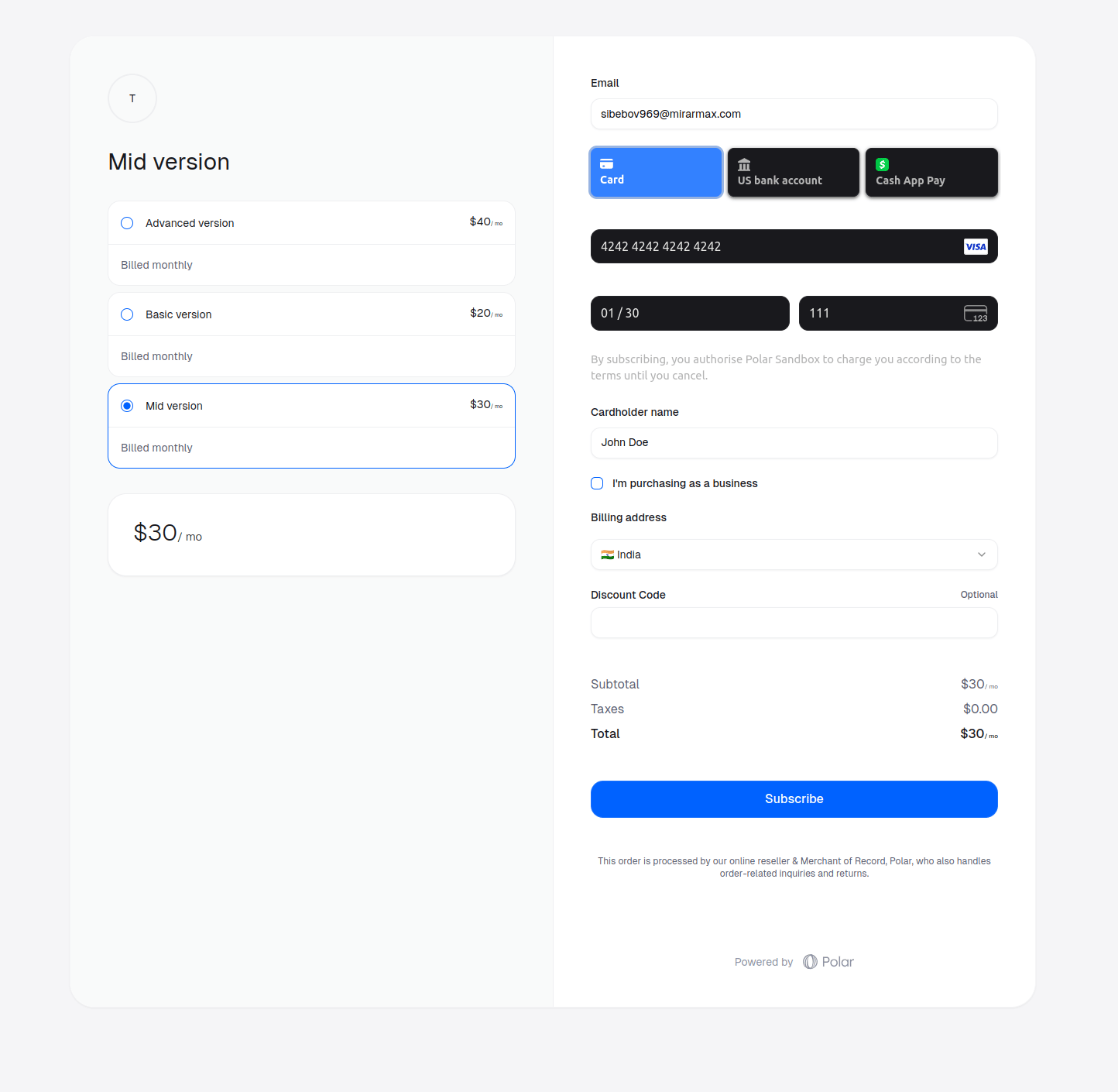 After purchase, the customer gets a confirmation email with a link into their **customer portal**, where they can manage the subscription and change tiers later.
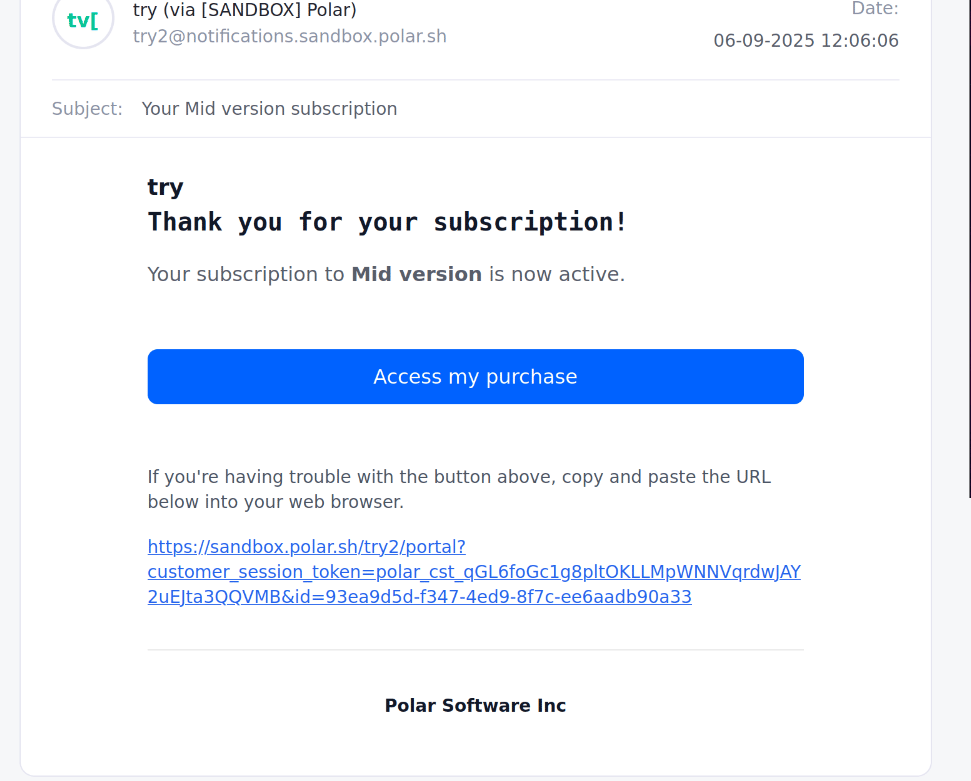 The portal is fully self-serve, so plan changes don't generate support tickets. And because Macropay is the merchant of record, proration, tax recalculation, and the invoice are all handled for you on every switch.
## Step 4 — Self-serve downgrades
When a customer moves to a cheaper tier — say from **Growth** down to **Starter** — they drive the change themselves.
From the email link, the customer opens the portal and clicks **Change Plan**.
The portal is fully self-serve, so plan changes don't generate support tickets. And because Macropay is the merchant of record, proration, tax recalculation, and the invoice are all handled for you on every switch.
## Step 4 — Self-serve downgrades
When a customer moves to a cheaper tier — say from **Growth** down to **Starter** — they drive the change themselves.
From the email link, the customer opens the portal and clicks **Change Plan**.
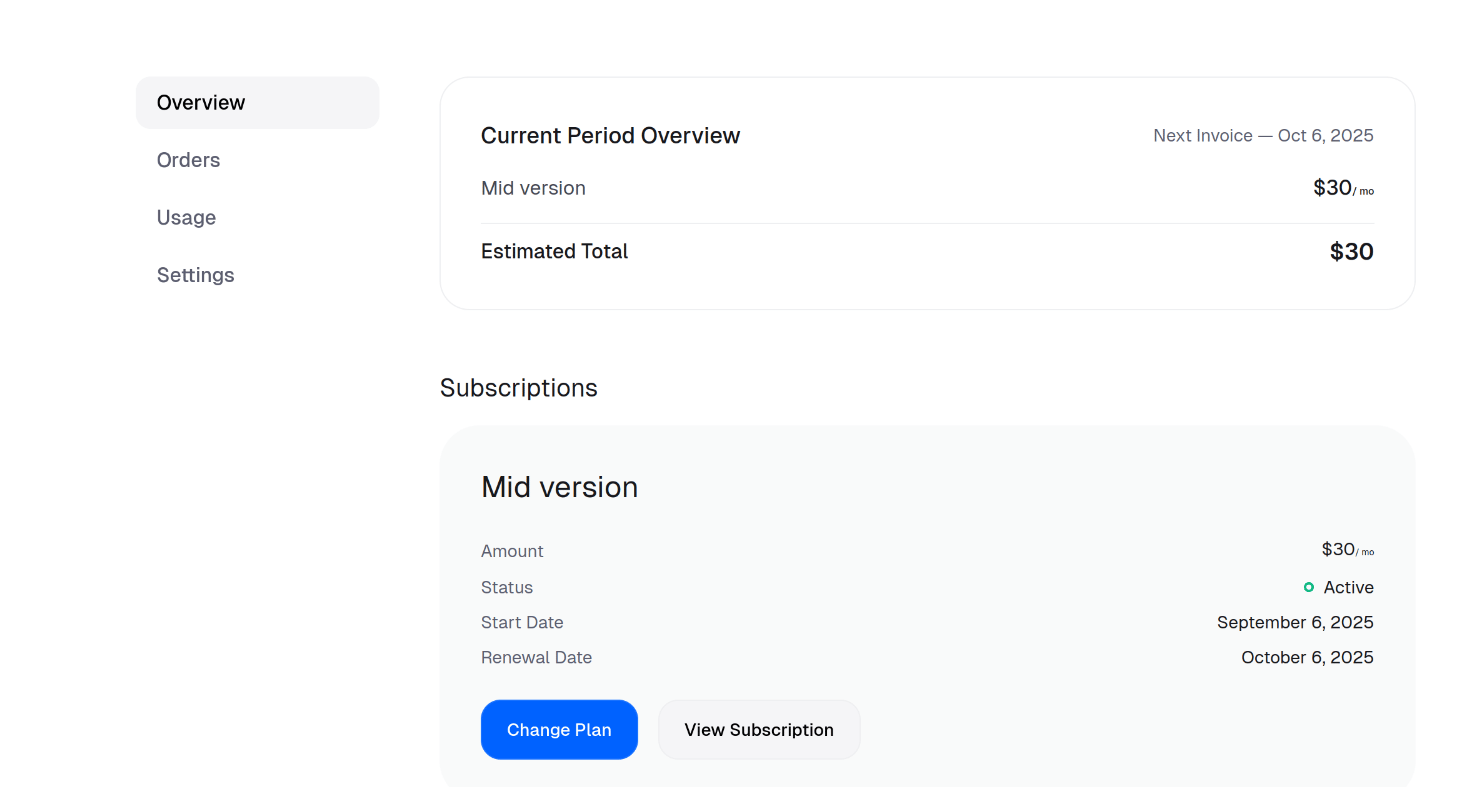 They select the tier to move to and confirm with **Change Plan**.
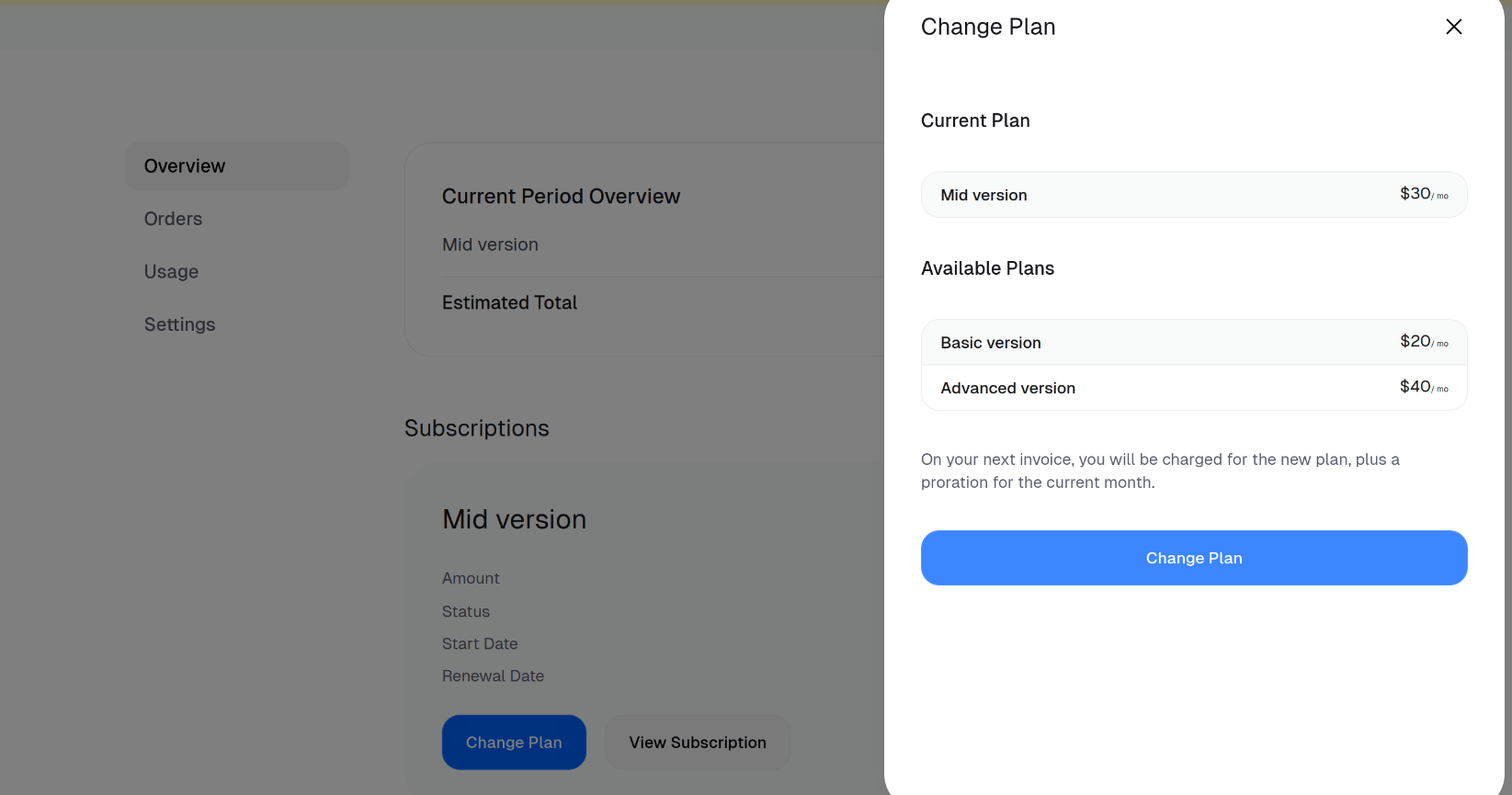 The active subscription is now **Starter** instead of **Growth**.
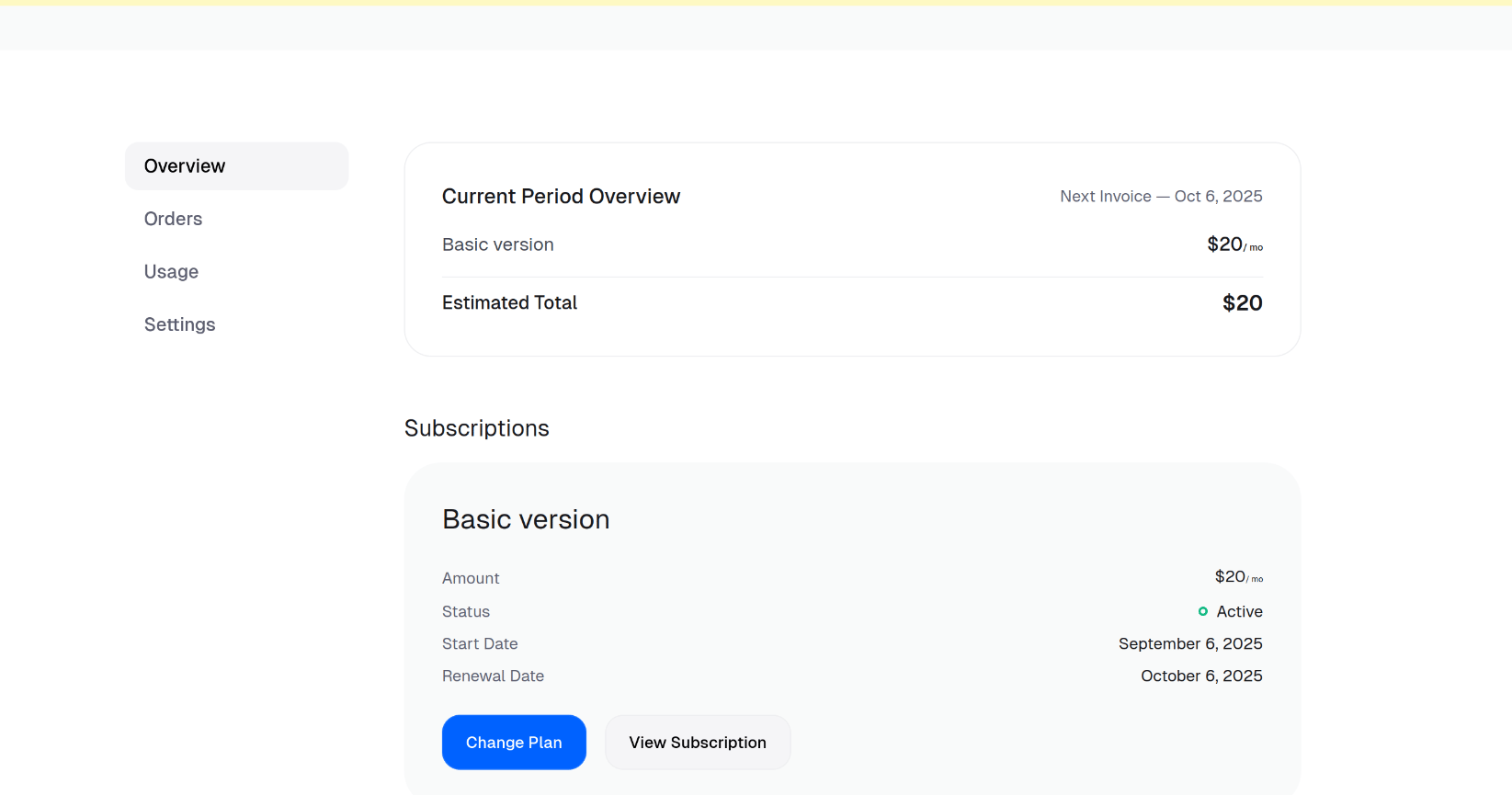 ## Step 5 — Self-serve upgrades
Upgrades follow the same path in reverse — here the customer steps up to **Scale**.
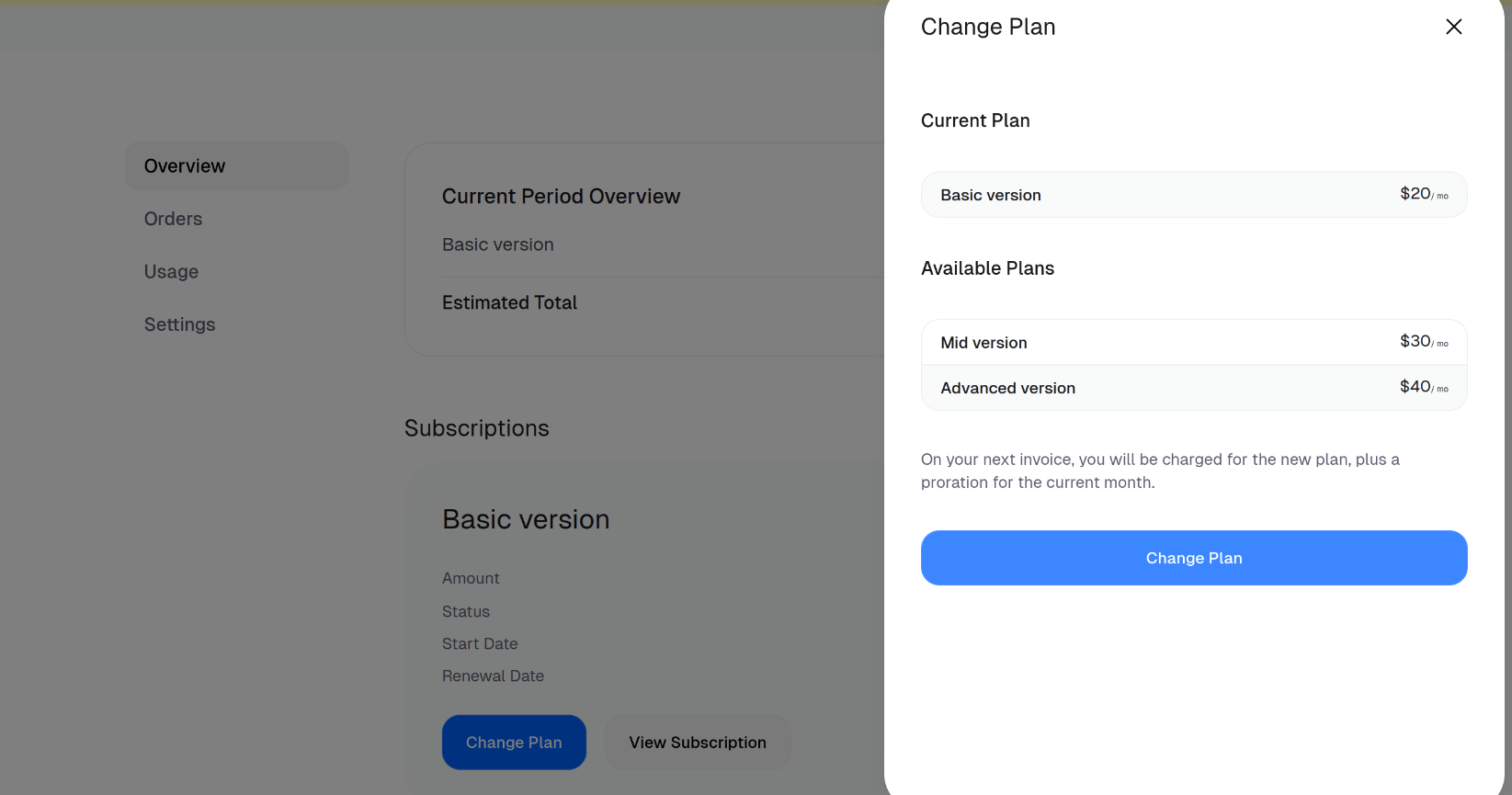
From the email link, the customer opens the portal and clicks **Change Plan**.
They select **Scale** and confirm with **Change Plan**.
## Step 5 — Self-serve upgrades
Upgrades follow the same path in reverse — here the customer steps up to **Scale**.
From the email link, the customer opens the portal and clicks **Change Plan**.
They select **Scale** and confirm with **Change Plan**.
 The active subscription is now **Scale**.
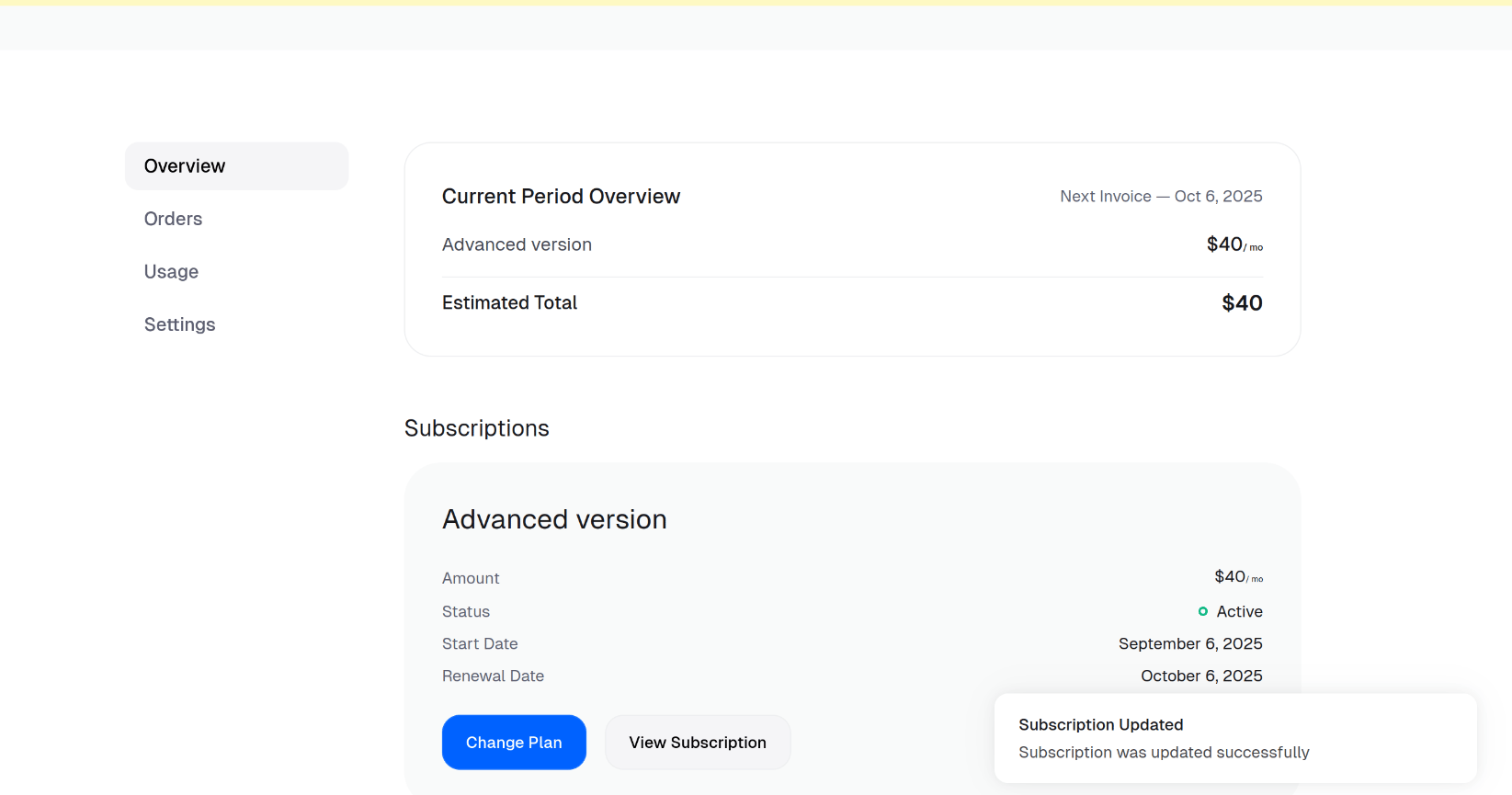 You now have a Good/Better/Best ladder selling from one link, with customers upgrading and downgrading on their own. Tax, VAT, dispute handling, and PCI scope ride along on every tier — that's the merchant-of-record model doing the heavy lifting.