> ## Documentation Index
> Fetch the complete documentation index at: https://docs.macropay.ai/llms.txt
> Use this file to discover all available pages before exploring further.
# How to Customize Benefits Order in Checkouts
> Control the order benefits appear at checkout so the most compelling entitlement leads the sale.
The order your benefits appear at checkout is part of the pitch. A license key, an instant file download, Discord access, prepaid credits — whichever entitlement closes the deal should sit at the top, not buried beneath the rest. Macropay lets you drag benefits into any order you want, and the sequence you set flows straight through to every hosted checkout, link, and embed for that product.
Because Macropay is your merchant of record, the same product configuration also carries the tax, invoicing, and dispute handling — so reordering benefits is purely a presentation decision, with none of the compliance plumbing to rewire.
## What you'll set up
A single product carrying two benefits — a custom link and a downloadable file — then reorder them so the file leads. The same drag-and-drop step applies to any benefit type: license keys, Discord access, GitHub repo access, or prepaid credits.
Create the benefits you want to attach. For this walkthrough:
* A [custom benefit](https://docs.macropay.ai/guides/automate-post-purchase-link-sharing#create-a-custom-benefit) that shares a post-purchase onboarding link.
* A [file downloads benefit](https://docs.macropay.ai/features/benefits/file-downloads#create-downloadable-benefit) that delivers your asset bundle.
You don't have to build benefits up front. While configuring a product, hit `Create New` under the relevant benefit type in the **Automated Benefits** section to define one inline.
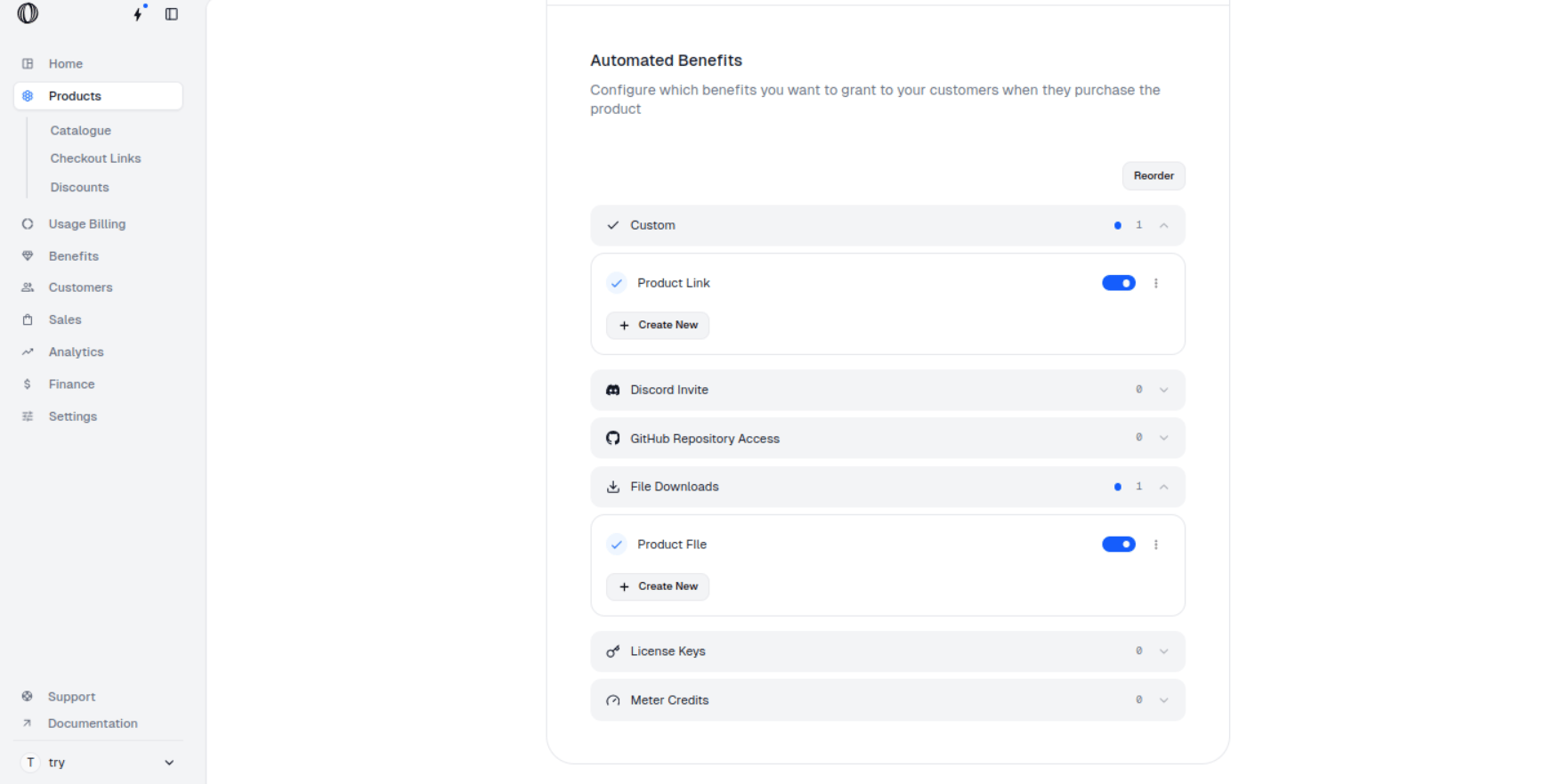 [Create a product](https://docs.macropay.ai/features/products#create-a-product) and grant both benefits from the step above. Products work the same whether they're one-time or subscription — entitlements attach identically either way.
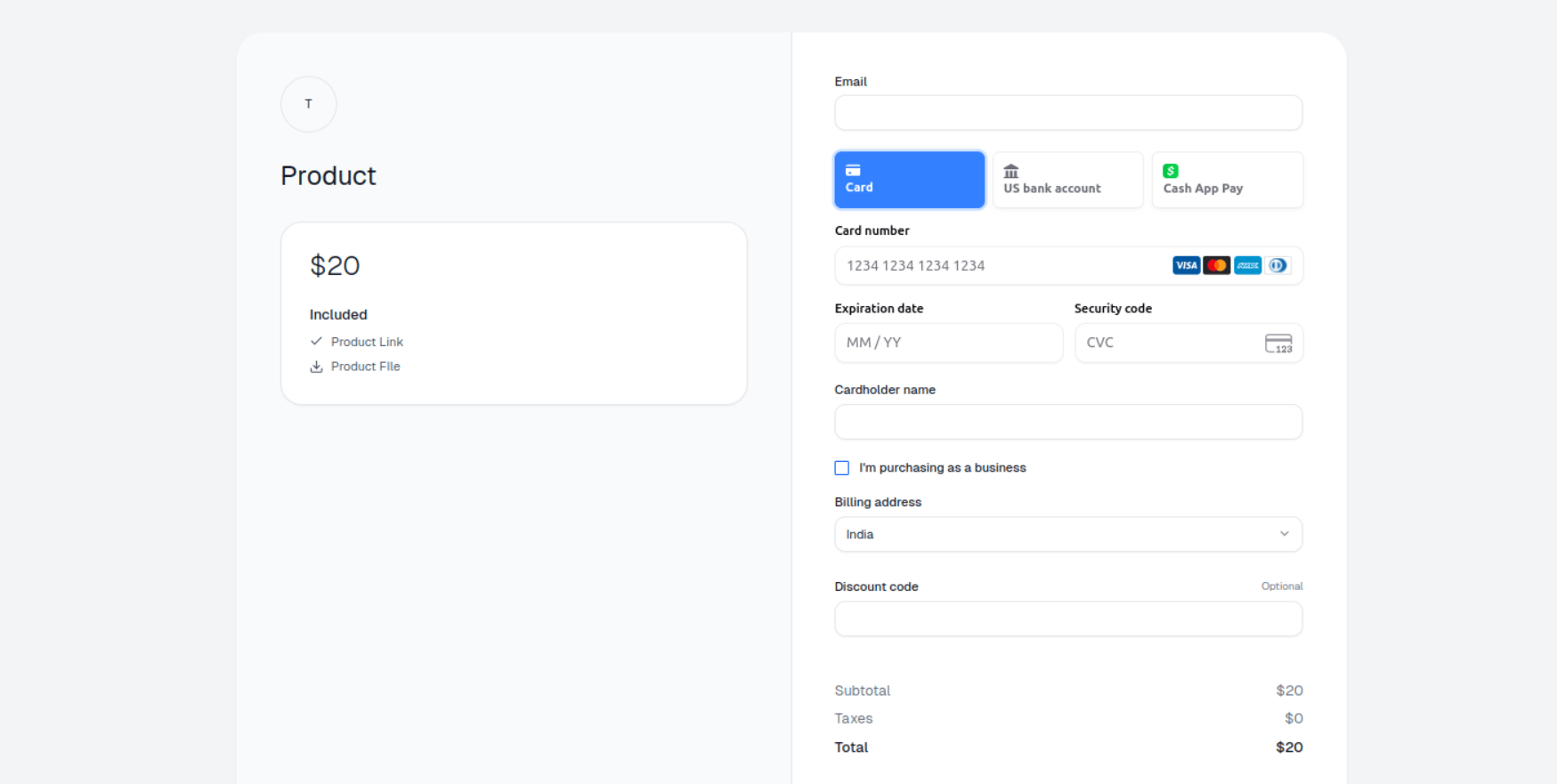
Spin up a [checkout link](https://docs.macropay.ai/features/checkout/links#create-a-checkout-link) for the product to preview the buyer experience.
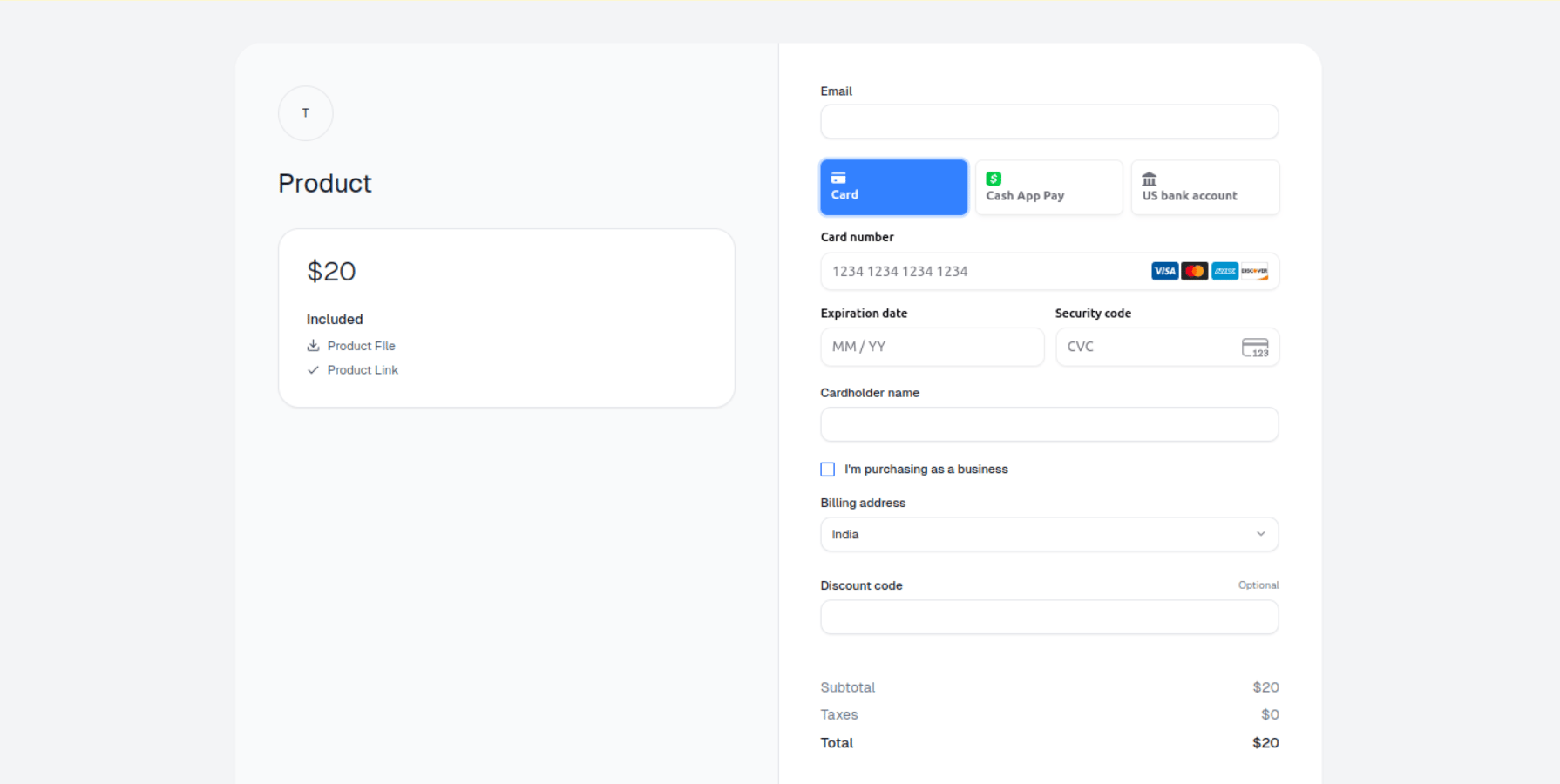
Open the link. Benefits render in the order they were added — here the custom **Product Link** benefit shows first, with the **Product File** download below it.
[Create a product](https://docs.macropay.ai/features/products#create-a-product) and grant both benefits from the step above. Products work the same whether they're one-time or subscription — entitlements attach identically either way.
Spin up a [checkout link](https://docs.macropay.ai/features/checkout/links#create-a-checkout-link) for the product to preview the buyer experience.
Open the link. Benefits render in the order they were added — here the custom **Product Link** benefit shows first, with the **Product File** download below it.
 ## Reorder the benefits
Reordering happens on the product itself, so the new sequence applies everywhere that product is sold — no per-checkout configuration needed.
From the dashboard sidebar, go to **Products → Catalogue**. The direct route is `https://macropay.ai/dashboard/${org_slug}/products`, where `${org_slug}` is your organization's slug.
## Reorder the benefits
Reordering happens on the product itself, so the new sequence applies everywhere that product is sold — no per-checkout configuration needed.
From the dashboard sidebar, go to **Products → Catalogue**. The direct route is `https://macropay.ai/dashboard/${org_slug}/products`, where `${org_slug}` is your organization's slug.
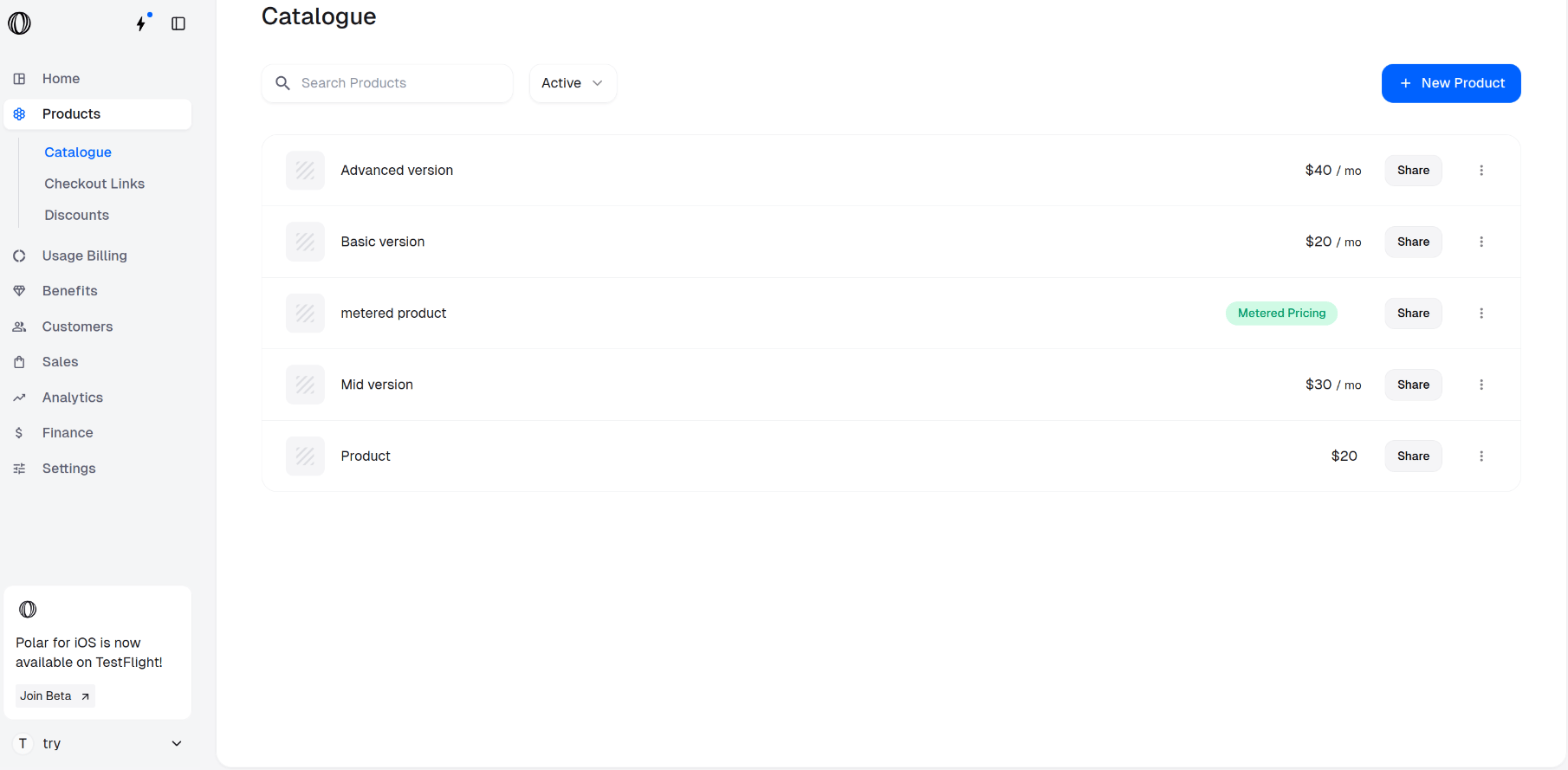 Open the product you want to adjust and scroll to **Automated Benefits**, where all attached entitlements are listed.
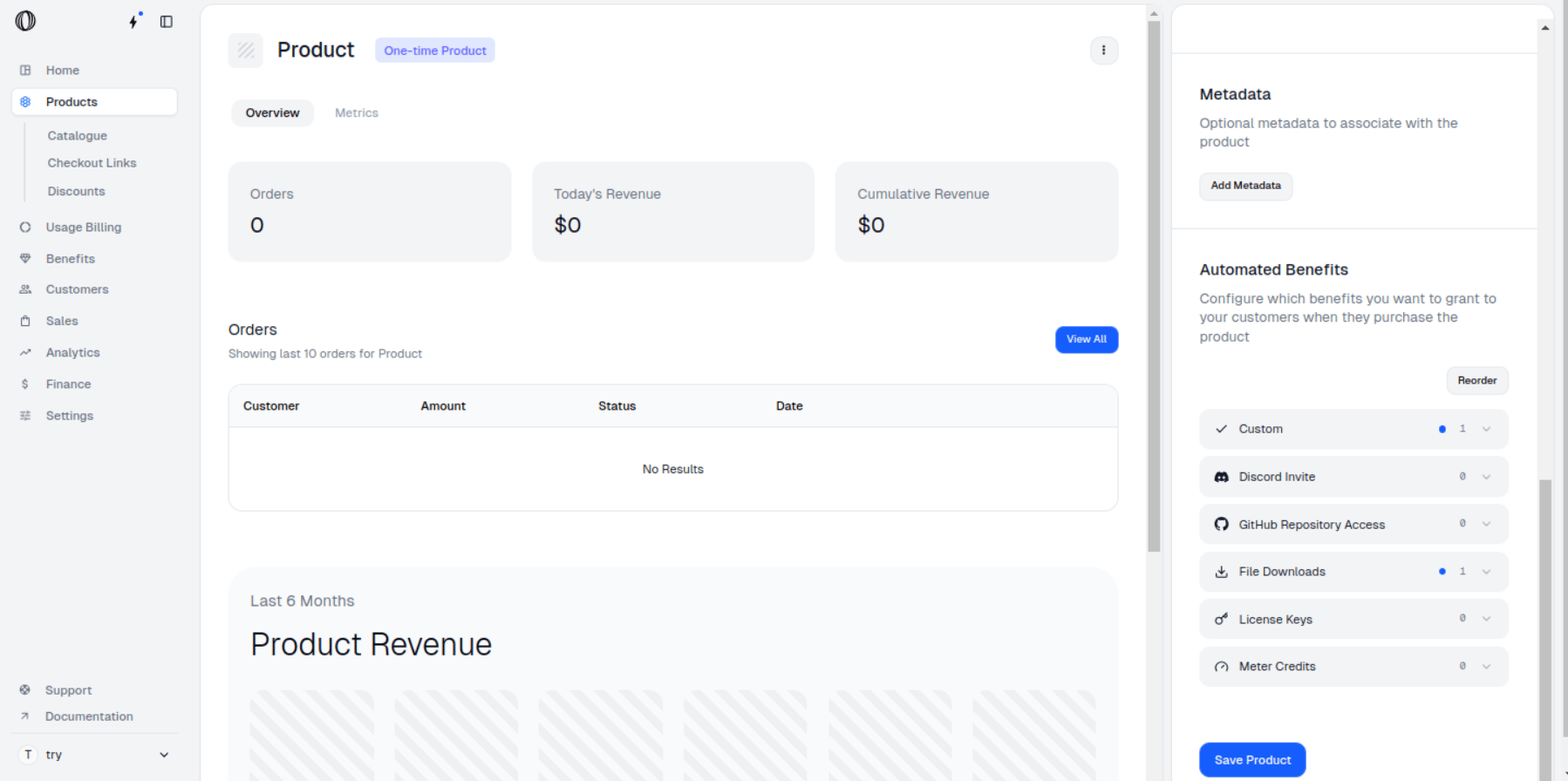 Click `Reorder` to make the list draggable.
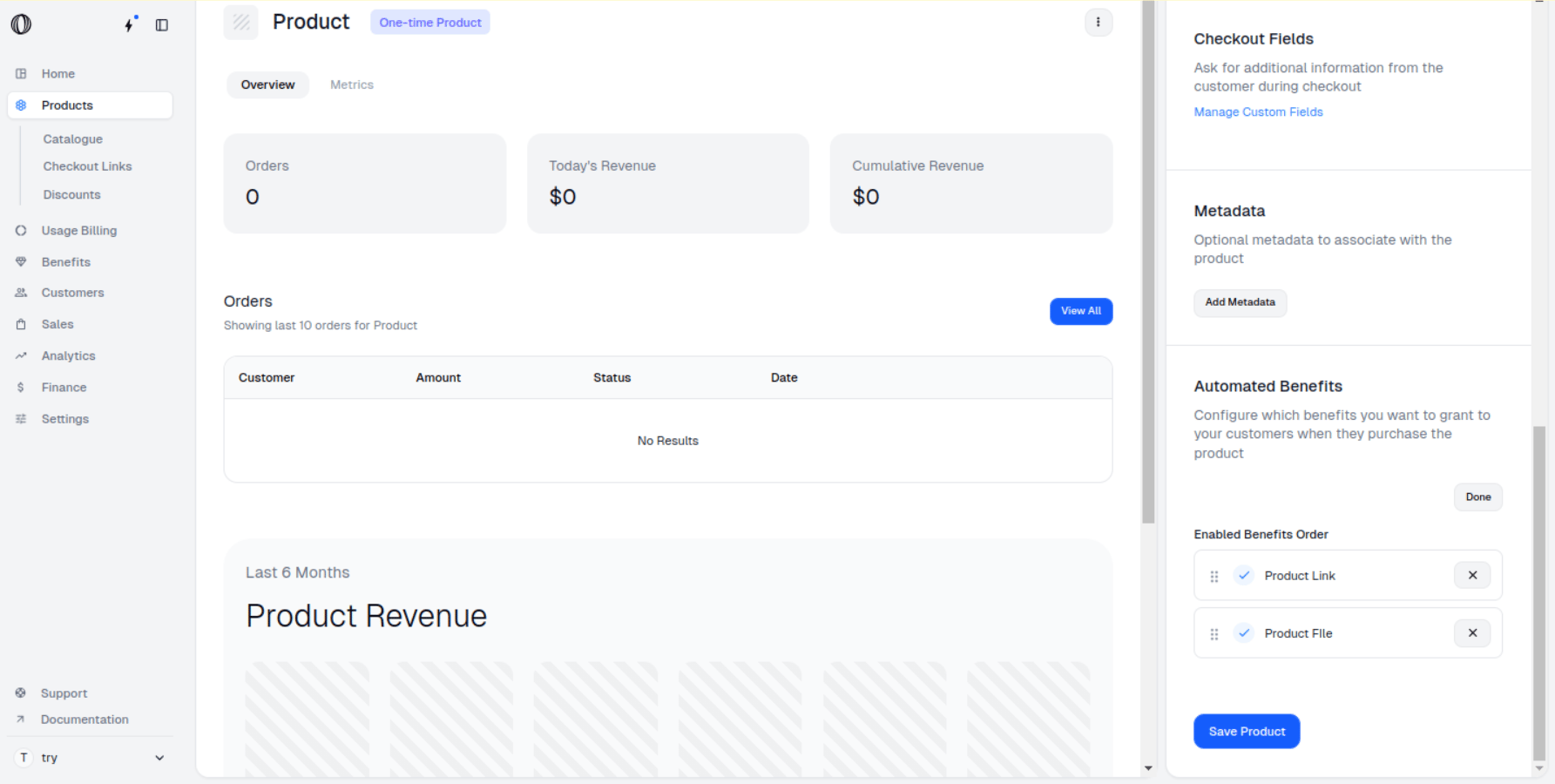 Drag each benefit up or down until the sequence matches the priority you want buyers to see.
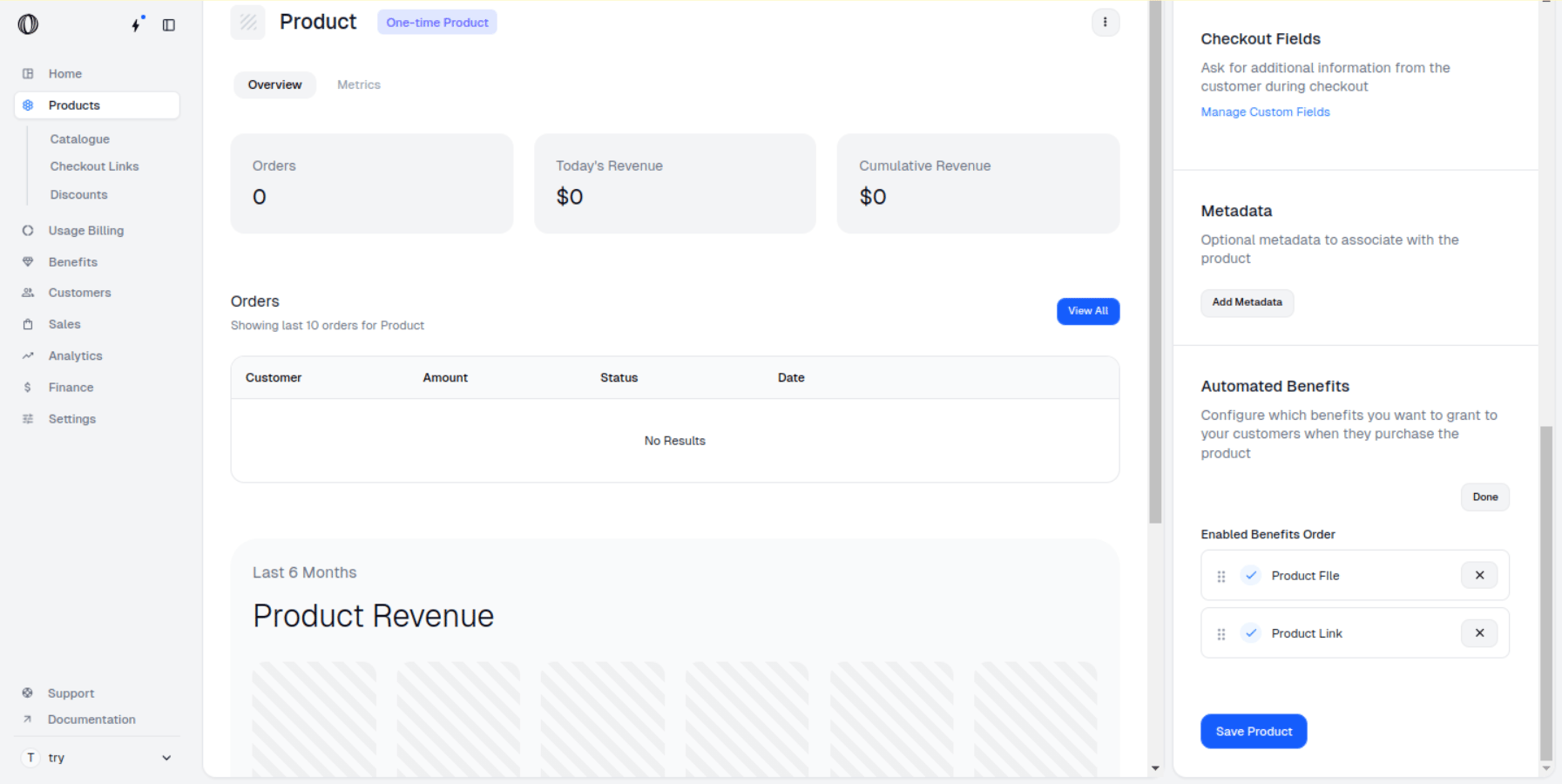 Reopen the checkout. The benefits now appear in your chosen order — the download leads, the link follows.
 You can sequence benefits while you're still building the product — the same `Reorder` button lives in the **Automated Benefits** section of the product editor.