> ## Documentation Index
> Fetch the complete documentation index at: https://docs.macropay.ai/llms.txt
> Use this file to discover all available pages before exploring further.
# How to perform subscription downgrades
> Move a subscriber to a lower plan with the right proration — from the dashboard or self-serve in the portal.
A downgrade moves a subscriber from a higher-priced plan to a lower one. The plan change always takes effect **immediately** — what you control is *how the money settles*: whether the customer is credited (or charged) the difference on their next invoice or right away.
Because Macropay is the **Merchant of Record**, the proration math, the corrected sales tax / VAT on the new amount, and the customer-facing invoice are all handled for you. You pick the plan and the proration behavior; we recalculate, re-tax, and bill.
There are two ways a downgrade can happen:
| Path | Who triggers it | When to use it |
| ----------------------- | ----------------------------- | ------------------------------------------------------------ |
| **Merchant-initiated** | You, from the dashboard | Support requests, retention saves, manual plan corrections |
| **Customer self-serve** | The subscriber, in the portal | Let customers manage their own plan without a support ticket |
***
## Downgrade from the dashboard
Suppose a customer on your **Pro** plan asks to drop to **Basic**. Here's the full flow.
From the Macropay dashboard sidebar, open **Sales** → **Subscriptions** for your organization, or jump straight to:
`https://macropay.ai/dashboard/${org_slug}/sales/subscriptions`
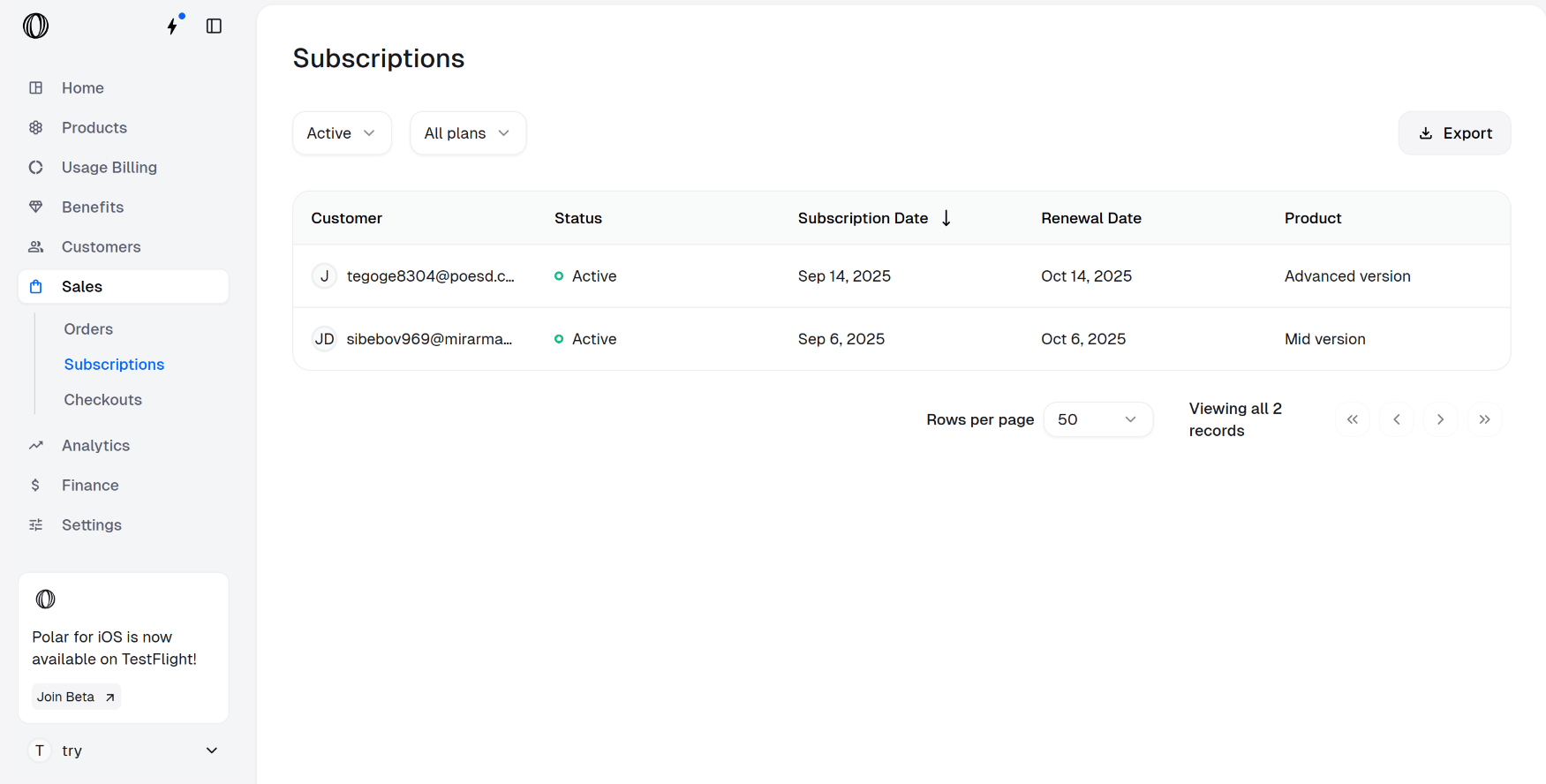 Click the subscriber's row to open the subscription detail view, then choose **Update Subscription**.
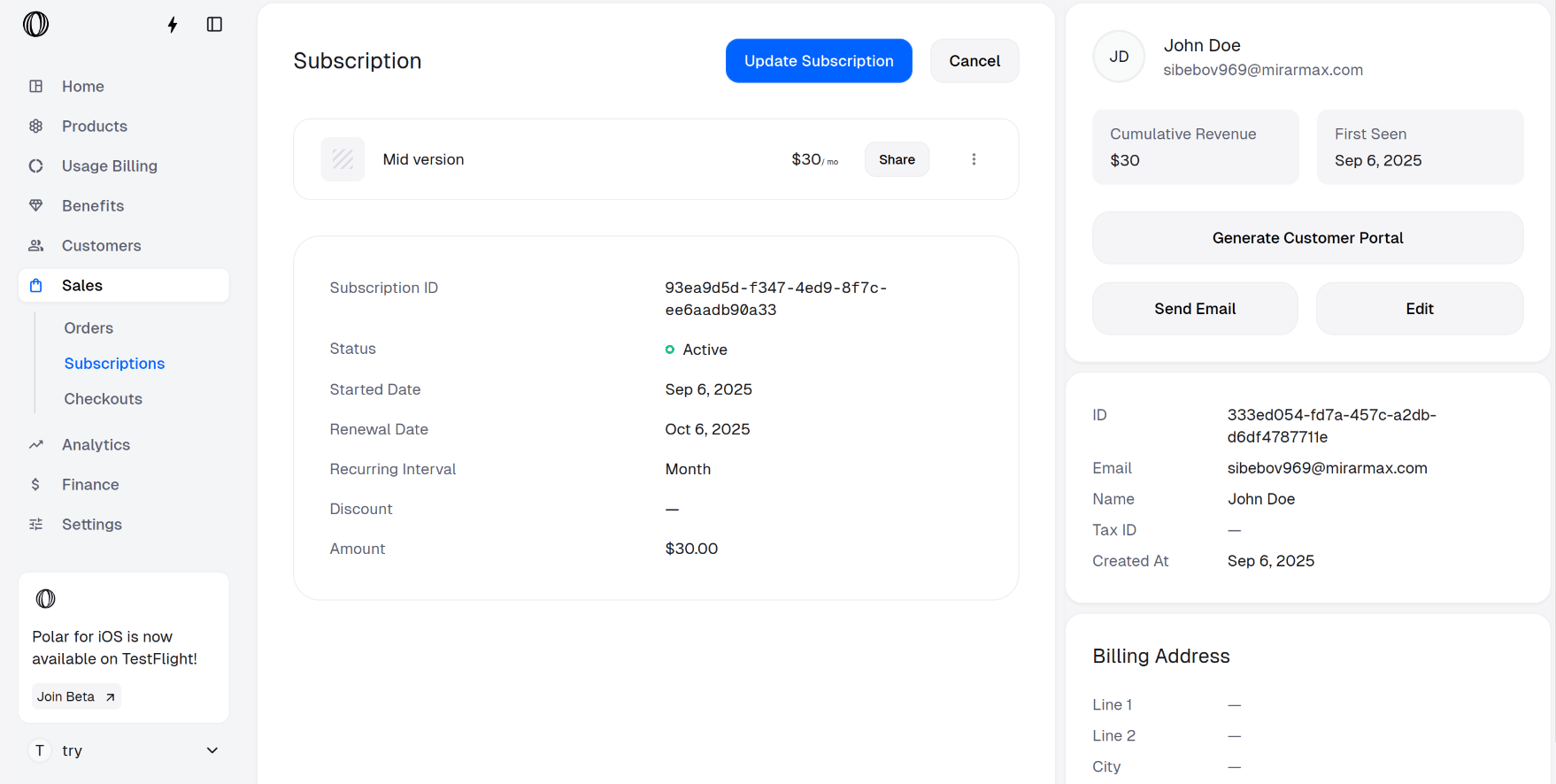 Set **New product** to the plan you're downgrading to (Basic, in this example), then choose a **Proration behavior**.
The plan switch is applied **immediately** in every case. Proration only decides *when the invoice for the difference lands* — not when the customer's access changes.
Your two options:
* **Next invoice** — the credit (or charge) for the unused portion rolls onto the customer's upcoming invoice.
* **Invoice immediately** — the difference is settled right now, on its own invoice.
Confirm with **Update Subscription**.
Set **New product** to the plan you're downgrading to (Basic, in this example), then choose a **Proration behavior**.
The plan switch is applied **immediately** in every case. Proration only decides *when the invoice for the difference lands* — not when the customer's access changes.
Your two options:
* **Next invoice** — the credit (or charge) for the unused portion rolls onto the customer's upcoming invoice.
* **Invoice immediately** — the difference is settled right now, on its own invoice.
Confirm with **Update Subscription**.
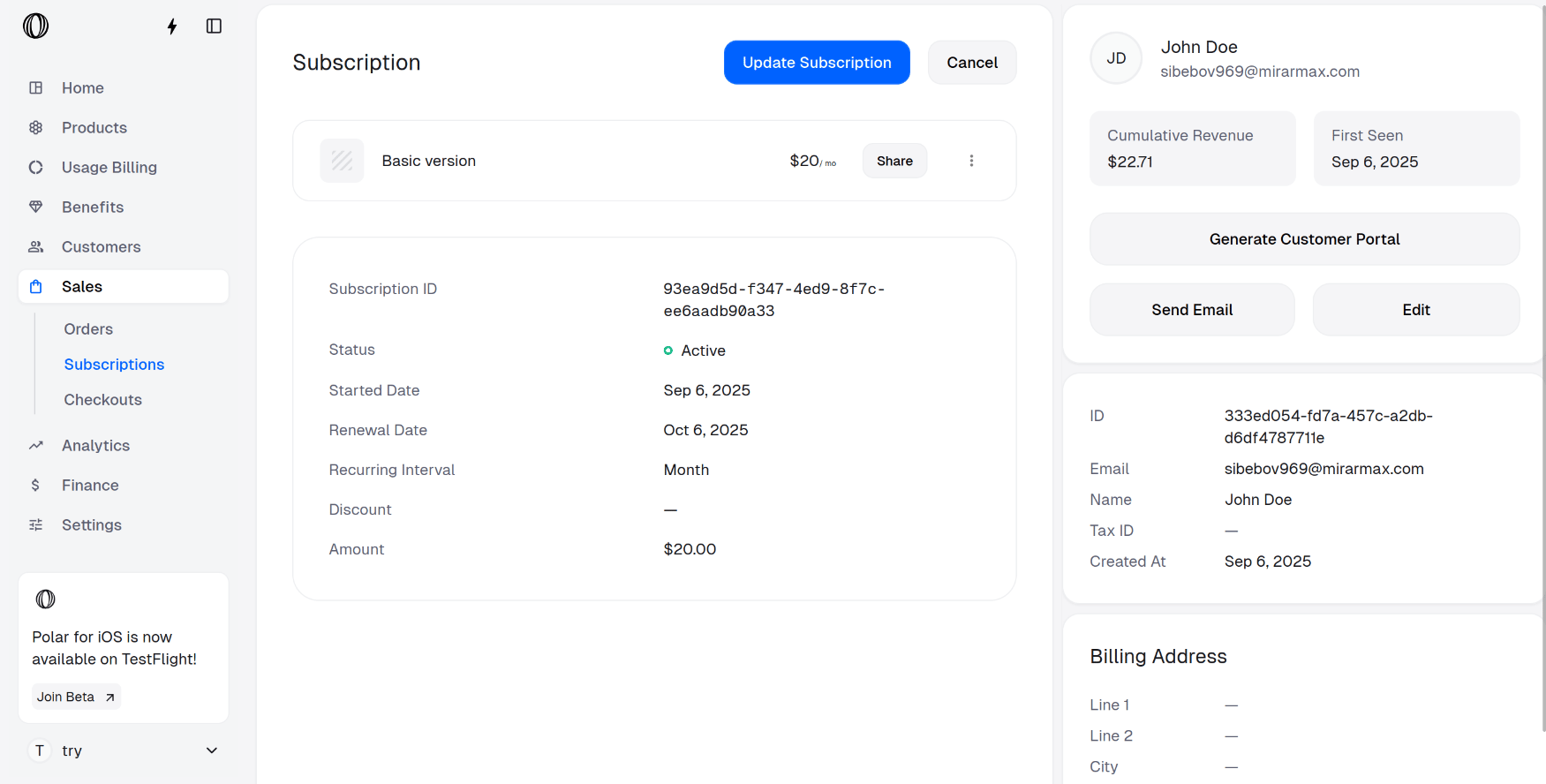
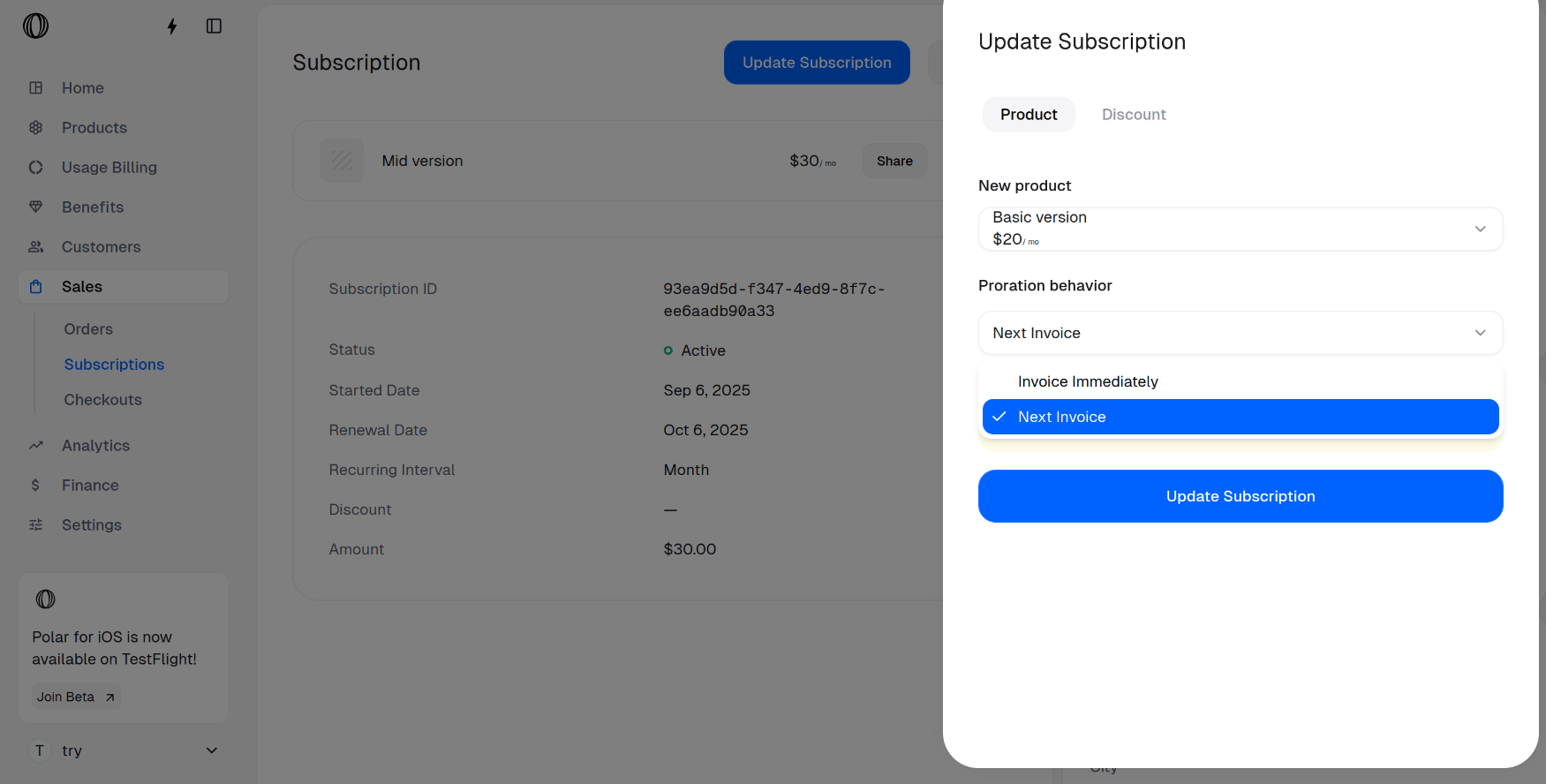 The subscription now sits on the **Basic** plan, with the prorated adjustment queued or invoiced per your choice.
 Prefer to do this programmatically? The same change is available over the API — update the subscription's product and pass a proration mode. See the [subscription API reference](/api-reference) for the exact fields.
***
## Let customers downgrade themselves
The **customer portal** lets subscribers change their own plan, so a routine downgrade never has to become a support ticket. Here's what your customer sees.
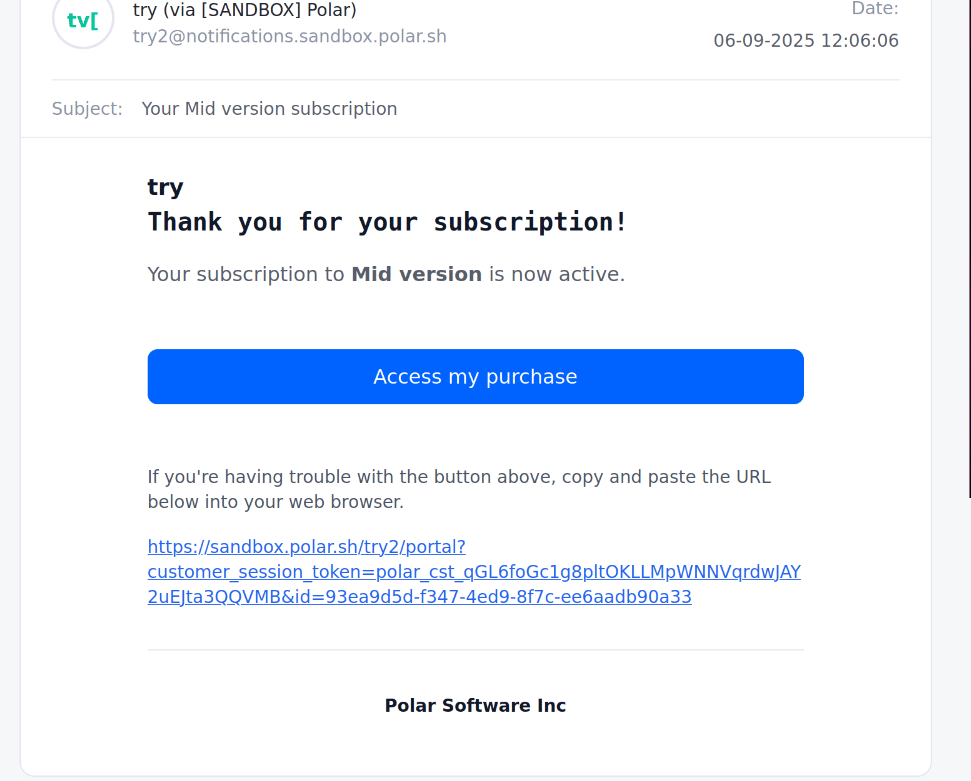
Every purchase email includes an **Access my Purchase** link. Clicking it opens the customer portal — no separate login required.
Prefer to do this programmatically? The same change is available over the API — update the subscription's product and pass a proration mode. See the [subscription API reference](/api-reference) for the exact fields.
***
## Let customers downgrade themselves
The **customer portal** lets subscribers change their own plan, so a routine downgrade never has to become a support ticket. Here's what your customer sees.
Every purchase email includes an **Access my Purchase** link. Clicking it opens the customer portal — no separate login required.
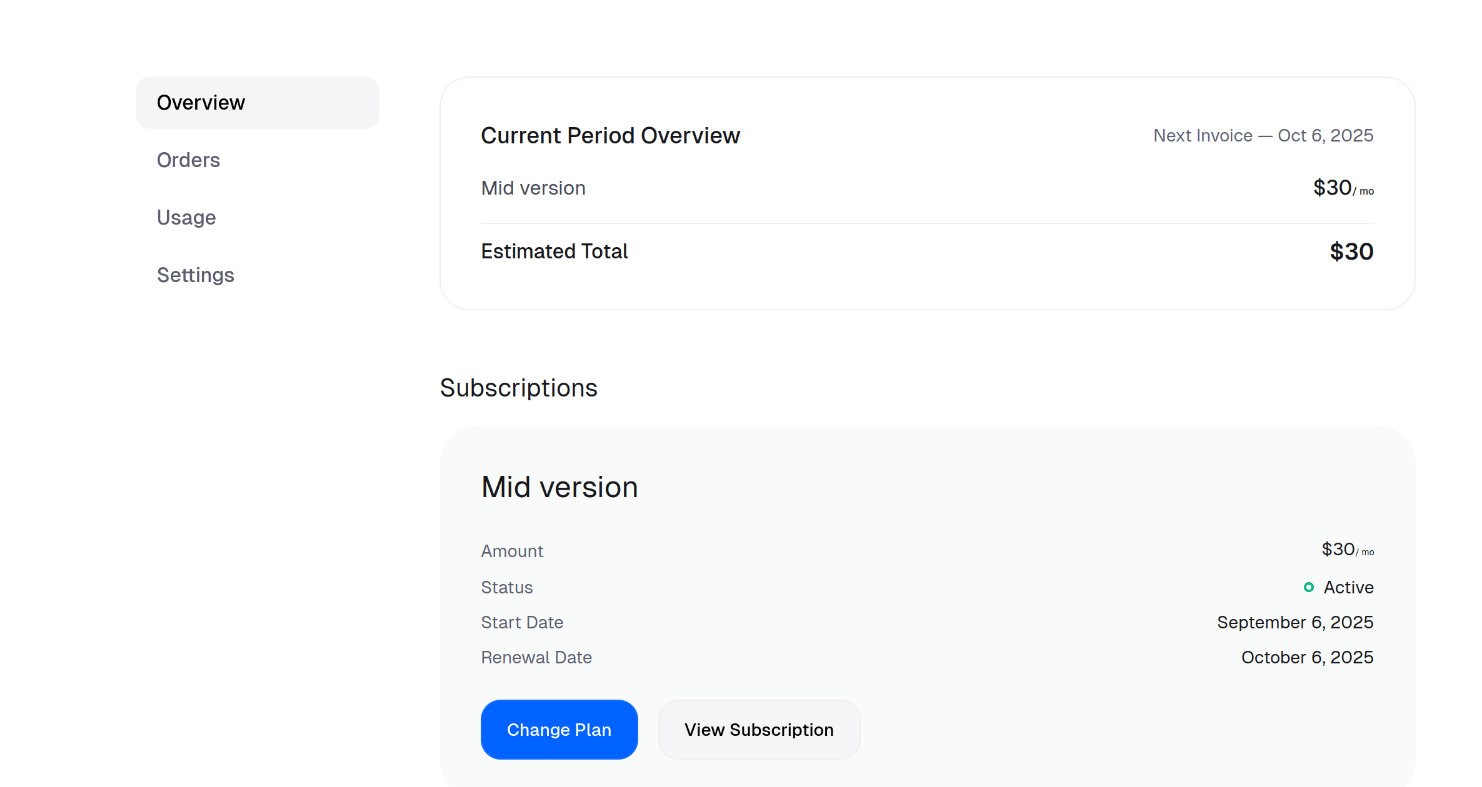
 On the portal **Overview** tab, scroll to **Subscriptions** and click **Change Plan**.
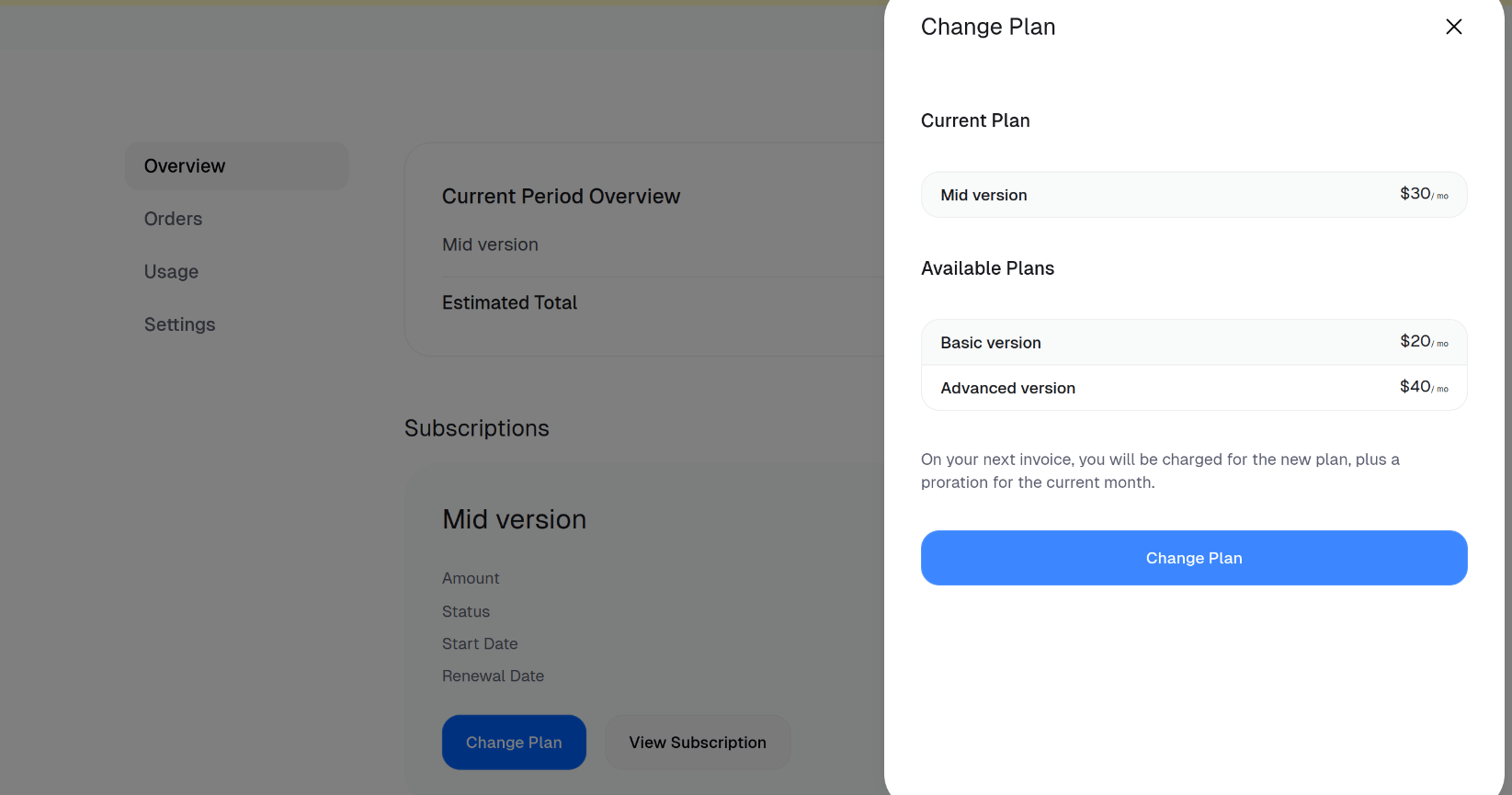
 The customer picks the plan they want — Basic, here — and confirms with **Change Plan**.
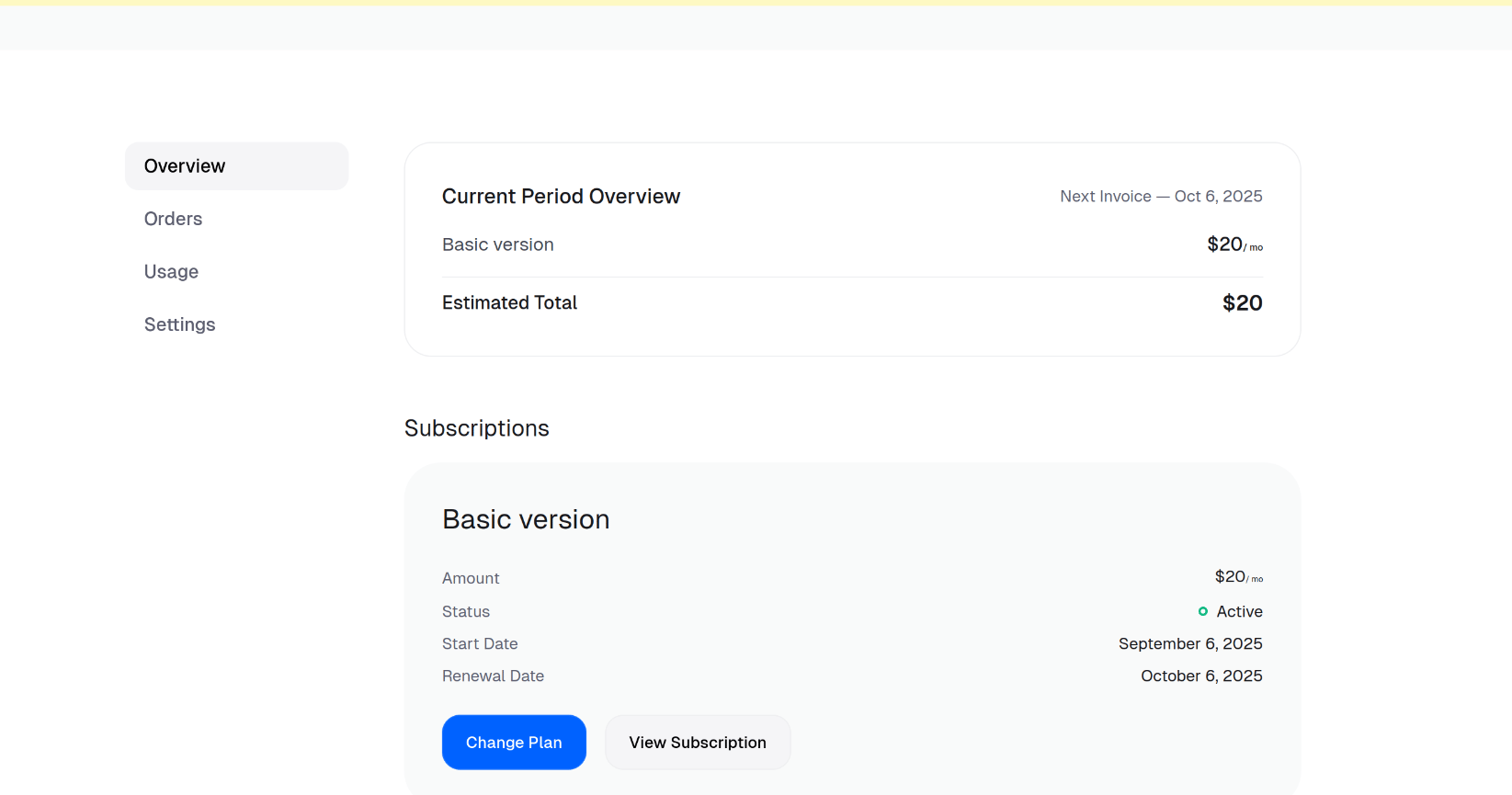
 The plan switches to **Basic** immediately, and the prorated adjustment flows through on the next invoice.
 Don't want customers changing plans on their own? You can turn self-serve upgrades and downgrades off entirely by [disabling **Allow price change** in the portal settings](/guides/disable-subscription-changes-in-customer-portal). With it off, every plan change has to go through your team from the dashboard.