> ## Documentation Index
> Fetch the complete documentation index at: https://docs.macropay.ai/llms.txt
> Use this file to discover all available pages before exploring further.
# How to Switch Checkout Theme
> Force light or dark mode on any Macropay checkout with a single theme query parameter — for both API sessions and checkout links.
Every Macropay checkout already adapts to the visitor's system preference. But when your buy page lives inside a dark dashboard, a marketing site, or an in-app modal, you usually want the checkout to match *your* surface — not the customer's OS setting. The `theme` query parameter lets you pin the look to `light` or `dark` with zero extra API calls.
It works identically whether you launch checkout from an [API-created session](/guides/create-checkout-session) or from a reusable [checkout link](https://docs.macropay.ai/features/checkout/links#create-a-checkout-link) — and because Macropay is the Merchant of Record, the page you're theming is also the one that handles tax, PCI, and the receipt your customer sees.
`theme` accepts exactly two values: `light` and `dark`. Omit it entirely to fall back to the customer's system preference (the default).
## Theming an API checkout session
Spin up a Checkout Session as shown in the [Create a checkout session](/guides/create-checkout-session) guide. The response includes a hosted `url` — that's what you redirect the customer to.
```text theme={null}
https://macropay.ai/checkout/macropay_c_ES7DwhlyvlYTPNaLiccKqiwJPda43FIzer
```
Append `?theme=dark` to the `url` before redirecting:
```text theme={null}
https://macropay.ai/checkout/macropay_c_ES7DwhlyvlYTPNaLiccKqiwJPda43FIzer?theme=dark
```
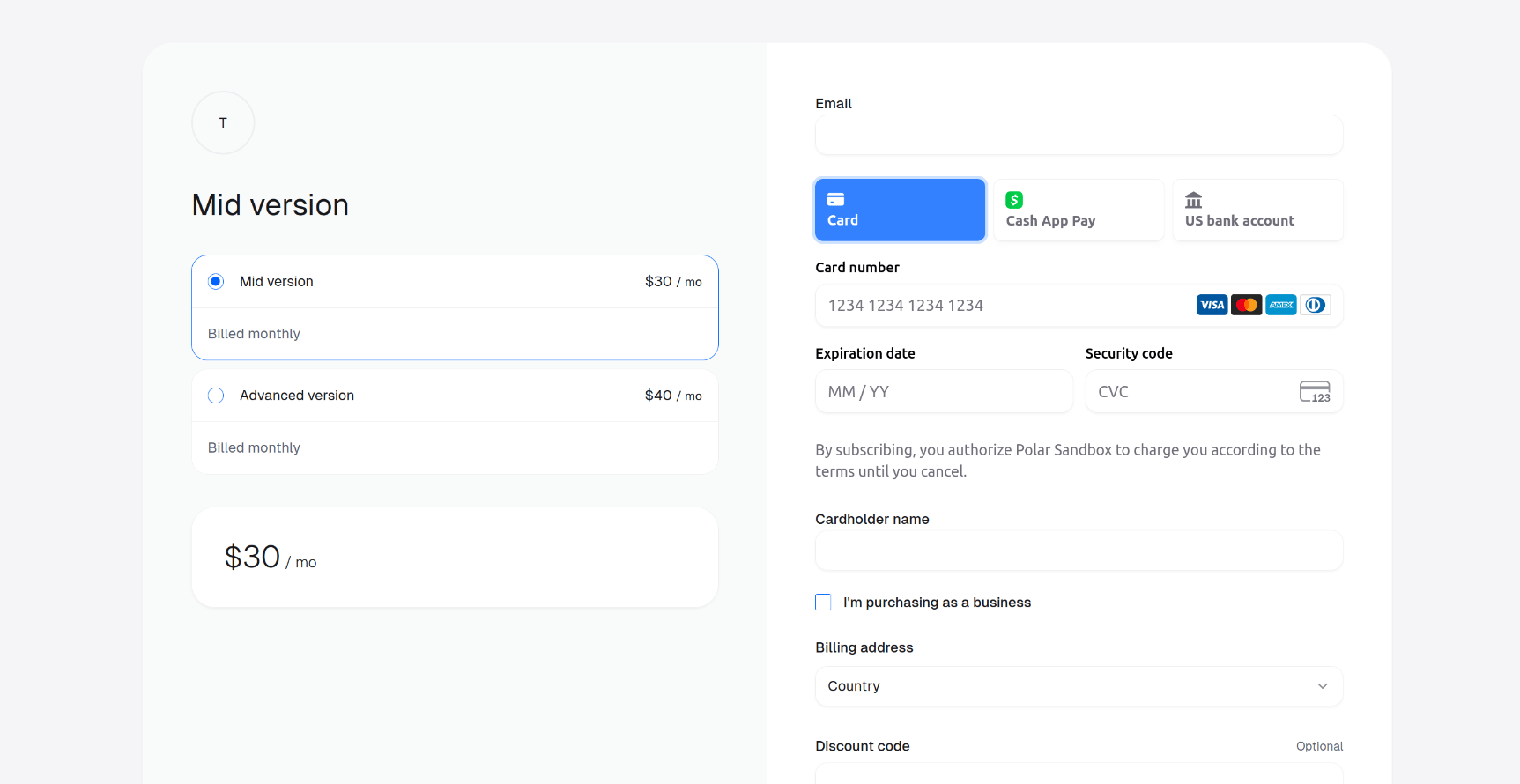
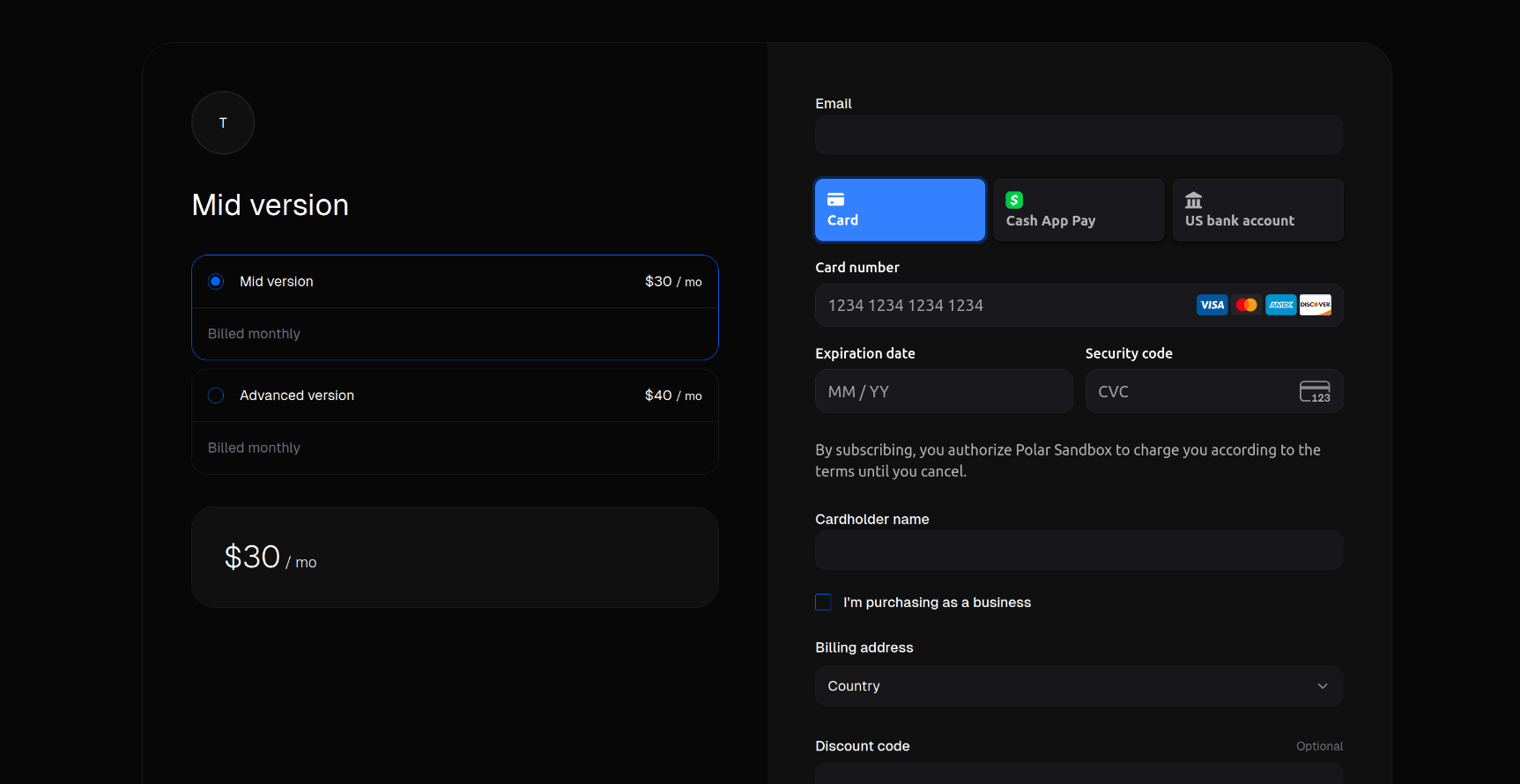 Swap the value to `light` to do the opposite:
```text theme={null}
https://macropay.ai/checkout/macropay_c_ES7DwhlyvlYTPNaLiccKqiwJPda43FIzer?theme=light
```
Swap the value to `light` to do the opposite:
```text theme={null}
https://macropay.ai/checkout/macropay_c_ES7DwhlyvlYTPNaLiccKqiwJPda43FIzer?theme=light
```
 Building the redirect in code? Reuse the session `url` straight from the API response and tack the parameter on the end — no need to template the full path by hand.
```ts theme={null}
// theme comes from your own app state, not the customer's OS
const checkoutUrl = `${session.url}?theme=${theme}`;
return Response.redirect(checkoutUrl);
```
## Theming a checkout link
Reusable [checkout links](https://docs.macropay.ai/features/checkout/links#create-a-checkout-link) redirect through Macropay before landing on the hosted page, so the `theme` parameter goes on the link's `/redirect` URL.
Follow the [Create a checkout link](https://docs.macropay.ai/features/checkout/links#create-a-checkout-link) guide to mint a link you can drop into a button, email, or QR code.
```text theme={null}
https://sandbox-api.macropay.ai/v1/checkout-links/macropay_cl_QHMjrDLsORxLIRfyQlfyqF1TWUR6Cy4afVcd/redirect
```
Add `?theme=dark` to the redirect URL:
```text theme={null}
https://sandbox-api.macropay.ai/v1/checkout-links/macropay_cl_QHMjrDLsORxLIRfyQlfyqF1TWUR6Cy4afVcd/redirect?theme=dark
```
Use `light` instead — the parameter carries through the redirect to the final checkout page:
```text theme={null}
https://sandbox-api.macropay.ai/v1/checkout-links/macropay_cl_QHMjrDLsORxLIRfyQlfyqF1TWUR6Cy4afVcd/redirect?theme=light
```
The example above points at `sandbox-api.macropay.ai` so you can test the flow safely. Swap the host for your production checkout link once you've confirmed the theme renders the way you want.
## Quick reference
| Surface | Where the parameter goes | Light | Dark |
| ------------- | ------------------------------------------ | -------------- | ------------- |
| API session | the hosted `url` from the session response | `?theme=light` | `?theme=dark` |
| Checkout link | the link's `/redirect` URL | `?theme=light` | `?theme=dark` |
That's the entire feature — no SDK flag, no dashboard toggle, no extra request. Set the value that matches the page your customer came from, and Macropay handles the rest of the transaction underneath it.
Building the redirect in code? Reuse the session `url` straight from the API response and tack the parameter on the end — no need to template the full path by hand.
```ts theme={null}
// theme comes from your own app state, not the customer's OS
const checkoutUrl = `${session.url}?theme=${theme}`;
return Response.redirect(checkoutUrl);
```
## Theming a checkout link
Reusable [checkout links](https://docs.macropay.ai/features/checkout/links#create-a-checkout-link) redirect through Macropay before landing on the hosted page, so the `theme` parameter goes on the link's `/redirect` URL.
Follow the [Create a checkout link](https://docs.macropay.ai/features/checkout/links#create-a-checkout-link) guide to mint a link you can drop into a button, email, or QR code.
```text theme={null}
https://sandbox-api.macropay.ai/v1/checkout-links/macropay_cl_QHMjrDLsORxLIRfyQlfyqF1TWUR6Cy4afVcd/redirect
```
Add `?theme=dark` to the redirect URL:
```text theme={null}
https://sandbox-api.macropay.ai/v1/checkout-links/macropay_cl_QHMjrDLsORxLIRfyQlfyqF1TWUR6Cy4afVcd/redirect?theme=dark
```
Use `light` instead — the parameter carries through the redirect to the final checkout page:
```text theme={null}
https://sandbox-api.macropay.ai/v1/checkout-links/macropay_cl_QHMjrDLsORxLIRfyQlfyqF1TWUR6Cy4afVcd/redirect?theme=light
```
The example above points at `sandbox-api.macropay.ai` so you can test the flow safely. Swap the host for your production checkout link once you've confirmed the theme renders the way you want.
## Quick reference
| Surface | Where the parameter goes | Light | Dark |
| ------------- | ------------------------------------------ | -------------- | ------------- |
| API session | the hosted `url` from the session response | `?theme=light` | `?theme=dark` |
| Checkout link | the link's `/redirect` URL | `?theme=light` | `?theme=dark` |
That's the entire feature — no SDK flag, no dashboard toggle, no extra request. Set the value that matches the page your customer came from, and Macropay handles the rest of the transaction underneath it.