

Downgrade from the dashboard
Suppose a customer on your Pro plan asks to drop to Basic. Here’s the full flow.1
Open Sales → Subscriptions
From the Macropay dashboard sidebar, open Sales → Subscriptions for your organization, or jump straight to: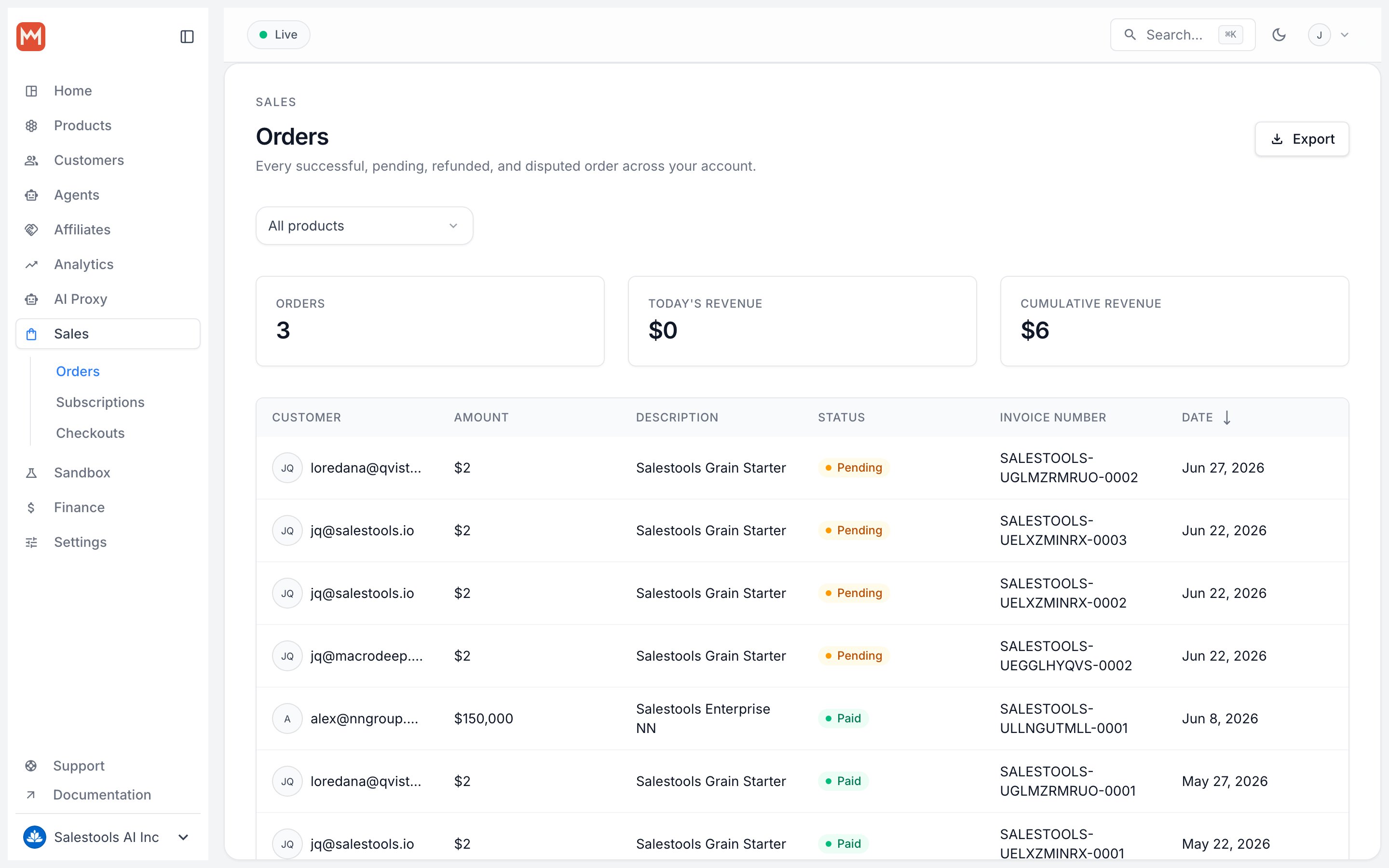
https://macropay.ai/dashboard/${org_slug}/sales/subscriptions2
Pick the subscription to change
Click the subscriber’s row to open the subscription detail view, then choose Update Subscription.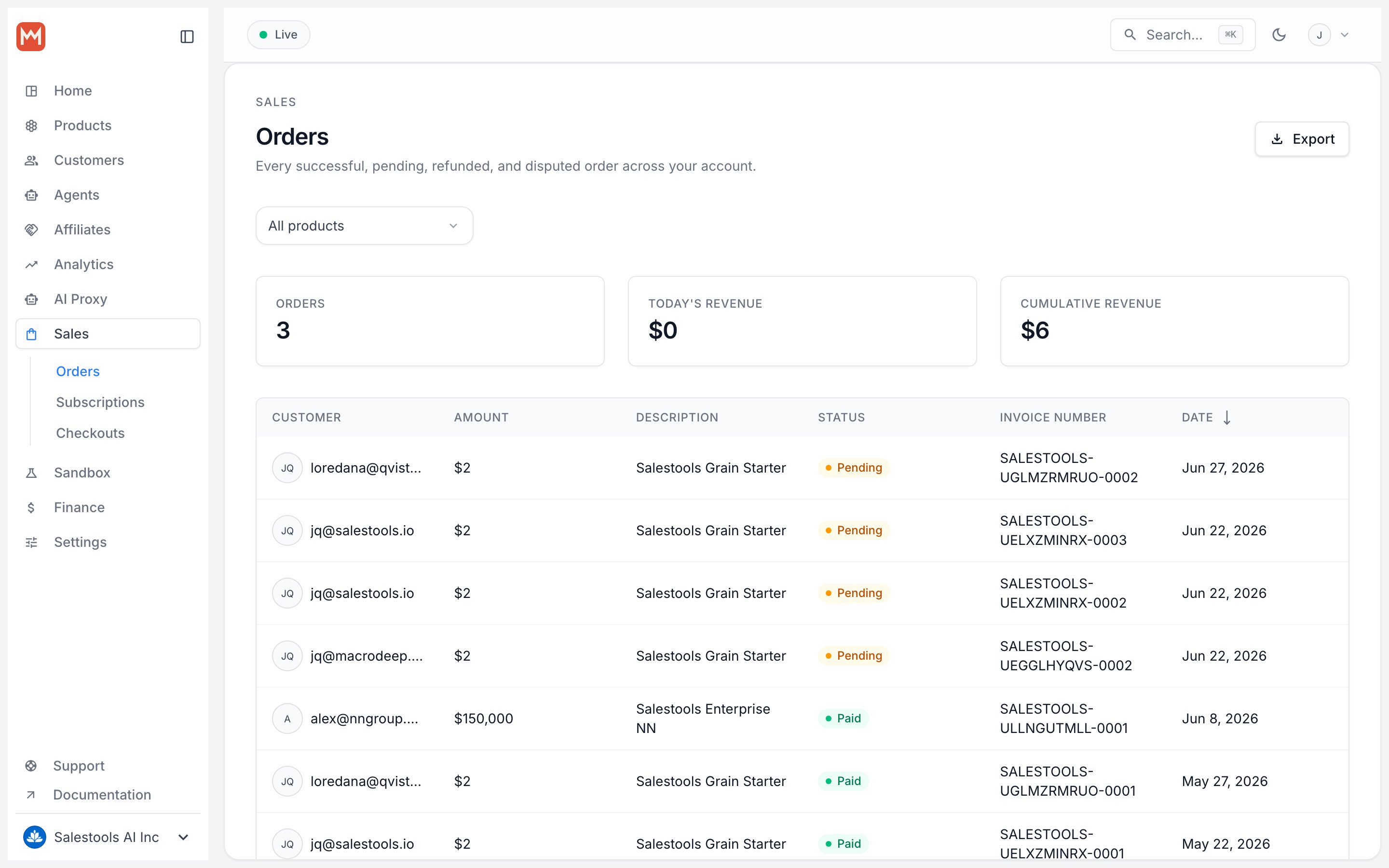
3
Choose the new plan and proration
Set New product to the plan you’re downgrading to (Basic, in this example), then choose a Proration behavior.Your two options: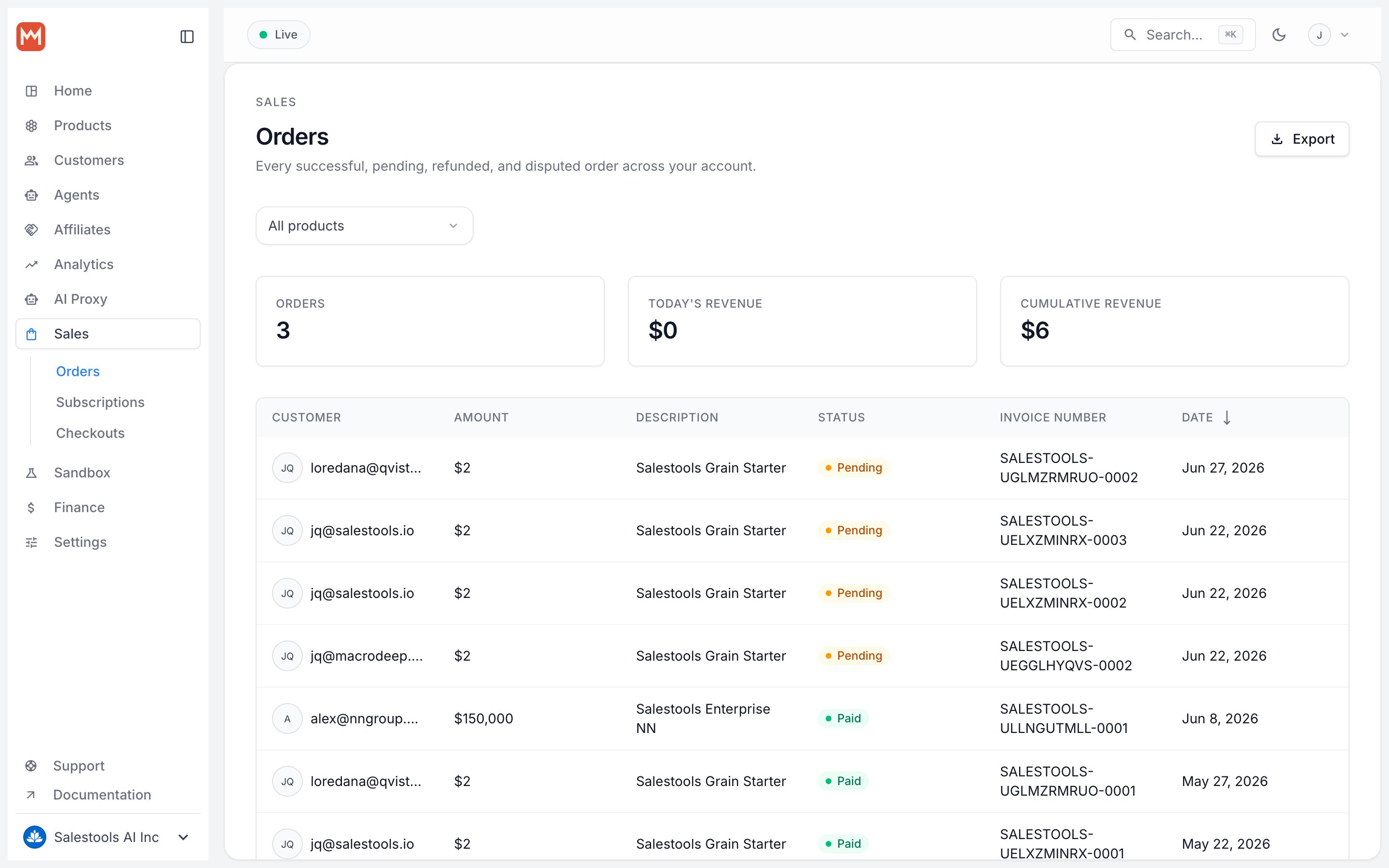
The plan switch is applied immediately in every case. Proration only decides when the invoice for the difference lands — not when the customer’s access changes.
- Next invoice — the credit (or charge) for the unused portion rolls onto the customer’s upcoming invoice.
- Invoice immediately — the difference is settled right now, on its own invoice.
4
Done
The subscription now sits on the Basic plan, with the prorated adjustment queued or invoiced per your choice.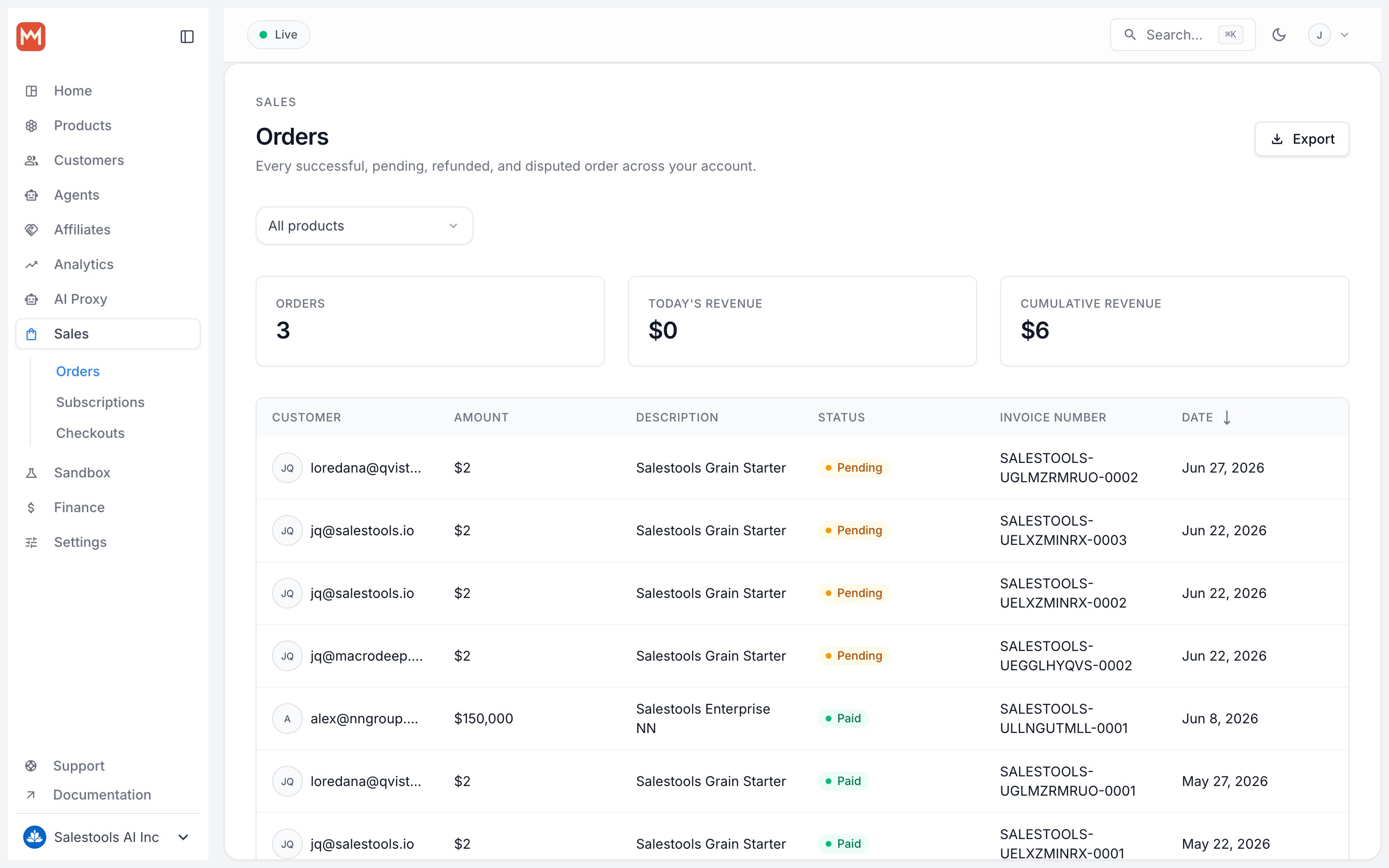
Let customers downgrade themselves
The customer portal lets subscribers change their own plan, so a routine downgrade never has to become a support ticket. Here’s what your customer sees.1
Follow the access link from their email
Every purchase email includes an Access my Purchase link. Clicking it opens the customer portal — no separate login required.
2
Open Subscriptions in the portal
On the portal Overview tab, scroll to Subscriptions and click Change Plan.
3
Select the lower plan
The customer picks the plan they want — Basic, here — and confirms with Change Plan.
4
Done
The plan switches to Basic immediately, and the prorated adjustment flows through on the next invoice.
Don’t want customers changing plans on their own? You can turn self-serve upgrades and downgrades off entirely by disabling Allow price change in the portal settings. With it off, every plan change has to go through your team from the dashboard.