- You trigger it from the dashboard — useful for sales-assisted deals, support requests, or migrations.
- The customer triggers it in their portal — fully self-serve, no ticket required.
Prefer to keep upgrades dashboard-only? You can turn off self-serve plan changes by switching Allow price change OFF — see restricting plan changes in the customer portal.
How proration works
Whichever path you take, you’ll choose a proration behavior. This controls when the customer is billed for the difference — never whether the upgrade applies. The plan switch is always immediate.On a downgrade, proration runs in reverse: the customer receives a credit for the unused portion of the more expensive plan, applied the same way you select above.
Upgrade a subscriber from the dashboard
1
Open Sales > Subscriptions
From the sidebar, go to Sales > Subscriptions for your organization, or jump straight there:
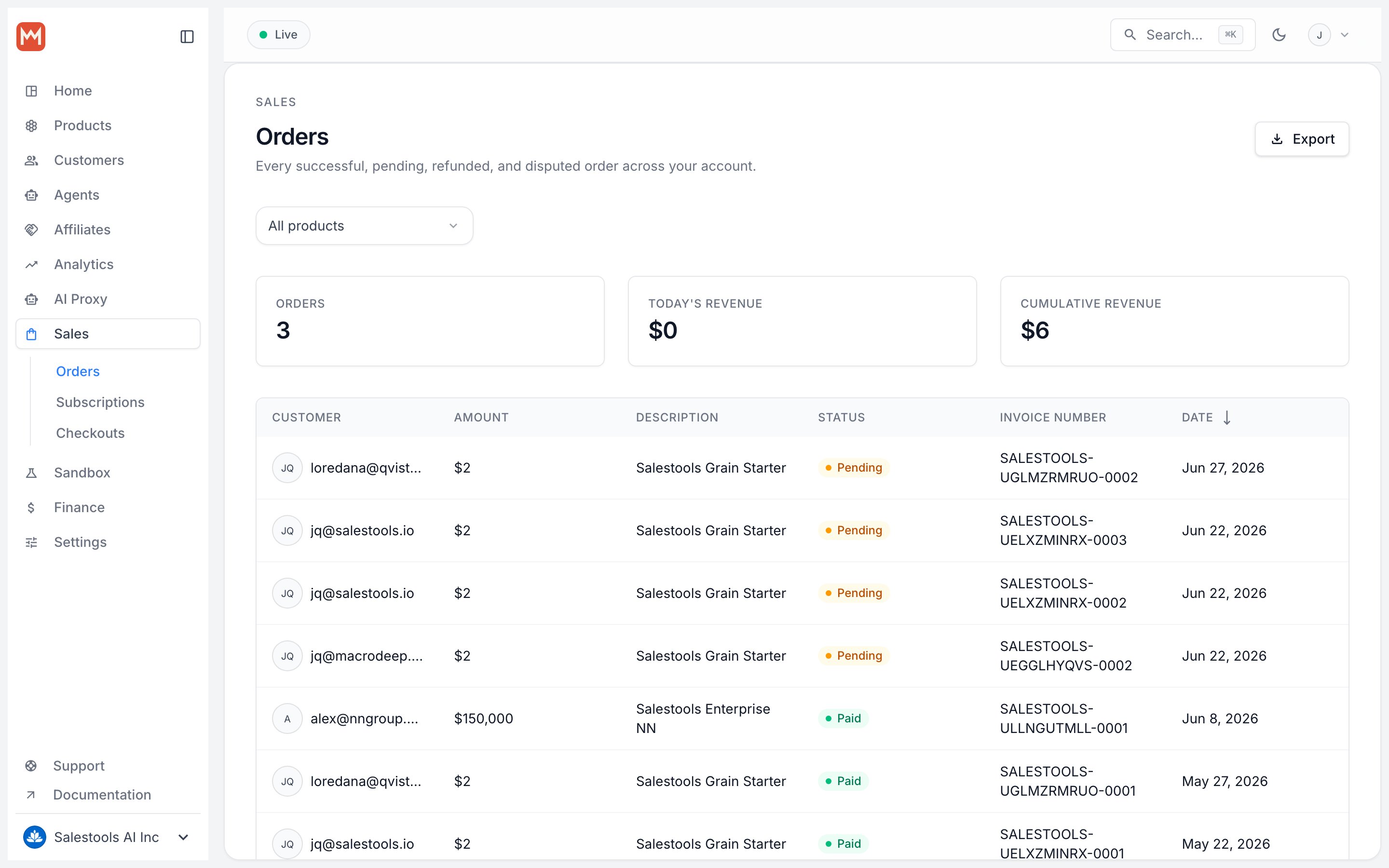
https://macropay.ai/dashboard/${org_slug}/sales/subscriptions2
Open the subscription
Click the subscription you want to change. On the details page that opens, choose Update Subscription.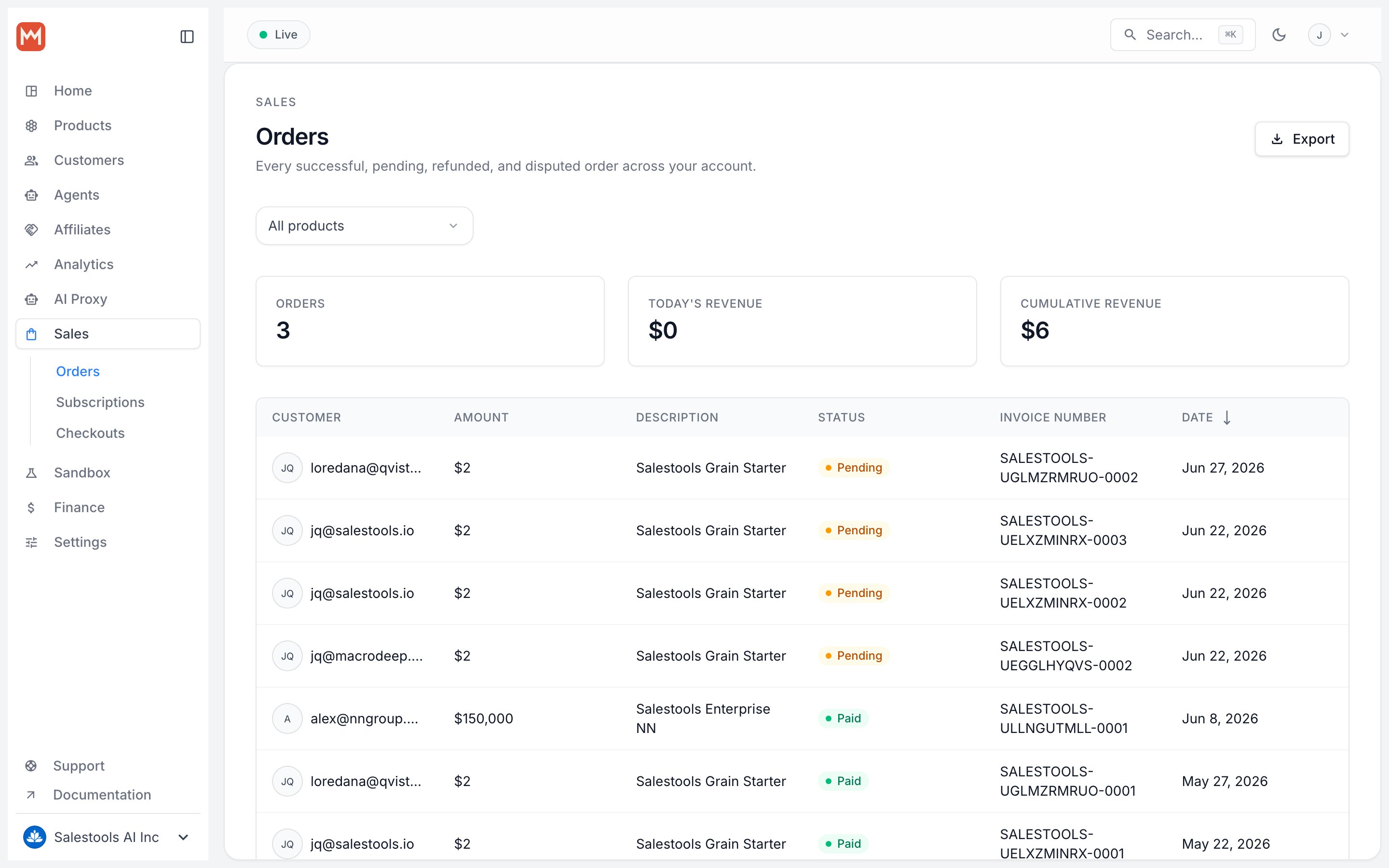
3
Pick the new plan and proration
Select the New product (the plan you’re moving them to) and a Proration behavior from the dropdown.Confirm with Update Subscription.
The upgrade itself is immediate in every case — the proration behavior only decides when the difference is invoiced.
4
Done
The subscription now sits on the higher plan — here, the Advanced version.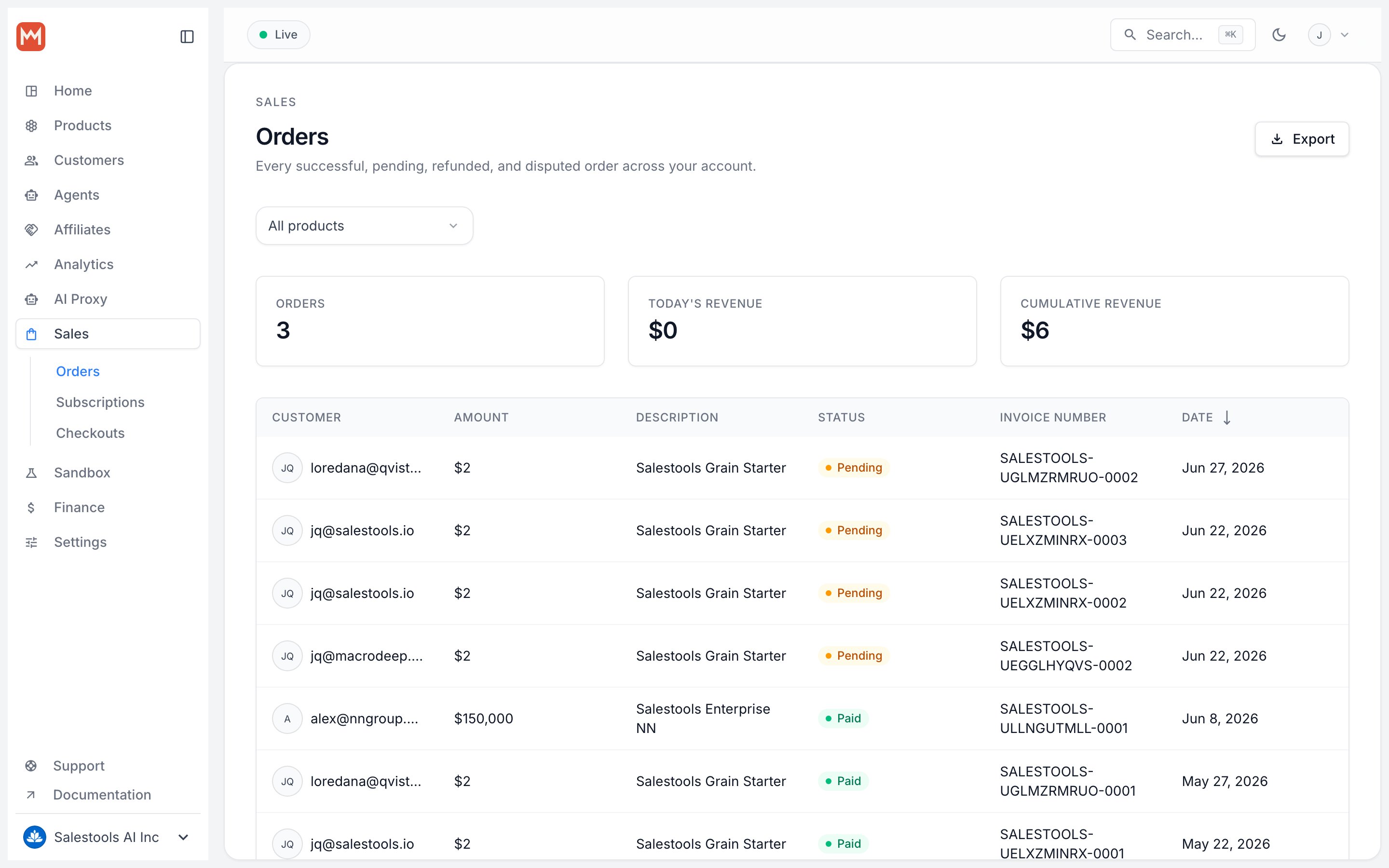
Let customers upgrade themselves
The customer portal lets subscribers move plans on their own, no support touch needed. Here’s the experience from their side.1
Follow the purchase link from email
After buying, the customer receives a confirmation email. They click Access my Purchase to open their customer portal.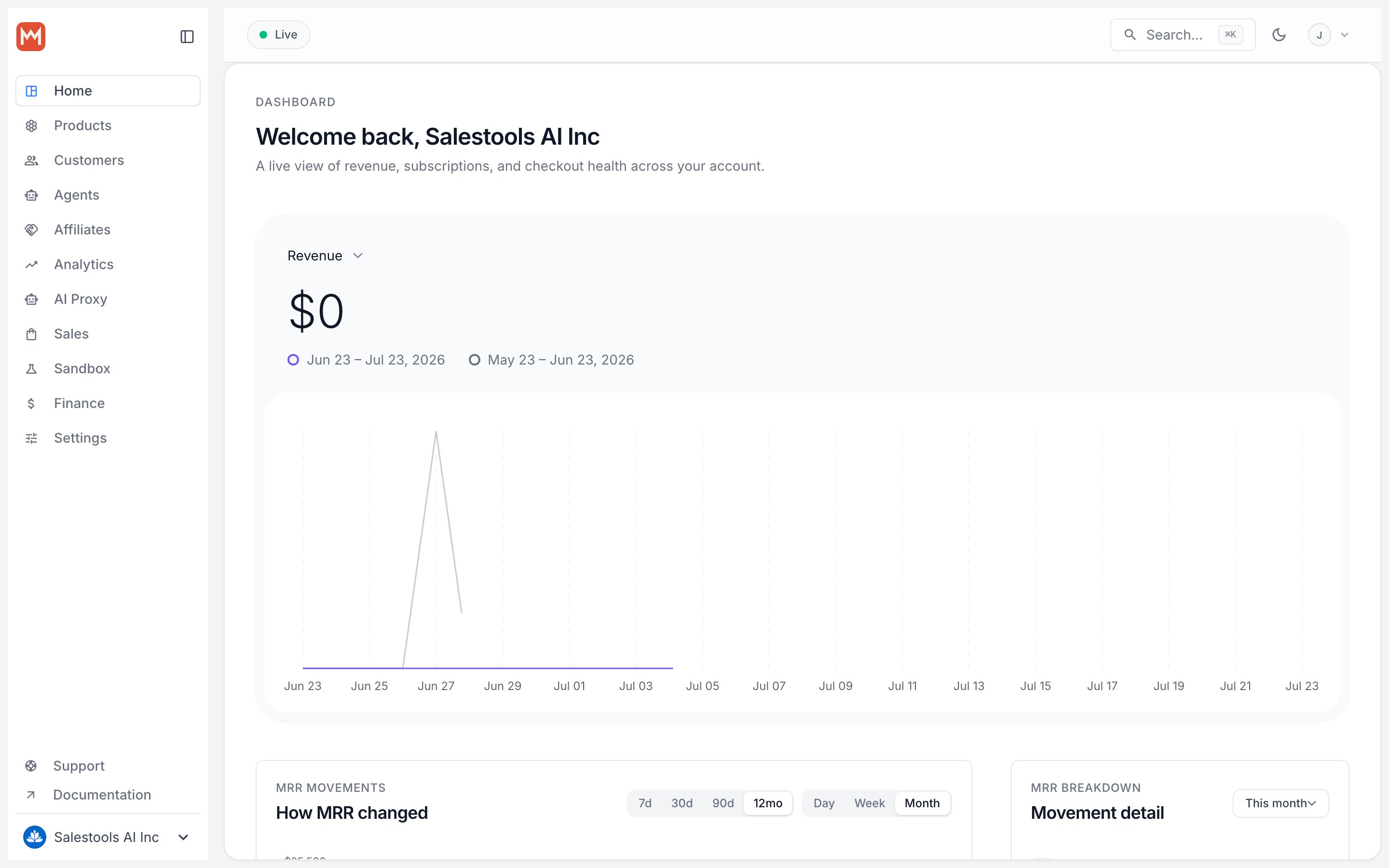
2
Find Subscriptions in the portal
On the Overview tab, they scroll to Subscriptions and click Change Plan.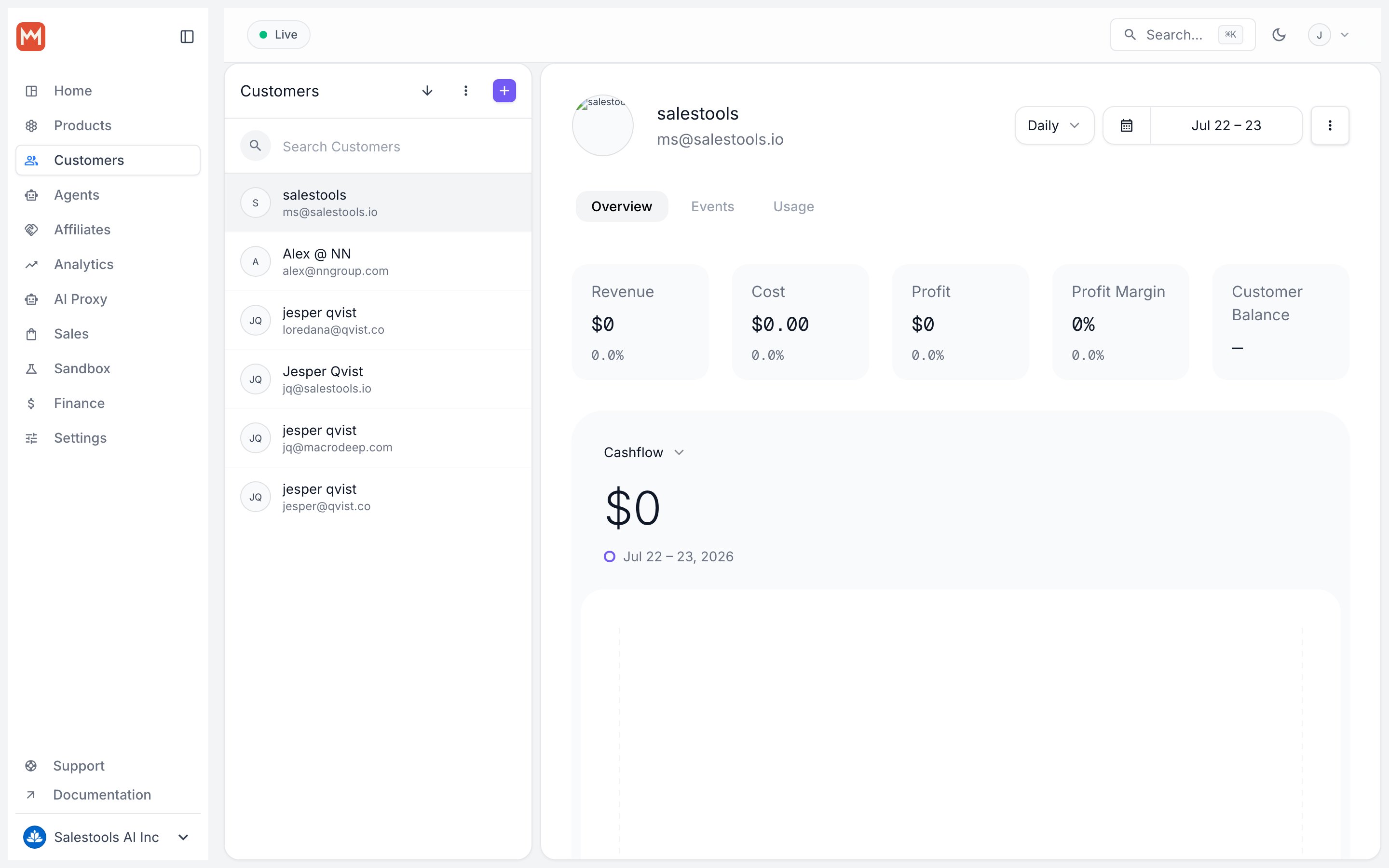
3
Choose the new plan
They pick the plan they want and confirm with Change Plan.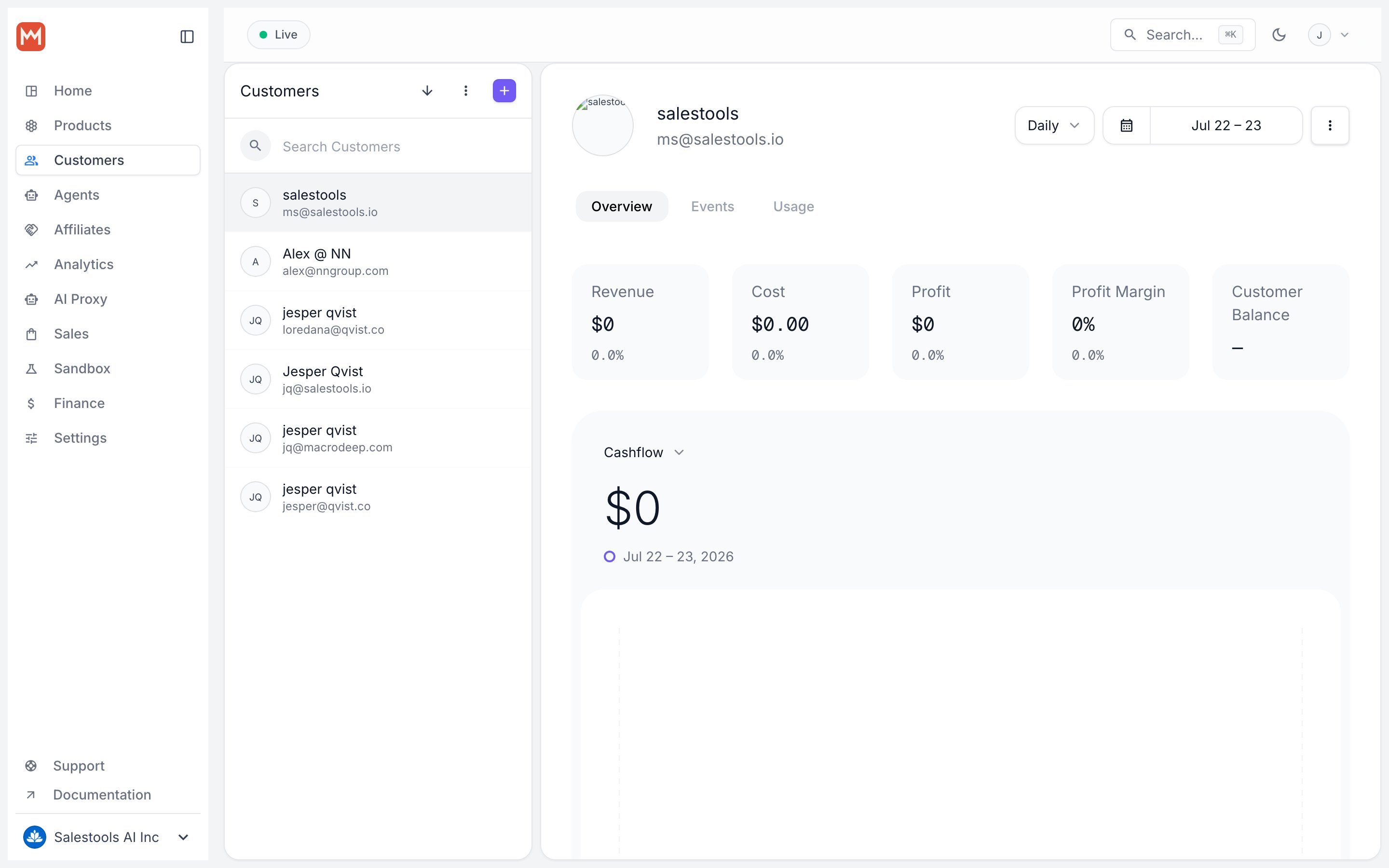
4
Done
Their subscription updates immediately to the new plan — the Advanced version in this example.