

How proration works in Macropay
Whichever proration type you pick, one thing is constant:The plan switch is always immediate. The moment you update the subscription, the customer is on the new product — upgrade or downgrade. Proration only controls when the price difference is settled, never whether the change takes effect.
If the billing interval changes (for example daily → monthly, or monthly → yearly, or the reverse), proration is always settled immediately as
invoice, even when your default is set to prorate.Set the default behavior
Pick one default that applies to every plan change in your organization. You can override it per-request through the API (see below).From the dashboard
1
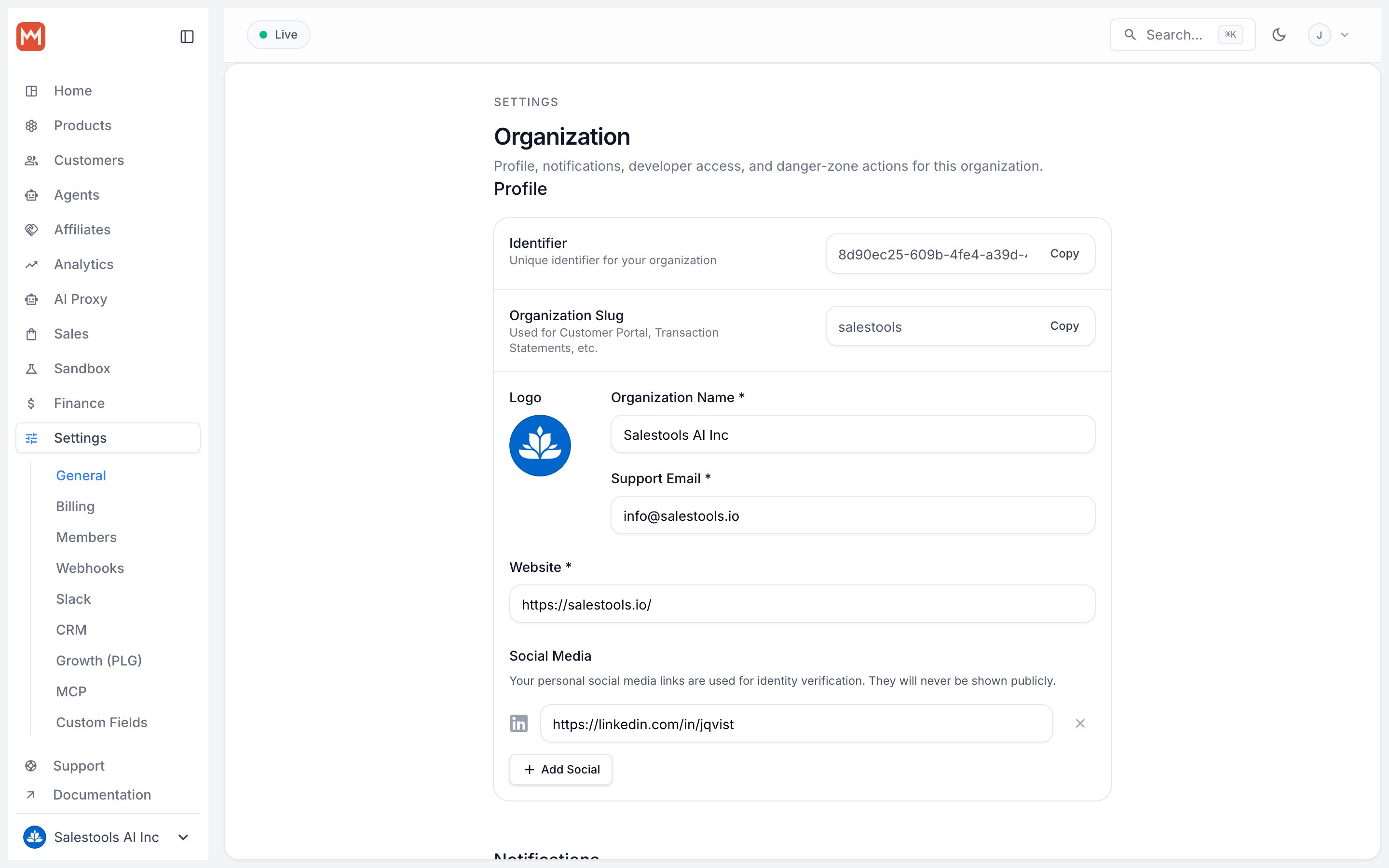
Open Organization Settings
In the Macropay dashboard sidebar, click Settings, or go straight to: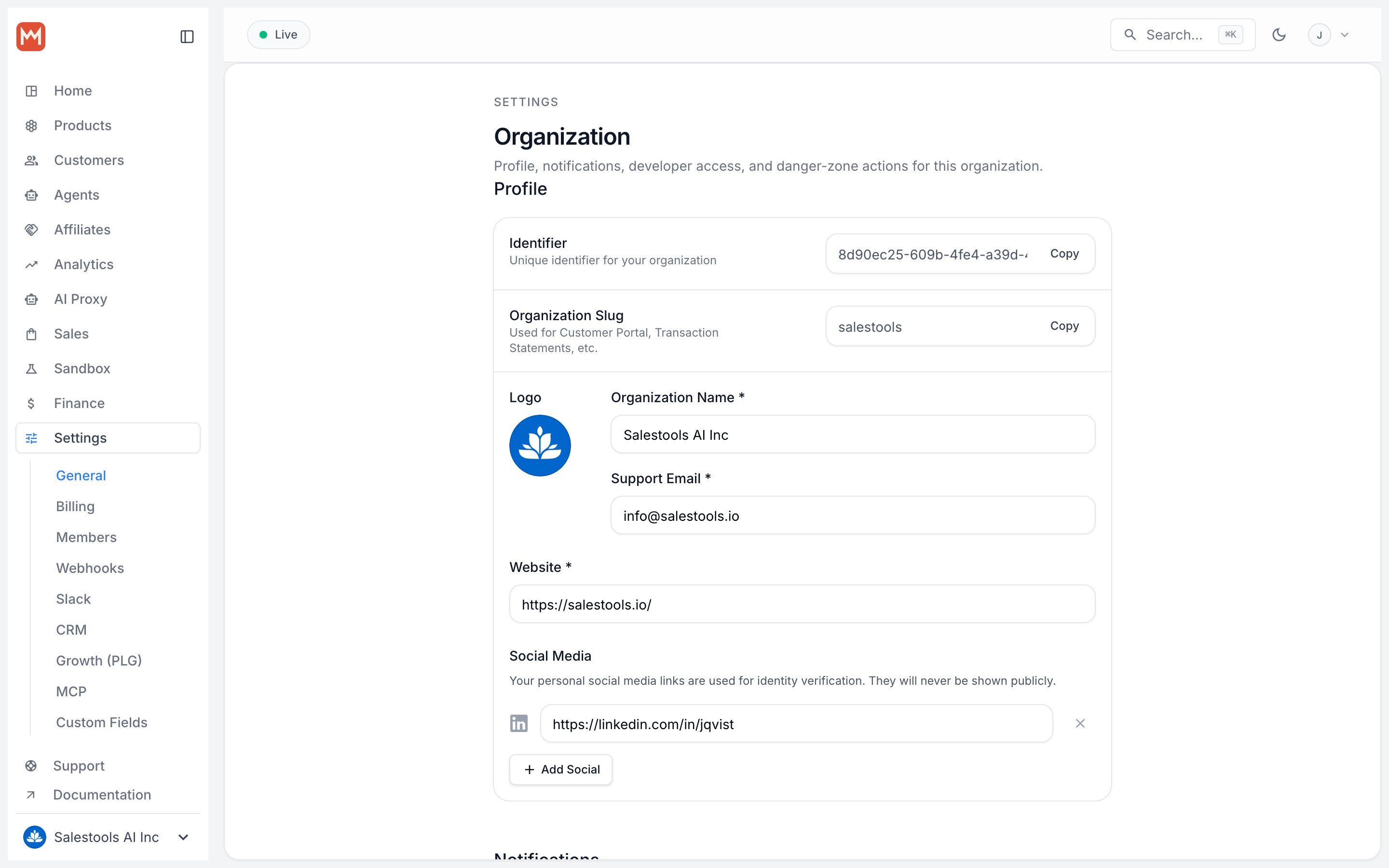
https://macropay.ai/dashboard/${org_slug}/settingsScroll to the Subscriptions section.2
Select a proration type
Choose Invoice Immediately or Next invoice. The change saves on selection.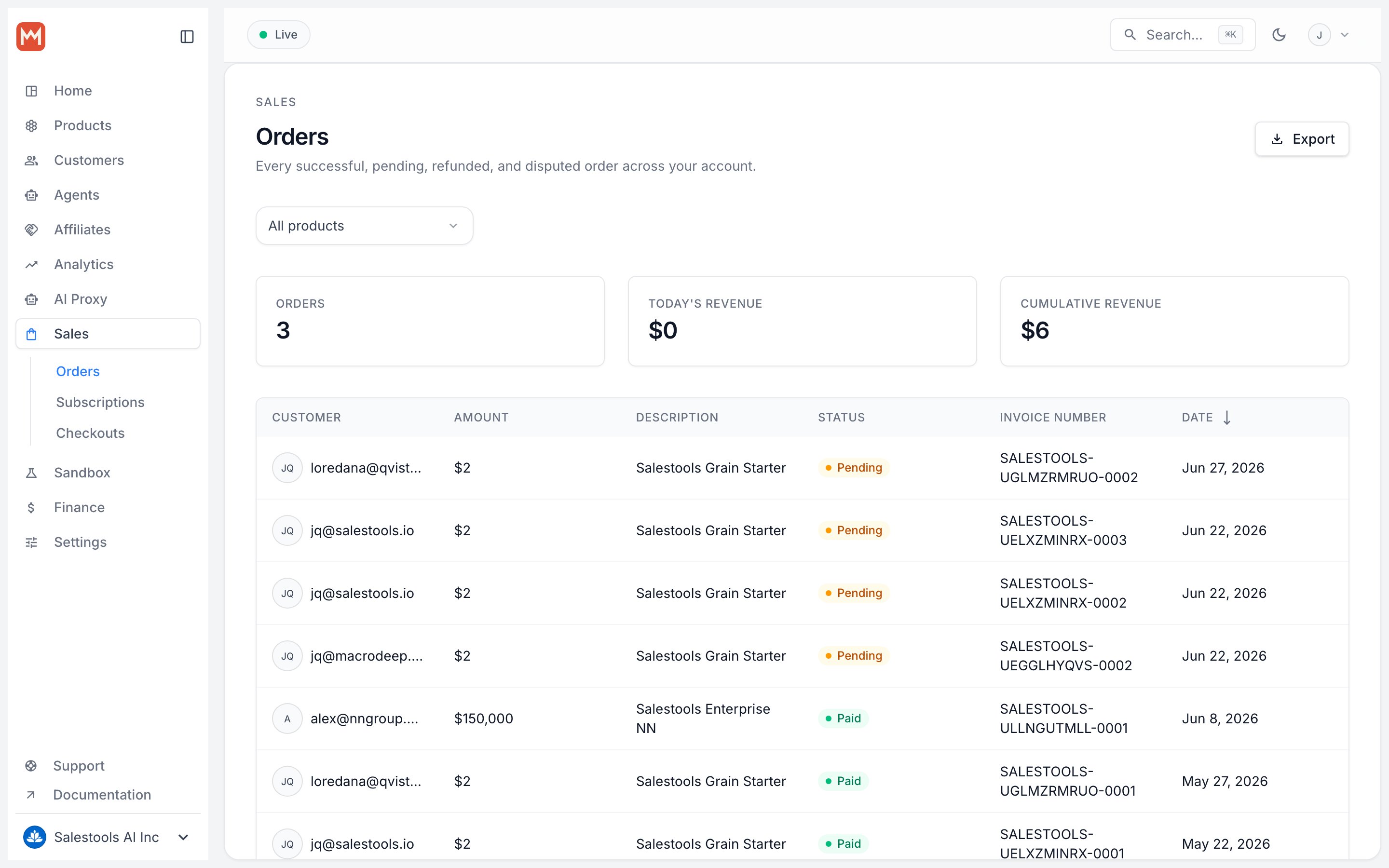
From the API
Prefer to manage settings programmatically? Update the organization default with the organization update endpoint.Change a plan with proration via API
This is the per-subscription path: switch a customer’s product and decide, on the spot, how the difference settles.1
Create an organization access token
Generate an OAT by following the organization access tokens guide.
2
Save the token
Copy the token as soon as it’s shown — it won’t be displayed again.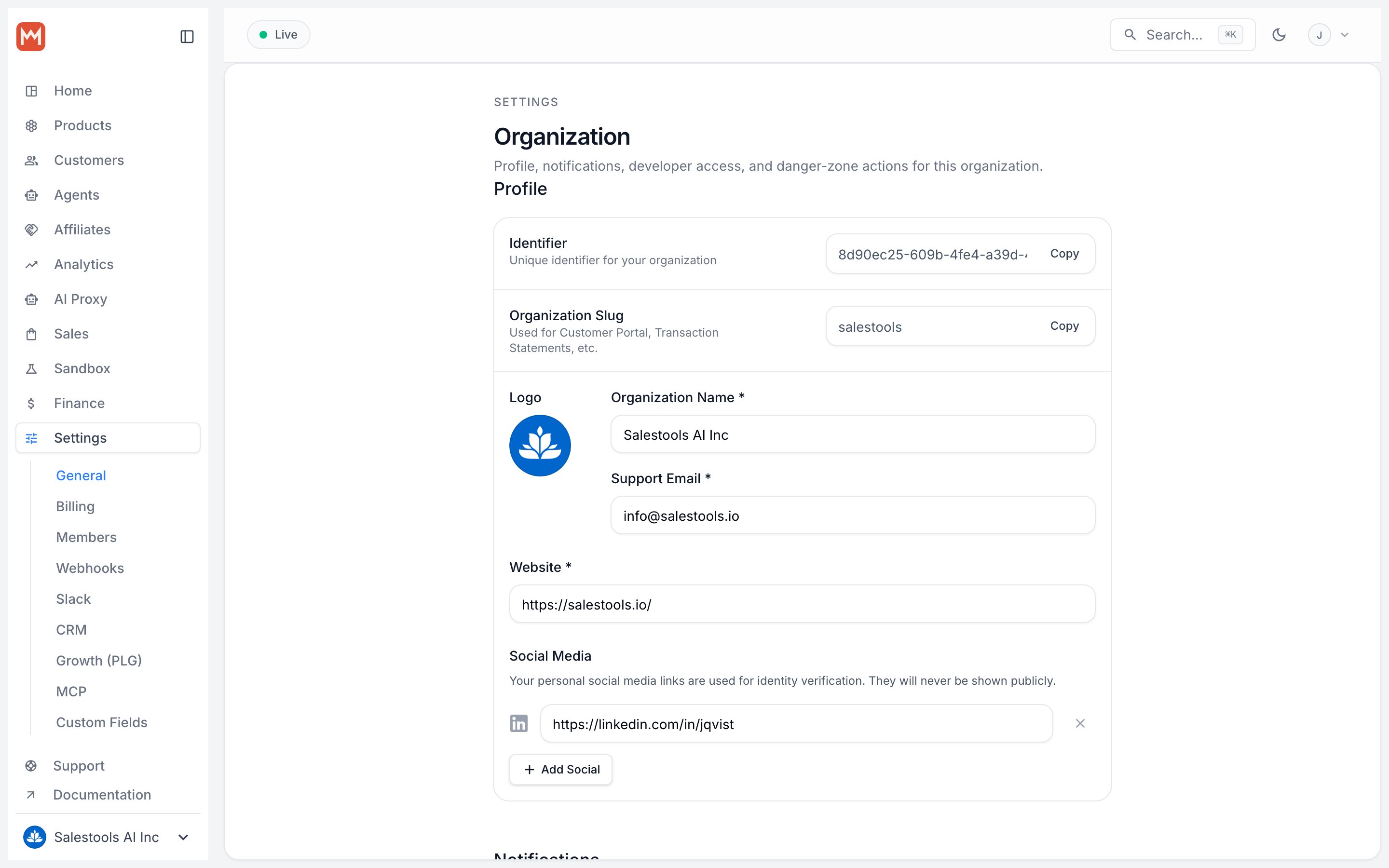
3
Find the subscription ID
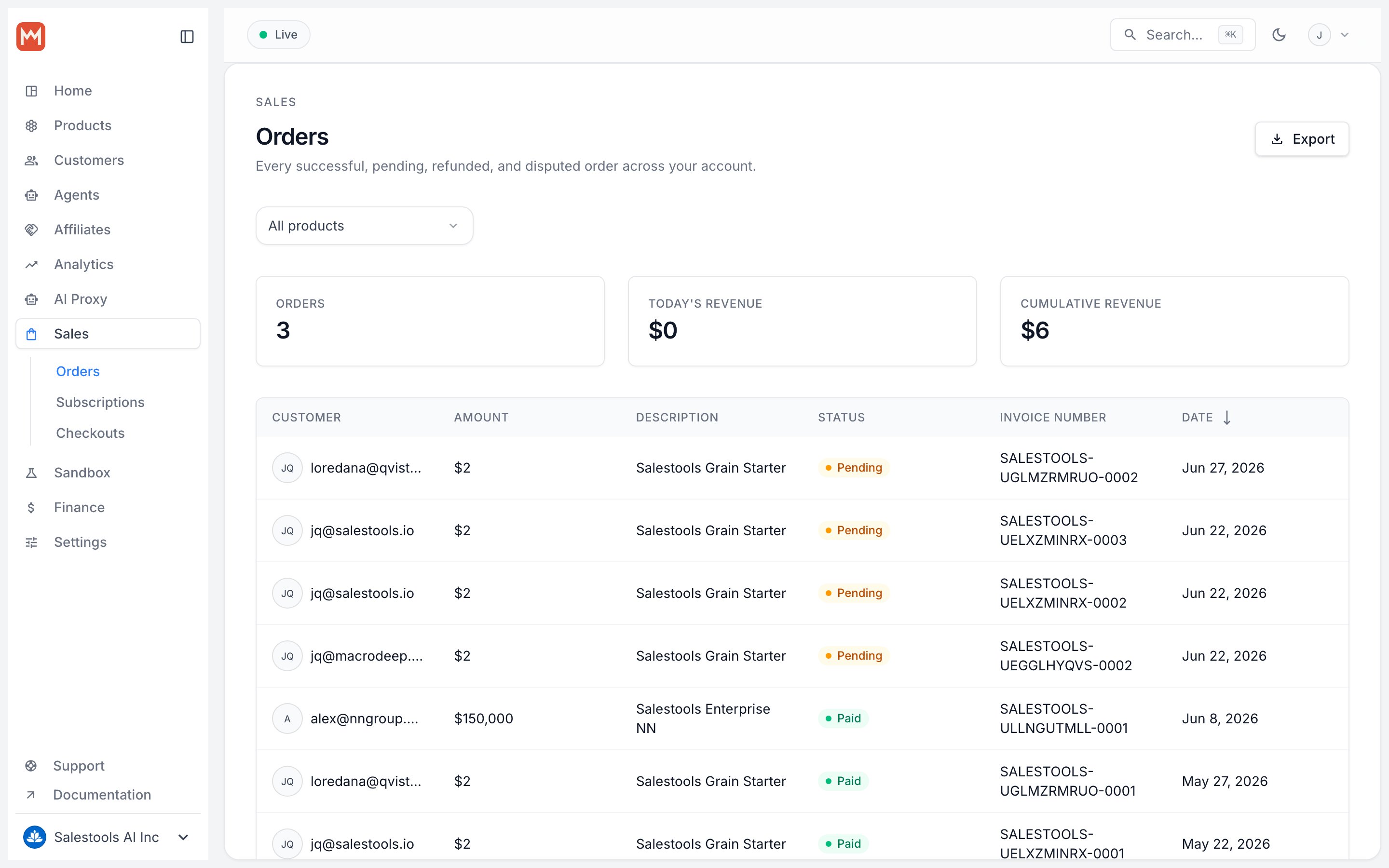
In the sidebar, go to Sales › Subscriptions, or: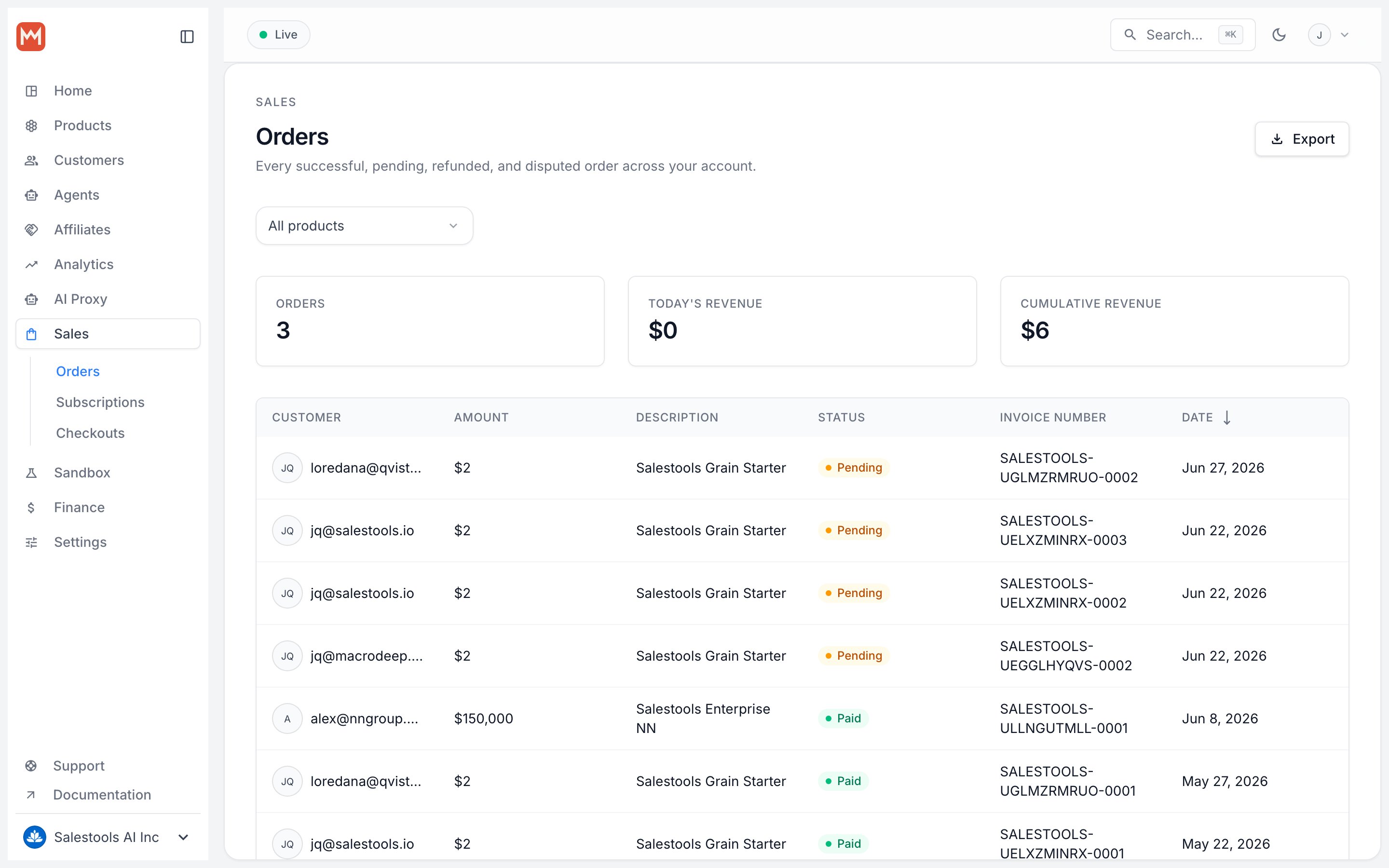
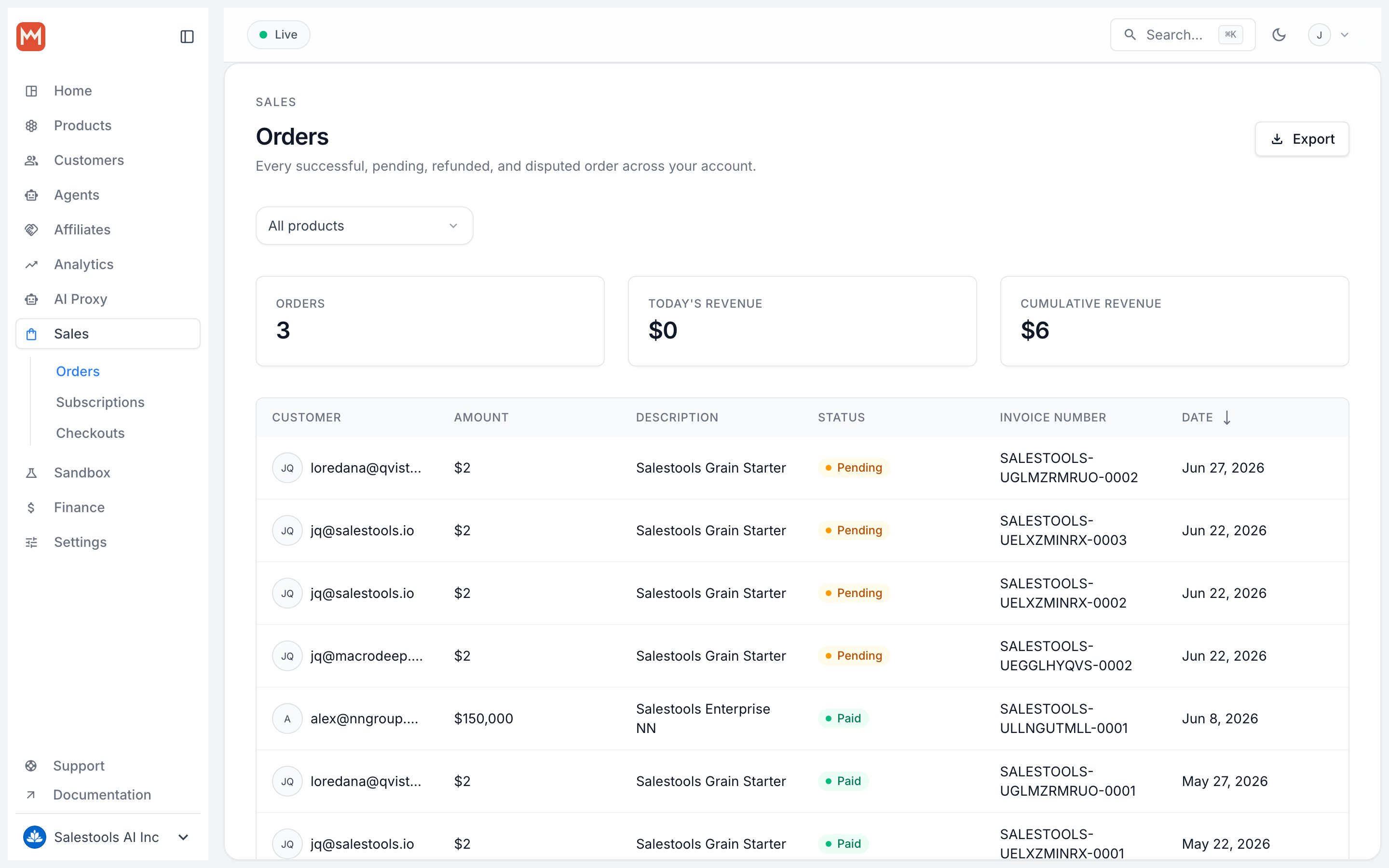
https://macropay.ai/dashboard/${org_slug}/sales/subscriptions4
Find the target product ID
Go to Products › Catalogue, or: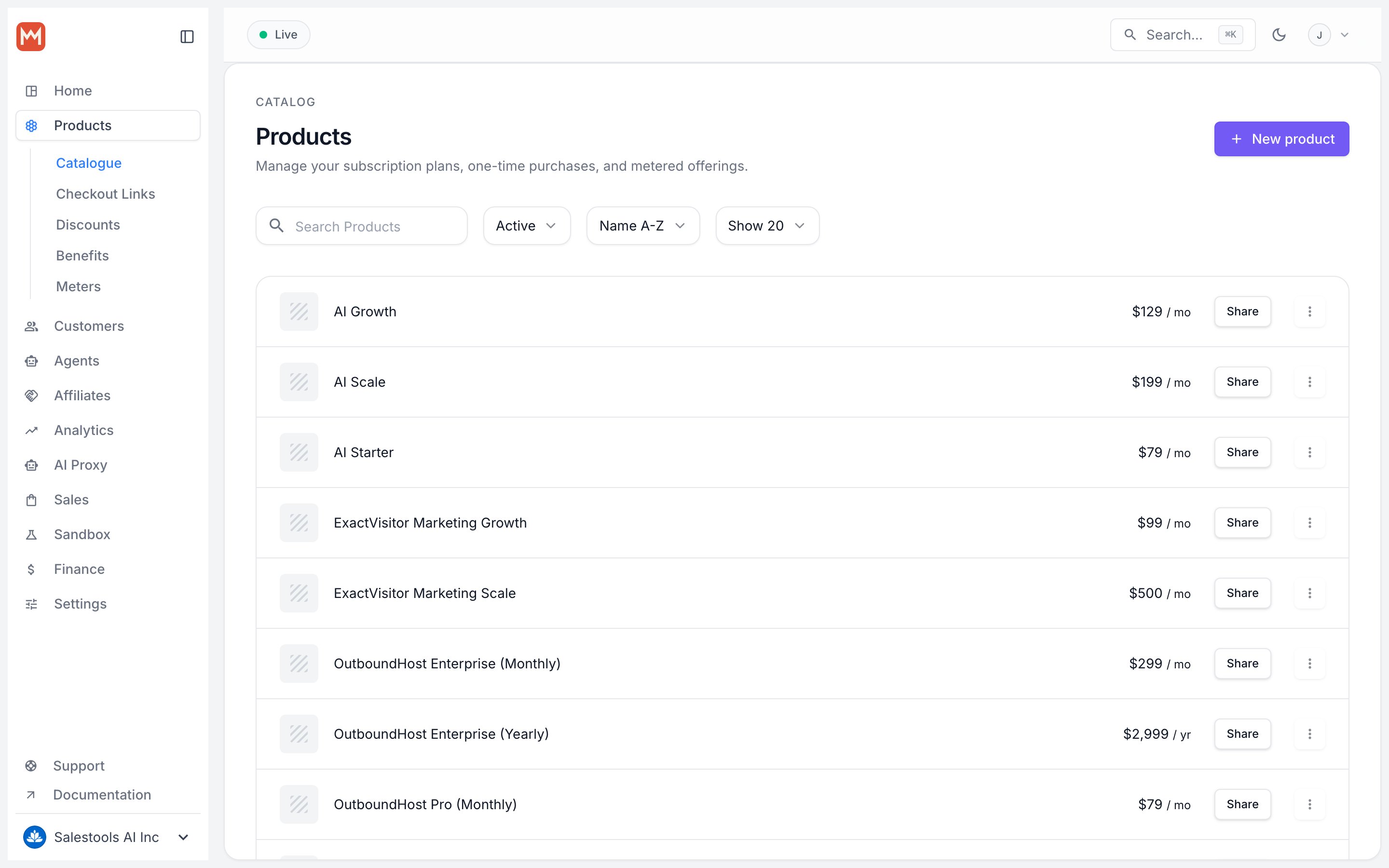
https://macropay.ai/dashboard/${org_slug}/products5
Call the Update Subscription endpoint
Send a
PATCH to /v1/subscriptions/{id}. Replace:<subscription_id>— the subscription being changed<product_id>— the product to switch toproration_behavior—invoice(settle now) orprorate(settle on next invoice)
Worked examples
To make the math concrete, set up a product with two plans — a $8/month Starter** and a **$24/month Pro — following create product variants. Assume a 30-day billing month and that the customer switches on day 16, with 15 days remaining. For a 31-day month, the same logic applies with the remaining-days count adjusted accordingly.Upgrading the subscription
Walk through the merchant and customer experience in subscription upgrades.invoice — charge the difference now
The unused Starter time is credited and the remaining Pro time is charged, netted into one immediate invoice.
prorate — charge the difference on the next invoice
The same net amount is calculated, but it lands on the customer’s next regular invoice instead of being billed today.
Downgrading the subscription
Walk through the full flow in subscription downgrades.invoice — credit the difference now
The unused Pro time is credited against the remaining Starter cost and applied immediately.
prorate — credit the difference on the next invoice
The same credit is deferred and reflected on the next regular invoice.
Remember: any change that also changes the billing interval is settled immediately as
invoice, regardless of your default or the proration_behavior you pass.