

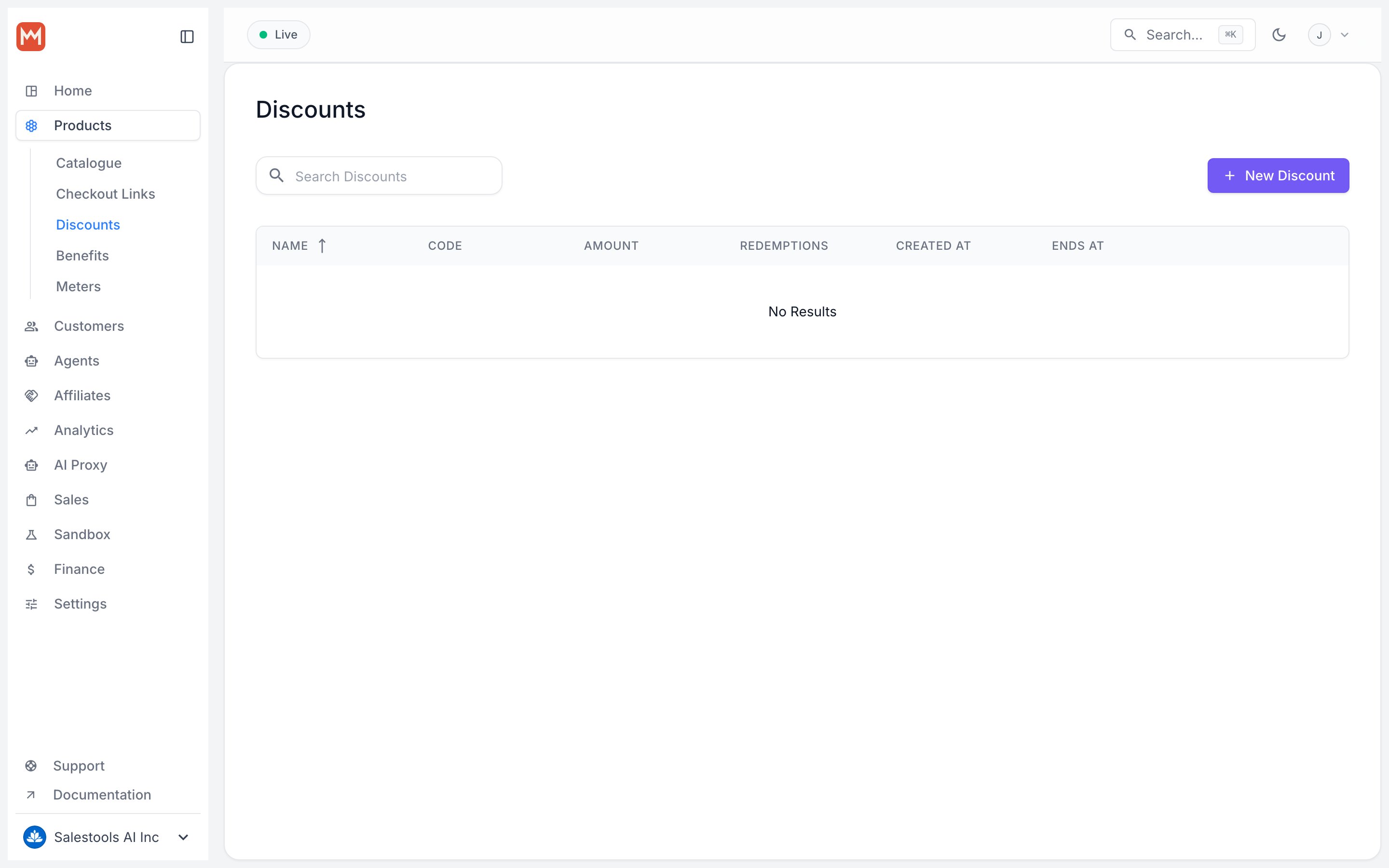
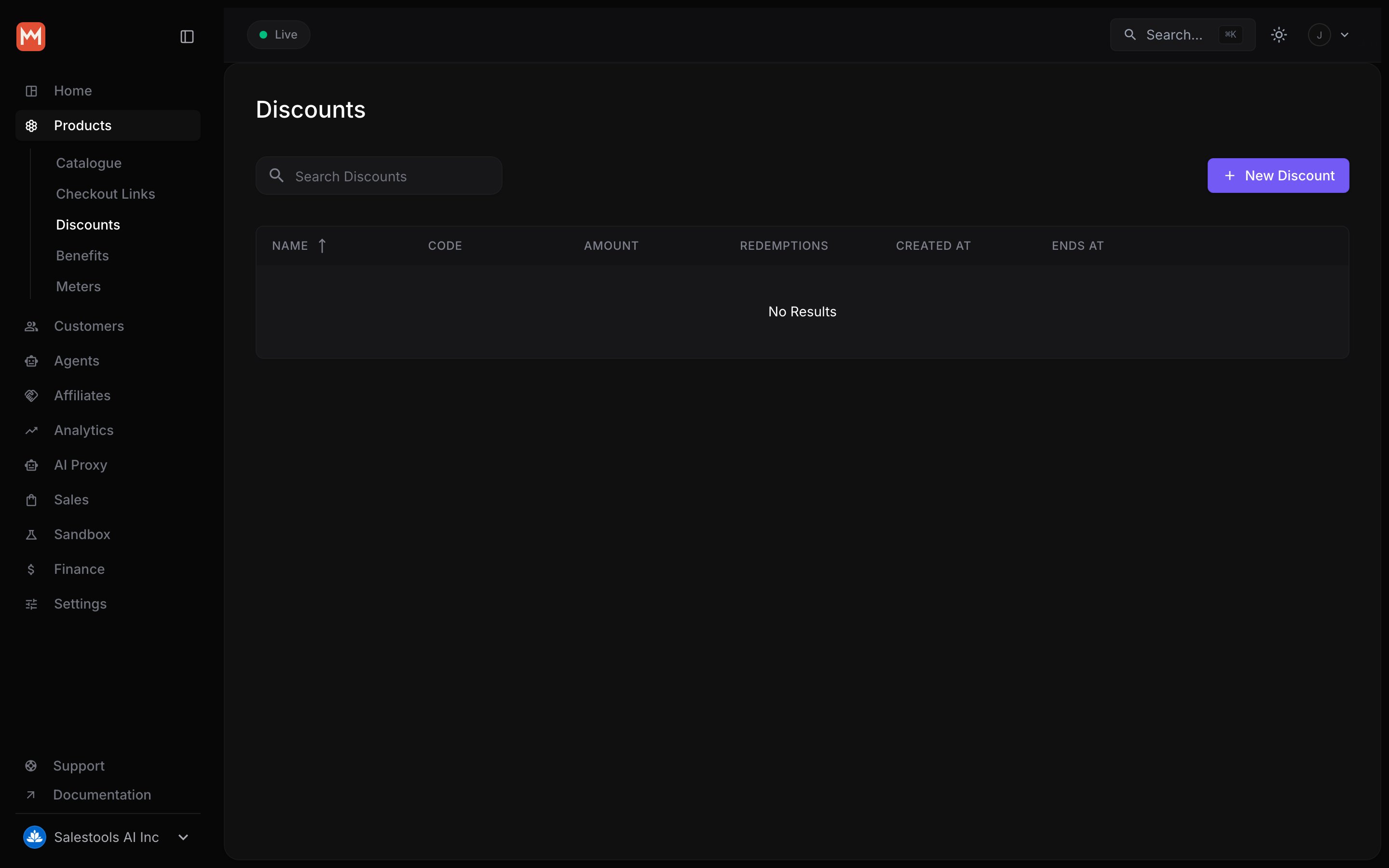
Create a discount
Open the Products page in the dashboard and switch to the Discounts tab. Each discount is defined by a few fields.Recurring behavior
For subscriptions, choose how long a percentage discount keeps applying:- Once — applied to the first invoice only.
- Several months — applied for a fixed number of billing cycles, then full price resumes.
- Forever — applied indefinitely for the life of the subscription.
Restrictions
Tighten where and when a discount can be redeemed:- Products — limit the discount to specific products. By default it covers every product, including ones you create after the discount.
- Starts at — the discount becomes redeemable on this date.
- Ends at — the discount stops being redeemable after this date.
- Maximum redemptions — cap the total number of times the discount can be used.
Apply a discount
There are three ways to get a discount onto a customer’s checkout.1. Auto-apply via a Checkout Link
When you build a Checkout Link, you can attach a discount that applies the moment a customer lands on the page — no code to type, no chance they forget it. This is the cleanest path for a campaign where you want the price guaranteed: a Product Hunt launch link, an affiliate partner’s URL, or a newsletter promo.Code-less discounts can only be applied through a Checkout Link or the API. If you want customers to enter a coupon manually, give the discount a Code.
2. Prefill a code via query parameter
Append adiscount_code query parameter to any Checkout Link to prefill the coupon field:
3. Apply programmatically via the Checkout API
Create a Checkout Session and pass the discount yourself. Handy for AI agents and apps that assemble a personalized cart — for example, an upgrade flow that grants a loyalty coupon based on a customer’s usage:However a discount is applied, Macropay stays the seller of record on the customer’s statement and remits the correct tax on the discounted amount — you never reconcile VAT against a coupon yourself.