

What you get
A File Downloads benefit can hold multiple files. Buyers of the product receive every enabled file in the benefit as a single bundle of downloads.
Create a File Downloads benefit
1
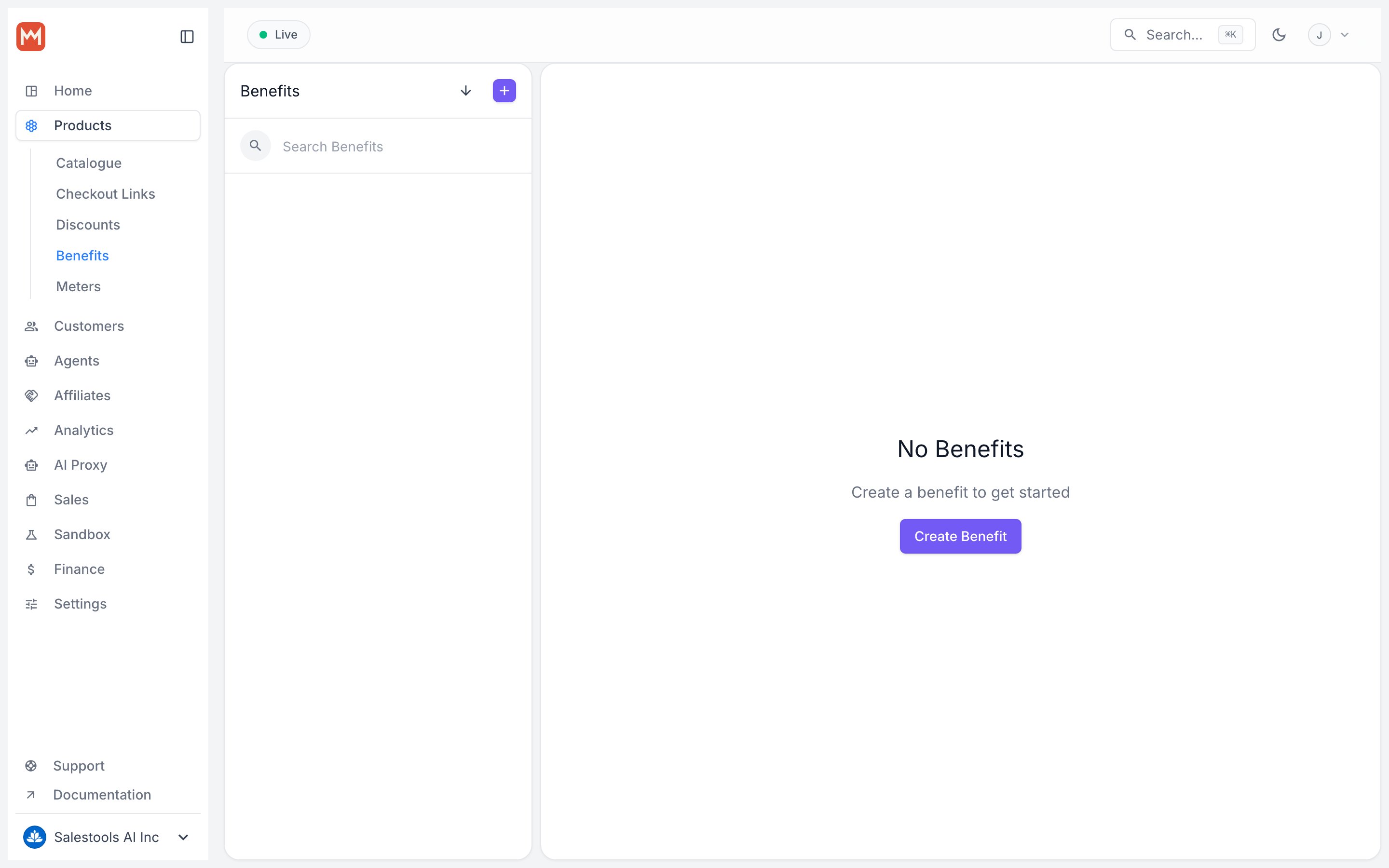
Open Benefits
Go to Benefits in the Dashboard sidebar.
2
Add a benefit
Click + Add Benefit.
3
Pick the type
Choose File Downloads as the Type.
4
Upload your files
Drag and drop files onto the dropzone (
Feed me some bytes), or click it to open a file browser. Uploads stream straight into our storage as you add them.Manage the files in a benefit
Rename a file
Rename a file
Click the filename to edit it inline. The new name is what customers see on their download.
Reorder files
Reorder files
Drag and drop files into the order you want them presented to customers.
Verify the SHA-256 checksum
Verify the SHA-256 checksum
Open the contextual menu (the dots) and choose Copy SHA-256 Checksum. Publish it alongside your release so customers can confirm the bytes they downloaded match what you shipped.
Disable a file
Disable a file
Open the contextual menu and choose to disable the file. This is the safe way to retire a file without destroying it — see access rules below.
Delete a file
Delete a file
Open the contextual menu and choose Delete.
How access changes propagate
Enabling, disabling, adding, and deleting files each behave differently for people who already own the benefit. Here’s the full matrix:Disabling preserves legacy access on purpose. Someone who bought before you disabled a file keeps their copy — useful for grandfathering older releases while you steer new buyers to the current version.
Pair downloads with usage or agent billing
File downloads cover the “deliver the artifact” half of a product. For products where value accrues after delivery — an agent customers run, an API they call, a model they query — combine the download with usage-based billing so the file is the on-ramp and metered usage is the revenue. A few patterns that work well:- SDK or CLI + metered API — ship the binary as a download, then meter calls against the AI proxy or your own ingested events.
- Agent distribution — hand over an agent bundle as a file, then bill its real work via the Signals API and attach value receipts that certify the outcomes it produced.
- Templates + credits — give away a starter file for free, then sell prepaid credits the customer burns down as they use the tooling.