

What you get out of the box
No key server to host, no expiry cron to babysit, no admin panel to build for self-service.
Create the benefit
1
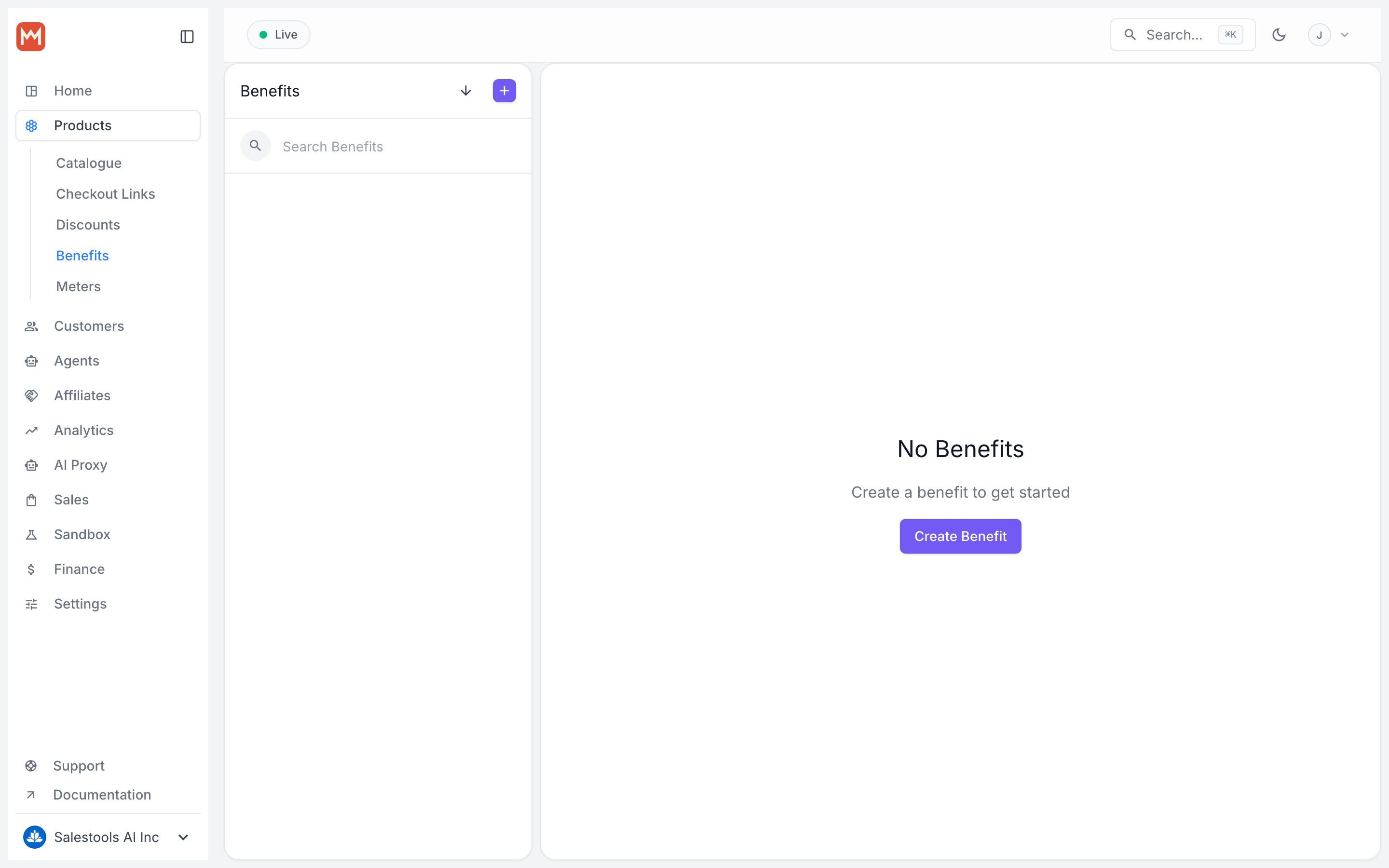
Open Benefits
Select Benefits in the dashboard sidebar.
2
Add a new benefit
Click + New Benefit.
3
Choose License Keys
Set the Type to License Keys, then configure the options below.
Branded prefixes
Give keys a recognizable identity. A prefix ofACME produces keys such as ACME_<AUTO_GENERATED_UUID4> — useful when a customer pastes one into a ticket and you want to spot it at a glance.
Automatic expiration
Want access to lapse a fixed period after purchase? Set an expiry window and Macropay stampsexpires_at on every issued key. Perpetual-with-updates, annual, or short trial licenses all map cleanly onto this.
Activation limits
Require a key to be activated before it validates. This caps usage to a set number of instances — devices, IPs, CI runners, whatever you define — and lets customers self-manage their slots from the customer portal. No bespoke “manage your devices” screen to build on your side.Usage quotas
Reselling LLM tokens, render minutes, or API calls? Attach a usage quota to the key and increment it on each validation. The key carries bothusage and limit_usage, so a single call tells you whether the customer still has headroom.
What the customer sees
The instant a purchase or subscription clears, the buyer is issued a unique key, visible on their purchases page in the customer portal. From there they can:- View and copy the key
- Check the expiration date, if one is set
- See remaining usage, if a quota applies
- Deactivate activations, if activation limits are enabled
Integrate the API
Wiring license keys into your app, library, or API takes two endpoints: an optional activate call and a validate call you run each session.Step 1 — Activate (only with activation limits)
If a benefit caps activation instances, register an activation before the key can validate. Each activation represents one device, seat, or environment counting against the limit.No activation limit configured? Skip straight to validation.
Terminal
string
required
The customer’s license key, captured from input in your app.
string
required
Your organization ID, found in your dashboard settings.
string
required
A human-readable label for this activation, e.g. the machine or environment name.
object
Custom values to re-check on future validations — IP, MAC address, major version, and so on.
object
Arbitrary metadata to store alongside the activation.
Response (200 OK)
id — you’ll pass it as activation_id when you validate.
Step 2 — Validate
Validate the key on each session of your app, library, or API through the validate endpoint. This is also where you increment usage when a quota applies.Terminal
string
required
The customer’s license key, captured from input in your app.
string
required
Your organization ID, found in your dashboard settings.
string
The activation to validate against. Required when activation limits are enabled and in use (see Step 1).
object
When validating an activation, pass the same conditions object you registered it with.
integer
Amount to add to the key’s usage counter on this validation.
Response (200 OK)
granted status means the key is live; check expires_at and the usage / limit_usage pair to decide whether to unlock your feature.